Hello! Welcome to the first lesson in our new module, "Data Cleaning and Validation Techniques."
In the last module, we mastered retrieving and linking data using lookup formulas. You learned how to use IFERROR to make your reports look professional and prevent errors from breaking your calculations. Now, we shift our focus from retrieving data to preparing it. As an MIS Executive, you will frequently receive data from various sources—user inputs, system exports, or copied from emails—and it will rarely be in a perfect, ready-to-use format.
This is where data cleaning comes in, and it's a fundamental skill for reliable reporting. Today, our goal is to use text functions (TRIM, CLEAN, UPPER, PROPER) to standardize text data. We'll learn how to fix common issues like extra spaces, non-printable characters, and inconsistent capitalization that can silently sabotage your analysis.
1. The Invisible Problems: Extra Spaces & Hidden Characters
One of the most common and frustrating issues in Excel is data that looks right but doesn't behave as expected. For example, a VLOOKUP might fail to find a match that you can clearly see, or a COUNTIFS function might undercount categories. The culprit is often invisible: extra spaces or non-printable characters hidden within the text.
Let's explore the two essential functions to solve this:
TRIM(): Removes all leading and trailing spaces from a text string. It also standardizes spaces between words to a single space.CLEAN(): Removes non-printable characters from text. These are often characters that come along when you copy data from web pages or other systems.
The following video provides an excellent demonstration of why these "invisible" problems are so tricky and how to solve them. It also introduces a pro-level technique for dealing with a particularly stubborn type of space character.
Excel: Trim - Clean - Substitute - Len Functions to fix your data by Chris Menard
In this video, 'Excel: Trim - Clean - Substitute...', instructor Chris Menard does a fantastic job of diagnosing data cleaning issues. He uses the LEN function to show that cells contain hidden characters and then walks through how TRIM and CLEAN work to fix them.
Watch from 01:59 to 07:45. As you watch, focus on: How TRIM solves the problem of leading, trailing, and extra spaces between words (01:59). Why TRIM alone sometimes isn't enough, and how CLEAN helps remove non-printable characters (03:41). The powerful final formula he builds using TRIM, CLEAN, and SUBSTITUTE to handle the tricky non-breaking space character, CHAR(160). This is a formula worth saving for your future work (05:00).
The key takeaway from the video is that while TRIM and CLEAN are powerful, sometimes you need an even more robust formula for data imported from external sources:
=TRIM(CLEAN(SUBSTITUTE(cell, CHAR(160), " ")))
This formula first substitutes the non-breaking space (CHAR(160)) with a regular space, then removes any other non-printable characters with CLEAN, and finally removes all excess spaces with TRIM. This nested approach is a hallmark of professional data cleaning.
2. The Visible Problem: Inconsistent Capitalization
Another common issue that hinders analysis is inconsistent text case. To Excel, "phishing", "Phishing", and "PHISHING" are three different things. If you try to create a summary report or a PivotTable, these will appear as separate categories, making your report inaccurate.
We have three functions to enforce consistency:
UPPER(): Converts all characters in a text string to uppercase (e.g., "Phishing" becomes "PHISHING").LOWER(): Converts all characters to lowercase (e.g., "Phishing" becomes "phishing").PROPER(): Capitalizes the first letter of each word and converts all others to lowercase. This is ideal for names or titles (e.g., "JANE doe" becomes "Jane Doe").
The following short video quickly demonstrates how each of these works.
This clip from the 'MS Excel - Text Functions' video by TutorialsPoint provides a quick, clear demonstration of the PROPER, UPPER, and LOWER functions.
Watch from 01:07 to 02:18. You'll see a step-by-step application of each of the three case-changing functions.
For MIS reporting, using UPPER is often the safest bet for category fields (like incident types or statuses) because it creates an unambiguous, standardized format that is easy to read in reports and charts. PROPER is best reserved for fields containing names of people or places.
3. Combining Functions for a Complete Solution
The true power of these functions comes from nesting them to solve multiple problems at once. You almost never want to just use PROPER on its own; you want to use it on data that you've already cleaned of extra spaces.
Example 1: Cleaning Names
Imagine you have a list of employee names with extra spaces and inconsistent casing. You can fix both issues with a single formula.
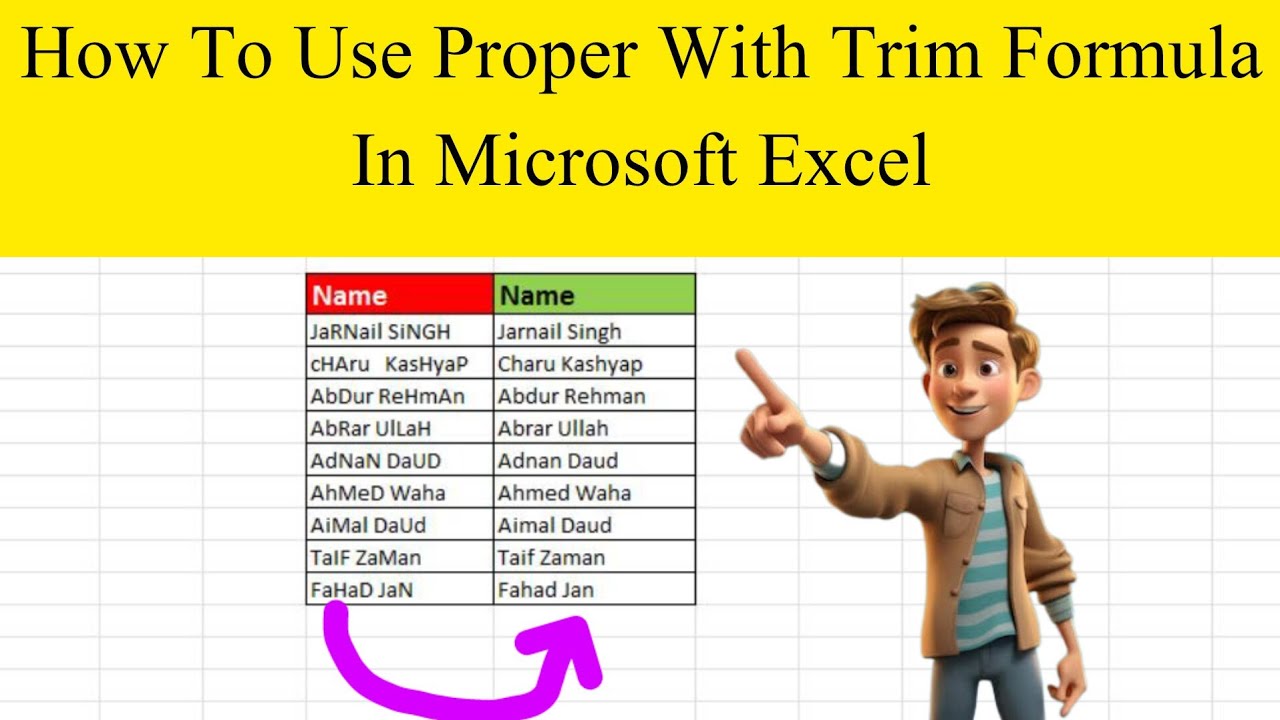
Example 2: Cleaning General Text Data
For other types of text data, like comments or descriptions, you can combine TRIM and CLEAN to ensure they are free of both spacing issues and hidden characters before you use them in your analysis.

4. Hands-On Practice
Your experience reviewing cyber-related data is very relevant here. Let's imagine you've just exported a list of incident types from a system, and the data is messy.
Here is your raw data in column A:
| A | |
|---|---|
| 1 | Incident Type |
| 2 | Phishing |
| 3 | malware |
| 4 | DATA LEAK |
| 5 | Ransomware |
| 6 | Phishing |
| 7 | Data Leak |
Your task is to create a clean, standardized list in column B that you can use for a summary report.
Task: In a blank Excel sheet, recreate the data above. Then, in cell B2, write a formula that does the following:
- Removes any leading or trailing spaces.
- Converts the text to a consistent case. For analytical purposes,
UPPERcase is a good standard.
Drag your formula down from B2 to B7.
Click here to see the solution and a discussion
Your formula in cell B2 should be:=UPPER(TRIM(A2))
When you drag this formula down, your column B should look like this:
| B | |
|---|---|
| 1 | Cleaned Incident Type |
| 2 | PHISHING |
| 3 | MALWARE |
| 4 | DATA LEAK |
| 5 | RANSOMWARE |
| 6 | PHISHING |
| 7 | DATA LEAK |
Notice how "Phishing" (row 2 and 6) and "Data Leak" (row 4 and 7) are now perfectly identical. If you were to build a PivotTable from column B, it would correctly group and count these items. If you had used the raw data in column A, you would have ended up with four separate line items for these two categories, leading to an incorrect report. This is the practical value of text standardization in an MIS role.
Key Takeaways
- Raw data is often "dirty" with extra spaces, hidden characters, and inconsistent capitalization.
TRIM()removes leading, trailing, and extra spaces between words.CLEAN()removes non-printable characters often found in imported data.UPPER(),LOWER(), andPROPER()are used to standardize text case, which is critical for accurate sorting, filtering, and aggregation.- Nesting these functions (e.g.,
=UPPER(TRIM(cell))) is a powerful and common practice to clean data in a single step.
Next Lesson
Great work! You've just taken the first and most important step in data preparation. Ensuring your text data is clean and standardized is the foundation upon which all reliable reports are built.
In the next lesson, we'll continue with data cleaning by tackling another common scenario: data that is cramped into a single column. You will learn how to split data from one column into multiple columns using Text to Columns and text functions (LEFT, RIGHT, MID).