Hello! Welcome back to our module on data cleaning.
In our last lesson, we focused on standardizing your data by fixing invisible issues like extra spaces and hidden characters with TRIM and CLEAN, and resolving inconsistent capitalization with UPPER and PROPER. These are critical first steps for data integrity.
Today, we'll tackle another common data preparation task. You will often receive data where multiple pieces of information are crammed into a single column, such as a full name, an address, or a complex ID. To make this data useful for reports and analysis, you need to split it apart.
Our learning outcome for this lesson is to split data from one column into multiple columns using Text to Columns and text functions (LEFT, RIGHT, MID). We will explore two powerful methods to achieve this, moving from a quick, tool-based approach to a more flexible, formula-based one.
1. The Quick Split: Text to Columns
When your data is structured with a consistent separator (like a space, comma, or hyphen), Excel's Text to Columns feature is the fastest way to split it. This tool is a wizard that guides you through the process in a few clicks. It's a one-time action, meaning it won't automatically update if the original data changes, but it's perfect for quick, ad-hoc data preparation.
This feature has two main modes:
- Delimited: Use this when your data is separated by a specific character (the "delimiter"). Examples: "John Smith" (delimiter is a space), "INC-12345" (delimiter is a hyphen).
- Fixed width: Use this when the data you want to split is always in the same position in the text string, like data exported from an old system where the first 10 characters are always the product code.
Let's watch a quick demonstration of the most common method, using a delimiter.
Master Data Cleaning Essentials on Excel in Just 10 Minutes
The video 'Master Data Cleaning Essentials on Excel' from Kenji Explains shows a practical example of using Text to Columns to split a 'Department_Region' field into two separate columns.
Watch the section from 05:48 to 06:55. Notice how the wizard allows you to specify the delimiter (in this case, an underscore) and choose the destination for the new columns.
As you saw, the process is straightforward. Here is a visual summary of the steps for splitting a "Full Name" column using a space as the delimiter.

The Text to Columns tool is an essential part of any MIS toolkit for its speed and simplicity. It's your go-to for one-off data restructuring tasks.
2. The Dynamic Split: Text Functions
While Text to Columns is fast, it's not dynamic. If your source data changes, you have to run the wizard again. For building trackers and reports where data might be updated, a formula-based approach using text functions is far more powerful. These formulas will automatically update whenever the source data changes.
The core functions for this are:
LEFT(text, num_chars): Extracts a specific number of characters from the start of a text string.RIGHT(text, num_chars): Extracts a specific number of characters from the end of a text string.MID(text, start_num, num_chars): Extracts characters from the middle of a text string, starting at a specific position.
The main challenge is that the number of characters you need to extract often varies. For example, "John Smith" and "Alexander Williamson" have first names of different lengths. To handle this, we combine the core functions with two helper functions:
LEN(text): Calculates the total number of characters in a text string.FIND(find_text, within_text): Finds the position of a specific character within a text string.
The following reading provides a fantastic, step-by-step guide on how to use these functions, starting with the basics and then combining them to handle dynamic data.
Excel Functions LEFT, RIGHT, MID, and LEN for Substrings
The article 'Excel Functions LEFT, RIGHT, MID, and LEN for Substrings' from Spreadsheeto will walk you through these essential text functions. It starts with simple examples and then shows you how to combine them to perform complex extractions.
Please read through the article, focusing on these key sections: 'Extract text string using the LEFT/RIGHT/MID function': Understand the basic syntax and purpose of each function. 'Extract substring before or after a specific character': This is the most important part. Pay close attention to how FIND is used with LEFT to extract text before a delimiter (like a period or space). 'Combining FIND functions' and 'Using the Excel LEN function': See how MID, RIGHT, LEN, and multiple FINDs work together to extract first and last names from a full name string. This is a very common and powerful technique.
As you read in the article, combining these functions is the key. For instance, to extract the username from an email address—a common task in your line of work—you can dynamically find the "@" symbol.
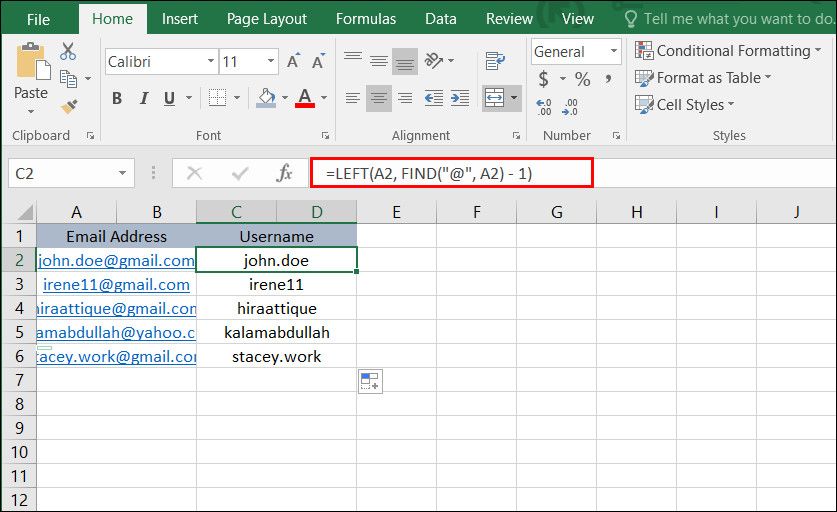
A professional tip: Before writing complex text formulas, it's a good habit to use the functions from our previous lesson. For example, wrap your source cell reference in TRIM() (e.g., TRIM(A2)) to ensure stray spaces don't break your FIND or LEFT logic.
3. Hands-On Practice
Let's apply these concepts to a scenario from your recruitment experience. Imagine you have a column of data that combines a candidate's full name with their unique Job ID. Your task is to split this into three separate, clean columns.
Here is your raw data:
| A | |
|---|---|
| 1 | Candidate Data |
| 2 | "John Smith (CYB-101)" |
| 3 | "Priya Sharma (LGL-205)" |
| 4 | "David Chen (REC-042)" |
| 5 | "Fatima Al-Jamil (CYB-108)" |
Your Task: In a blank Excel sheet, recreate this data. Then, using formulas, create three new columns: "First Name", "Last Name", and "Job ID".
- Hint 1: You'll need
LEFT,RIGHT,MID,FIND, andLEN. - Hint 2: Break the problem down. First, try to isolate the Job ID. Then, work on isolating the full name. Finally, split the full name.
- Hint 3: The space
" ", the opening parenthesis"(", and the closing parenthesis")"will be your key delimiters for theFINDfunction.
Take some time to work through this. The process of building these nested formulas is a core skill for an MIS role.
Click here to see the solution and a step-by-step breakdown
Here is one way to solve this challenge. Let's assume your data is in cell A2.
1. Extract Job ID (Column D)
The Job ID is inside the parentheses. We can use MID to get it. First, we need to find the start and end points.
- The start position is one character after the "(". We find it with
FIND("(", A2) + 1. - The number of characters is the position of the ")" minus the position of the "(" minus 1. This is
FIND(")", A2) - FIND("(", A2) - 1.
The final formula in D2 would be:=MID(A2, FIND("(", A2) + 1, FIND(")", A2) - FIND("(", A2) - 1)
Result for D2: CYB-101
2. Extract Full Name (Temporary Column in B)
The full name is everything to the left of the "(".
The formula in B2 would be:=LEFT(A2, FIND("(", A2) - 2)
(We subtract 2 to remove the space and the parenthesis).
Result for B2: John Smith
3. Extract First Name (Column B)
Now we work from our temporary "Full Name" column (let's say it's in a new cell, B2, containing "John Smith"). The first name is everything to the left of the space.
The formula in B2 would be:=LEFT(B2, FIND(" ", B2) - 1)
Result for B2: John
4. Extract Last Name (Column C)
The last name is everything to the right of the space. We need the total length of the full name minus the position of the space.
The formula in C2 would be:=RIGHT(B2, LEN(B2) - FIND(" ", B2))
Result for C2: Smith
You can even combine these steps into single, more complex formulas if you prefer, but breaking them down is a great way to ensure accuracy. Your final table should look like this:
| B | C | D | |
|---|---|---|---|
| 1 | First Name | Last Name | Job ID |
| 2 | John | Smith | CYB-101 |
| 3 | Priya | Sharma | LGL-205 |
| 4 | David | Chen | REC-042 |
| 5 | Fatima | Al-Jamil | CYB-108 |
Key Takeaways
- Data often needs to be split from one column into several before it can be analyzed.
- Text to Columns is a fast, wizard-based tool for quick, one-time splits based on delimiters or fixed widths.
- Text functions (
LEFT,RIGHT,MID) combined with helpers (FIND,LEN) provide a flexible and dynamic, formula-based solution. This is essential for building reusable trackers and reports. - Choosing the right method depends on the task: use Text to Columns for speed on static data, and functions for power and flexibility on dynamic data.
Next Lesson
You've now learned how to standardize text and restructure it by splitting columns. These are foundational data cleaning skills. In our next lesson, we will address another common data quality issue: we will learn how to identify and remove duplicate entries using the built-in Remove Duplicates tool.