Introduction
In our previous lesson, we mapped out the control centers of Windows, learning how to locate the Settings app, the classic Control Panel, and the essential Administrative Tools folder. You now know where to go to configure the system. Today, we'll shift our focus to managing the very things the operating system is built to handle: files and folders.
This lesson addresses a fundamental skill for any computer user, but it's especially critical for a technical support analyst. You will constantly need to find log files, back up user data, organize downloaded drivers, and guide users to locate their own files. Our goal is to master the use of File Explorer to perform the five core file management operations: creating, copying, moving, renaming, and deleting files and folders.
Getting Started with File Explorer
File Explorer is the graphical interface you use to navigate the entire file system of your computer. Think of it as your window into all the data stored on your drives.
The easiest way to open it is by clicking the folder icon on your taskbar. A professional shortcut you should memorize is WinKey + E. This key combination instantly opens File Explorer, no matter what application you are in.
When you open File Explorer, you'll see a set of standard folders. Understanding their purpose is the first step to good organization.
✔️ Windows 11 - Files & Folders for Beginners - Get Organized - Get Control of Your Files & Folders
This video for Windows 11 provides a great introduction to File Explorer and the purpose of the default user folders.
Watch the first part of the video, from the introduction to File Explorer. Pay close attention to the explanation of the standard folders like Documents, Desktop, and especially Downloads. As a support analyst, you will often find that users' "lost" files are simply sitting in the Downloads folder.
Creating and Organizing Your Workspace
The first step in managing files is creating folders to keep them organized. A clean folder structure makes finding what you need much faster. You can create folders anywhere, such as on your Desktop or within your Documents folder.
[PDF] computer basics – file management | mosaic
This guide provides simple, visual instructions for creating and renaming folders. The images are from an older version of Windows, but the steps are nearly identical in Windows 11.
First, read the two sections on creating folders: Make a folder – on the desktop and Make a folder – in File Explorer. This shows the two most common ways to do it: right-clicking in an empty space or using the "New" button. Next, review the section on renaming: Rename a file. This covers the essential right-click method. Another quick way to rename is to select a file and press the F2 key.
The Core Operations: Copy vs. Move
Once you have files, you'll need to move them into your new folders or make copies of them. It is absolutely critical to understand the difference between copying and moving.
- Copy: Creates a duplicate of the file or folder in a new location. The original remains untouched. Use this when you need the same file in two places or want to back something up before changing it.
- Move: Relocates the file or folder to a new location. The original is no longer in its starting place. Use this when you are organizing files into their correct folders.
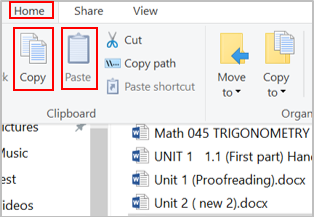
The actions you use for this are Copy, Cut, and Paste.
Copy+Paste= Copy a file.Cut+Paste= Move a file.
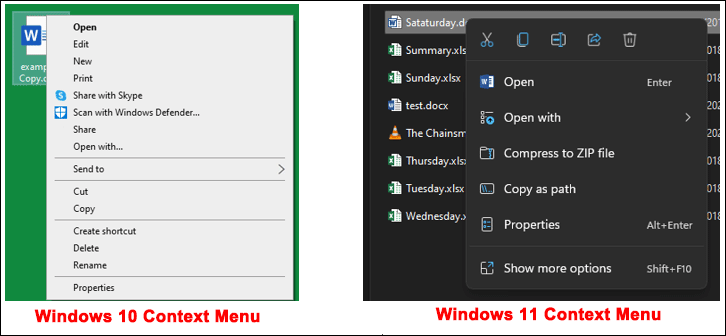
You can perform these actions using buttons in the File Explorer ribbon, or more commonly, by right-clicking on a file.
The right-click menu, also called the context menu, looks different in Windows 11 compared to Windows 10, but the functions are the same.
Now, let's see these actions, along with another powerful technique—drag-and-drop—in action.
✔️ Windows 11 - Files & Folders for Beginners - Get Organized - Get Control of Your Files & Folders
This video will walk you through the practical steps of selecting, copying, cutting, and moving files.
First, watch the segment on selecting multiple files from this point. Mastering the use of the Shift key (for a continuous block) and the Ctrl key (for individual items) is a huge time-saver. Note the mention of Ctrl+Z to undo a mistake—another essential shortcut! Next, watch how to use the Cut, Copy, and Paste commands to duplicate and move files. The video also shows how to select all files in a folder with Ctrl+A. Finally, see the demonstration of moving files using drag-and-drop from this section. Pay special attention to the pro tip of using the right mouse button to drag. This gives you a menu to explicitly choose whether to copy or move, which helps avoid mistakes.
Deleting and Recovering Files
The final core skill is deleting files you no longer need. When you delete a file, Windows doesn't immediately erase it. Instead, it moves it to the Recycle Bin, giving you a chance to recover it if you made a mistake.
[PDF] computer basics – file management | mosaic
This part of the guide clearly explains how deleting works and how to use the Recycle Bin.
Read the sections Delete a file and Restore a deleted file. This shows how to delete an item and, more importantly, how to get it back.
Files in the Recycle Bin still take up disk space. To permanently delete them and free up space, you must "Empty Recycle Bin." Be careful, as there's no easy way to recover files after this step!
Conclusion
In this lesson, we demystified the process of file management in Windows. By learning to use File Explorer effectively, you've gained a skill that is central to nearly every task a technical support analyst performs.
Here are the key takeaways:
- File Explorer is your primary tool for navigating and managing files, quickly opened with
WinKey + E. - The five core operations are create, rename, copy (using Copy/Paste), move (using Cut/Paste or drag-and-drop), and delete.
- Copying creates a duplicate, while moving changes the original's location.
- Selecting multiple files with
ShiftandCtrlis essential for efficiency. - The Recycle Bin acts as a safety net, allowing you to restore accidentally deleted files.
You are now equipped to organize digital files for yourself and to confidently guide users in managing their own.
In our next lesson, we will move from managing static files to controlling active programs. You will learn how to use the Task Manager to identify and stop applications that have become unresponsive—a classic and frequent troubleshooting scenario.