Introduction
Welcome to our first lesson on the Windows operating system! In the previous module, we focused on the physical machine, learning how to diagnose hardware issues like a computer that won't power on. Now that you know how to ensure a computer has power, we'll shift our focus to the software that brings it to life. For a technical support analyst, understanding the operating system is just as crucial as understanding the hardware.
This lesson is your first step into the digital workspace of Windows. Our goal is to learn how to navigate the interface to find the two most important control centers: the modern Settings app and the classic Control Panel. These are the hubs for almost all system configuration, troubleshooting, and management tasks. Mastering how to locate these areas and the powerful administrative tools within them is a fundamental skill you'll use every single day on the job.
The Two Faces of Windows Settings
In modern versions of Windows (like Windows 10 and 11), system configuration is handled in two main places. This can be confusing at first, but understanding why will make you a more effective troubleshooter.
- The Settings App: This is the modern, streamlined, and user-friendly interface that Microsoft wants most users to interact with. It covers the most common settings for personalization, networking, updates, and more.
- The Control Panel: This is the classic, comprehensive collection of tools that has been part of Windows for decades. While Microsoft is slowly moving its functions to the Settings app, the Control Panel is still home to many advanced and essential utilities.
As a support analyst, you need to be comfortable with both.

Let's start with a tour of the modern Windows 11 interface, which will show us how to find and use the Settings app.
How To Use Windows 11! (Complete Beginners Guide) (2024)
This video provides an excellent beginner's guide to the Windows 11 interface. We'll focus on the Start Menu, which is your main gateway, and the Settings app itself.
First, watch the section on the Start Menu and search functionality from the beginning of the explanation. Pay close attention to how the search bar is used to find applications and settings. This is the fastest way to find what you're looking for. Next, jump to the segment that specifically introduces the Settings app. Watch from the guide to the Settings app to get an overview of its main categories like System, Network & Internet, and Personalization. Don't worry about understanding every single option; just focus on the overall layout.
As you saw, the simplest way to open the Settings app is to click the Start button and type "Settings". However, for an even quicker method, you can use a keyboard shortcut.
[PDF] Windows-11-in-easy-steps-9781840789478-TOCCh1.pdf
This PDF excerpt lists several useful keyboard shortcuts.
In the "Keyboard Shortcuts" section, find the shortcut for accessing the Settings app. It's a combination you'll want to memorize: WinKey + I.
Pressing the Windows key and the letter I together will instantly open the Settings app, no matter what you're doing. This is a favorite trick of IT professionals.
The Classic Control Panel
While the Settings app is great for everyday tasks, many deeper system configurations and troubleshooting tools still live in the classic Control Panel. Knowing how to get there is essential.
Professor Messer, a respected source for IT certification training, provides a clear guide on accessing and navigating the Control Panel.
The Windows Control Panel - CompTIA A+ 220-1202 - 1.6
This video demonstrates the professional way to access and view the Control Panel.
Watch the first minute of the video, from the start of the demonstration. Notice how he uses the search bar to find the Control Panel and, importantly, how he changes the "View by" option from "Category" to "Large icons." This makes all the individual tools visible at once, which is often much more efficient.
The "Category" view groups items, which can hide the specific tool you're looking for. Switching to "Small icons" or "Large icons" presents a complete, alphabetized list, which is usually easier for a support analyst to scan through.
Unlocking the Toolbox: Administrative Tools
Buried within the Control Panel is a special folder called Windows Tools (or Administrative Tools in some versions). This folder is the holy grail for a support analyst. It contains powerful utilities for managing the computer, diagnosing problems, and monitoring performance. The learning outcome for this lesson is specifically about locating these tools.
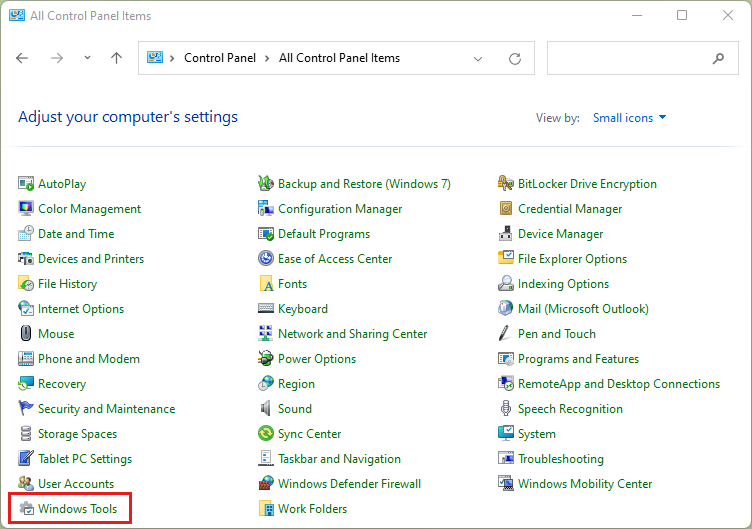
Let's look at a few ways to access this critical folder.
Beginners Guide to Windows 10 Administrative Tools – WebNots
This article provides clear, step-by-step instructions for finding the Administrative Tools.
Read the section "Access the Administrative Tools" and the three methods that follow. While the article refers to Windows 10, the methods are nearly identical in Windows 11. You'll see how to access them through the Start Menu, Search, and the Control Panel.
The most direct path is often through the Control Panel, as you saw in the image above. Professor Messer also points this out in his video.
The Windows Control Panel - CompTIA A+ 220-1202 - 1.6
Let's rejoin Professor Messer as he specifically points out the location of the Administrative Tools.
Watch the brief segment from where he discusses administrative utilities. He explains that this is where you'll find tools like Computer Management and the Registry Editor, which are staples in IT support.
You don't need to know how to use all these tools yet. For now, the crucial skill is simply knowing that this "Windows Tools" collection exists and how to find it. When a senior analyst or a troubleshooting guide tells you to "Open Event Viewer" or "Check Disk Management," you'll know that your first stop should be the Windows Tools folder.
Conclusion
In this lesson, you've taken your first and most important steps in navigating the Windows operating system from a technical support perspective. You've moved beyond being a regular user and started to learn where the real controls are.
Here are your key takeaways:
- Windows has two main areas for configuration: the modern Settings app and the classic Control Panel.
- The Settings app is for common tasks and is best accessed via the Start Menu search or the
WinKey + Ishortcut. - The Control Panel contains more advanced and legacy options. For support work, it's best to change its view to "Large icons" or "Small icons" to see all available tools.
- The Windows Tools (or Administrative Tools) folder is your essential toolkit, containing powerful utilities for diagnostics and management. It's accessible from the Control Panel or the Start Menu.
You now have a mental map of where to go when you need to change a setting, configure a feature, or launch a diagnostic tool.
In our next lesson, we will build on this foundation by diving into one of the most fundamental Windows applications: File Explorer. You'll learn how to manage files and folders—a core skill required for everything from finding log files to organizing user data.