Introduction
In our last lesson, you mastered the essentials of file management with File Explorer, learning how to organize, move, and maintain the static data on a computer. Today, we'll shift our attention from managing files to controlling the active programs that use them. It's one of the most common problems a user will face: an application freezes, becomes unresponsive, and brings their work to a halt.
As a technical support analyst, this will be one of the first troubleshooting techniques you'll use daily. Your goal for this lesson is to learn how to use the Windows Task Manager to identify and terminate these unresponsive applications. This is a fundamental "first-aid" skill that allows you to quickly resolve a frustrating situation for a user and get them back on track.
What is an Unresponsive Application?
You've likely experienced this before. You're working in a program, and suddenly it stops responding to your clicks. The mouse cursor might turn into a spinning circle, and the application's window may become pale or display "(Not Responding)" in the title bar.
How to Fix Unresponsive Programs with Task Manager - Design2Web IT, Inc.
This short introduction from a Design2Web IT blog post perfectly sets the scene for the problem we are about to solve.
Read the brief introductory paragraphs, starting from the beginning. This will frame the common scenario where Task Manager becomes an essential tool.
When a program enters this state, it's often stuck in an operation it can't complete or has encountered an error it can't recover from. Simply trying to close it by clicking the 'X' in the corner may not work. This is where you need a more powerful tool to intervene: the Task Manager.
Accessing the Task Manager
The Task Manager is a built-in Windows utility that provides information about the programs, processes, and services running on your computer. Before you can use it, you need to know how to open it quickly. There are three main ways.
Task Manager - CompTIA A+ 220-1102 - 1.3
This clip from a Professor Messer training video, a highly respected source for IT certification, demonstrates the primary methods for opening Task Manager.
Watch this short segment from the beginning to see the three most common methods: Ctrl + Alt + Delete and selecting Task Manager. Right-clicking the taskbar. The direct shortcut: Ctrl + Shift + Esc. While all three work, using Ctrl + Shift + Esc is the fastest and most direct method, making it a favorite among IT professionals. I recommend you practice and memorize this shortcut.
Identifying and Terminating a Program
Once Task Manager is open, you'll land on the Processes tab. This tab lists all the applications and background processes currently running. Your first task is to locate the program that is causing the problem.
Finding the Culprit
In the most straightforward cases, Windows will have already identified the frozen program for you. It will be listed with the status "Not responding".

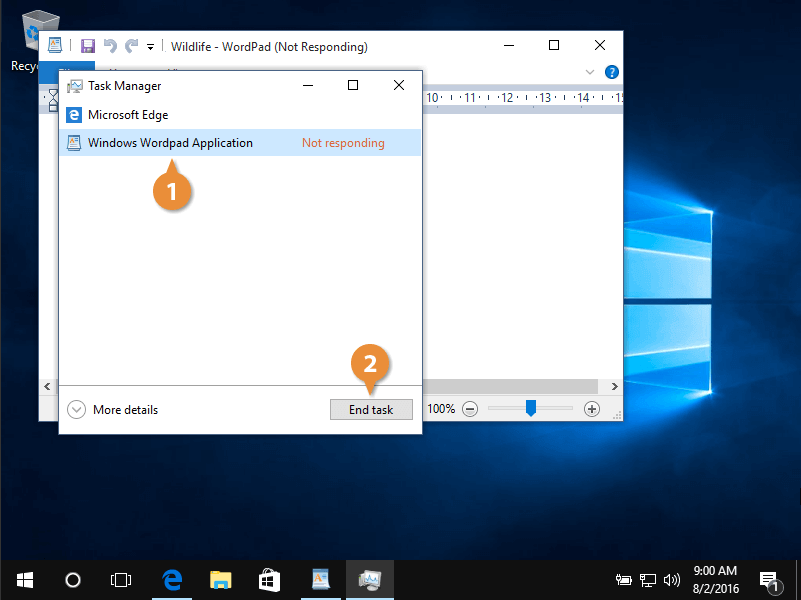
However, a program doesn't have to be officially "Not responding" to be causing a problem. Sometimes, an application might have a bug that causes it to use an excessive amount of the computer's resources (like CPU power or memory), which can make the entire system slow and sluggish. The Task Manager helps you spot these resource hogs.
Task Manager - CompTIA A+ 220-1102 - 1.3
This next segment from the same Professor Messer video explains how to navigate the Processes tab and use it to find resource-intensive applications.
Watch from this point to see how the Processes tab is organized. Pay close attention to the part where he demonstrates clicking on the CPU and Memory column headers. This action sorts the list and brings the most resource-heavy processes to the top, which is an essential technique for diagnosing performance issues.
Ending the Task
After you've identified the problematic application—either because it's "Not responding" or because it's consuming too many resources—you can force it to close.
Important Warning: Forcing an application to close will result in the loss of any unsaved work in that program. It should be used when the application is truly stuck and cannot be closed normally. Always inform the user of this before proceeding.
The following guide from Lenovo Support provides clear, step-by-step instructions for ending a task in both Windows 11 and Windows 10. As a support analyst, you will work with both operating systems, so it's good to be familiar with the subtle differences in their interfaces.
How to use Task Manager to stop or end processes - Windows 10 and 11
This support document provides concise instructions and helpful screenshots.
First, read the introductory note, which reinforces the warning about ending processes. Then, depending on the operating system you are using, review the steps for either Windows 11 or Windows 10. The process is fundamentally the same: Select the unresponsive application from the list. Right-click it and choose End task, or click the End task button.
After you end the task, the application window will disappear, and the process will be removed from the Task Manager list. You can then try to relaunch the program. In most cases, it will start up normally.
Conclusion
You have now learned one of the most immediate and effective troubleshooting actions in the technical support toolkit. Being able to confidently open the Task Manager, identify a misbehaving application, and terminate it will allow you to solve countless common computer problems.
Here are the key takeaways from this lesson:
- The Task Manager is your primary tool for managing active applications and processes in Windows.
- The fastest way to open it is with the keyboard shortcut
Ctrl + Shift + Esc. - On the Processes tab, you can identify problematic applications by looking for the "Not responding" status or by sorting by CPU or Memory usage to find resource hogs.
- Using "End task" forcibly closes a program, which is effective for frozen applications but will cause any unsaved work to be lost.
In our next lesson, we will continue exploring Windows administration by learning how to create user accounts and understanding the critical differences between Standard and Administrator account privileges. This knowledge is crucial for managing security and user access on a computer.