Hello! Welcome to your next lesson on mastering Google Ads for your hotel.
In our last session, we focused on crafting compelling Responsive Search Ads. We learned how to write headlines and descriptions that grab a potential guest's attention and entice them to click. But a click is just the beginning. The ultimate goal is a booking. How do we know if our ads are actually driving revenue?
This lesson provides the answer. We will bridge the gap between ad clicks and actual business results by implementing conversion tracking. Using the Google Tag Manager (GTM) container you've already set up, we'll configure Google Ads to see exactly which campaigns, ad groups, and keywords are generating bookings. This is arguably the most critical step in running profitable ad campaigns.
By the end of this 60-minute lesson, you will be able to implement conversion tracking for Google Ads using your previously configured GTM setup.
1. The Blueprint: Creating a Conversion Action in Google Ads
Before we can track anything, we need to tell Google Ads what a valuable action, or "conversion," looks like for our hotel. In our case, the primary conversion is a completed booking. This process begins inside the Google Ads platform itself, where we'll create a "conversion action" that will give us the credentials we need for GTM.
The video below from Analytics Mania provides a comprehensive walkthrough. We'll be using it as our main guide throughout this lesson.
Google Ads Conversion Tracking (2026) with Google Tag Manager
Let's begin by watching how to create a new conversion action in Google Ads. This process defines the goal we want to track and generates the unique IDs we'll need later.
Watch from 02:35 to 06:10. Pay close attention to the settings being configured, such as the conversion category, value, and count. The Google Ads interface may have changed slightly, but the core concepts and settings remain the same.
As you create your conversion action for hotel bookings, it's crucial to use specific settings to ensure your data is accurate and useful for hospitality campaigns.
Set up conversion measurement for hotel campaigns
Google provides specific recommendations for tracking hotel bookings. This official support document outlines the exact settings you should use.
Read the instructions under 'Step 1', specifically the bullet points under point 5. These are the standard settings for hotel conversion tracking.
Based on these resources, here are the key settings for your "Booking" conversion action:
- Category:
Purchase. This tells Google you're tracking a transaction, which is essential for calculating return on ad spend (ROAS). - Value:
Use different values for each conversion. Every hotel booking has a different price depending on the room type, length of stay, and season. This setting allows you to pass the actual booking value dynamically. - Count:
Every. If a loyal customer books two separate trips in response to your ads, you want to count both as valuable conversions. For most other non-purchase actions (like a newsletter signup), you would useOne. - Attribution model:
Data-driven. While the Google document mentionsLast click, the industry standard and Google's strong recommendation is nowData-driven. This model uses AI to assign credit across multiple ad interactions, giving you a more accurate picture of what's working.
After creating the conversion action, Google will provide you with a Conversion ID and a Conversion Label. Keep this browser tab open; you will need these two values in the next step.
2. The Implementation: Configuring Tags in GTM
Now, let's switch over to Google Tag Manager. You've already done this process when setting up tracking for GA4 and Meta, so the interface and concepts will be familiar. For Google Ads, there are two key components:
-
Google Tag: This is the main tag that loads the necessary Google Ads scripts on your website. It acts as the foundation for all other Google tracking tags (including GA4). You likely configured this when setting up GA4. It should be set to fire on the
Initialization - All Pagestrigger. This tag incorporates the functionality of the older "Conversion Linker" tag, which ensures ad click information is stored correctly. -
Google Ads Conversion Tracking Tag: This is the event-specific tag that fires only when a conversion occurs—in our case, when a guest completes a booking.
Let's focus on setting up the second tag.
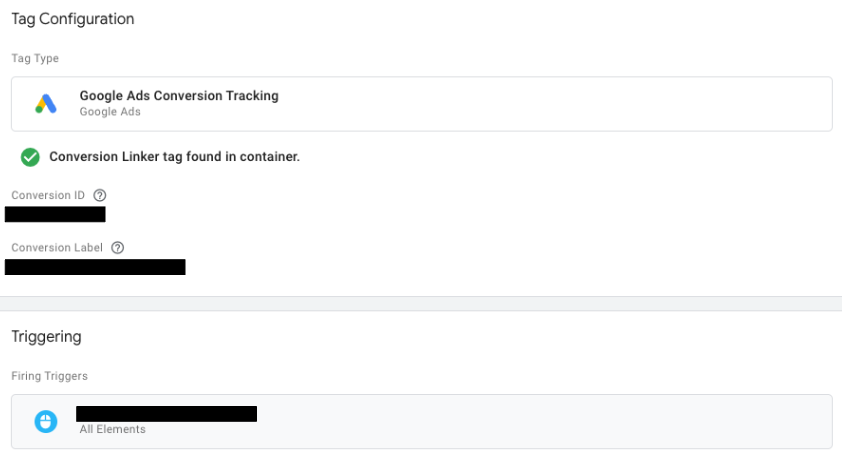
Google Ads Conversion Tracking with Google Tag Manager
This article from Analytics Mania provides a clear, step-by-step guide to creating the necessary tags in GTM. We'll focus on the conversion tag itself.
Read the section 'Create Google Ads Conversion Tracking tag'. This will walk you through creating a new tag, selecting the 'Google Ads Conversion Tracking' type, and pasting in your Conversion ID and Conversion Label. The 'Triggering' part is also crucial—you'll want to use the custom event that fires on your booking confirmation page (e.g., 'purchase' or 'booking_complete'), which you should have from your GA4 setup.
At this point, you have a tag that can count bookings. But to truly measure success, we need to know the value of those bookings.
3. Tracking What Matters: Dynamic Values for Hotel Bookings
Just counting the number of bookings is not enough. A booking for a weekend in a standard room is very different from a week-long stay in a suite. To calculate ROAS, you must send the specific monetary value of each transaction to Google Ads.
For a hotel, the key dynamic parameters are:
value: The total price of the booking.currency: The three-letter currency code (e.g., 'GBP', 'EUR', 'USD').transaction_id: The unique booking confirmation number. This is vital for preventing a user from refreshing the page and being counted as a new conversion.
You'll use Data Layer Variables in GTM to capture this information from your website's data layer, just as you did for your GA4 e-commerce events.
Google Ads Conversion Tracking (2026) with Google Tag Manager
The Analytics Mania video provides an excellent demonstration of setting up dynamic value tracking. The example is for a standard e-commerce purchase, but the process is identical for a hotel booking.
Watch from 10:22 to 14:35. Focus on how Data Layer Variables are created for 'value', 'currency', and 'transaction_id' and then inserted into the respective fields in the Google Ads Conversion Tracking tag.
Hotel-Specific Parameters
For hospitality advertisers, Google supports additional parameters that provide more context about the booking. These are highly recommended.
Set up conversion measurement for hotel campaigns
The Google support document we looked at earlier lists several hotel-specific parameters. Let's review them and see how to add them to our tag.
Review the table in 'Step 3: Modify the event tag hotel parameters'. Pay attention to the 'id' (your hotel's property ID), 'start_date', and 'end_date' parameters.
To add these extra parameters, you'll need to create Data Layer Variables for them and add them to your Google Ads Conversion Tracking tag under the Event Parameters section. This is a more modern approach than the "Custom HTML" method mentioned in some older documentation.
Your final tag configuration will send a rich set of data with every booking, allowing for powerful reporting and optimization.
Test your understanding!
A guest books a room for £350. The booking confirmation number is "BK-98765". In your GTM tag, which fields or variables would you use to pass this information to Google Ads to ensure correct revenue tracking and de-duplication?
Show answer
You would use:
- A Data Layer Variable that captures the booking total (£350) and assign it to the Conversion Value field.
- The string
GBP(or a variable that captures the currency) in the Currency Code field. - A Data Layer Variable that captures the confirmation number ("BK-98765") and assign it to the Transaction ID field.
4. Test, Don't Guess: Verifying Your Setup
Once your tag is configured, you must test it thoroughly before publishing. The GTM Preview mode is your best friend here.
Google Ads Conversion Tracking (2026) with Google Tag Manager
Let's see how to use GTM's Preview mode and the Tag Assistant to verify that our conversion tag is firing correctly and sending the right data.
Watch from 08:37 to 10:22. The key is to simulate a conversion (a booking) on your site and then check in the Tag Assistant window to see if your Google Ads Conversion Tracking tag fired on the correct event. Click on the fired tag to inspect the data that was sent.
When you click on your fired tag, switch the view from "Display Names" to "Display Values" to confirm that the correct monetary value, currency, and transaction ID are being captured and sent.
5. Future-Proofing: Enhanced Conversions
With privacy changes limiting the use of cookies, traditional conversion tracking can sometimes miss conversions. Enhanced Conversions is Google's solution. It allows you to securely send hashed, first-party customer data (like an email address) with your conversion. Google can then use this data to match conversions to ad clicks even when a cookie isn't present. For a hotel, this is crucial for accurately attributing bookings.
The setup involves three steps:
- Turn on Enhanced Conversions in your Google Ads account settings.
- Create a "User-Provided Data" variable in GTM.
- Add this new variable to your Google Ads Conversion Tracking tag.
Google Ads Conversion Tracking (2026) with Google Tag Manager
The final part of the Analytics Mania video clearly explains and demonstrates the entire setup process for Enhanced Conversions.
Watch from 17:24 to 22:58. This is a very detailed walkthrough. Follow the steps to enable the feature in Google Ads, create the necessary variables in GTM, and add them to your tag. The demonstration of the 'EC Assist' Chrome extension is also very useful for testing.
Implementing Enhanced Conversions makes your measurement more resilient and provides Google's smart bidding algorithms with better data, ultimately leading to better performance.
Conclusion
Congratulations! You've just completed one of the most important technical implementations in digital advertising. By linking your Google Ads campaigns directly to booking revenue, you've moved from simply driving traffic to making data-driven business decisions. You can now measure your Return On Ad Spend (ROAS) and optimize your budget towards the campaigns that are truly growing your business.
Key Takeaways:
- Google Ads conversion tracking starts by creating a
Purchaseconversion action in the Google Ads UI to get a Conversion ID and Label. - In GTM, you use these credentials to configure a Google Ads Conversion Tracking tag, which is triggered by your booking confirmation event.
- For accurate hotel tracking, it's essential to dynamically pass the
value,currency, andtransaction_id. You should also include hotel-specific parameters likeid,start_date, andend_date. - Always use GTM's Preview mode to test your setup and verify that the correct data is being sent.
- Enable Enhanced Conversions to improve tracking accuracy in a world with fewer cookies.
What's Next?
With conversion tracking in place, our feedback loop is complete. We can now see not only which keywords get clicks, but which ones lead to valuable bookings. In the next lesson, we will learn how to use the search terms report to identify new keywords and add negative keywords, a crucial optimization routine that will help you refine your targeting and reduce wasted ad spend.