Introduction
In our previous lesson, we delved into the world of customer reviews, learning how to listen to the "voice of the customer" to uncover a competitor's strengths and weaknesses. This gave us crucial qualitative insights. Today, we shift our focus to a critical quantitative aspect of competitive analysis: pricing. Understanding what a competitor charges for their products or services is fundamental to helping your future clients position themselves in the market.
This lesson will equip you with the skills to automatically extract and organize competitor pricing data directly into a Google Sheet. As a freelance data researcher, mastering this technique is a significant step forward. It moves you from purely manual data entry to a more efficient, scalable workflow, allowing you to handle larger data collection tasks with precision. We will be using powerful built-in Google Sheets functions that, once mastered, will become a core part of your professional toolkit.
1. Structuring Your Price Comparison Spreadsheet
Before we start pulling data from the web, we need to create a well-organized home for it. A clear structure is essential for any data research project. It ensures your final deliverable is easy to read and analyze. For pricing analysis, a simple side-by-side comparison is often most effective.
The article "How to Do a Competitor Analysis Template in Excel" provides a great model for this. While it mentions Excel, the principles are identical for Google Sheets.
How to Do a Competitor Analysis Template in Excel | Graphed Blog
This article from the Graphed Blog shows how to organize different types of competitor data, including pricing.
First, read the brief section on product and pricing information to see what kind of data is valuable to collect. Then, focus on the section on building the pricing tab. Notice the clean, simple layout: metrics in the first column and competitors in the subsequent columns.
For our task, we'll use a layout that's slightly different but inspired by this structure. Create a new Google Sheet and set up the following columns:
| Product Name | Competitor | Product URL | Price |
|---|---|---|---|
| Example: Ergonomic Chair Model X | Store A | http://... | |
| Example: Ergonomic Chair Model Y | Store B | http://... |
This structure allows you to track specific products across different competitors. A simple, manually filled-out version might look something like this grocery price list.
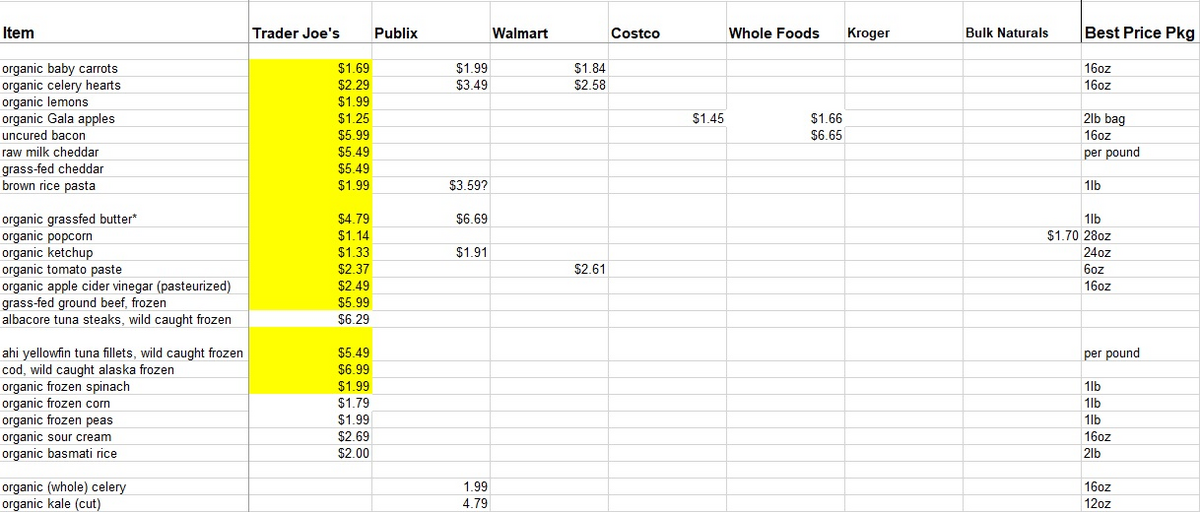
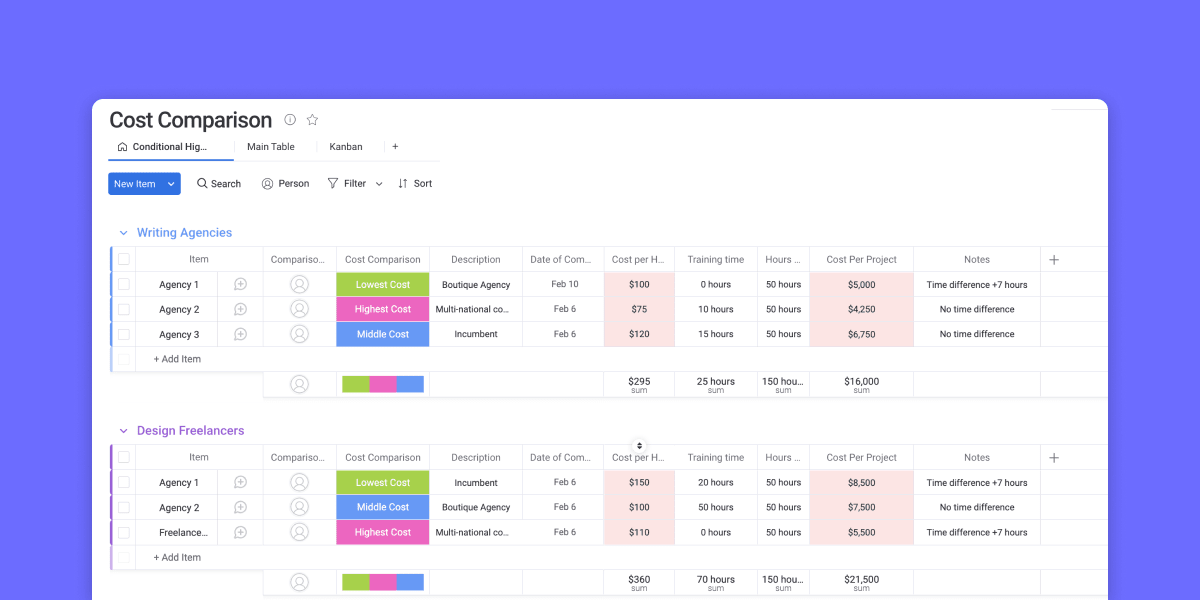
Our goal, however, is to populate the 'Price' column automatically. When you're done, you can even use conditional formatting (which you learned in Module 1) to create a visually appealing report that instantly highlights the lowest or highest prices, similar to the dashboard below.
2. Automated Data Extraction with Google Sheets Functions
Manually copying and pasting prices is time-consuming and prone to error. Fortunately, Google Sheets provides functions to pull data directly from websites. This process is called web scraping.
The two primary functions for this are IMPORTHTML and IMPORTXML.
WEB SCRAPING With No Coding In Google Sheets
The video "WEB SCRAPING With No Coding In Google Sheets" from Adam Finer - Learn BI gives an excellent introduction to these concepts.
First, watch the introduction from the beginning to understand the value of web scraping. Then, watch the segment on IMPORTHTML from 01:28 to 03:55.
As the video explains, the IMPORTHTML function is perfect for pulling in structured data that's already organized into a table or a list on a webpage. Its syntax is:=IMPORTHTML("URL", "query", index)
- "URL": The web address of the page.
- "query": Either "table" or "list".
- index: The number of the table or list on the page you want to import (starting from 1).
While IMPORTHTML is useful, competitor prices are often just individual pieces of text on a product page, not part of a neat table. For this, we need a more precise tool.
3. Targeting Specific Data with IMPORTXML and XPath
The IMPORTXML function is the more powerful and flexible of the two. It allows you to grab almost any piece of content from a webpage by providing a specific "address" for that data. This address is called an XPath.
The syntax for IMPORTXML is:=IMPORTXML("URL", "xpath_query")
An XPath query is a unique path that points to a specific element in a webpage's HTML code. You don't need to know how to write these from scratch. You can easily find the XPath using your browser's built-in developer tools.
The following video provides a crystal-clear, step-by-step demonstration of how to find an XPath.
Web Scraping in Google Sheets! (IMPORTXML FUNCTION)
This video, "Web Scraping in Google Sheets! (IMPORTXML FUNCTION)" from Dividendology, focuses entirely on using IMPORTXML.
Watch the section from 00:16 to 03:05. The presenter walks through the exact process: Go to the webpage. Right-click on the data you want to extract and select "Inspect". The developer console will open, highlighting the relevant line of code. Right-click on that line of code, go to Copy, and select "Copy full XPath". Paste this XPath into your IMPORTXML formula.
This process is the key to extracting specific product prices. Let's see it applied to an e-commerce site.
WEB SCRAPING With No Coding In Google Sheets
Let's return to the "WEB SCRAPING" video by Adam Finer.
Watch the section on IMPORTXML from 03:55 to 06:13. Notice how the presenter uses the "Inspect" tool to find the XPath for product names and prices. Next, watch the crucial segment on handling price variations from 06:13 to 07:20. This demonstrates a common real-world problem: websites often show multiple prices (e.g., an original price and a sale price). If your XPath is not specific enough, you might pull the wrong price or both, misaligning your data. This highlights the importance of checking your results and refining your XPath if necessary.
4. A Scalable Workflow for Freelancers
Now, let's combine these techniques into an efficient workflow. A client might ask you to pull prices for dozens or even hundreds of products. Writing a unique formula for each one is not practical. Instead, we can make our IMPORTXML formula dynamic.
The trick is to replace the hard-coded URL inside the formula with a reference to the cell containing the URL.
The Dividendology video demonstrates this perfectly.
Web Scraping in Google Sheets! (IMPORTXML FUNCTION)
This final clip from the "Web Scraping in Google Sheets!" video is perhaps the most important for building a scalable process.
Watch carefully from 05:03 to 07:06. The presenter modifies the IMPORTXML formula so that the URL is no longer a static piece of text. Instead, it dynamically pulls the URL from another cell.
By doing this, you can set up your spreadsheet with all the product URLs in one column, write the IMPORTXML formula once for the first row (referencing the URL cell), and then simply drag the formula down. Google Sheets will automatically apply the formula to each URL in your list, scraping all the prices in seconds.
Your Turn: Hands-On Practice
It's time to put this into practice.
- Choose a Product Category: Pick a type of product you're interested in (e.g., "wireless headphones," "running shoes," "coffee makers").
- Identify Competitors: Find 2-3 online stores that sell these products (e.g., Amazon, Best Buy, Target, Walmart).
- Set Up Your Sheet: In a new Google Sheet, create the columns:
Product Name,Store,Product URL, andPrice. - Gather URLs: Find 2-3 specific products on each competitor's site. Copy their names, the store name, and the full product page URL into your sheet. You should have 4-6 rows of data.
- Extract the First Price: For the first product in your list, use the "Inspect" tool to find and copy the XPath for its price. Write your
=IMPORTXML("URL", "xpath_query")formula in the 'Price' cell. - Make it Dynamic: Edit the formula. Replace the hard-coded
"URL"with a reference to the cell in the 'Product URL' column (e.g., if your URL is in C2, the formula part becomesC2). - Scale It: Click on the small square at the bottom-right corner of the cell with your formula and drag it down to apply it to all your other products.
Important Note: This method works best on websites with simple HTML structures. Some modern websites load prices using JavaScript, which IMPORTXML cannot always read. If your formula returns an #N/A error or is blank, it's likely due to this. Don't be discouraged; this is a known limitation. For a large number of websites, this technique works perfectly.
Conclusion
You have now learned a powerful, semi-automated method for conducting pricing research—a highly valuable skill for any freelance data researcher. By leveraging the IMPORTXML function, you can efficiently gather accurate pricing data at scale, moving beyond tedious manual work and toward more sophisticated data collection.
Here are the key takeaways from this lesson:
- Structure First: Always design your spreadsheet layout before you begin collecting data.
IMPORTXMLis for Precision: UseIMPORTXMLwith an XPath to target and extract specific data points like prices from a webpage.- Master the "Inspect" Tool: Finding the XPath by right-clicking and inspecting an element is the core technical skill for this process.
- Dynamic Formulas are Scalable: Reference cells in your formulas instead of hard-coding values to create efficient, scalable workflows.
- Be Aware of Limitations:
IMPORTXMLcannot scrape content loaded by JavaScript, which is common on complex, dynamic websites.
In our next lesson, we will take all the competitive intelligence we've gathered—on social media, from customer reviews, and now pricing—and learn how to synthesize it into a comprehensive competitor comparison matrix. This will be the capstone of our market research module, bringing all your new skills together to create a single, insightful report.