Recommended resources
The freely available resources this lesson will direct you to.
- LAYERS FOR TOTAL BEGINNERS (Alpha lock, Clipping, Selection Layer, etc) 〚ibisPaint X tutorial〗www.youtube.com
- How to use Clipping layer and Alpha lock in IBIS PAINT X, beginners step by step IBISPAINTX tutorialwww.youtube.com
- 41. Layer: Changing the color with Alpha Lock - How to use ibisPaintibispaint.com
- 40. Layer: Clipping is convenient - How to use ibisPaintibispaint.com
Hello again. Last lesson, you separated your character’s line art and colour bases into named layers. That organization now gives you a useful choice: when you paint a shadow across the hair, how do you keep it inside the hair shape—and how easily can you change it later?
In about 40 minutes, you’ll use clipping and alpha lock in Ibis Paint to paint within existing shapes. Both control where new colour appears, but they differ in which layer receives the paint. That difference matters when you revise a character illustration.
One boundary, two ways to paint
Start with a solid hair shape on a transparent Hair base layer. The shape’s painted pixels establish a boundary; the transparent area around it does not. Neither clipping nor alpha lock has to follow your line art by eye. Instead, each uses pixels that are already on a layer to determine where colour can appear.
The comparison below shows broad magenta strokes. On the left, they extend beyond the character. On the right, clipping makes the strokes visible only over existing painted shapes.
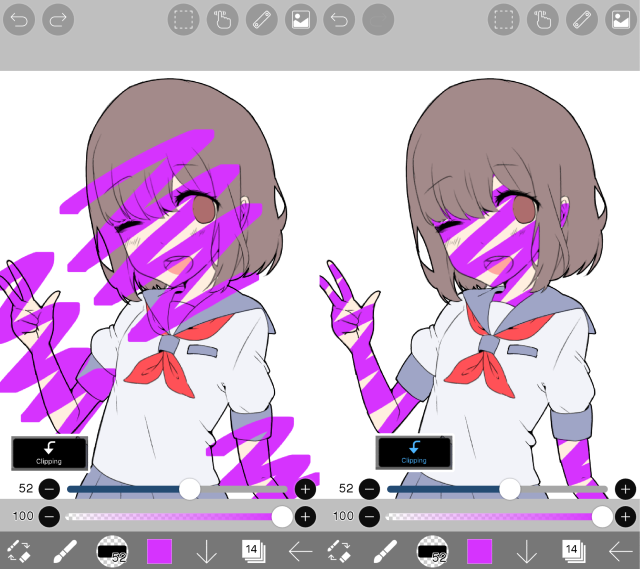
Return to Artful Escape’s Layers for Total Beginners for the short demonstration of both tools. The important moment is not just when the strokes stay contained; it is when the artist removes a clipped shadow without removing the base colour beneath it.
LAYERS FOR TOTAL BEGINNERS (Alpha lock, Clipping, Selection Layer, etc) 〚ibisPaint X tutorial〗
Return to Layers for Total Beginners by Artful Escape for a side-by-side explanation of alpha lock and clipping in a character-colouring workflow.
Watch alpha lock for recolouring on the existing layer and the difficulty of separating later edits from that base. Then watch clipped shading for painting and erasing a shadow on its own layer while preserving the original skin colour.
Here is the distinction to keep in mind:
| Tool | Where you paint | What sets the visible boundary | What remains separately editable? |
|---|---|---|---|
| Alpha lock | On the existing layer | That layer’s existing painted pixels | No separate paint layer is created |
| Clipping | On a new layer above a base | Painted pixels on the base layer below | The new paint can be edited independently |
Both are useful. Choosing between them is less about which one contains a stroke better and more about whether you want the new paint separate from the base.
Clip a new layer to a colour base
The official ibisPaint tutorial Layer: Clipping is convenient shows the setup using separate base colours for parts such as hair, skin, and clothes. Read its short walkthrough and inspect the layer-panel images: the Clipping control is applied to the new layer, not to the base you want to preserve.
40. Layer: Clipping is convenient - How to use ibisPaint
Read ibisPaint’s Layer: Clipping is convenient to see how it places a new layer above a coloured base and enables Clipping.
In “40. Layer: Clipping is convenient,” start at the sentence beginning “Clipping is a function that lets you apply shadows.” Read the walkthrough through the final comparison sentence, “By using clipping, you will be able to work much more efficiently.” Pay particular attention to which layer is added above the hair layer and which layer receives the Clipping setting.
Open the character file you organized last lesson, or make a small test file with a solid coloured shape on a transparent layer. To shade the hair, select Hair base, add a layer directly above it, name that layer Hair shadow, and turn on Clipping for Hair shadow. Keep your line art above these colour layers.
Line art
Hair shadow [Clipping on]
Hair base
Skin base
Clothing base
Now paint one broad, darker stroke across the hair and beyond its edge. The part beyond the hair should not show. Select Hair shadow and erase part of the visible stroke: the original hair colour should remain. You can also hide the shadow layer to compare the hair before and after shading.
Clipping controls visibility, not where your brush travels. Paint on the clipped layer can extend beyond the base even though you cannot see it there. If you turn Clipping off, that hidden portion may appear. Conversely, if you extend the hair shape on Hair base, previously hidden paint on the clipped layer may become visible over the newly painted area. This is why it helps to establish a reasonably complete base shape before adding clipped details.
For separate hair, skin, and clothing bases, make a clipped paint layer above the particular base you intend to affect. A layer clipped to Hair base follows the hair’s painted pixels; it does not automatically follow all the character’s line art or all the colour layers in the folder.
Use alpha lock when painting directly on an existing shape
Alpha lock is a compact way to recolour pixels already on a layer. The official ibisPaint tutorial demonstrates it on line art: after turning on Alpha Lock for the line-drawing layer, a brush can change the colour of existing lines without adding colour to the transparent canvas around them. The same principle works on a solid colour base.
41. Layer: Changing the color with Alpha Lock - How to use ibisPaint
Read ibisPaint’s Layer: Changing the color with Alpha Lock to see how the control is enabled on the layer being recoloured, rather than on a new layer.
In “41. Layer: Changing the color with Alpha Lock,” begin with the paragraph starting “Alpha lock is a function that lets you partially change the color.” Read the explanation and comparison through “But if you turn it on, the color stays within the drawing.” Follow the accompanying images to locate Alpha Lock in the layer window and compare painting with it off and on.
Try it on Hair base. Select the base itself, turn on Alpha Lock, and brush a second colour across part of the hair and beyond its outline. Only the hair’s existing painted area should change. You did not need to create another layer.
The trade-off is that your new colour is now part of Hair base. If you later decide you dislike only that colour change, you cannot hide it independently as you could hide Hair shadow. You may be able to undo recent strokes, repaint the area, or restore an earlier editable copy, but alpha lock does not keep the new paint separate. For a quick, intentional recolour, that may be fine. For shadows, highlights, or textures you expect to adjust, a clipped layer usually gives you more room to revise.
Alpha lock also does not create new painted area beyond the shape. If you need to lengthen the hair silhouette, turn off Alpha Lock before extending the base shape. Then you can turn it on again if you want to recolour within the updated shape.
Apply the choice to a character file
Spend roughly 15 minutes making a small, reversible comparison in your file. Use broad marks rather than detailed rendering; this is a test of the layer behaviour.
- On Hair base, check that the hair is a filled shape with transparency outside it. If the entire layer is filled with an opaque background colour, these tools will treat that filled area as painted too.
- Add Hair shadow immediately above the base, enable Clipping on the new layer, and paint a shadow that crosses the hair edge. Erase a portion, then hide and show the layer to confirm the base is unchanged.
- On a different colour base, such as Clothing base, enable Alpha Lock and brush a modest colour change across an edge. Confirm that the colour stays inside the existing clothing shape, then turn Alpha Lock off when you are done.
- Look at the selected layer and its thumbnail after each change. “My stroke is contained” is only half the check; “I painted on the layer I intended” is the other half.
If a stroke appears outside your intended shape, inspect the layer stack before repeatedly undoing. For clipping, check that the paint layer is above the correct filled base and that Clipping is enabled on the paint layer. For alpha lock, check that it is enabled on the selected layer you are painting on. If nothing appears, check whether the base actually has painted pixels under your stroke and whether the relevant layers are visible. A thin line-art contour is not the same boundary as a filled hair or clothing shape.
What to carry forward
Clipping keeps new paint visually inside a base shape while preserving that paint on a separate, editable layer. Alpha lock keeps painting within pixels already on the selected layer without creating another layer. Use the first when you may revise a shadow or detail; use the second when you deliberately want to change existing colour or line art directly.
Next, you’ll use selection and transform tools to correct proportions. Your separate, named layers will again matter: they make it easier to change the part that needs correction without disturbing the rest of the character.