Recommended resources
The freely available resources this lesson will direct you to.
Hello! Last lesson, you identified your PostgreSQL Windows service and recorded where its programs and data files live. Keep the PostgreSQL bin directory from those notes nearby. Today you’ll use Windows PowerShell to move around the file system and run programs from that directory—without connecting to a database or changing server settings yet.
Allow about 35–45 minutes. You can use an ordinary PowerShell window; administrator access is not needed.
Find your way around PowerShell
Open Windows PowerShell from the Start menu. The prompt shows your current location, often something like PS C:\Users\YourName>. The PS ...> portion is PowerShell’s prompt, not something to type. A directory is the same thing as a folder in File Explorer, and your current location is the folder from which PowerShell interprets relative paths.
Watch the short navigation demonstrations in Mastering Windows File System Navigation with PowerShell by ITPro Today:
Mastering Windows File System Navigation with PowerShell
Watch how the presenter moves between folders, lists their contents, and identifies a PowerShell command behind a familiar short name.
Watch folders and listings for cd .. and dir. Then skip to command aliases to see why cd and dir work in PowerShell. You need not enter the Alias: location shown in the second segment. One clarification: cd .. moves up to the parent folder, even where the narration describes it as moving down.
The full PowerShell command behind cd is Set-Location. Microsoft Learn defines what it changes and lists its aliases:
Set-Location (Microsoft.PowerShell.Management) - PowerShell | Microsoft Learn
Read the Description and the short alias list in Notes to connect the commands you saw in the video with PowerShell’s terminology.
In Description, read what a location can be. Then go to Notes, find the sentence beginning “PowerShell includes the following aliases,” and read the All Platforms list through sl. For this lesson, concentrate on file-system folders and the cd alias; you can leave the other kinds of location for later.
These are the commands you’ll use. The examples in the right column assume that your current folder contains a subfolder named bin.
| Purpose | PowerShell command | Meaning |
|---|---|---|
| Show your location | Get-Location |
Print the current path |
| List folder contents | Get-ChildItem or dir |
Show what is here |
| Enter a child folder | Set-Location bin or cd bin |
Move into bin |
| Go to the parent folder | Set-Location .. or cd .. |
Move up one level |
An absolute path identifies a location from its drive, such as C:\Program Files\PostgreSQL\17\bin. A relative path is interpreted from your current location: .. means the parent, and .\psql.exe will mean a file named psql.exe right here. These distinctions matter when you start running programs.
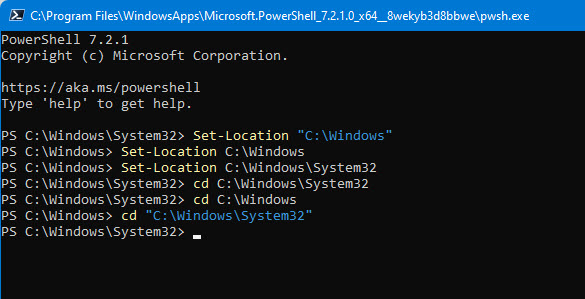
The console image illustrates Set-Location and its shorter alias cd. Its C:\Windows paths are examples of navigation, not places you need to visit for PostgreSQL.
Navigate to the PostgreSQL programs you found
Find the bin directory in the installation record you made last lesson. The path below is only an example: replace it with your own verified path before running the first line. Quotation marks keep a path containing spaces together.
$pgBin = 'C:\Program Files\PostgreSQL\17\bin'
Test-Path -LiteralPath $pgBin
$pgBin is a PowerShell variable holding the path, so you only need to enter it once. Test-Path should print True. If it prints False, check your installation record or revisit the folder in File Explorer; do not continue using the example path.
Now navigate and inspect:
Set-Location -LiteralPath $pgBin
Get-Location
Get-ChildItem -Name psql.exe,pg_dump.exe
Get-Location should show your bin path. Get-ChildItem should list the two named program files if they are present. -LiteralPath tells Set-Location to use the path as written rather than treating any characters in it as a search pattern.
Move up to the installation folder, then return:
cd ..
Get-Location
Set-Location -LiteralPath $pgBin
Get-Location
After cd .., expect the parent of bin; after the final command, expect bin again. Changing location changes where your PowerShell session is working. It does not move PostgreSQL’s files or change where its server stores data.
Run a program from its folder—or by its full path
PostgreSQL’s bin folder contains different kinds of programs. psql.exe is a command-line database client; pg_dump.exe is a backup utility. For now, ask each program for its version. The --version option does not connect to the server, request a password, or create a backup.
While your current location is bin, run:
.\psql.exe --version
.\pg_dump.exe --version
The .\ explicitly means “run the file in the current folder.” PowerShell does not generally run an executable from the current folder merely because you typed its name. The reported versions should correspond to the installation whose bin directory you entered.
You can also run a program without changing folders. Move to your home folder and use its complete path:
Set-Location -LiteralPath $HOME
Get-Location
& "$pgBin\psql.exe" --version
Here, $HOME is your user’s home folder. The & is PowerShell’s call operator: it executes the program named by the quoted path. Without &, a quoted path on its own is just text. This approach is useful when an installation path contains spaces or when several PostgreSQL versions are installed and you want to be certain which psql.exe you ran.
The server program postgres.exe and control utility pg_ctl.exe may also be in bin. Do not launch them for this lesson: your PostgreSQL server is already managed by the Windows service you inspected previously. Running client tools to display their versions is different from starting or controlling the server.
Make commands available without a full path (optional)
Windows uses an environment variable named Path to find programs when you type a command such as psql without specifying its folder. Adding your verified PostgreSQL bin directory to Path is a convenience, not a requirement. You can always use .\psql.exe from bin or & "$pgBin\psql.exe" from elsewhere.
Read EDB’s instructions only through the Path-setting portion. Stop before “Verifying your installation”: its later psql example begins a database connection, which belongs in an upcoming lesson.
EDB Docs - Installing PostgreSQL for development and testing on Microsoft Windows
Read EDB’s “Add PostgreSQL commands to your path” section for the Windows setting and its important note about opening a new command prompt.
Under Add PostgreSQL commands to your path, start with the reason for Path, then follow numbered steps 1–4 through the example bin directory. Continue into This affects only new command prompts and read the new-window note. Use your own verified bin path, not the example version number in the document.
EDB describes editing System Path, which affects the computer broadly and may require administrator permission. For a personal learning setup, you may instead add the same bin folder to your user Path in Environment Variables. In either case, add the folder, not psql.exe itself and not the PostgreSQL data directory. If you are using a shared or managed computer, simply skip this optional change and continue using full paths.
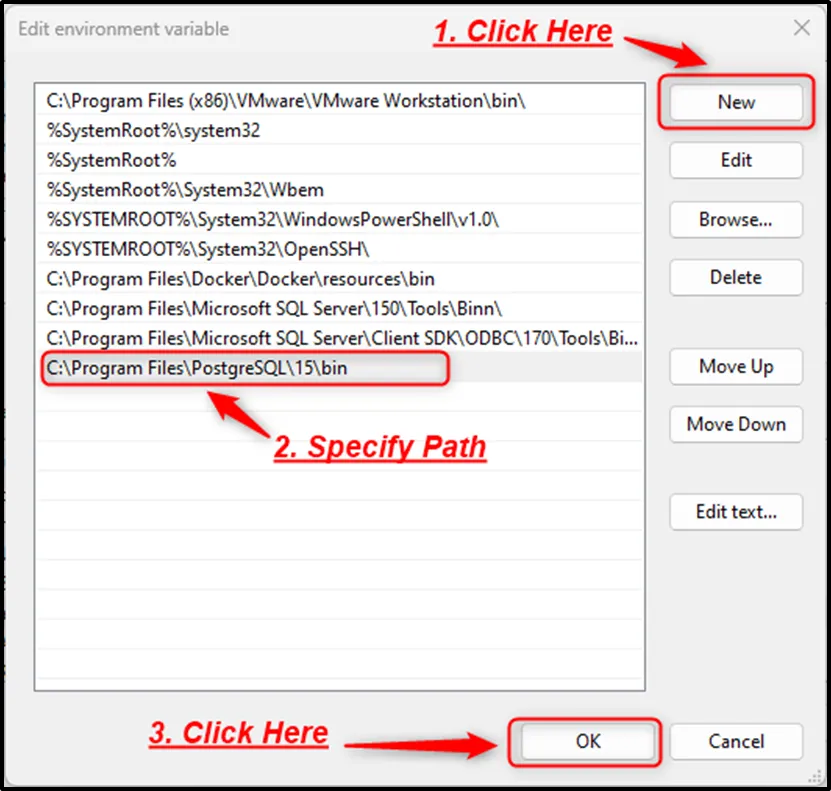
The image shows what a PostgreSQL bin folder looks like as an entry in Windows’ Path editor. Its version 15 is an example, not an instruction to select that version on your machine.
If you changed Path, close PowerShell and open a new window. From your home folder, try:
psql --version
Get-Command psql -All
The first command should report a version. The second shows which matching commands PowerShell can find; inspect its Source paths if you have more than one PostgreSQL installation. A successful psql --version proves you ran a client program, not that you connected to the database server. If you did not change Path, it is normal for psql --version to be unrecognized outside bin; the full-path method still works.
If a command does not behave as expected
Use the location and program path as your first two checks:
- “Cannot find path” after
Set-Location: RunTest-Path -LiteralPath $pgBin. If it saysFalse, correct the path using thebinfolder you verified last lesson. .\psql.exeis not found: RunGet-Location. You must be in the folder containingpsql.exefor.\to work.psqlis not recognized, but.\psql.exeworks: PowerShell has not foundbinthrough Path. Use the full path, or check your Path entry and reopen PowerShell.- An unexpected version appears: Check
Get-Command psql -All. A different PostgreSQL installation may be found first. Use& "$pgBin\psql.exe" --versionwhen you need the specific installation you recorded.
Keep the distinction clear: the current location decides what relative paths refer to, while Path helps PowerShell find a program you name without its location. Neither setting changes the running PostgreSQL service.
You can now move between Windows folders, recognize the cd and dir shortcuts, and run PostgreSQL tools either from bin or by an explicit path. You also know why adding bin to Path is optional and how to check which program PowerShell finds. Next, you’ll use pgAdmin to make an actual connection and verify the server, database, user, and port.