Recommended resources
The freely available resources this lesson will direct you to.
Hello! Last lesson, you installed PostgreSQL Server, pgAdmin 4, and the command-line tools, then recorded your chosen data directory and port. Today you’ll check what Windows actually installed: which PostgreSQL service is running, where its programs live, and where its data and configuration files are located.
Keep your installation record nearby, but you won’t need your administrator password. Allow about 35–45 minutes, mostly for inspecting your own computer.
Verify the Windows service
PostgreSQL Server normally runs as a Windows service. That lets Windows manage the server independently of whether pgAdmin is open. A service marked Running is evidence that its server process has started; it does not yet prove that you can log in. You’ll test a client connection in a later lesson.
First, read Microsoft Learn’s explanation of what a service query shows:
Get-Service (Microsoft.PowerShell.Management) - PowerShell | Microsoft Learn
Read this short portion to distinguish a service's name from its running status. You will use the same information in the Windows Services window.
In Description and Examples, read Example 1, then Example 5. Focus on the distinction between finding a service and checking whether its status is Running.
Now press Windows key + R, type services.msc, and press Enter. In the Services window, look for a name or display name containing PostgreSQL. The exact name depends on the version and installation; it may resemble postgresql-x64-17.
For the service you find, record its Name, Status, and Startup Type. Double-click it to open Properties, then look at Path to executable. This path is particularly useful if several PostgreSQL versions are installed: it identifies the program Windows has registered for that service. Do not change any settings yet.
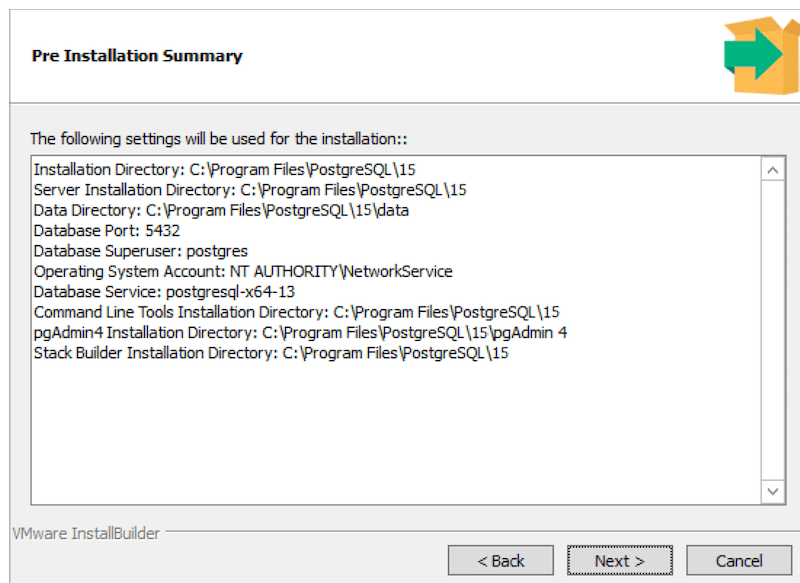
The installer-summary image below is an example of why checking your own machine matters. It depicts an installation directory ending in PostgreSQL\15, a port of 5432, and a service name ending in 13. Those displayed values are not evidence of what is installed or running on your computer; if your own records disagree, investigate rather than assuming the version number in a name tells the whole story.
If you prefer a second, read-only check, open Windows PowerShell and run:
Get-Service -Name 'postgresql*'
Look for your service’s Status and Name in the output. If the command finds nothing, return to Services and check the display names there. We’ll work more systematically with PowerShell commands in the next lesson.
Locate the installed programs
The installation directory from your record is the first place to look for PostgreSQL’s programs. Paste that exact path into the File Explorer address bar. If you accepted the usual EDB location but did not record it, you can inspect %ProgramFiles%\PostgreSQL in File Explorer; version-numbered folders may appear beneath it. Your path may differ.
Open the installation’s bin folder. Look for these files:
postgres.exe— the database server program.pg_ctl.exe— a tool used to control the server; the Windows service’s executable path may point here.psql.exe— a command-line client, not the server.
Compare this folder with the Path to executable in the service’s Properties. If the service points into a different version’s folder, you may have found a different installation. Write down both paths rather than moving or deleting anything.
Locate pgAdmin 4 separately through Windows Start search. Its shortcut’s Properties → Target can help you find its installed program. pgAdmin is the graphical client you installed; finding or opening it is not the same as verifying the PostgreSQL Server service. You do not need to sign in to pgAdmin today.
Locate the data and configuration files
Programs and database data serve different purposes. The bin folder contains programs you can run; the data directory holds the files belonging to a PostgreSQL server installation. Your chosen data directory might be inside the installation directory or at a separate location.
PostgreSQL’s documentation explains the default relationship between that directory and its configuration files:
PostgreSQL: Documentation: 18: 19.2. File Locations
Read Section 19.2, “File Locations,” to learn which configuration files to look for and why their locations usually—but not always—match the data directory.
In 19.2. File Locations, start with the opening paragraph beginning “In addition to the” and read through the default layout. Then read the paragraph beginning “If you wish to keep the configuration files elsewhere” through the exception. For now, focus on finding files, not changing configuration parameters.
Paste your recorded data-directory path into File Explorer. In a typical installation, you should find a PG_VERSION file and folders such as base and global. Look for these configuration files in the same directory:
| File | What it is for |
|---|---|
postgresql.conf |
Main server settings |
pg_hba.conf |
Rules governing which client connections can authenticate |
pg_ident.conf |
User-name mapping rules |
Do not edit or move these files. You are establishing their locations, not configuring access. File Explorer may hide familiar file extensions in its display settings, so use the file Type or enable View → Show → File name extensions if names are unclear.
Compare the directory you opened with the service’s Path to executable. That path often contains a -D option followed by a directory. In a default arrangement, this identifies where the service looks for its data and configuration files. As the reading notes, PostgreSQL can be configured to keep configuration files apart from the actual data directory. If the -D directory and your installation record differ, or you cannot find the expected files, record the discrepancy instead of guessing or changing permissions.
Finish with a verified installation record
Update your notes with what you observed, rather than copying paths from a screenshot:
PostgreSQL service name:
Service status:
Startup type:
Service path to executable:
PostgreSQL bin directory:
pgAdmin shortcut target or location:
Data directory inspected:
postgresql.conf location:
pg_hba.conf location:
pg_ident.conf location:
Any mismatch or access error:
If the service is Stopped, note that finding its files does not mean the server is running. If several PostgreSQL services appear, match each service’s executable path to the installation you intend to use. If Windows denies access to a folder, record that too; do not weaken its permissions merely to complete this inspection.
You have now separated three things that are easy to confuse: the Windows service that runs the server, the installed programs, and the directory holding database data and usually its configuration files. Next, you’ll navigate directories and run PostgreSQL-related programs from PowerShell, using the locations you verified here.