Recommended resources
The freely available resources this lesson will direct you to.
Welcome back. Last time, you merged a feature branch into your main branch. Because main had not changed independently, Git could fast-forward without asking you to resolve anything. This lesson covers the case where both branches change the same line: you’ll create a small conflict in your expense-tracker repository, decide what the final Java code should do, and finish the merge without dropping either intended change. Allow about 40 minutes, including the hands-on steps.
Why Git pauses a merge
A conflict does not mean either branch is broken. It means Git can see two competing edits but cannot infer the behavior you want from their combination. It pauses before creating the merge commit, leaving you to edit the result.
Watch Never fear merge conflicts again - git merge/pull tutorial by Philomatics for a view of what Git writes into a conflicted file. The presenter merges in the opposite direction from the exercise below; pay attention to which branch is checked out, rather than memorizing a branch name.
Never fear merge conflicts again - git merge/pull tutorial
Philomatics shows how to locate a conflict, interpret its markers, and combine changes when neither editor shortcut produces the right result.
Watch the abort option for a way to stop an unfinished merge. Then follow the conflict markers: Git writes them into the file, even if an editor presents a graphical view. In manual synthesis, focus on why keeping either side wholesale would lose part of the intended behavior.
The official Git book provides the corresponding command-line workflow. Its example uses master as the checked-out branch; substitute your branch’s name when interpreting HEAD.
Git - Basic Branching and Merging
Read the “Basic Merge Conflicts” subsection of the Git book to connect the file markers with git status, staging, and the final merge commit.
In “Basic Merge Conflicts,” begin with the paragraph opening “Occasionally, this process” and read the conflict walkthrough. It ends just after the explanation of git add. You can skim the intervening graphical merge-tool example, then resume at “After you exit the merge tool” and read finishing the merge. Notice that staging a resolution and committing the merge are distinct actions.
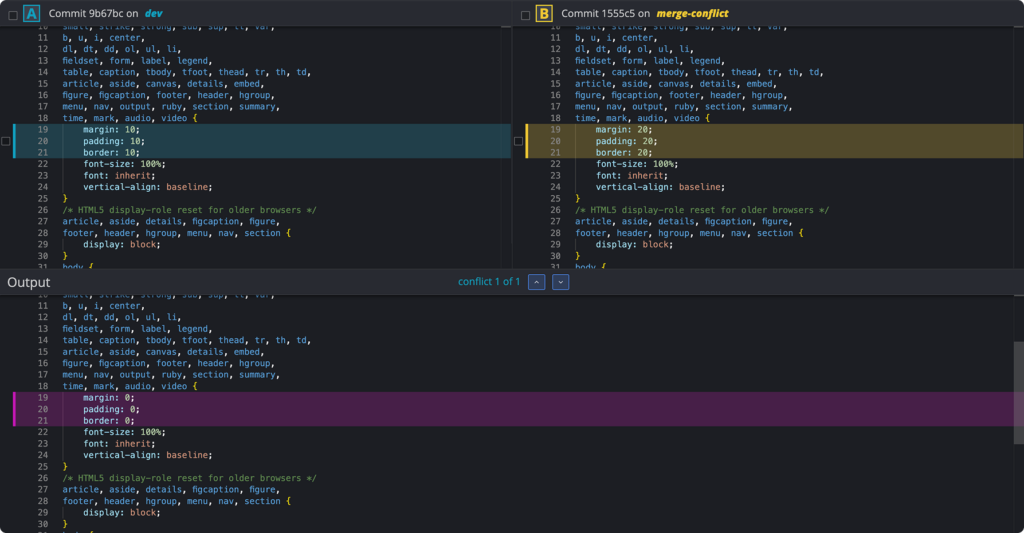
Graphical tools can make the competing versions easier to see, but their output pane still needs your judgment. In this example, the upper panes have different CSS values for the same properties, while the lower pane shows an output with zero values. Neither “take left,” “take right,” nor an existing output is automatically the intended result.
Create a conflict you can understand
Use the ExpenseDisplay.java helper from the previous lesson. The examples below assume it is at src/main/java/ExpenseDisplay.java; if you put it in a Java package, substitute its actual path in the commands. They also assume your main branch is named main; substitute master if that is your repository’s name.
Start in the directory containing pom.xml:
git branch --show-current
git status
Make sure the working tree is clean and switch to main if necessary. The helper should still contain this return statement:
return category + ": " + amountInCents + " cents";
If you have not created that helper yet, add the version from the previous lesson and commit it on main before continuing. Both branches need the same committed starting line for this exercise.
First, give a feature branch one improvement: remove whitespace around the supplied category before displaying it.
git switch -c practice/conflict-label
Edit only the helper’s return statement to:
return category.trim() + ": " + amountInCents + " cents";
Check and commit that change:
mvn test
git add src/main/java/ExpenseDisplay.java
git diff --staged
git commit -m "Trim category in expense labels"
Now make a different improvement on main: explicitly identify the displayed value as an expense.
git switch main
On main, the return statement should still be the original one. Change it to:
return "Expense " + category + ": " + amountInCents + " cents";
Check and commit this change separately:
mvn test
git add src/main/java/ExpenseDisplay.java
git diff --staged
git commit -m "Identify expenses in display labels"
git status
You now have two valid commits descended from the same starting point. One trims the category; the other adds a prefix. Both edits replace the same return line, so neither branch contains the complete desired label.
Read the conflict, then write the intended result
While still on main, attempt the merge:
git merge practice/conflict-label
git status
The merge command should report a conflict, and git status should list ExpenseDisplay.java under unmerged paths as “both modified.” Open the file. Near the return statement, expect a block resembling this:
<<<<<<< HEAD
        return "Expense " + category + ": " + amountInCents + " cents";
=======
        return category.trim() + ": " + amountInCents + " cents";
>>>>>>> practice/conflict-label
HEAD is the branch you had checked out when you ran git merge—here, main. The text below the separator comes from the branch being merged. These markers are actual text in your working file, not merely editor decorations. Other surrounding lines may appear inside the conflict block, depending on Git’s output.
The decision is about behavior, not which branch wins. Taking only HEAD loses trimming. Taking only the incoming change loses the “Expense ” prefix. Keeping both return statements would not implement both behaviors either: Java cannot use two consecutive return statements as alternative parts of one result.
Replace the entire conflict block, including its marker lines, with one return statement:
return "Expense " + category.trim() + ": " + amountInCents + " cents";
Save the file. For example, label(" Food ", 125) should now produce Expense Food: 125 cents. That expected result checks both intentions: the category is trimmed and the label has its prefix. If your project has tests asserting the old label format, update their expected behavior deliberately rather than ignoring a failure.
Verify and finish the merge
Git does not treat saving the file as a resolution. First review what you wrote, then stage that specific file to tell Git its current contents are the chosen result:
git diff
git add src/main/java/ExpenseDisplay.java
git status
git diff --cached
git diff --cached --check
Look for “All conflicts fixed but you are still merging” in git status. Review the staged return statement and confirm that no <<<<<<<, =======, or >>>>>>> markers remain in the file. git diff --cached --check helps catch whitespace errors and introduced conflict markers, but it cannot decide whether your Java behavior is correct.
Run the build before committing:
mvn test
mvn test verifies compilation and runs any tests your project has; it does not verify the new label behavior unless a test actually checks it. Review the final expression and any relevant test results. If something is wrong, edit the file, stage it again, and rerun the checks. Once the result is right, finish the paused merge:
git commit
git status
git log --oneline --decorate --all --graph -6
Git will offer a default merge-commit message in your editor; save and close it to commit. A clean git status and a graph showing the two branch histories joined by a merge commit confirm that the merge is complete. You can then remove the practice branch name with git branch -d practice/conflict-label if you no longer need it.
If you cannot resolve a conflict right away, git merge --abort can cancel an unfinished merge and return to the pre-merge state. In this exercise, you began with a clean working tree, so that is a straightforward way to pause and try again later. It discards any resolution edits you made during the attempt, but it does not delete the commits you made on either branch. Do not use it after completing the merge commit.
Key takeaways
A merge conflict is a request for a decision, not an instruction to discard one branch. Use git status to find conflicted files, read the HEAD and incoming sections, and write the result that preserves the intended behaviors. Then remove the markers, review and test the file, stage the resolution, and commit to finish the merge.
So far, this workflow has stayed local. Next, you’ll publish a repository to GitHub and learn how clone, pull, and push keep a local copy and a remote copy in sync.