Recommended resources
The freely available resources this lesson will direct you to.
- What is the Difference Between Releases and Versionswww.youtube.com
- How and When to Use Components - Jira Components 101www.youtube.com
- Managing components | Administering Jira applications Data Center 11.3 | Atlassian Documentationconfluence.atlassian.com
- Administering a project | Jira Core Data Center 9.12 | Atlassian Documentationconfluence.atlassian.com
Hello! Last lesson, you compared status with resolution and saw why a field value is a starting point for review, not proof that work was completed. This lesson adds two ways to organize issues: components help you see which area of a project is involved, while versions help you see which software release is affected or targeted. You will use both to examine ownership and release exposure without needing Jira administrator access. Allow about 35–40 minutes, including the short resources and a read-only inspection.
Components: where does the work belong?
A project can contain work across several product areas. A component divides that project into meaningful areas, such as User Interface, API, or Reporting. Components are defined within a project: an API component in one project is not automatically the same component as an API component in another.
Watch Modus Create’s How and When to Use Components – Jira Components 101 for the distinction between categorizing an issue and routing it to a person. Focus on the examples of product areas and specialist work; you do not need the later demonstration of creating components.
How and When to Use Components - Jira Components 101
Modus Create’s How and When to Use Components – Jira Components 101 shows why teams use components and how a component can affect assignment.
Watch component basics for their project-specific nature and component leads. Continue through useful categories for examples of work that needs a distinct product area or expertise.
For SQA, a component makes a defect easier to direct and review. Suppose a Bug reports that an export endpoint returns an incomplete file. Assigning the project’s API component records the area thought to be involved. It can help the team find related API defects and decide who should investigate. It does not establish the root cause: testing may later show that the fault lies in a different component.
A component may have a lead and a configured default assignee. When a new issue is created with that component and its assignee is left on Automatic, Jira can use the component’s assignment setting instead of the project default. Keep three ideas separate:
- Component: the area recorded on the issue.
- Component lead: a person associated with that area.
- Issue assignee: the person currently assigned to the particular issue.
Those people need not be the same. Assignment can be changed, and adding a component to an existing issue does not necessarily reassign it. If an issue lists multiple components, do not infer a single owner from the component names; check the actual assignee and the team’s ownership practice.
Atlassian’s Managing components is an administrator-facing Data Center page, but its opening explanation and assignment paragraph are useful to a power user. Read just those portions, not the setup instructions. The page describes a newer Data Center release, so treat its interface details as illustrative rather than a guarantee about your Jira screen.
Managing components | Administering Jira applications Data Center 11.3 | Atlassian Documentation
Read Atlassian’s explanation of how components group issues and how a configured component default can affect assignment.
In the introduction, before “On this page,” read component grouping. Then, under “Selecting a default assignee,” read assignment behavior, stopping before “How do I know who is a project's default assignee?” Focus on what happens when a new issue is assigned automatically, rather than on how to configure the setting.
As a non-administrator, you can inspect and, where your permissions allow, select an existing component on an issue. Creating or changing the project’s component definitions and assignment rules requires the appropriate project or Jira permissions. If the field is absent, it may not be configured or visible in that project; do not treat its absence on your screen as proof that the issue has no possible owner.
Versions: where was the problem, and where is the work targeted?
A version groups issues within a project around a software deliverable. Unlike components, which describe an area, versions give you a release-oriented view of work. Read the short “Versions” and “Components” passages in Atlassian’s Jira Core Data Center 9.12 guide; placing them side by side makes the distinction clear.
Administering a project | Jira Core Data Center 9.12 | Atlassian Documentation
Atlassian’s Administering a project defines the two project-level groupings you are using in this lesson.
Find the “Versions” subsection and read version grouping. Immediately below, in “Components,” read component grouping. Notice the release-date purpose of versions versus the area-and-ownership purpose of components.
On an issue, two version fields answer different questions:
Affects Version/s records the software version or versions in which a problem is known to occur. For a Bug, it helps establish the observed exposure. Fix Version/s records the version or versions targeted for the fix or other issue work. For a Story or Task, it can similarly indicate the intended deliverable. Depending on local practice, teams may revise a fix version as plans change.
Watch the field demonstration in Apetech Tech Tutorials’ What is the Difference Between Releases and Versions. The screen may differ from an on-premise Jira 8.x–9.x installation, but the distinction between the two fields transfers. One clarification while watching: Fix Version/s is a release target, not inherently a deadline or evidence that a fix has shipped. Likewise, Affects Version/s is not limited to previously released builds.
What is the Difference Between Releases and Versions
Apetech Tech Tutorials’ What is the Difference Between Releases and Versions demonstrates selecting versions on an issue and contrasts the two version fields.
Watch version fields. Focus on which field describes where a defect was observed and which describes the intended fix or delivery. Treat statements about which issue types display the fields as examples of that setup, not universal rules for your project.
For example, a Bug might have Affects Version/s: 3.3 and Fix Version/s: 3.4. That records a problem observed in 3.3 and a plan to address it in 3.4. Both fields can also refer to the same version: a defect discovered during testing of 3.4 may be targeted for correction before 3.4 is released. Neither combination proves the fix passed testing.
Teams often use Releases as the Jira area for viewing versions and their associated work. In SQA review, keep the version record and its intended scope distinct from the actual event of releasing software. A fix version on an issue is valuable for assessing proposed release scope; confirming what shipped requires further evidence.
Reading the fields together
The issue screenshot below shows Fix Version/s: Version 2.0, Affects Version/s: None, and Component/s: None. Its resolution is also Unresolved.
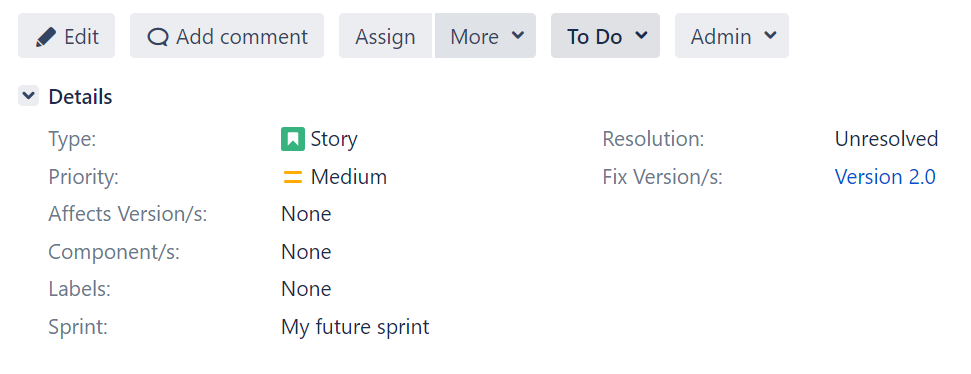
What can you conclude? Version 2.0 is recorded as a target for this issue. You cannot conclude that the issue was fixed, tested, or shipped in Version 2.0. Affects Version/s: None does not prove that no version is affected; that field may be inapplicable to this Story or simply unfilled. Component/s: None means no component is recorded here, not necessarily that nobody owns the work. Check the assignee and your team’s expectations before calling either blank field a data-quality exception.
The two dimensions become more useful together. Imagine several unresolved Bugs targeted for Version 3.4. If most have the Reporting component, that concentration tells you where to investigate release risk and possible ownership or testing capacity. If many have no component, you may first need to establish whether the team requires component tagging. If their fix versions are missing, you cannot reliably assemble a complete release-defect picture from that field alone.
This is the same discipline you used with status and resolution: recorded classification supports a question; it does not settle the answer. For release oversight, compare the issue’s version fields with its current status, resolution, and available test or release evidence.
If you have Jira access, spend 5–7 minutes inspecting one Bug and one Story or Task without changing them. Locate Component/s, Affects Version/s, Fix Version/s, assignee, status, and resolution. Note which fields are populated and which additional evidence you would need to establish product-area ownership, defect exposure, and whether targeted work actually reached a release. If you do not have access, use the screenshot as a read-only example; do not invent meanings for its blank fields.
Key takeaways
Components group a project’s work by area and can support assignment, but a component lead is not automatically an issue’s current assignee. Affects Version/s records where a problem was observed; Fix Version/s records a delivery target. Neither a component nor a fix version proves that someone completed, tested, or released the work. For an SQA review, check missing or conflicting classifications against local practice before reporting an exception.
Next, you will inspect an issue’s activity and change history. That will let you move beyond its current field values and examine evidence of how the issue changed over time.