Recommended resources
The freely available resources this lesson will direct you to.
Hello! In the previous lesson, you used components and versions to interpret an issue’s current classification, while keeping a release target separate from proof that work shipped. Now you will look behind the current values. An issue’s activity and history can show when fields changed, who made a change, and what people recorded about the work. For SQA, that chronology is useful process evidence—but it still needs careful interpretation.
Allow about 35–40 minutes, including the documentation and a read-only issue inspection.
From an issue snapshot to its activity
An issue view shows what is recorded now: perhaps a Bug is assigned, targeted for a fix version, and marked Done. To understand how it reached that point, open the issue’s Activity area. Depending on your Jira Server or Data Center layout, you may find tabs such as All, Comments, Work Log, History, and Activity.
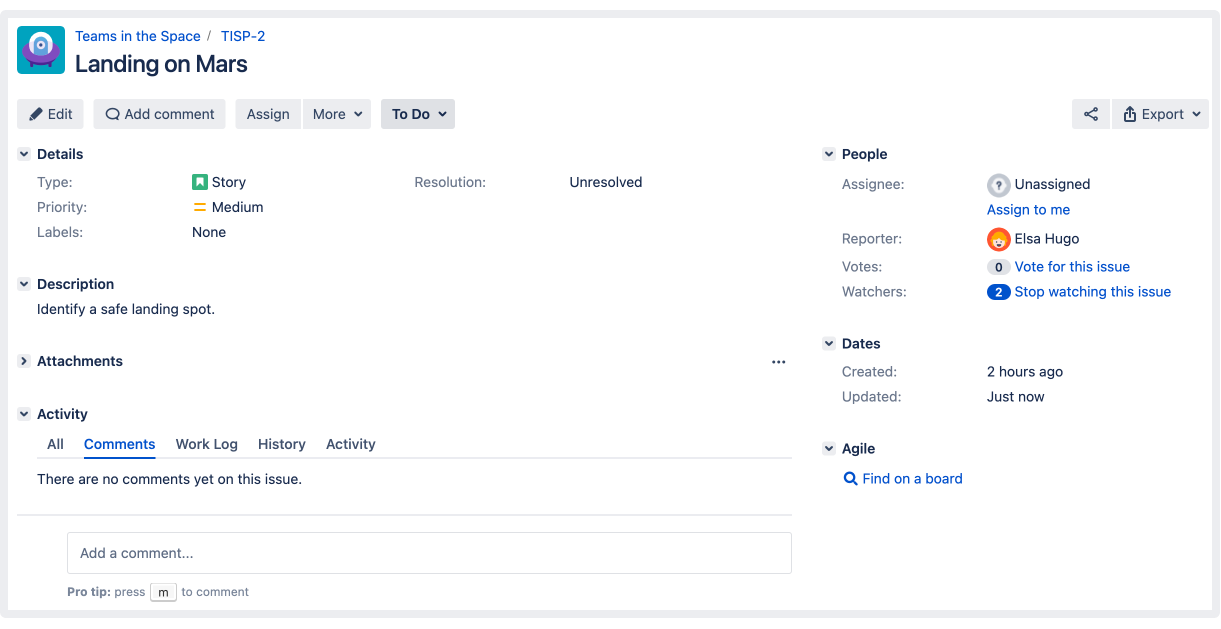
Start by locating the issue’s key and summary so you know which record you are examining. Then distinguish these views:
- Comments shows discussion recorded on the issue, such as a request for information or a reported test result.
- History shows recorded changes and events, including issue-field changes, attachments, and issue-link changes.
- Activity combines history information with additional activity such as comments. On busy issues, it may take longer to load.
Atlassian’s Working with issues guide for Jira Software Data Center 9.17 explains both the full issue view and the difference between these tabs. Read these short passages rather than the rest of the guide:
Working with issues | Jira Software Data Center 9.17 | Atlassian Documentation
Atlassian’s guide will help you locate the activity area and identify which kinds of events its tabs contain.
Under “Full view (e.g. via search results),” read the issue layout, beginning with the numbered list and ending with the note about customized views. Also read the following sentence about opening the full view if you are looking at a smaller issue detail view. Then find “What activity is shown in the History and Activity tabs?” Read the tab comparison, from the History tab’s list of recorded events through the explanation of Activity. Notice that History can record a comment’s deletion, while Activity additionally displays comments.
The screenshot’s empty Comments tab does not tell you that nothing happened to the issue. A status or assignee might have changed without anyone commenting. Conversely, a comment may describe a decision without any corresponding field change. Check the view that answers your question rather than treating one tab as the entire record.
Reading events as process evidence
Suppose you are reviewing a Bug currently marked Done, with resolution Fixed and Fix Version/s set to 3.4. Its current fields tell you the recorded outcome and target, but not the sequence. Imagine its History and Activity views contain these entries:
| Recorded event | What it supports—and what it does not |
|---|---|
| The Bug was created on 9 June. | Establishes when this Jira record began, not necessarily when the defect first existed. |
| Its status changed from To Do to In Progress on 10 June. | Shows a recorded workflow change, not how much work was performed. |
| A file was attached on 12 June. | Shows that a file was added; you must inspect it before describing its contents as test evidence. |
| A comment on 13 June says the fix passed a retest. | Shows that someone reported a passing retest; the strength of that evidence depends on its detail and any supporting record. |
| On 14 June, the status changed to Done and the resolution to Fixed. | Shows how and when the issue was recorded as closed. It does not, by itself, prove that version 3.4 was released. |
This is a fictional example, not an event sequence shown in the screenshot. It illustrates a useful SQA habit: separate the recorded event from the conclusion you would like to draw. In particular, inspect the old and new values on a field-change entry. “Resolution changed from Unresolved to Fixed” tells you more than a current resolution of Fixed alone.
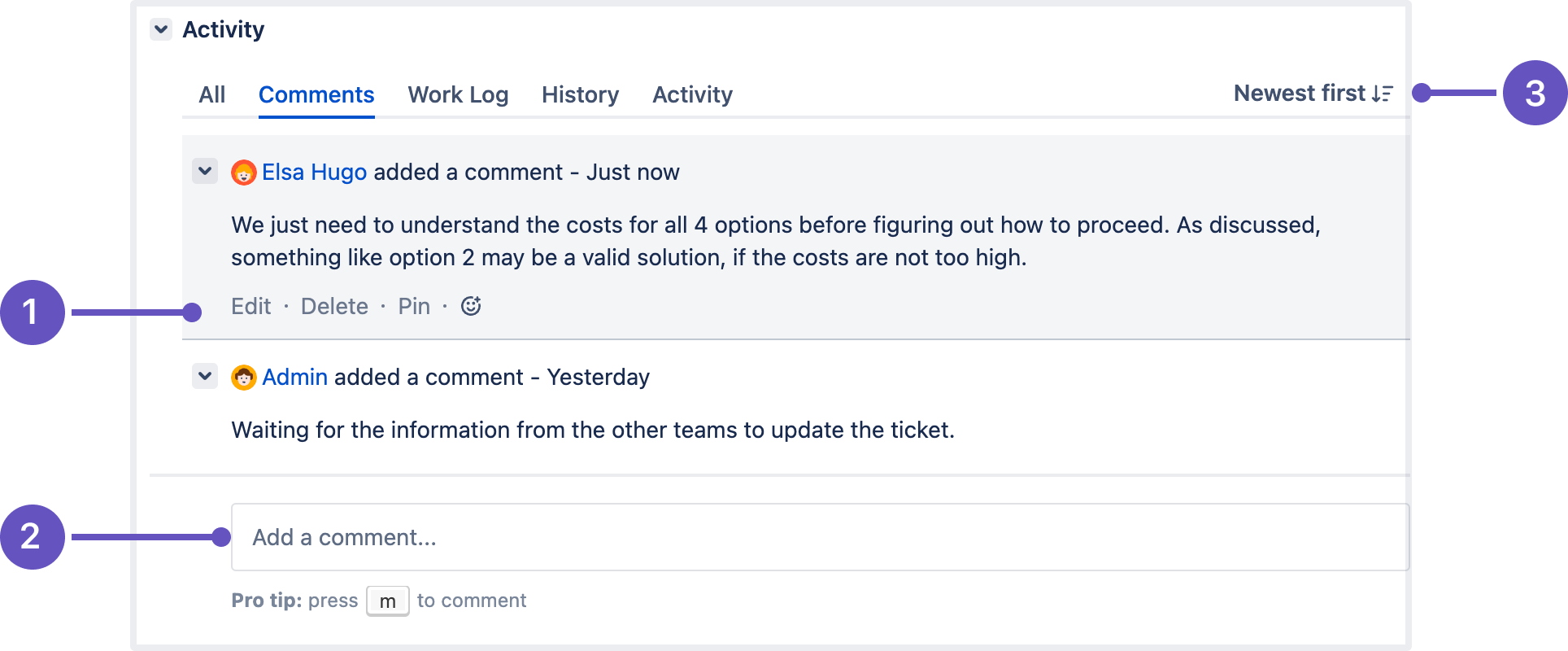
Comments can supply context that fields omit: why work paused, what information was requested, or what a tester says they checked. But comment text is a statement in the record, not automatic proof that a test ran or passed. A useful retest comment might identify the build, test conditions, observed result, and where supporting results can be found. A brief “looks good” gives you less to verify.
Look across tabs when a sequence seems incomplete. If a comment says “ready for retest,” check whether there is a later retest record. If an issue is Done but its latest visible discussion reports a failure, check the timing and subsequent history before calling it an inconsistency. People may comment before a later fix, and the Activity list may be sorted newest first.
Using the record without overstating it
Jira history is valuable because it can preserve who changed a recorded value and when, as well as the prior and new field values. Atlassian’s guide also lists events such as attachments and issue-link creation or deletion. These can help you locate supporting material or investigate a dependency. They do not establish the quality or meaning of that material without further review.
Keep three limits in mind when writing SQA observations:
- A field change documents a Jira action. A transition to Done records a workflow event; it is not independent verification of completion or testing.
- An attachment or comment may require examination. Its presence alone does not establish that it contains adequate evidence. If a comment was deleted, do not assume its original wording remains available for inspection.
- Your view may not be complete. The issue detail view can differ from the full view, and access or local configuration may affect what you can see. State what you inspected rather than asserting that an unseen record does not exist.
For a 10-minute read-only inspection, open one issue you are permitted to view—preferably a Bug with some activity. Note its key, current status and resolution, then inspect Comments and History (or Activity). Identify one dated field change and one other event if available. Record each as “Jira shows…” before writing any interpretation. If a tab has no entries, note that fact for the tab you inspected; do not generalize it to the entire issue. If you do not have Jira access, use the two screenshots to locate the tabs and the fictional chronology above to see how a current state differs from its supporting record.
Key takeaways
An issue’s current fields are a snapshot; its activity and history provide a chronology. Use History to inspect recorded field changes and other events, and Comments or Activity to understand what people said about the work. For SQA, report precisely what Jira records, then distinguish it from conclusions that need test results, attachment review, or other corroboration.
Next, you will use this evidence-minded approach to create a well-formed issue—one that gives future reviewers enough context to understand the problem and follow its progress.