Recommended resources
The freely available resources this lesson will direct you to.
- What's the difference between APK and AAB file in 3 Minuteswww.youtube.com
- Flutter - Build and Release an Android App | App Signingwww.youtube.com
- What Is an AAB File? AAB vs APK Explained | TestMu AI (Formerly LambdaTest)www.testmuai.com
- App Signing Explained 📱: Keystores, Certificates, and Provisioning Profiles - DEV Communitydev.to
Hello! In our last lesson, we walked through the process of setting up a Google Play Developer account, which is your gateway to publishing on Android. With your "digital storefront" ready, the next question is: what exactly do you put on the shelf?
This lesson will demystify the file formats and security procedures that Claude or any development guide will ask you to follow when preparing your Android app. We'll explore what APK and AAB files are, why the Android ecosystem shifted from one to the other, and unravel the crucial concept of app signing. By the end, you'll understand why these technical steps aren't just arbitrary rules, but essential measures for security, trust, and providing a better user experience.
The Package: From One-Size-Fits-All to Custom-Tailored
When you finish designing and coding your app, you need to package it up into a file that can be distributed to users. For years, this package was the APK (Android Package Kit).
Think of an APK as an all-in-one suitcase packed for a trip that could go anywhere in the world. It has swim trunks, a winter coat, hiking boots, and formal shoes. It's heavy, bulky, and most of its contents will be useless for any single destination. Similarly, a traditional APK contains all the code and resources (images, language files, etc.) for every possible device, screen size, and processor type. This makes the file large and inefficient.
To see a quick breakdown of this, and to introduce its modern successor, let's watch a short video.
What's the difference between APK and AAB file in 3 Minutes
This video from Flutter Agentic provides a concise, 3-minute comparison between APK and AAB files.
Watch the entire video. It first defines what an APK is, then explains what an AAB is, and finally highlights the key difference in how they are used. Pay close attention to the part about AAB being a publishing format, not an installable file.
As the video explained, Google introduced the AAB (Android App Bundle) as a smarter way to package apps. An AAB isn't something a user can install directly. Instead, it's a publishing format—a bundle of all your app's compiled code and resources that you upload to the Google Play Store.
This is where the magic happens. Google Play takes your AAB and uses it as a blueprint to build and serve optimized APKs for each user's specific device.
Let's use a visual analogy.
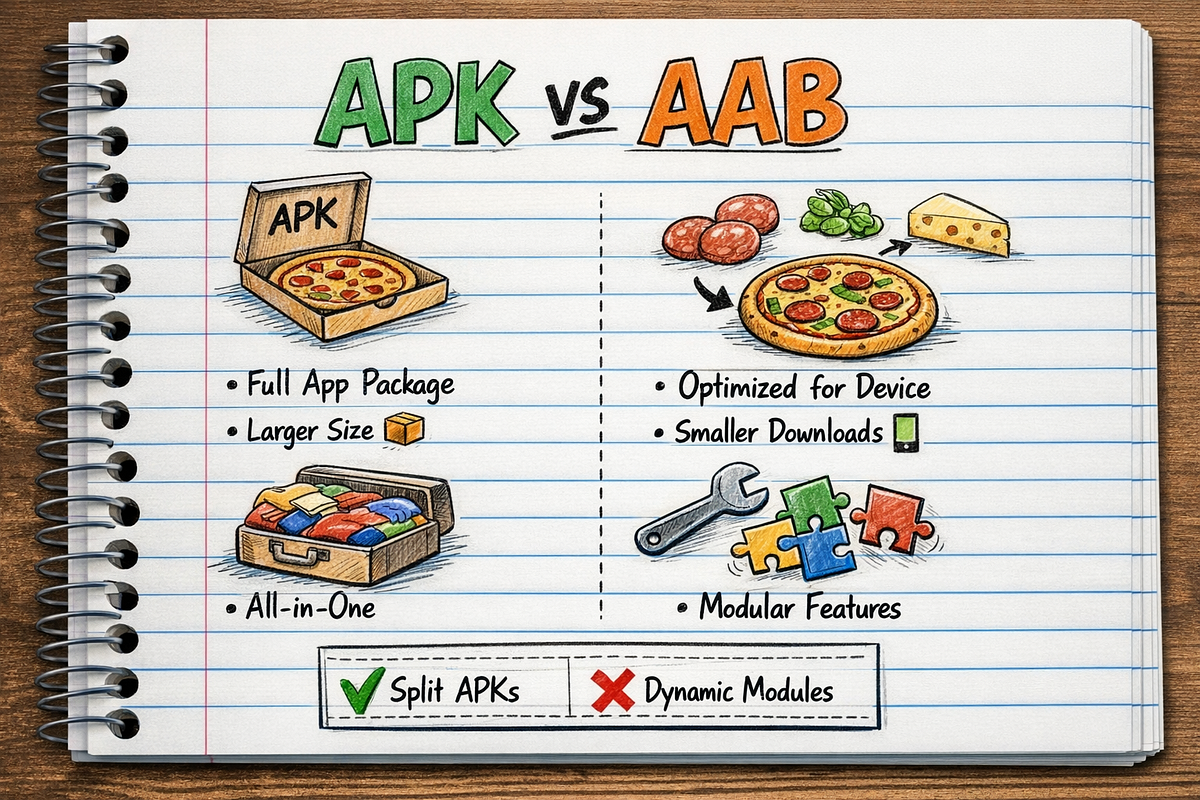
The AAB contains all the "ingredients" for your app: code for different processor types (like ARM or x86), images for various screen densities (mdpi, xhdpi, etc.), and text for multiple languages. When a user downloads your app, Google Play acts as the chef, assembling a lean APK with only the ingredients that the user's specific device needs.
This process, called Dynamic Delivery, is illustrated perfectly in this diagram:

So, why did Google make this the mandatory format? The benefits are significant and directly answer the "why are we doing this" question.
What Is an AAB File? AAB vs APK Explained | TestMu AI (Formerly LambdaTest)
The article "What Is an AAB File?" from TestMu AI provides a clear rationale for Google's decision and a helpful comparison table.
First, read the section "Why Google Mandated AAB". This section details the key benefits, such as smaller app sizes (which means faster downloads and less data usage for users), dynamic features (delivering parts of your app only when needed), and better performance. Next, review the excellent comparison table under the "AAB vs APK: Key Differences" heading. This table is a fantastic summary that contrasts the two formats across factors like file size, signing, and direct installation.
In short, when Claude or a tutorial tells you to generate an AAB, it's because you are creating the master blueprint that Google Play will use to deliver the most efficient and streamlined version of your app to your users.
The Seal of Trust: Why App Signing is Required
Now that we know what file to create (an AAB), we need to address a critical security step: app signing. You can't just upload your AAB to the Play Store without proving it's really from you and that it hasn't been modified.
This is where app signing comes in. It serves two fundamental purposes:
- Authenticity: It proves that the app was created by you, the legitimate developer.
- Integrity: It guarantees that the app's code has not been tampered with since you signed it.
A fantastic way to understand this is with a real-world analogy.
App Signing Explained 📱: Keystores, Certificates, and Provisioning Profiles - DEV Community
The article "App Signing Explained" from DEV Community uses simple analogies to demystify this complex topic.
First, read the sections "Why Does App Signing Even Exist?" and "The Wax Seal Analogy". This explains the core concept of a digital signature in a very intuitive way. Then, continue reading through the "Key Concepts" and the beginning of the "Android App Signing" sections. This will introduce you to the fundamental building blocks: Public and Private Keys: The digital tools used to create and verify the signature. Certificate: Like an ID card that links your identity to your keys. Keystore: The secure file on your computer that holds these precious keys.
As the article explains, you use your private key to stamp your app with a unique digital signature. This private key is the crown jewel; you must keep it secret and safe. The corresponding public key is distributed with your app. Anyone (including the user's phone and the Google Play Store) can use the public key to verify that the signature is valid and that the app is authentic.
This "safe deposit box" for your keys is a file called a keystore. When a development tool asks you to "generate a signing key" or "create a keystore," it is walking you through the process of creating this secure file.
Let's see what this looks like in practice.
Flutter - Build and Release an Android App | App Signing
This video from MJSD Coding, though focused on Flutter, demonstrates the universal Android process of generating a keystore from the command line.
Watch the section from generating the keystore. The narrator explains why you need to sign your app for the Play Store and then runs the keytool command to create the keystore file. This is the exact kind of command an LLM might give you. Notice how it prompts for passwords and other information.
The Unforgivable Mistake and Its Solution
There is one rule about your keystore that cannot be overstated: You must not lose it.
If you publish an app signed with a specific key, every single update for that app must be signed with the same key. If you lose that key, you lose the ability to update your app. You would have to publish it as a brand new app, losing all your existing users, ratings, and reviews.
This was such a huge and common problem that Google introduced a service to solve it: Play App Signing.
When you opt into Play App Signing (which is the default and highly recommended for all new apps), you still generate your own private key (the "upload key"). You use this key to sign the AAB you upload to Google. Then, Google replaces that signature with the final "app signing key" that it securely stores and manages on your behalf.
This gives you the best of both worlds:
- You prove to Google that the upload came from you.
- Google manages the final, all-important signing key, so if you lose your local upload key, you can just prove your identity to Google and generate a new one without losing the ability to update your app.
Conclusion
You've now unpacked the core components of preparing an Android app for release. These are not just technical hoops to jump through; they are fundamental to the security and efficiency of the entire Android ecosystem.
Here are the key takeaways:
- APK is the installable file, but it's an outdated, one-size-fits-all format.
- AAB is the modern publishing format you upload to Google Play. It contains all the "ingredients" for your app.
- Google Play uses your AAB to generate and deliver smaller, faster, optimized APKs to each user.
- App Signing is a mandatory security process, like a digital wax seal, that guarantees your app's authenticity (it's from you) and integrity (it hasn't been tampered with).
- This is done using a private key stored in a keystore file. Losing this key for a published app can be catastrophic.
- Play App Signing is Google's service that securely manages your final app key, providing a crucial safety net.
In our next lesson, we'll move from the technical package to the marketing package. We'll outline the requirements for creating a compelling store listing on the Google Play Store, covering everything from screenshots and descriptions to your app icon and privacy policy.