Recommended resources
The freely available resources this lesson will direct you to.
- Google Play store listings: Maximize app discoverability with store listing experimentswww.youtube.com
- How To Publish An App To The Google Play Console | Step By Step | 2026www.youtube.com
- Scale 2024 Fast: App Guide Jackpot for Google Play Consolewww.rplg.io
- Google Play Store Listings: A Complete Guide & Checklist (2026) | InspiringAppswww.inspiringapps.com
Welcome back! In our previous lesson, we transformed your app's code into a secure, signed Android App Bundle (AAB), ready for Google's servers. But before you can upload that technical package, you need to prepare the "marketing package"—the digital storefront that will entice users to click "Install."
This lesson focuses entirely on that storefront: the Google Play Store listing. As a product designer, you're already an expert in crafting compelling user experiences; your store listing is simply the very first of those experiences. We will walk through all the essential components Google requires, from eye-catching visuals to the necessary legal fine print. You'll learn not just what to provide, but why each element is crucial for discoverability, user trust, and ultimately, your app's success.
The Anatomy of a Store Listing
Before diving into the details, let's look at the big picture. Your store listing is a collection of text and media assets that together tell the story of your app. Think of it as your app's landing page, packaging, and user manual all rolled into one.
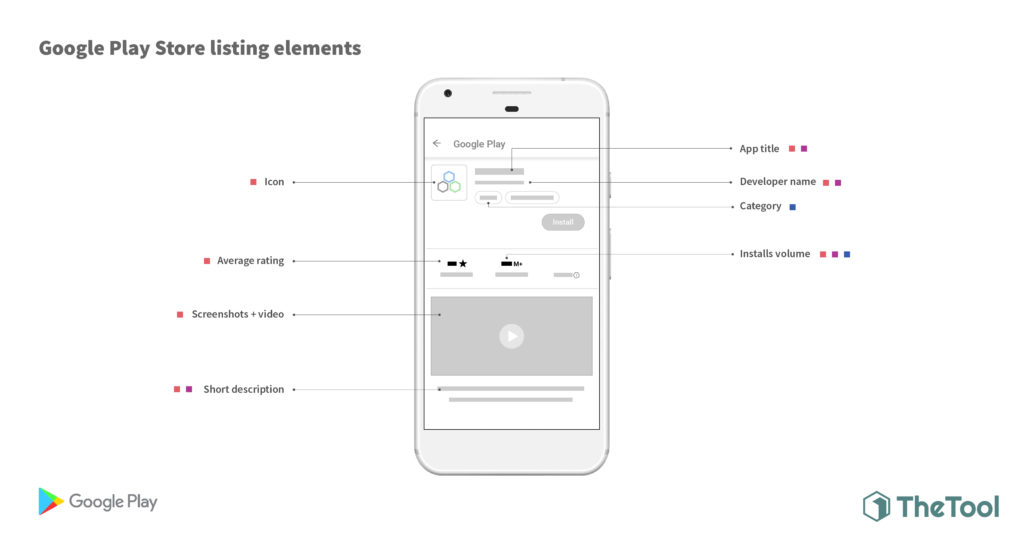
We can group these requirements into three main areas:
- The "First Impression" Assets: The visuals and key text that grab a user's attention.
- Discoverability & Categorization: The information that helps Google and users find your app.
- Policy & Trust: The mandatory declarations that ensure your app is safe and transparent.
Let's start with the most exciting part for any designer: crafting that first impression.
Part 1: The First Moment of Truth
Marketing experts talk about a "first moment of truth"—the handful of seconds when a customer first sees a product on a shelf and decides whether to pick it up. On Google Play, this moment happens when a user glances at your listing.
This short video from the Android Developers channel introduces this concept and offers five key tips for making your listing stand out.
Google Play store listings: Maximize app discoverability with store listing experiments
This video explains how to apply marketing principles to your store listing to capture a user's attention immediately.
Watch the section from the first moment of truth. Pay close attention to the advice given for the icon, title, video, screenshots, and descriptions. These are your primary tools for visual storytelling.
As the video highlights, your icon, title, and initial screenshots are the most critical assets. They need to convey your app's purpose and quality in an instant.
Now, let's get into the specific requirements for these assets. The following guide provides an excellent, detailed checklist for everything you'll need. We'll refer to it throughout the lesson.
Google Play Store Listings: A Complete Guide & Checklist (2026) | InspiringApps
This guide from InspiringApps is a comprehensive resource covering the specifications and best practices for every part of your store listing.
For now, focus on the section titled "Main Store Listing." Read through the requirements for the Name, Short Description, Full Description, App Icon, Feature Graphic, Screenshots, and Preview Video. Notice the specific pixel dimensions, file types, and character limits.
Let's break down the key takeaways from a design and UX perspective:
- App Icon (512x512px PNG): This is your brand's face. It appears everywhere, from search results to the user's home screen. The best practice is to make it unique and memorable, avoiding text or badges that will become illegible at small sizes.
- Feature Graphic (1024x500px JPG or PNG): This is a unique and important Android asset. It's a promotional banner that Google uses if your app gets featured or runs a promo video. It's your chance to create a bold, cinematic header for your app page.
- Screenshots (Min. 2, 3-8 recommended): This is your visual storyboard. Don't just show random screens; guide the user through a narrative that highlights the core value of your app. As the guide notes, the first 2-3 are the most critical, as they are visible without scrolling.
- Short Description (80 characters): This is your app's elevator pitch. It's highly visible in search results and at the top of your listing, so it needs to be concise and compelling.
- Video (YouTube link): A powerful tool. Since it autoplays on mute, your video must be visually understandable without sound in the first 5-10 seconds. Show, don't just tell.
Part 2: Helping Users and Google Find You
Once you've crafted your core marketing assets, you need to provide information that helps Google properly categorize your app and put it in front of the right users. This is a key part of App Store Optimization (ASO).
Google Play Store Listings: A Complete Guide & Checklist (2026) | InspiringApps
Let's continue with the same InspiringApps guide.
Now, read the section "Store Settings." This covers how you classify your app and provide contact details.
The key elements here are:
- Category: A straightforward choice from a predefined list (e.g., "Productivity," "Art & Design").
- Tags (up to 5): These are crucial for discoverability. Think of them like keywords. If you have a drone-piloting app, your category might be "Tools," but your tags could be "drones," "aviation," "robotics," "FPV," etc. This helps users find you when they browse related topics.
- Contact Information: An email address is mandatory. This isn't just a formality; it's a trust signal to users that there's a way to get support.
Part 3: Building Trust Through Transparency
This final set of requirements is the "paperwork" of app publishing. When your LLM coding assistant asks you for a "privacy policy URL" or to fill out a "data safety form," this is what it's referring to. These steps are non-negotiable and are designed to protect users and ensure transparency. Misrepresenting information here is the fastest way to get your app suspended.
A video walkthrough can make these forms and questionnaires much less intimidating. Let's watch how to navigate these steps in the actual Google Play Console.
How To Publish An App To The Google Play Console | Step By Step | 2026
This video from Tricky4you provides a practical, step-by-step demonstration of filling out the policy-related sections of the Play Console.
Watch the following segments to see these critical steps in action: Privacy Policy: Notice the clever, practical tip of using a free generator and hosting the policy on a public Google Doc. App Access: This shows how to provide demo login credentials, a crucial step if your app isn't fully public. Content Rating & Target Audience: See how the questionnaire works to generate an official rating. Data Safety: Observe the process of declaring what data your app collects and how it's used.
Now that you've seen the process, let's use our main guide to get a more detailed understanding of the rules behind each step.
Google Play Store Listings: A Complete Guide & Checklist (2026) | InspiringApps
Finally, let's review the detailed requirements for the policy section in the InspiringApps guide.
Read the section titled "App Content." Pay special attention to the requirements for Privacy Policy, Data Safety, App Access, and Content Rating. This text complements the video by explaining the "why" and the strict rules you must follow.
Here’s a summary of the most important points:
- Privacy Policy: You must have one if your app collects any user data. It needs to be on a publicly accessible URL and accurately describe your practices.
- Data Safety: This is a structured form where you declare to users what data you collect, why you collect it, and if you share it. Your answers here must match your privacy policy. Honesty is critical.
- App Access: If your app has a login, paywall, or other restricted area, you must provide Google's review team with a working, permanent demo account. If you don't, they can't review your app, and it will be rejected.
- Content Rating: You don't make this up. You fill out a questionnaire from the IARC (International Age Rating Coalition), and they assign a rating based on your honest answers about your app's content (e.g., violence, language).
Conclusion
You now have a complete outline of what it takes to build a Google Play Store listing. It's a combination of creative marketing, where your design skills shine, and procedural compliance, which builds essential trust with your users and with Google.

Let's recap the key takeaways:
- Your listing is a product: Treat your icon, screenshots, and descriptions with the same design care as your app's UI. They are the first point of contact with your user.
- Be discoverable: Use your app title, descriptions, and tags strategically with relevant keywords to help users find you.
- Be transparent and honest: The policy sections (Privacy, Data Safety, Content Rating) are not optional. Inaccurate information can lead to suspension. Always provide a way for reviewers to access all parts of your app.
In our previous lessons, we've built, packaged, and prepared our app for the world. With this lesson, you've now designed its "storefront." You are officially ready to publish.
Our next module will take a very exciting turn. Now that you know how to build and publish a complete app, we'll explore how to make it "smarter" by connecting it to external AI services like Hugging Face and large language models (LLMs).