Recommended resources
The freely available resources this lesson will direct you to.
Welcome to the fourth lesson in our Python essentials module. In our last session, you mastered the art of data manipulation with pandas, learning how to select, filter, and engineer new features from your dataset. These skills allow you to prepare your data for analysis. Now, it's time to bring that prepared data to life.
Today's lesson addresses the learning outcome: Create exploratory data visualizations (scatter plots, histograms) using Matplotlib and Seaborn. If data manipulation is about asking specific questions, data visualization is about discovering the questions you didn't even know you should ask. It's the primary tool for Exploratory Data Analysis (EDA), turning rows of data into insightful patterns, trends, and relationships. For anyone in an analytics or management role, being able to create and interpret visualizations is a non-negotiable skill for understanding business performance and communicating findings.
The Power of a Good Visualization
Before we dive into the code, let's consider why we visualize data. A table of numbers can be precise, but it rarely reveals the story behind the data. A well-crafted plot, on the other hand, can instantly highlight complex relationships.
Consider the plot below, which visualizes data for three species of penguins.

Instantly, you can see that Gentoo penguins (green) have longer flippers and bills than the other two species. You can also see a positive correlation for all species: as flipper length increases, so does bill length. The histograms on the margins show the distribution of each feature. Imagine trying to glean all of that from a spreadsheet—it would be far more difficult. This is the goal of EDA: to understand the structure of your data visually.
Python's Visualization Landscape: Matplotlib and Seaborn
Python's data visualization ecosystem is dominated by two key libraries:
- Matplotlib: This is the foundational library for plotting in Python. It is powerful and highly customizable, giving you fine-grained control over every element of your plot.
- Seaborn: This is a higher-level library built on top of Matplotlib. It's designed specifically for creating attractive and informative statistical graphics. It integrates seamlessly with pandas DataFrames and often requires less code to produce sophisticated plots.
Given your goal of practical application and your current programming skills, we will primarily use Seaborn. However, to understand Seaborn, it's essential to understand the basic structure of a Matplotlib plot, as Seaborn uses it under the hood.
The Anatomy of a Plot
Almost every plot you create with these libraries consists of two main components: a Figure and one or more Axes.
- Figure: The top-level container for everything. It's the overall window or page that everything is drawn on.
- Axes: This is the actual plot—the area where your data points are plotted, with x- and y-axes (or other coordinates). A single Figure can contain multiple Axes (subplots).
The most common way to create them, and the method we will use, is the object-oriented approach. It gives you explicit control over your plots, which is invaluable as they become more complex.
Data Visualization with Python using Matplotlib and Seaborn
This article from Savio Global gives a clear overview of the components of a Matplotlib plot and the different coding styles.
Please read the sections "Parts of a Matplotlib Figure" and "Coding styles". Focus on understanding the roles of the Figure and Axes objects, and why the "object-oriented (OO) style" is generally recommended.
Let's put this into practice. Open your Google Colab notebook and run the following setup code. We'll continue using the IMDB movies dataset from our last lesson.
# Import necessary libraries
import pandas as pd
import matplotlib.pyplot as plt
import seaborn as sns


# Set a visually appealing style for our plots
sns.set_theme(style="darkgrid")


# Load the data from the previous lesson
url = "https://raw.githubusercontent.com/learndatasci/courses/master/Python%20Pandas%20for%20Your%20Pythoneer%20Toolbox/IMDB-Movie-Data.csv"
movies_df = pd.read_csv(url, index_col="Title")


# Let's see the columns we have to work with
print(movies_df.info())
The command fig, ax = plt.subplots() is our starting point. plt.subplots() creates a Figure and a set of subplots (in this case, just one) and returns them. We capture the Figure in the fig variable and the Axes in the ax variable. We then pass the ax object to our Seaborn plotting functions.
Visualizing Distributions: The Histogram
A histogram is the go-to plot for understanding the distribution of a single numerical variable. It groups numbers into ranges (called "bins") and then plots the count of values falling into each bin. This quickly shows you the data's central tendency, spread, and skewness.
For a great conceptual breakdown of what a histogram is and how bins work, please watch this short segment.
Matplotlib Plot Tutorial: Histograms, Scatter Plots & Legend
This video from DataCamp provides a clear, animated explanation of how a histogram is constructed from data points and bins.
Watch from the beginning of the histogram section. Focus on the core idea of dividing data into bins and counting the occurrences in each bin.
Now, let's create a histogram for the movie ratings in our dataset using Seaborn's histplot function.
# Create a figure and axes
fig, ax = plt.subplots(figsize=(10, 6))


# Create the histogram on the axes
sns.histplot(data=movies_df, x='Rating', ax=ax)


# Add title and labels for clarity
ax.set_title('Distribution of Movie Ratings')
ax.set_xlabel('Rating')
ax.set_ylabel('Number of Movies')


# Display the plot
plt.show()
When you run this code, you'll see a distribution skewed to the left, with most movies having a rating between 6.0 and 8.0. This is an immediate insight that would be harder to spot just by looking at the numbers.
Visualizing Relationships: The Scatter Plot
While histograms are for single variables, scatter plots are essential for visualizing the relationship between two numerical variables. Each point on the plot represents a single observation (in our case, a single movie), positioned according to its values on the x and y axes.
Let's see if there's a relationship between a movie's rating and its revenue.
# Create a figure and axes
fig, ax = plt.subplots(figsize=(10, 6))


# Create the scatter plot
sns.scatterplot(data=movies_df, x='Rating', y='Revenue (Millions)', ax=ax)


# Add title and labels
ax.set_title('Relationship between Movie Rating and Revenue')
ax.set_xlabel('Rating')
ax.set_ylabel('Revenue (in Millions)')


# Display the plot
plt.show()
The resulting plot shows a loose positive correlation: higher-rated movies tend to have higher revenue, but with a lot of variation.
Adding Another Dimension with hue
The real power of Seaborn's scatter plots comes from its ability to encode other variables into the plot's aesthetics, such as color, size, or style. The most common of these is hue, which colors the points based on a categorical variable. This lets you explore relationships within different segments of your data.
This image shows a classic example from the "tips" dataset, where points are colored based on whether the customer was a smoker.
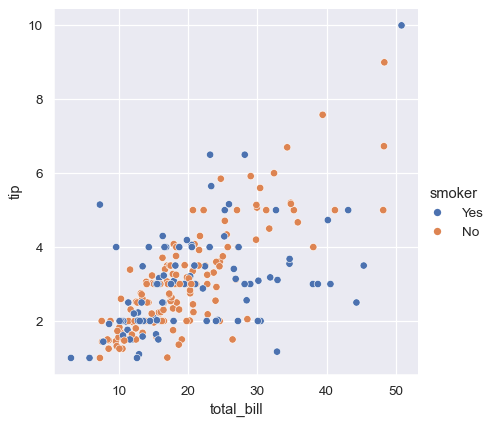
The following video provides an excellent, fast-paced demonstration of using hue, size, and style to add layers of information to your plots.
Seaborn Crash Course - Data Visualization in Python
This clip from the "Seaborn Crash Course" by NeuralNine powerfully demonstrates how to make your visualizations more insightful by adding categorical information.
Watch the section from where the presenter introduces the hue parameter. Notice how adding a single parameter, like hue='sex', instantly adds a new dimension of analysis and an automatic legend to the plot.
Let's apply this to our data. In the last lesson, we created a Rating_Category. Let's use that to color our scatter plot.
# First, let's re-create the 'Rating_Category' column from the previous lesson
def assign_rating_category(rating):
    if rating >= 8.0:
        return 'Excellent'
    elif rating >= 7.0:
        return 'Good'
    else:
        return 'Average'

movies_df['Rating_Category'] = movies_df['Rating'].apply(assign_rating_category)


# Create a new figure and axes
fig, ax = plt.subplots(figsize=(12, 7))


# Create the scatter plot with hue
sns.scatterplot(data=movies_df, x='Rating', y='Revenue (Millions)', hue='Rating_Category', ax=ax)


# Add title and labels
ax.set_title('Relationship between Movie Rating and Revenue by Category')
ax.set_xlabel('Rating')
ax.set_ylabel('Revenue (in Millions)')


# Display the plot
plt.show()
Now the plot tells a clearer story. You can see how the different rating categories cluster and how revenue varies within them. This ability to segment your data visually is fundamental to analytics.
Conclusion
In this lesson, you've taken your first steps into the world of data visualization. You've learned not just how to create plots, but why we create them: to explore and understand our data in ways that raw numbers cannot convey.
Here are the key takeaways:
- Visualization for EDA: Plots like histograms and scatter plots are your primary tools for Exploratory Data Analysis.
- Matplotlib vs. Seaborn: Matplotlib is the foundational library, while Seaborn provides a simpler, high-level interface for creating beautiful statistical plots.
- Anatomy of a Plot: Plots are built on a
Figure(the canvas) andAxes(the actual plotting area). Using thefig, ax = plt.subplots()pattern gives you control. - Histograms: Use
sns.histplot()to visualize the distribution of a single numerical variable. - Scatter Plots: Use
sns.scatterplot()to visualize the relationship between two numerical variables. You can add a third, categorical variable using thehueparameter to gain deeper insights.
You now have the tools to both manipulate and visualize data—two core pillars of the data science workflow.
In our next and final lesson of this module, we will cover the basics of NumPy, another fundamental Python library. You'll learn how to work with NumPy arrays, which are the core data structure used by nearly all scientific and machine learning libraries in Python, including scikit-learn.