Recommended resources
The freely available resources this lesson will direct you to.
- Python Pandas Full Tutorial for Beginners | Data Science | Data Analysis | Data Manipulation @SCALERwww.youtube.com
- Pandas Full Course (2025) | Python Pandas Tutorial For Beginners | Python Pandas Course |Intellipaatwww.youtube.com
- Python Pandas Tutorial: A Complete Introduction for Beginnerswww.learndatasci.com
- Pandas: Python Data Analysis Libraryjohnfoster.pge.utexas.edu
Welcome to your third lesson in our Python essentials module. In our last session, you learned how to load data into a pandas DataFrame and perform initial inspections using fundamental commands like .head(), .info(), and .describe(). You now have the skills to get a first look at any new dataset.
Today, we'll build on that foundation to achieve the next learning outcome: performing data manipulation by filtering, selecting, and creating new columns with pandas. If loading and inspecting data is like receiving a raw report, then manipulation is the process of highlighting, sorting, and calculating the key figures needed to find actionable insights. These operations are the core of nearly every data analysis task, transforming raw data into a refined asset ready for visualization, modeling, or business reporting.
A New Dataset for Manipulation
For this lesson, we'll switch from the simple Iris dataset to a richer one containing data about IMDB movies. It has a nice mix of numerical and text data, making it ideal for practicing selection and filtering.
Please open your Google Colab notebook and run the following code in a new cell to load the dataset. We will use the movies_df DataFrame for the rest of this lesson.
# Import the pandas library
import pandas as pd
import numpy as np # We'll need numpy for one of the exercises


# URL for the IMDB movies dataset
url = "https://raw.githubusercontent.com/learndatasci/courses/master/Python%20Pandas%20for%20Your%20Pythoneer%20Toolbox/IMDB-Movie-Data.csv"


# Load the data and set the 'Title' column as the index
movies_df = pd.read_csv(url, index_col="Title")


# Let's inspect the first few rows to see what we're working with
movies_df.head()
Part 1: Selecting Data — Subsetting Your DataFrame
The first step in manipulation is often to isolate the specific parts of the data you're interested in. This could mean grabbing a few key columns or a specific set of rows.
Selecting Columns
In the previous lesson, you selected a single column to use value_counts(). The syntax is similar to accessing a value in a Python dictionary.
- To select a single column, use single square brackets:
movies_df['Genre']. This returns a pandasSeries. - To select multiple columns, use double square brackets with a list of column names:
movies_df[['Genre', 'Rating']]. This returns a new, smallerDataFrame.
Try this in your notebook:
# Select the 'Genre' column (returns a Series)
genres = movies_df['Genre']
print(type(genres))


# Select the 'Genre' and 'Rating' columns (returns a DataFrame)
subset = movies_df[['Genre', 'Rating']]
print(type(subset))
subset.head()
Selecting Rows with .loc and .iloc
Pandas provides two powerful methods for selecting rows:
.loc: Selects data by label. Since we set our index to be the movie titles, we use.locto select rows by title..iloc: Selects data by integer position. This works just like slicing a Python list, where0is the first row,1is the second, and so on.
For a detailed walkthrough of these selection methods, please read the following sections from the "Python Pandas Tutorial" you've seen before.
Python Pandas Tutorial: A Complete Introduction for Beginners
This resource provides clear examples of how to select subsets of your data by column and by row.
In the article, navigate to the section "DataFrame slicing, selecting, extracting". Read the subsections "By column" and "By rows". Focus on understanding the difference between selecting one vs. multiple columns, and the distinction between .loc (label-based) and .iloc (index-based) selection.
As you've just read, .loc is inclusive of the end label in a slice (e.g., 'Prometheus':'Sing' includes Sing), while .iloc is exclusive of the end index (e.g., 1:4 includes indices 1, 2, and 3, but not 4). This is a crucial difference.
Part 2: Filtering Data — Asking Questions
Selecting data by index is useful, but the real power comes from filtering rows based on conditions. This is how you start asking specific questions of your data, such as "Which movies had a rating above 8.5?" or "Which action movies were directed by Christopher Nolan?".
A filter is created by passing a boolean condition inside the selection brackets.
# A simple filter for movies with a high rating
high_rated_movies = movies_df[movies_df['Rating'] >= 8.5]
high_rated_movies.head()
The expression movies_df['Rating'] >= 8.5 creates a Series of True/False values. When you pass this Series back to the DataFrame, pandas returns only the rows where the value was True.
Filtering with Multiple Conditions
You can combine conditions using the logical operators & (AND) and | (OR). When using multiple conditions, each condition must be wrapped in its own parentheses. This is a common point of error for beginners.
The following image provides a clear visual example of filtering a DataFrame on two conditions at once.

To see a clear, step-by-step explanation of the syntax for filtering with one or more conditions, watch the following video.
Python Pandas Full Tutorial for Beginners | Data Science | Data Analysis | Data Manipulation @SCALER
This video from SCALER provides an excellent breakdown of the logic and syntax for filtering pandas DataFrames.
Watch the segment from how to perform filter operation. Pay close attention to the explanation of how to structure single-condition filters and, most importantly, how to combine multiple conditions using & and parentheses.
Let's apply this to our movie dataset. Try to find all movies directed by 'Christopher Nolan' that also have a rating greater than 8.5.
# Filtering with multiple conditions
movies_df[(movies_df['Director'] == 'Christopher Nolan') & (movies_df['Rating'] > 8.5)]
For situations where you want to filter based on a list of possible values for a single column (e.g., movies directed by 'Christopher Nolan', 'Ridley Scott', or 'David Fincher'), the .isin() method is more concise than a long chain of | conditions.
# Using .isin() for multiple 'OR' conditions on one column
director_list = ['Christopher Nolan', 'Ridley Scott', 'David Fincher']
movies_df[movies_df['Director'].isin(director_list)]
Part 3: Creating New Columns — Feature Engineering
Often, the most valuable columns are not in the original dataset but are derived from existing data. This process is called feature engineering. As a management trainee with an MBA, you can think of this as creating new Key Performance Indicators (KPIs) from raw operational data.
Creating Columns from Arithmetic Operations
The simplest way to create a new column is by performing an arithmetic operation on one or more existing columns.
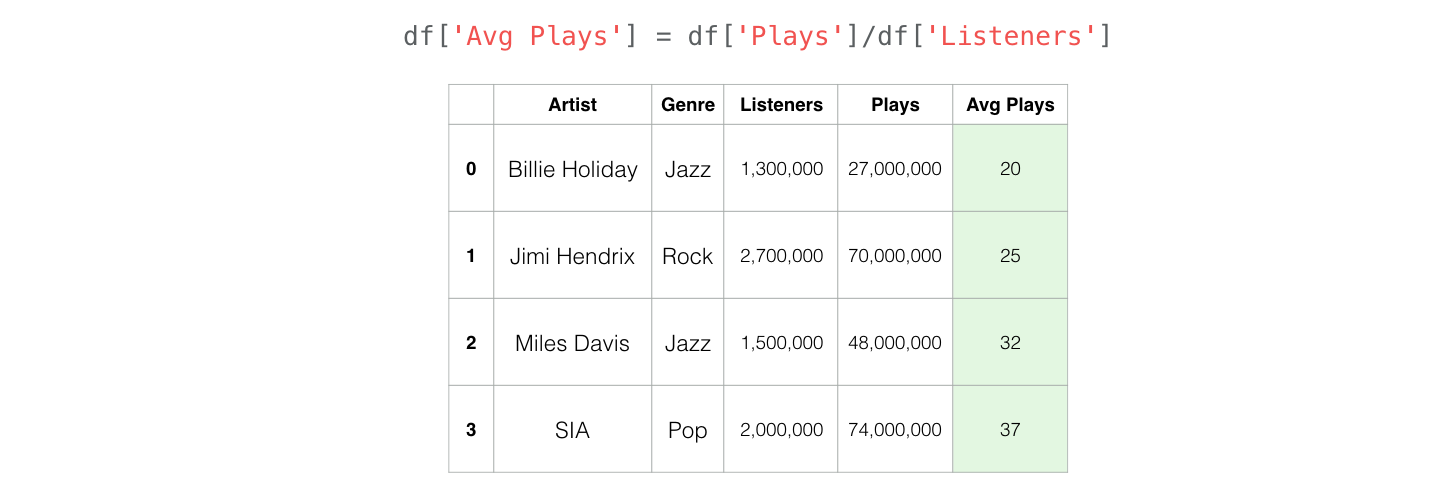
Let's create a Revenue_per_Vote column for our dataset to see which movies generated the most revenue relative to their number of votes.
# Note: The 'Revenue (Millions)' column has some missing values.
# We'll learn to handle these properly in a future lesson. For now, let's create a temporary DataFrame without them.
clean_movies_df = movies_df.dropna(subset=['Revenue (Millions)'])


# Create a new column
clean_movies_df['Revenue_per_Vote'] = clean_movies_df['Revenue (Millions)'] / clean_movies_df['Votes'] * 1000000


# Let's see the result, sorted to show the movies with the highest revenue per vote
clean_movies_df.sort_values(by='Revenue_per_Vote', ascending=False).head()
Creating Columns Conditionally
Sometimes, the value of a new column depends on a condition. For instance, you might want to create a 'Rating_Category' column with values like 'Excellent', 'Good', or 'Average' based on the 'Rating' column. There are two common ways to do this: using numpy.where and using .apply.
The article "Pandas: Python Data Analysis Library" provides excellent examples of both arithmetic and conditional column creation.
Pandas: Python Data Analysis Library
This resource from the University of Texas at Austin demonstrates practical feature engineering techniques.
Please read the entire section titled "Feature Engineering". It will show you: How to create new columns with direct mathematical operations. How to use np.where(condition, value_if_true, value_if_false) to create a new column based on a simple condition. How to define and use a custom function with .apply() for more complex conditional logic.
Let's use the .apply() method with a lambda function, which is a concise way to write a simple function inline, to create our Rating_Category.
# Create a 'Rating_Category' column using .apply() and a lambda function
def assign_rating_category(rating):
    if rating >= 8.0:
        return 'Excellent'
    elif rating >= 7.0:
        return 'Good'
    else:
        return 'Average'

movies_df['Rating_Category'] = movies_df['Rating'].apply(assign_rating_category)


# Verify the new column and check the counts of each category
print(movies_df[['Rating', 'Rating_Category']].head())
print("\nCategory Counts:")
print(movies_df['Rating_Category'].value_counts())
Conclusion
In this lesson, you have moved from passively inspecting data to actively manipulating it. These skills—selecting, filtering, and creating columns—are the fundamental building blocks of data analysis in pandas.
Here are the key takeaways:
- Selecting Data: You can select columns using
df['col']ordf[['col1', 'col2']]. You can select rows by label with.locor by integer position with.iloc. - Filtering Data: You can filter a DataFrame by passing boolean conditions inside square brackets. Multiple conditions must be combined with
&(AND) or|(OR), with each condition in its own set of parentheses. - Creating New Columns: You can create new columns by performing arithmetic on existing columns or by applying conditional logic using methods like
.apply()ornp.where().
You are now equipped to slice, dice, and transform datasets to answer targeted questions. This is a critical skill for preparing data for the next stages of the analytics workflow.
In our next lesson, we will explore how to create exploratory data visualizations. Now that you can shape your data, you'll learn to plot it, allowing you to discover trends, patterns, and relationships visually.