Recommended resources
The freely available resources this lesson will direct you to.
- Microsoft Entra ID Beginner's Tutorial (Azure Active Directory)www.youtube.com
- Build Multi-Tenant SaaS Authentication in Next.js (Organizations, RBAC, Verified Domains)www.youtube.com
- Fundamentals of securing with Microsoft Entra ID - Microsoft Entra | Microsoft Learnlearn.microsoft.com
- What is Azure role-based access control (Azure RBAC)?learn.microsoft.com
Hello again. Last lesson, you determined whether a firewall policy permits a building-side gateway to reach a cloud endpoint. That answer stops at the network boundary: a connection can be permitted without its requester being entitled to see or change anything.
This lesson moves to that second boundary. You will distinguish a tenant from a user, a role from a permission, and an identity’s existence from an actual grant of access. We will use Microsoft Entra ID and Azure role-based access control (RBAC) to make the concepts concrete, then apply them to a fictional building-operations SaaS scenario. The examples are not statements about Building X’s specific roles or tenant design. Allow about 35–40 minutes, including the resources.
A tenant answers “which environment?”
Imagine a property operator serving two customers, each with building data in a cloud application. When an operator opens a dashboard, the application needs to know not just who they are, but which customer’s environment they are working in. A tenant is a boundary used to organize and govern an organization’s identities, configuration, or data. The precise contents and isolation rules depend on the platform.
Microsoft Entra provides a useful, specific example: an Entra tenant is a dedicated instance of its identity directory. It contains identity-management objects such as users, groups, devices, and applications. Study Microsoft Learn’s definitions before looking at the diagram.
Fundamentals of securing with Microsoft Entra ID - Microsoft Entra | Microsoft Learn
Microsoft Learn defines an Entra tenant and the identities it contains. Read these definitions to separate the boundary from the people and applications represented within it.
In “Terminology,” begin with the “Microsoft Entra tenant” entry. Read the tenant definition. Then find the “Identity” entry in the same terminology list and read the identity definitions, stopping after the explanation of an application requiring an identity to run. Focus on the distinction between human users and nonhuman identities; you can leave the subsequent application-object details for later.

The diagram’s distinction matters. A tenant is not a person’s account, a building, or a subscription. Nor does belonging to an Entra tenant automatically grant access to every service shown beneath the directory. Those services can use its identities while enforcing additional access decisions of their own.
The word tenant also appears in SaaS products. A SaaS application tenant commonly denotes a customer’s organizational or data boundary inside that application. It need not be identical to the customer’s Entra tenant. For example, a SaaS product might use Entra to identify a person and then determine which customer environment and buildings that person may access within the product. Do not assume a one-to-one mapping between the two tenant types without checking the product’s design.
A user answers “who?”—but being listed is not a grant
A user is an identity representing a person who may interact with a system: perhaps a facilities operator, energy analyst, or customer administrator. An identity record can have attributes and group memberships, yet none of those facts alone establishes permission to acknowledge an alarm or view a building’s data. Also, not every requester is a human user. Applications and other workloads can have identities when they need to request access.
For a quick view of how user records and administrative roles appear in an actual directory, watch two short portions of Microsoft Mechanics’ Microsoft Entra ID Beginner’s Tutorial. The interface is illustrative; our aim is to recognize the concepts, not memorize clicks.
Microsoft Entra ID Beginner's Tutorial (Azure Active Directory)
Microsoft Mechanics demonstrates user accounts and administrative roles in Entra ID. Watch for the difference between creating an identity and giving that identity a responsibility.
Watch user accounts, from the existing account list through group and role assignments. Then skip to admin roles, beginning at “roles and administrators” and ending with the limited-administration example. Focus on how an assigned role differs from simply having a user account; the administrative-unit demonstration is specific to Entra, not a generic building-site feature.
Groups provide another way to organize access: a role or other access grant may be assigned to a group rather than individually to every user. That makes membership consequential, but “member of a group” still does not tell you what the group can do. You must find the group’s actual assignment.
Microsoft Learn describes both direct user assignment and group assignment in its discussion of resource access:
Fundamentals of securing with Microsoft Entra ID - Microsoft Entra | Microsoft Learn
Return to Microsoft Learn for the brief distinction between assigning access directly to a user and assigning it through a group.
Under “Authorization,” find the “Resource access assignment” paragraph after “Single sign-on (SSO).” Read the assignment options, ending with the group-assignment bullet. Notice that in either case, the resource and the role or permission still have to be specified.
A permission answers “what action?”; a role packages permissions
Suppose an application has these possible permissions: view telemetry, acknowledge alarms, and change user access. Each names an action. A role is a named collection of permissions, such as a hypothetical Site Viewer role containing view telemetry but not acknowledge alarms. The name is a useful shorthand, but it is the role’s definition that tells you what actions it permits.
A role definition on its own grants no one anything. In a role-based system, it must be assigned to an identity, usually with a scope specifying where it applies. Azure RBAC makes this relationship explicit: a role assignment combines a security principal (the user, group, or workload requesting access), a role definition, and a scope.
What is Azure role-based access control (Azure RBAC)?
Microsoft Learn explains access grants through three components. Read the conceptual parts of “How Azure RBAC works”; Azure’s scope levels are an example of how a platform bounds access, not the scope hierarchy of every SaaS application.
In “How Azure RBAC works,” read from the introductory role-assignment sentence through the “Security principal” and “Role definition” subsections: principal and role. In the “Scope” subsection, start with the sentence about limiting actions and continue through the listed Azure scope levels: scope explanation. Finally, in “Role assignments,” read the assignment example. Pay particular attention to why the Marketing group’s example assignment does not, by itself, grant access outside its resource group.
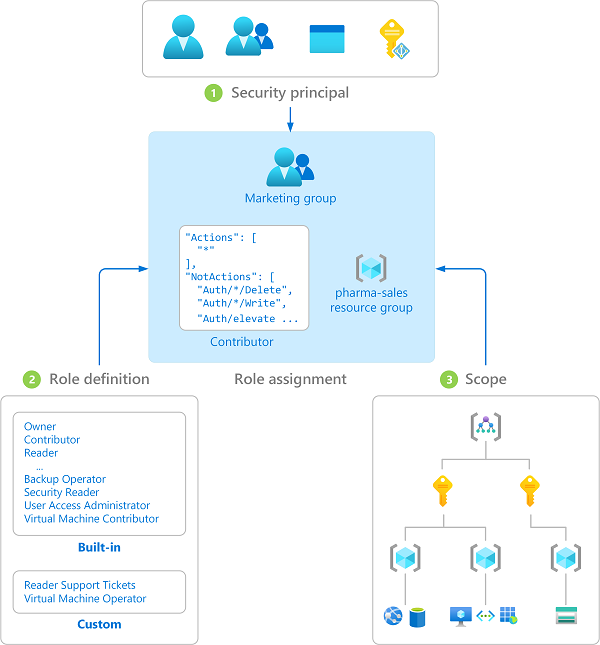
Scope is as important as the role name. Azure might scope a role to a resource group; a building application might instead offer tenant-, site-, or equipment-level scope. Those are examples of different platforms’ designs, not interchangeable hierarchies. To understand a grant, ask: Who received which role, at what scope, and which actions does that role contain?
It also helps to distinguish a role definition from a role assignment. “Site Viewer permits viewing telemetry” describes a definition in our fictional application. “Give Maya the Site Viewer role for North Tower” describes an assignment. Neither statement means Maya can view South Tower.
Read an access situation without conflating the four terms
Consider a fictional building-operations SaaS product with two customer tenants: Redwood Facilities and Harbor Estates. Redwood has two sites, North Tower and South Tower. For this example only, assume the product offers these roles:
- Site Viewer contains the permission view telemetry.
- Operations Responder contains view telemetry and acknowledge alarms.
Maya has a user identity associated with Redwood. She is assigned Site Viewer for North Tower. Dev has a user identity associated with Redwood and is assigned Operations Responder for South Tower.
If Maya can open North Tower telemetry, identify each part of that decision: Redwood is the relevant application tenant; Maya is the user; Site Viewer is the assigned role; view telemetry is the permission that addresses her requested action; and North Tower is the assignment’s scope. Under the stated assumptions, Maya’s assignment does not authorize her to acknowledge a North Tower alarm, view South Tower telemetry, or open Harbor Estates’ data.
Likewise, Dev’s role contains acknowledge alarms, but his stated assignment applies to South Tower. The role’s broad-sounding name does not extend its scope to North Tower. Either person might have other assignments; our conclusions concern only the grants described here.
This gives you a practical way to interpret an access request:
| Question to establish | What it identifies in the example |
|---|---|
| Which environment’s resources? | Redwood’s application tenant |
| Which requesting identity? | Maya or Dev |
| Which requested action? | View telemetry or acknowledge an alarm |
| Which grant supplies that action? | The permissions in an assigned role |
| Where does the grant apply? | North Tower or South Tower |
If an operator says, “I have an account, so why can’t I see this building?”, check the tenant context and applicable assignment rather than treating the account’s existence as proof of access. If they can see a building but cannot acknowledge its alarms, check which permissions their assigned role contains. And if a network connection was allowed by last lesson’s firewall policy, that establishes neither of these grants: network policy and application access answer different questions.
When discussing Building X with a customer, use this vocabulary to ask precise questions, but verify the product’s actual tenant model, role definitions, scopes, and group behavior in current documentation or the deployed configuration. The fictional Site Viewer and Operations Responder roles above are teaching examples, not documented Building X roles.
Key takeaways
A tenant identifies an organizational boundary in a particular platform; a user identifies a person; a permission describes an allowed action; and a role groups permissions. To understand effective access, look beyond those four labels to the assignment and its scope. An identity in a directory, a reachable endpoint, and an assigned role at one site are three different facts.
Next lesson, you will interpret a JSON payload containing building telemetry. The identity concepts here will later help you reason about which people or connected services should be able to send, view, or modify that data.