Recommended resources
The freely available resources this lesson will direct you to.
Hello again. Last lesson, you distinguished an identity’s existence from a grant to access a building application. Once a connected device or service is allowed to send data, a different question arises: what does its message actually say?
This lesson is about reading a JSON telemetry payload—not writing software. You will identify its structure, locate individual readings, and separate what the message tells you from what you would need to verify elsewhere. That skill will help you discuss building data precisely as you develop expertise in your role. Allow about 35–40 minutes, including the resources.
JSON carries structure, not just text
Imagine a device reporting a temperature to a cloud application. Sending only 18.6 would leave important questions unanswered: Which device? What was measured? What unit is used? When was the reading recorded? JSON is a text format that can package related pieces of information into a structure that software can read and people can inspect.
Start with the first part of Opto Video’s Intro to JSON for Node-RED. You do not need to know Node-RED; focus on how the presenter reads the data itself.
Opto Video’s Intro to JSON for Node-RED introduces the notation used in IoT messages and shows how nested data remains readable.
Watch keys and values for objects, numbers, strings, booleans, and null. Continue with arrays and nesting, paying attention to the different jobs of braces and square brackets. In raw and formatted, notice that adding line breaks makes a message easier to inspect without changing its structure.
The central pattern is a key–value pair such as "equipmentId": "AHU-01". The key names a field; the value supplies its contents. Curly braces { } contain an object of named fields. Square brackets [ ] contain an array, an ordered list of items. A value can itself be another object or array, allowing a message to group readings under a device or piece of equipment.
The marks around a value matter. "18.6" is text; 18.6 is a number. true and false are boolean values, often used for two-state information. null explicitly marks a field without a value. In the video’s sensor example, null does not mean zero: a zero reading and a missing reading could lead an operator to very different conclusions.
Whitespace and indentation help a person follow the nesting, but they do not add fields. A single-line payload and a neatly indented version can contain the same JSON data.
Read from the outside inward
Consider this fictional message from an air-handling unit (AHU), equipment that moves and conditions air in a building. The field names and values are illustrative, not a Building X data specification.
{
  "siteId": "North Tower",
  "equipmentId": "AHU-01",
  "timestamp": "2025-04-17T09:15:00Z",
  "measurements": {
    "supplyAirTemperature": {
      "value": 18.6,
      "unit": "degC"
    },
    "fanRunning": true,
    "filterDifferentialPressure": {
      "value": null,
      "unit": "Pa"
    }
  },
  "tags": ["air handling", "level 3"]
}
The outer braces enclose one object. Its siteId and equipmentId fields identify the reported site and equipment according to this message. timestamp is a text string representing a time; the Z suffix indicates UTC. The payload alone does not establish whether that time was recorded by a sensor, a gateway, or another system. You would need the sender’s documentation to know exactly what the field means.
The value of measurements is another object. Inside it, supplyAirTemperature is an object containing a numeric value of 18.6 and a unit string of "degC". You can therefore report that this payload describes a supply-air-temperature reading of 18.6 degrees Celsius. You should not yet conclude that the reading is accurate or that it is the latest available reading.
The same object shows two other forms of telemetry. fanRunning is the boolean true; this message reports a running state, though the field name alone does not tell you whether it came from a command or physical feedback. filterDifferentialPressure.value is null: no numeric pressure reading is supplied in that field, despite the presence of the unit "Pa". It would be incorrect to report a pressure of zero pascals.
Finally, tags is an array containing two strings. Its first item is "air handling"; its second is "level 3". Unlike object fields, array items are identified by position. In programming notation, the positions start at [0], so tags[1] refers to "level 3".
A convenient way to describe where a value lives is its path. For example, measurements.supplyAirTemperature.value names the route through the nested objects to 18.6. The dots are a way to describe or access the structure after parsing; they are not dots printed between those keys in the JSON message. Keys must be followed exactly: value and Value are different names.
Before relying on a payload, it also helps to recognize basic syntax errors. Read MDN’s concise rules rather than treating something that merely looks like JSON as valid JSON.
Working with JSON - Learn web development | MDN
Read the “JSON syntax restrictions” subsection of MDN’s Working with JSON for the rules that make a message machine-readable.
Under “No, really, what is JSON?”, find “JSON syntax restrictions.” Start at the paragraph contrasting JSON with JavaScript literals and read the syntax rules through the final bullet. Focus on double-quoted keys, allowed value types, commas between entries but not after the last one, and the prohibition on comments.
For instance, changing "fanRunning": true to "fanRunning": "true" would still produce valid JSON, but it would change the value from a boolean to text. Leaving a comma after the final field would instead make the JSON invalid. These are different problems: one concerns the meaning and type of a value; the other prevents a standard JSON parser from reading the message at all.
Interpret a telemetry message in a product view
Now look at an actual product screenshot. It shows an Azure IoT Central device’s Raw data tab, with one telemetry row expanded to display its JSON. Azure IoT Central is an example for learning to inspect telemetry; the screenshot is not a Building X interface.
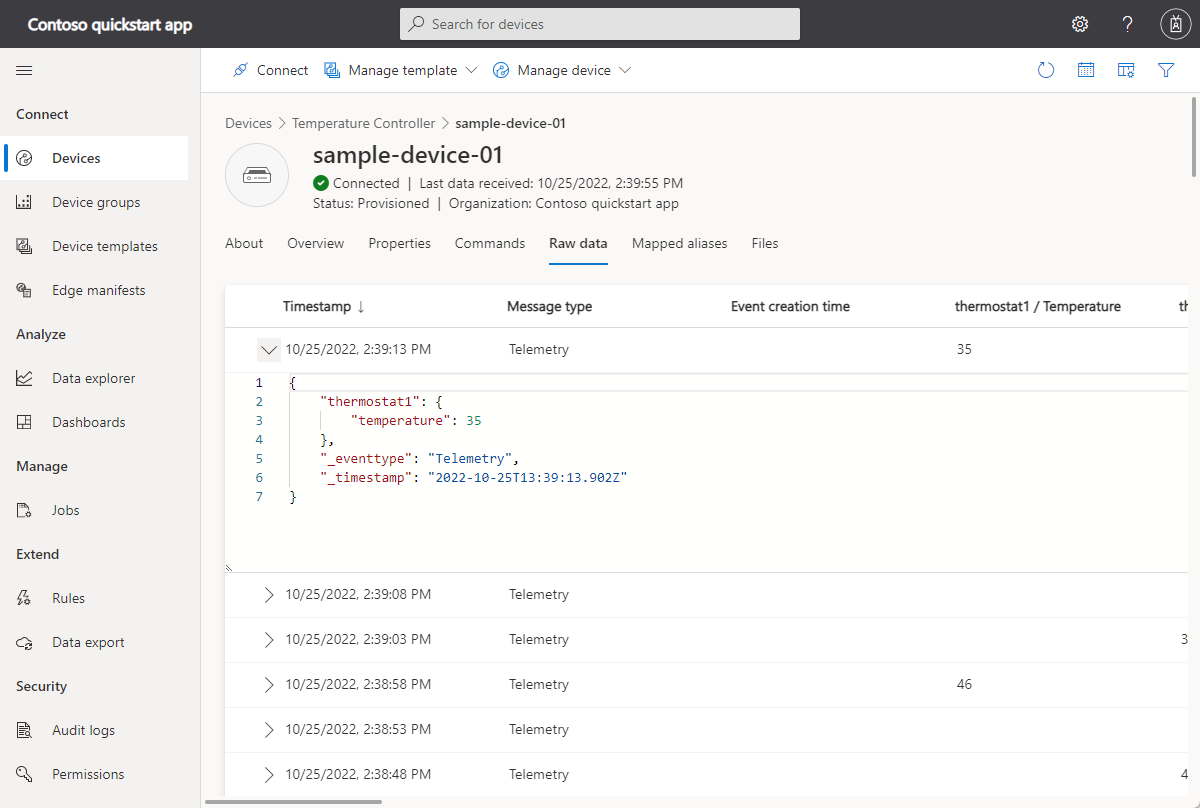
Start at the outer braces of the expanded message. thermostat1 names a nested object, and its temperature field has the numeric value 35. The path to that value is thermostat1.temperature. The message also shows _eventtype as the string "Telemetry" and _timestamp as a timestamp string. Those underscore-prefixed names are fields in this example, not names that all JSON telemetry must use.
What can you say with confidence? The displayed message contains a temperature field whose numeric value is 35. What can you not say from this JSON alone? It does not provide a temperature unit, so you cannot responsibly call the value 35 °C or 35 °F. Nor does the number by itself establish whether the thermostat is operating normally. You would need context such as a documented unit, the point’s meaning, and an expected operating range.
Notice also that the interface presents a row timestamp as well as a timestamp inside the expanded data. A product view may display and format times separately from the raw message. Do not infer a time-zone conversion—or precisely when the sensor sampled—from their appearance alone; check the product’s timestamp definitions when that distinction matters.
For another example of reading product data, consult Microsoft Learn’s Transform data for an IoT Central application. Here the application displays device identity and measurements in separate columns.
Transform data for an IoT Central application - Azure IoT Central | Microsoft Learn
Microsoft Learn’s Transform data for an IoT Central application shows how a transformed device message appears in an IoT Central Raw data view.
Find the “Verify” subsection immediately before “Data transformation at egress.” Begin with the instruction to navigate to the IoT Edge gateway device and read through the telemetry example. Focus on the JSON shown for the Device and Measurements columns, and on the stated temperature scale; you can skip the instructions for building or deploying the module.
In that example, the Device column contains a deviceId, while the Measurements column contains values including temperature, pressure, humidity, and scale. The displayed scale says "fahrenheit". That explicit field lets you interpret the temperature’s unit in a way the thermostat screenshot did not. The example also illustrates why where a value appears matters: a device identifier and a measurement are both data, but they answer different questions.
What a payload establishes—and what it leaves open
Reading telemetry accurately requires two passes. First, establish the JSON facts: which fields are present, how they nest, what types their values have, and which values are missing or null. Second, establish the building meaning: what equipment and point those fields represent, what the units are, and what operational conclusion the readings support.
Keep those passes separate. In the fictional AHU message, the JSON explicitly gives a site, equipment identifier, timestamp string, temperature value and unit, fan-running boolean, and a null pressure value. It does not tell you why the pressure value is null. The field could be unavailable for several reasons; diagnosing one from null alone would be a guess. Similarly, a field that is absent entirely is different from one that is present with null: the former is not supplied in this message, while the latter has an explicit empty value.
This distinction is useful when explaining an issue to colleagues. “The payload has filterDifferentialPressure.value set to null” is a reproducible observation. “The pressure sensor has failed” is a diagnosis that requires additional evidence. Clear observations make later investigation more effective.
Key takeaways
A JSON telemetry payload is structured text. Objects group named fields, arrays hold ordered items, and a field’s type affects its meaning: 35, "35", true, and null are not interchangeable. Read nested messages from the outside inward, then use the exact field path to describe a reading.
Most importantly, distinguish what the payload explicitly reports from what you infer about a building. Check for units, identity, time meaning, and missing values before drawing an operational conclusion. Next lesson, you will distinguish authentication from authorization in a platform connection—who or what is connecting, and what that connection is permitted to do.