Recommended resources
The freely available resources this lesson will direct you to.
Hello! This first module focuses on the Linux and networking foundations used to troubleshoot production systems. We’ll begin with a deployment question: which account can read an application’s configuration, change its code, or write its data?
By the end of this lesson, you’ll be able to inspect Linux permissions and ownership, choose appropriate modes for deployment files, and place files in directories that make their purpose and access requirements clear. Allow about 40–45 minutes, including the selected viewing and reading.
Read the permission string as an access decision
Suppose a deployed configuration file appears in ls -l as:
-rw-r----- 1 root sampleapp 842 Apr 10 09:00 settings.conf
The first - says it is a regular file. The next nine characters are three permission sets: rw- for the owning user (root), r-- for the owning group (sampleapp), and --- for everyone else. Thus, a service account in the sampleapp group can read the file but cannot change it. Membership does not add the three sets together: Linux checks the applicable owner, group, or other category.
Watch the following demonstration before considering how that decision changes for directories.
Linux Crash Course - Understanding File & Directory Permissions
Watch “Linux Crash Course - Understanding File & Directory Permissions” from Learn Linux TV to see permission strings and ownership in actual command output.
Watch reading ls output for the file-type character and three permission sets. Then watch access meanings for owner, group, and other permissions. Focus particularly on how the meaning of x differs between a file and a directory.
For a file, r allows reading its contents, w allows modifying its contents, and x permits executing it as a program or script. A script’s execute bit does not replace the need for appropriate read access to its contents.
For a directory, r permits listing names, x permits traversing it and accessing a known name inside it, and w—normally together with x—permits creating, removing, or renaming entries. This distinction matters during deployments. A user may be unable to edit a file’s contents yet still be able to delete or replace it if they can write to its containing directory.
Access also depends on the whole path. A readable file at /etc/sampleapp/settings.conf is of little use to a service that cannot traverse /etc/sampleapp. Conversely, directory access does not automatically grant permission to read every file within it.
Set modes and ownership deliberately
Numeric modes give each permission a value: read is 4, write is 2, and execute is 1. Add the values separately for owner, group, and other. For example, 640 means owner read/write (6), group read (4), and no access for others (0). 750 means owner read/write/traverse or execute (7), group read/traverse or execute (5), and no access for others.
You can set a complete mode numerically or make a targeted change symbolically:
chmod 640 settings.conf
chmod g+r settings.conf
chmod o= settings.conf
The last command clears all permissions for others. To change who owns a file, use chown with an owning user and, optionally, a group:
sudo chown root:sampleapp settings.conf
Changing the user owner generally requires elevated privileges. Watch the demonstrations of both commands, including the recursive-permissions warning.
Linux Crash Course - Understanding File & Directory Permissions
Return to “Linux Crash Course - Understanding File & Directory Permissions” for numeric modes, a common recursive chmod mistake, and ownership changes.
Watch numeric modes and connect each digit to owner, group, and other. In recursive permissions, notice why applying a file mode to directories can block traversal. Finish with changing ownership, focusing on chown and its user:group form.
Avoid chmod -R 640 on a deployment tree: directories would lose x, potentially making their contents inaccessible. Applying chmod -R 755 instead would unnecessarily mark ordinary files executable and make them readable by everyone. Set modes by role and file type, not by applying one number to an entire tree. Likewise, check the target carefully before any recursive ownership change.
A mode of 777 is not a practical repair for “permission denied.” It grants every local account the ability to write the affected directory or file, often including the ability to replace deployed content. Identify the account that needs access and grant only that access.
Understand what happens to newly created files
Explicit deployment modes are important, but services also create files while running. A process’s umask removes permission bits from the mode requested when a new file or directory is created. Common starting modes are 666 for regular files and 777 for directories. With umask 027, ordinary new files commonly receive 640, while new directories receive 750.
Read the documentation examples with one important distinction in mind: a regular new file does not ordinarily start executable.
Chapter 9. Managing file system permissions
Read Red Hat’s explanation of base permissions and umask to connect new-file defaults with the modes you set explicitly during deployment.
In Chapter 9, Section 9.1 “Managing file permissions,” start in subsection 9.1.1 “Base file permissions.” Read the base modes, including the distinct directory and regular-file values. Continue through subsection 9.1.2 “User file-creation mode mask” and subsection 9.1.3 “Default file permissions,” ending after the regular-file example at the default examples. Focus on which bits the mask removes, rather than treating it as ordinary decimal subtraction.
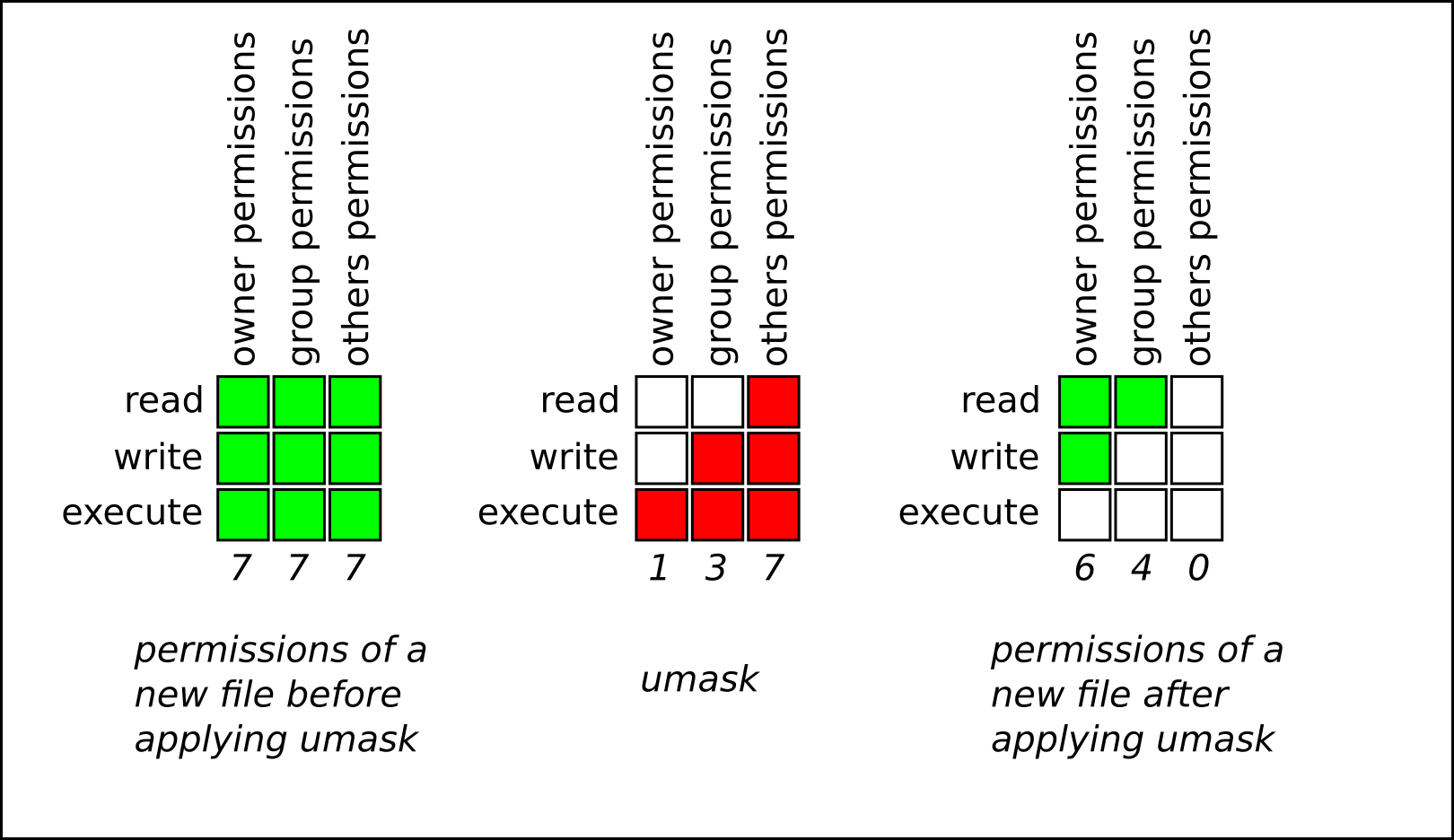
You can inspect the current shell’s mask with umask. Do not assume that a service inherits your interactive shell’s setting: its launch environment may differ. Also, umask governs creation defaults; it does not retroactively change existing files, and a program can request a more restrictive mode. For a sensitive deployed configuration, set and verify its mode explicitly.
Put each kind of application file in a suitable place
Linux directory conventions help distinguish software that should remain unchanged during normal operation from data a service must write. Read the short filesystem overview, then apply that distinction to an application deployment.
Welcome to the terminal - Ubuntu Server documentation
Read the “Filesystem Hierarchy Standard” portion of Ubuntu Server documentation for the purposes of the main directories, rather than memorizing every directory on the machine.
Find the heading “The Filesystem Hierarchy Standard,” after the material on users and groups. Read from the hierarchy overview through the table of top-level directories. Pay particular attention to /etc, /srv, and /var; these help separate configuration, service data, and changing operational data.
For one possible sampleapp deployment, you could choose:
| Path | Intended contents | Access principle |
|---|---|---|
/opt/sampleapp/releases/v1 |
Installed application and launch script | Service can read and execute what it needs, but cannot alter the release |
/etc/sampleapp |
Configuration | Service can read required settings; only deployment administrators change them |
/var/lib/sampleapp |
Persistent application data | Service can write data it owns |
/var/log/sampleapp |
Logs, if the application writes log files | Service can write its logs; access for readers is controlled |
/run/sampleapp |
Short-lived runtime state, if needed | Created with appropriate ownership at runtime |
These are conventions, not mandatory locations. /srv may suit data served by a service; packaging and distribution practices may place software elsewhere. The security decision is more important than the spelling of the path: distinguish read-only deployed material from writable runtime state. Do not put persistent data under a temporary directory merely because it is easy to write there.
A deployment pattern you can verify
Assume sampleapp is an existing service account and group. In this example, the service is a member of the sampleapp group. An administrator installs the release and configuration; the service receives write access only to its data and log directories.
sudo install -d -o root -g sampleapp -m 0750 \
  /opt/sampleapp /opt/sampleapp/releases /opt/sampleapp/releases/v1 \
  /etc/sampleapp

sudo install -d -o sampleapp -g sampleapp -m 0750 \
  /var/lib/sampleapp /var/log/sampleapp

sudo install -o root -g sampleapp -m 0750 \
  ./start.sh /opt/sampleapp/releases/v1/start.sh

sudo install -o root -g sampleapp -m 0640 \
  ./settings.conf /etc/sampleapp/settings.conf
Here, install creates a destination with the specified owner, group, and mode; the example assumes the source files exist. The release directories are traversable by the service group, while their root ownership and 750 mode prevent the service from replacing release files. The script is executable by the service group. The configuration is readable by that group but writable only by root. By contrast, the service owns its persistent-data and log directories because it must create files there. Those newly created files still need suitable modes; check the service’s effective umask and any modes its application requests.
Verify the result rather than relying on the commands having exited successfully:
ls -ld /opt/sampleapp/releases/v1 /etc/sampleapp /var/lib/sampleapp
ls -l /opt/sampleapp/releases/v1/start.sh /etc/sampleapp/settings.conf
namei -l /etc/sampleapp/settings.conf

sudo -u sampleapp -- test -r /etc/sampleapp/settings.conf
sudo -u sampleapp -- test -w /var/lib/sampleapp
ls -ld inspects a directory itself, rather than listing its contents. namei -l shows the components of a path, which helps find a parent directory blocking access. Each test command prints nothing on success and returns a successful exit status; echo $? immediately afterward displays that status as 0. Test as the service account, not only as an administrator, because privileged access can conceal a broken deployment.
If the owner/group/mode and every parent directory look correct but access still fails, ordinary permission bits may not be the whole explanation. Access control lists and, on some systems, additional security controls can impose further restrictions. First establish exactly which account is running the process and which path it is trying to access.
Key takeaways
A secure deployment gives the service read and execute access to its installed application, read access to required configuration, and write access only to designated runtime locations. Check ownership and the owner/group/other mode together; remember that directories control traversal and replacement of entries; and verify access as the account that will actually run the application.
Next, you’ll use that account-and-path perspective while diagnosing a failed Linux service through its process state, service manager, and logs.