Recommended resources
The freely available resources this lesson will direct you to.
- Mastering LLM Inference Optimization From Theory to Cost Effective Deployment: Mark Moyouwww.youtube.com
- How to Deploy LLMs | LLMOps Stack with vLLM, Docker, Grafana & MLflowwww.youtube.com
- Monitoring vLLM Inference Servers: A Quick and Easy Guidewww.dataunboxed.io
- Prometheus & Grafana for vLLM, TGI, llama.cpp - Rost Glukhovwww.glukhov.org
In our previous lesson, we established the importance of distributed tracing to understand the journey of a single request through our LLM system. Tracing is our microscope, perfect for debugging individual, complex interactions. Now, we'll zoom out and build our telescope: a system for monitoring the aggregate health and performance of our service.
Your goal for this lesson is to learn how to configure metrics collection for latency percentiles, throughput, error rates, and GPU utilization. We'll explore the "golden signals" of LLM observability and set up the industry-standard Prometheus and Grafana stack to capture them from a vLLM inference server. Your extensive background in SRE and monitoring with tools like New Relic and ELK will make the architecture feel familiar; our focus will be on the unique, LLM-specific metrics that truly matter.
1. The Golden Signals of LLM Serving
In traditional SRE, you monitor the "four golden signals": Latency, Traffic, Errors, and Saturation. While these principles still apply, their definitions must be adapted for the unique workload of LLM inference. Simply measuring request latency and requests per second (RPS) can be misleading.
Prometheus & Grafana for vLLM, TGI, llama.cpp - Rost Glukhov
This article by Rost Glukhov provides an excellent overview of why LLM inference monitoring is different and provides a checklist of the metrics that matter.
Read the sections "Why you should monitor LLM inference differently" and "Metrics checklist for LLM inference monitoring." Pay close attention to how concepts like latency and throughput are redefined for LLMs.
As the article highlights, we need to think in terms of:
- Latency: This is multifaceted.
- Time to First Token (TTFT): Measures the prefill phase and how quickly the user sees the first output. This is crucial for user-perceived responsiveness.
- Inter-Token Latency (or Time Per Output Token): Measures the decode phase speed. A consistent, low inter-token latency means smooth, fast generation.
- End-to-End Latency: Measures the total time from request to final token. This is important for understanding total resource occupation.
- Throughput: Instead of requests per second, the key metric is tokens per second. A service generating 500 tokens for one request is doing far more work than one generating 5 tokens.
- Error Rate: This remains a standard signal, capturing HTTP errors, validation failures, or internal server errors.
- Saturation: This measures how "full" the service is. For LLMs, this isn't just CPU/RAM. The critical saturation signals are GPU utilization and, most importantly, KV cache usage. When the KV cache fills up, latency skyrockets and requests start failing.
The following video provides a clear, practical explanation of these different latency metrics and why they are so important to measure.
Mastering LLM Inference Optimization From Theory to Cost Effective Deployment: Mark Moyou
In this clip from the talk "Mastering LLM Inference Optimization," Mark Moyou breaks down the critical metrics for measuring LLM performance.
Watch the section from monitoring fundamentals. The speaker explains what Time to First Token, Inter-Token Latency, and Time to Total Generation represent and what they help you diagnose.
2. The Monitoring Stack: vLLM, Prometheus, and Grafana
To collect these metrics, we'll use a standard, robust, and open-source stack that will be very familiar to you from your work in platform engineering.
- vLLM Server: The high-performance inference server we'll be monitoring. Like many modern services, it exposes a
/metricsendpoint that provides a real-time stream of internal metrics in a format Prometheus can understand. - Prometheus: A time-series database and monitoring system. It "scrapes" (polls) the
/metricsendpoint on a regular interval, collecting and storing the data. - Grafana: A visualization tool. It connects to Prometheus as a data source, allowing you to build powerful dashboards by querying the collected metrics with PromQL.
This architecture is simple, scalable, and the de facto standard for infrastructure monitoring in the cloud-native world.
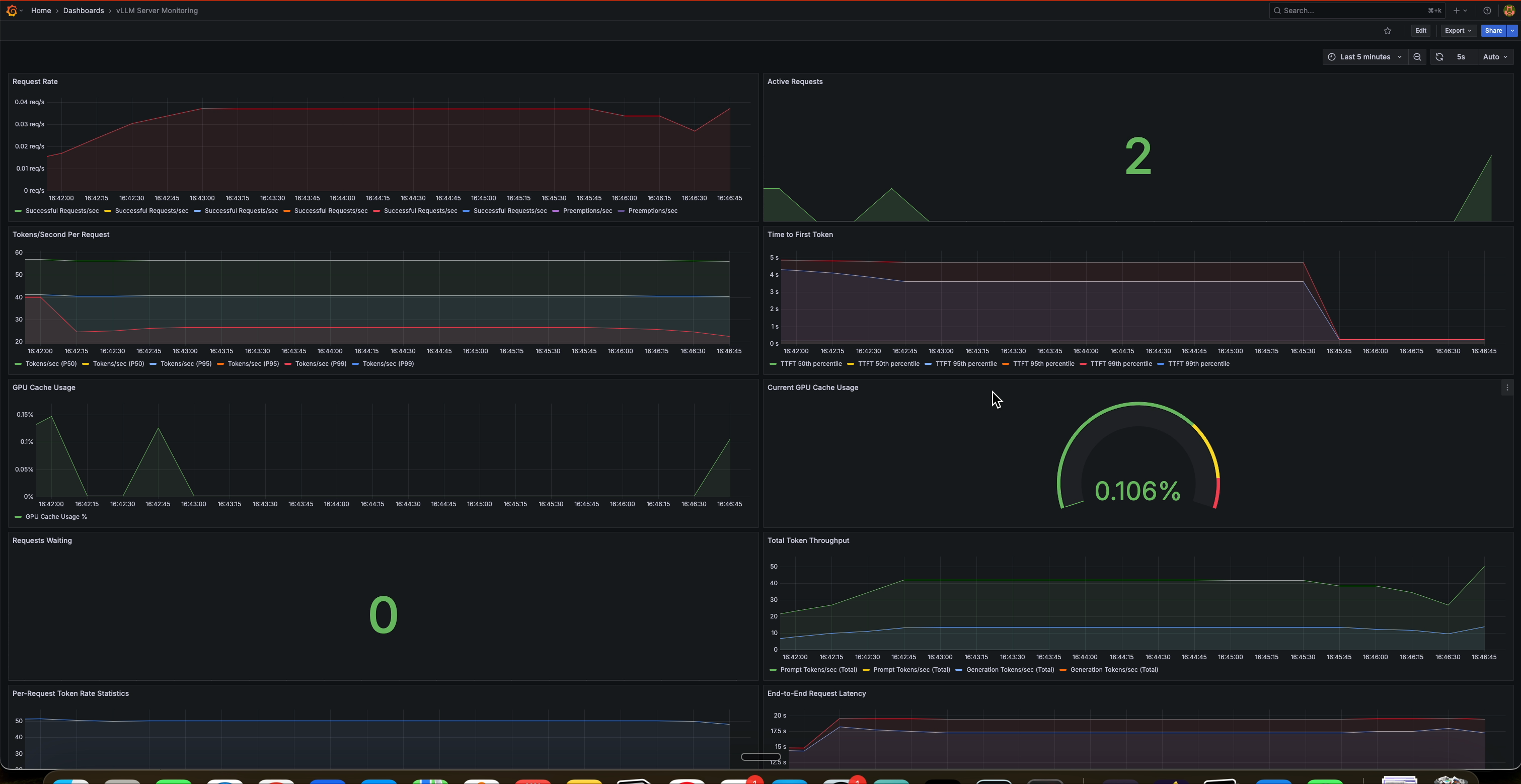
To get a sense of how these components fit together in a complete deployment, the following video gives a quick architectural overview.
How to Deploy LLMs | LLMOps Stack with vLLM, Docker, Grafana & MLflow
This video from Venelin Valkov shows a complete LLM Ops stack, including the monitoring components we're focusing on today.
Watch the short clips covering the stack overview and the monitoring architecture. This will help you visualize how Prometheus pulls metrics from the vLLM server to be displayed in Grafana.
3. Hands-On: Configuring Metrics Collection
Now, let's put this into practice by setting up a local monitoring stack using Docker Compose.
Step 1: Project Setup
Create a project directory with the following structure. You'll create the files in the subsequent steps.
llm-monitoring/
├── docker-compose.yml
└── prometheus/
    └── prometheus.yml
Step 2: Configure Prometheus
Create the prometheus/prometheus.yml file. This configuration tells Prometheus where to find and scrape metrics from our vLLM server. The vllm-server will be the name of our Docker container.
# prometheus/prometheus.yml
global:
  scrape_interval: 15s # Scrape targets every 15 seconds

scrape_configs:
  - job_name: "vllm"
    metrics_path: /metrics
    static_configs:
      - targets: ["vllm-server:8000"]
Step 3: Define the Docker Compose Stack
Create the docker-compose.yml file. This file orchestrates our three services: the vLLM server, Prometheus, and Grafana.
For this exercise, we will use a small, efficient model like mistralai/Mistral-7B-v0.1.
# docker-compose.yml
version: '3.8'

services:
  vllm-server:
    image: vllm/vllm-openai:latest


    # This command starts the server with the OpenAI-compatible API
    # and exposes the /metrics endpoint.
    command:
      - --host=0.0.0.0
      - --model=mistralai/Mistral-7B-v0.1
      - --tensor-parallel-size=1 # Assuming a single GPU
    deploy:
      resources:
        reservations:
          devices:
            - driver: nvidia
              count: 1
              capabilities: [gpu]
    ports:
      - "8000:8000"
    volumes:
      - ~/.cache/huggingface:/root/.cache/huggingface

  prometheus:
    image: prom/prometheus:latest
    container_name: prometheus
    ports:
      - "9090:9090"
    volumes:
      - ./prometheus/prometheus.yml:/etc/prometheus/prometheus.yml
    command:
      - '--config.file=/etc/prometheus/prometheus.yml'

  grafana:
    image: grafana/grafana:latest
    container_name: grafana
    ports:
      - "3000:3000"
    depends_on:
      - prometheus
Note: Ensure you have the NVIDIA Container Toolkit installed so Docker can access your GPU.
Step 4: Launch the Stack and Generate Load
-
Navigate to your
llm-monitoringdirectory in the terminal. -
Run
docker-compose up -dto start the services in the background. It may take some time to download the container images and the model weights. -
Once the vLLM container is running, send a few requests to it using
curl. This will generate metrics for Prometheus to scrape.curl http://localhost:8000/v1/completions -X POST -H "Content-Type: application/json" -d '{ "model": "mistralai/Mistral-7B-v0.1", "prompt": "San Francisco is a", "max_tokens": 7, "temperature": 0 }'Run this command several times.
Step 5: Explore Metrics in Prometheus
- Open your browser and navigate to the Prometheus UI:
http://localhost:9090. - Go to Status > Targets. You should see the
vllmjob with a state of "UP". - Go to the "Graph" tab and start exploring the metrics vLLM exposes. In the expression bar, type
vllm_to see the available metrics. For example, you can query forvllm_kv_cache_usage_percto see the GPU KV cache utilization.
4. Querying Key Metrics with PromQL
Prometheus exposes a powerful query language called PromQL. Let's write a few queries for the key metrics we identified. You can run these directly in the Prometheus UI.
Prometheus & Grafana for vLLM, TGI, llama.cpp - Rost Glukhov
Let's return to the article by Rost Glukhov for some ready-to-use PromQL queries.
Read the sections "PromQL examples you can copy/paste" and "vLLM KV cache utilization (instant)". These provide the exact queries needed to calculate our core metrics.
Here are the key queries based on the metrics exposed by vLLM:
-
P95 End-to-End Latency: vLLM exposes latency as a histogram. We can use the
histogram_quantilefunction to calculate percentiles.# P95 latency over the last 5 minutes histogram_quantile(0.95, sum(rate(vllm_request_latency_seconds_bucket[5m])) by (le)) -
Token Throughput (Generated Tokens/sec): This measures the rate of output tokens across the whole server.
# Sum of generated tokens per second over the last 5 minutes sum(rate(vllm_generation_tokens_total[5m])) -
Error Rate: vLLM doesn't expose a simple request success/failure counter. In a production setup, you would typically get this from the API gateway or proxy fronting the service. If you were using Hugging Face's TGI, the query would look like this, which illustrates the principle:
# Example for TGI - illustrates calculating an error ratio 1 - (sum(rate(tgi_request_success[5m])) / sum(rate(tgi_request_count[5m]))) -
GPU KV Cache Utilization: This is a critical gauge metric indicating saturation.
# Instantaneous KV cache usage percentage vllm_kv_cache_usage_perc -
GPU Utilization: To get detailed GPU utilization (e.g., memory used, temp, core usage), you typically run a separate service called an "exporter", like the NVIDIA DCGM Exporter. This exporter runs on the GPU node and exposes these hardware-level metrics to Prometheus. We will dive deeper into this in our upcoming module on GPU architecture, but it's important to know this is a key component of a complete monitoring setup.
Conclusion
In this lesson, you configured a complete, hands-on pipeline for collecting the most important performance and utilization metrics from an LLM inference server. By building on your SRE expertise with familiar tools like Prometheus, you've tailored a monitoring solution to the specific demands of LLM serving.
Key Takeaways:
- LLM Metrics are Different: Effective observability requires moving beyond simple RPS and average latency to track token-based throughput and nuanced latency metrics like TTFT.
- Saturation is Key: For LLMs, GPU KV cache usage is a critical saturation signal that acts as a leading indicator for performance issues and outages.
- The
/metricsEndpoint is Your Friend: Most modern serving frameworks, including vLLM, provide a built-in Prometheus-compatible metrics endpoint, making instrumentation straightforward. - PromQL is Powerful: With a few lines of PromQL, you can transform raw counter and histogram data into meaningful performance indicators like P95 latency and token throughput.
We've successfully collected our traces and our metrics. The next step is to bring them together into a unified, actionable view. In our next lesson, you will build an operational monitoring dashboard in Grafana using the very metrics we configured today, creating the "single pane of glass" essential for any production service.