Recommended resources
The freely available resources this lesson will direct you to.
- Free CCNA | Static Routing | Day 11 (part 2) | CCNA 200-301 Complete Coursewww.youtube.com
- 2.2.2.5 Lab - Configuring IPv4 Static and Default Routeswww.youtube.com
- How to configure static routes on Cisco routersdti-techs.gitbook.io
- How to configure static routes on Cisco routers - IT Networking Skillsitnetworkingskills.wordpress.com

Hello! In our last lesson, we explored how routers use Administrative Distance (AD) and Metric to break ties and select the single best path to a destination. We noted that static routes have a default AD of 1, making them highly trustworthy from a router's perspective.
Today, we'll shift from how routers choose routes to how we can create them ourselves. This lesson focuses on configuring and verifying static routes, including the essential default route. You will learn the specific Cisco IOS commands to manually instruct a router on how to reach networks it isn't directly connected to. This is a fundamental skill for building and controlling traffic flow in any network.
1. Why Static Routes are Necessary
A router automatically knows about its directly connected networks. These routes are added to the routing table as soon as an interface is configured with an IP address and is in an "up" state. However, a router has no inherent knowledge of networks beyond its immediate neighbors.
To enable communication across multiple routers to "remote" networks, we must provide the router with a path. One way to do this is by manually creating a static route.
A critical concept in routing is two-way reachability. For a device like PC1 to communicate with PC4, not only does PC1's traffic need a path to PC4, but PC4's reply traffic must have a path back to PC1. This means every router along the path must know how to forward packets in both directions.
Let's watch a segment that visualizes this need and outlines the planning process before we even type a command.
Free CCNA | Static Routing | Day 11 (part 2) | CCNA 200-301 Complete Course
The video "Static Routing" from Jeremy's IT Lab provides a clear explanation of why static routes are needed and how to plan them.
Start with the introduction to understand why connected routes aren't enough. Then, watch the section on planning for two-way reachability. Pay close attention to how the video identifies the necessary destination networks and their corresponding next-hop IP addresses for each router in the path.
As the video demonstrated, each router only needs to know the IP address of the very next router in the path (the "next hop") to forward a packet. It doesn't need to know the entire path to the final destination.
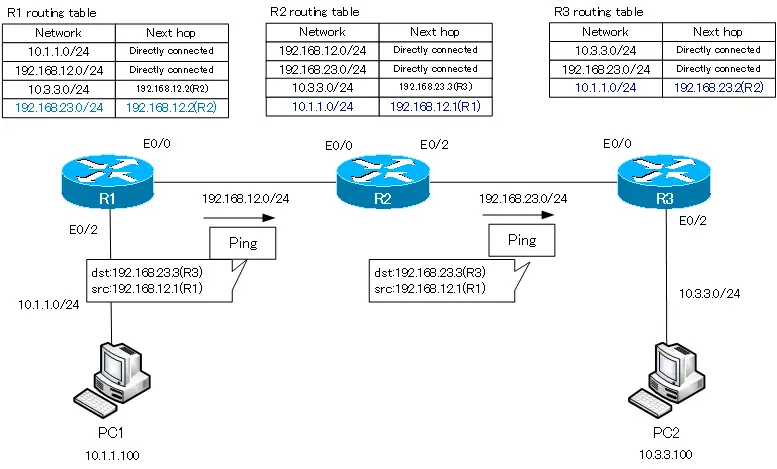
2. Configuring Static Routes
Now that we understand the planning involved, let's look at the configuration. In Cisco IOS, we use the ip route command from global configuration mode.
The general syntax is:Router(config)# ip route <destination-network> <subnet-mask> <next-hop>
There are a few ways to specify the <next-hop>:
- Next-Hop IP Address: This is the most common method. You specify the IP address of the next router in the path. The router will perform a "recursive lookup" to find the interface to use to reach that next-hop IP.
- Exit Interface: You can specify the local router's own exit interface (e.g.,
GigabitEthernet0/1). This is often used on point-to-point serial links. When you use this method, the route appears as "directly connected" in the routing table. - Next-Hop IP + Exit Interface: You can also specify both.
The following video segment demonstrates all three methods.
Free CCNA | Static Routing | Day 11 (part 2) | CCNA 200-301 Complete Course
Let's continue with the "Static Routing" video to see the actual commands in action.
Watch the demonstration of configuring a static route using a next-hop IP. Notice the S code that appears in the show ip route output. Next, observe the alternative configuration methods using an exit interface and both an exit interface and next-hop IP. Pay attention to how the routing table entry changes when only an exit interface is used.
To verify your static routes, the primary command is show ip route. You can also filter it to see only static routes with show ip route static.
To remove a static route, simply prefix the original command with no:Router(config)# no ip route <destination-network> <subnet-mask> <next-hop>
3. The Default Route: A Gateway of Last Resort
What if you have dozens or even thousands of remote networks, like on the internet? Creating a static route for every single one is not feasible. For this scenario, we use a special static route called the default route.
A default route is a route to 0.0.0.0/0 (network 0.0.0.0 with a subnet mask of 0.0.0.0). This is the least specific route possible and acts as a catch-all. If a router receives a packet for a destination that doesn't match any other more specific entry in its routing table, it will use the default route. This is why it's often called the "Gateway of Last Resort".
The most common use case is to direct all traffic destined for the internet from a local network towards the Internet Service Provider (ISP) router.
The configuration is simple:Router(config)# ip route 0.0.0.0 0.0.0.0 <next-hop-ip | exit-interface>
Let's see how to configure and verify a default route.
Free CCNA | Static Routing | Day 11 (part 2) | CCNA 200-301 Complete Course
This final segment from the "Static Routing" video covers the default route.
Watch the section on configuring a default route. Note the "Gateway of last resort" line in the routing table output and the asterisk (*) next to the 'S' code, which marks this as a candidate default route.
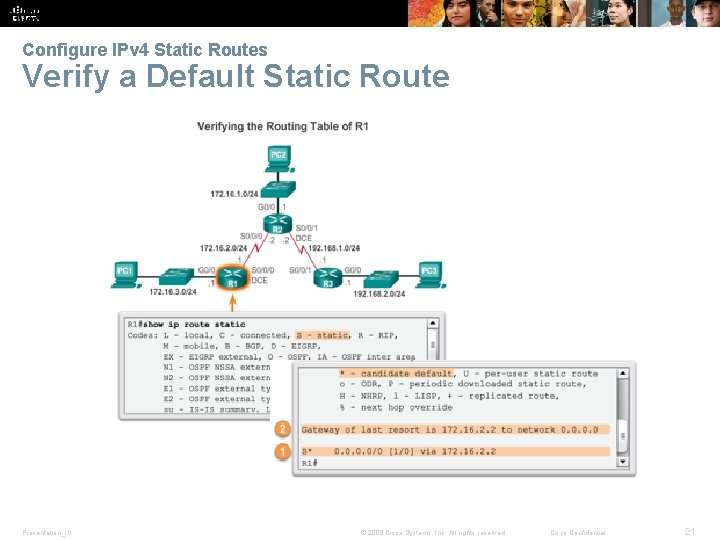
4. Practical Lab Demonstration
Theory is important, but seeing it applied reinforces the concepts. The following video walks through a full lab where static and default routes are configured from scratch and verified.
2.2.2.5 Lab - Configuring IPv4 Static and Default Routes
This video, "Lab - Configuring IPv4 Static and Default Routes" by Tech Acad, provides a practical walkthrough in a simulated environment.
Watch the configuration of a recursive static route. Notice how the initial ping fails because two-way reachability hasn't been established yet. Next, see how a directly connected static route is configured on the return path, which makes the ping successful. Finally, watch the configuration and verification of a default route and see how it allows the router to reach networks it previously had no route to.
Conclusion
In this lesson, we moved from theory to practice, learning how to manually control routing decisions using static routes. You can now create paths to remote networks and configure a default route to handle all other traffic.
Key Takeaways:
- Static routes are manually configured paths to remote networks.
- The command syntax is
ip route <network> <mask> <next-hop | exit-intf>. - Two-way reachability is essential; routes must exist for traffic to go to a destination and return from it.
- A default route (
0.0.0.0/0) acts as a "Gateway of Last Resort," catching all traffic that doesn't match a more specific route. It is configured withip route 0.0.0.0 0.0.0.0 <next-hop>. - Verification is done using
show ip routeand testing connectivity withpingandtraceroute.
While powerful for small networks or specific use cases, managing static routes in a large, complex network would be inefficient and error-prone. In our next lesson, we will begin exploring dynamic routing protocols, which allow routers to automatically discover and adapt to network changes. We'll start by distinguishing between the two main families of these protocols: distance-vector and link-state.