Recommended resources
The freely available resources this lesson will direct you to.
- Free CCNA | NAT (Part 1) | Day 44 | CCNA 200-301 Complete Coursewww.youtube.com
- Static NAT -- Configuration and Verification -- NAT on Cisco IOS Routers (FREE Course Preview)www.youtube.com
- 4.1 Configure and verify inside source NAT using static and poolswww.hsmpress.ca
- NAT (Network Address Translation)www.ccnablog.com
Hello! In our last session, we laid the groundwork for understanding Network Address Translation, exploring its purpose and the key differences between Static NAT, Dynamic NAT, and PAT. We focused on the "what" and "why."
Today, we transition from theory to practice. This lesson is dedicated to mastering the first type of NAT configuration you'll encounter. We will focus on how to configure and verify static NAT on a Cisco router. This is a crucial skill for making internal resources, like a web server, securely accessible from the internet using a one-to-one IP address mapping. By the end of this lesson, you will be able to implement and check a complete static NAT setup.
1. Static NAT: From Concept to Configuration
In the previous lesson, you learned that static NAT creates a permanent, one-to-one mapping between an internal private IP address (inside local) and an external public IP address (inside global). This is typically used for hosts that need a consistent, predictable public IP, such as a company's web or email server.
Let's quickly refresh our understanding of the terminology and the packet flow with a short video segment.
Free CCNA | NAT (Part 1) | Day 44 | CCNA 200-301 Complete Course
The video "Free CCNA | NAT (Part 1)" from Jeremy's IT Lab offers a concise review of static NAT principles and the essential terminology.
Watch the section from 10:24 to 14:50. As you watch, focus on reinforcing your understanding of: The definition of static NAT as a one-to-one mapping. The clear distinction between inside local and inside global addresses in the context of a packet translation. Why static NAT, on its own, does not conserve public IPv4 addresses.
To visualize this process, consider the following diagram which shows a packet's journey from an internal server to an external client and back.
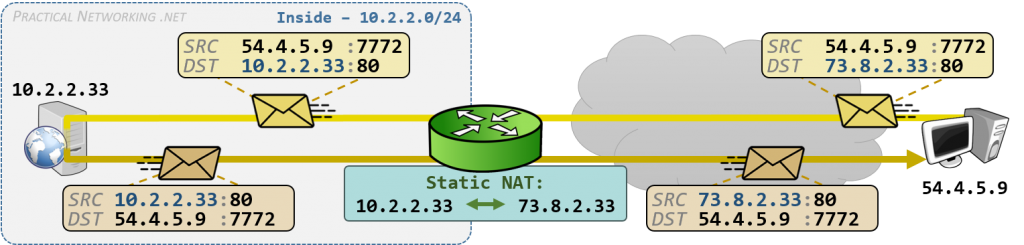
2. Configuring Static NAT on a Cisco Router
Configuring static NAT is a straightforward, three-step process. We'll use the network topology below as our reference. Imagine we need to make the internal server at 192.168.20.30 available to the internet using the public IP address 20.20.20.30.

The configuration involves:
- Defining the inside interface: The interface connected to your private LAN.
- Defining the outside interface: The interface connected to the public internet (or your ISP).
- Creating the static mapping rule: The command that links the inside local address to the inside global address.
The following video provides a complete walkthrough of these steps and the commands you'll use.
Free CCNA | NAT (Part 1) | Day 44 | CCNA 200-301 Complete Course
This segment from Jeremy's IT Lab video demonstrates the exact Cisco IOS commands needed to configure and then verify static NAT.
Watch the segment from 15:04 to 19:32. Pay close attention to the three key configuration steps: Using the ip nat inside command on the internal-facing interface (e.g., interface g0/1). Using the ip nat outside command on the external-facing interface (e.g., interface g0/0). Using the ip nat inside source static <inside_local_ip> <inside_global_ip> command in global configuration mode to create the mapping.
Let's summarize the commands for our example topology:
// Assume G0/0 is the outside interface and G0/1 is the inside interface on Router6

// Enter global configuration mode
R6# configure terminal

// Step 1: Define the inside interface
R6(config)# interface GigabitEthernet0/1
R6(config-if)# ip nat inside
R6(config-if)# exit

// Step 2: Define the outside interface
R6(config)# interface GigabitEthernet0/0
R6(config-if)# ip nat outside
R6(config-if)# exit

// Step 3: Create the static mapping
R6(config)# ip nat inside source static 192.168.20.30 20.20.20.30
With just these commands, the router is now configured to translate traffic for the server at 192.168.20.30 to and from the public IP 20.20.20.30.
3. Verifying Static NAT
Configuration is only half the battle; verification is essential to ensure the NAT process is working as expected. There are two primary commands for this.
show ip nat translations
This is the most important verification command. It displays the NAT translation table. When you first configure static NAT, you will see a permanent entry for your mapping. When traffic actually flows through the router and gets translated, additional dynamic entries will appear for each active session.
Let's see what the output of this command looks like and how to interpret it.
Static NAT -- Configuration and Verification -- NAT on Cisco IOS Routers (FREE Course Preview)
The video "Static NAT -- Configuration and Verification" from Practical Networking provides an excellent live demonstration of the NAT translation table in action.
Watch the following clips to see how the translation table changes: First, see the initial state of the show ip nat translations table right after configuration. Notice the static entry is already there. Next, observe what happens when traffic is sent. The presenter uses packet captures to show the IP address changing, which is a great view of what's happening on the wire. Finally, watch the explanation from 09:05 to 10:11 about the difference between the permanent configuration entries and the temporary entries created by active traffic.
The output from show ip nat translations has four key address columns that match the terminology we've learned:
- Inside Global: The public IP address representing the inside host.
- Inside Local: The private IP address of the inside host.
- Outside Local: The IP of the destination host as seen from the inside.
- Outside Global: The IP of the destination host as seen from the outside.
show ip nat statistics
This command provides a summary of NAT activity on the router. It shows the total number of active translations, the inside and outside interfaces, and a "Hits" counter that shows how many packets have been successfully translated. If your configuration is correct and traffic is flowing, you should see the "Hits" value increase.
You can read more about these verification commands in the following resource.
Configure and verify inside source NAT
This section of the article provides a quick reference for the configuration and verification commands.
Review the text under the heading "We must configure the static NAT...". Focus on the examples for show ip nat translations and show ip nat statistics to see how the output is presented. Notice the "Hits" counter in the statistics output.
Conclusion
In this lesson, you moved from NAT theory to practical implementation. You've learned the specific Cisco IOS commands required to configure and verify a static NAT mapping, a fundamental skill for any network administrator.
Key Takeaways:
- Three-Step Configuration: Static NAT is set up by (1) defining the
ip nat insideinterface, (2) defining theip nat outsideinterface, and (3) creating the mapping with theip nat inside source staticcommand. - Verification is Key: The
show ip nat translationscommand is your primary tool for verification. It shows both the permanent static mappings you've configured and the temporary, dynamic entries created by active traffic flows. - Check the Stats: The
show ip nat statisticscommand gives you a high-level view of NAT operations and helps confirm that packets are indeed being translated (by checking the "Hits" counter). - One-to-One Limitation: Static NAT is powerful for exposing a specific server but is not scalable for providing general internet access to many users, as it requires one public IP for every internal host.
This limitation of static NAT sets the stage perfectly for our next lesson. While static NAT gives a single internal device a permanent public presence, what about giving many internal users access to the internet with only one public IP? We will solve that by learning to configure and verify PAT (Port Address Translation), the most common and efficient form of NAT.