Recommended resources
The freely available resources this lesson will direct you to.
Welcome to our next lesson on Network Address Translation. In our previous session, we focused on static NAT, learning how to create a permanent, one-to-one mapping between a private internal IP and a public external IP. This is perfect for making a server accessible, but it doesn't solve the broader challenge of providing internet access to many users with a limited number of public IPs.
Today, we will address that exact problem by learning how to configure and verify Port Address Translation (PAT), also known as NAT Overload. This is the most common type of NAT and is the technology that allows entire home or office networks to access the internet using just a single public IP address. By the end of this lesson, you'll be able to implement this many-to-one translation on a Cisco router.
1. The Core Concept of PAT: Many-to-One Translation
The limitation of static and dynamic NAT is that they consume one public IP address for each internal host being translated. PAT overcomes this by not just translating the IP address, but by also tracking the port number for each connection.
By translating the combination of an IP address and a port number (known as a socket), a router can map many different internal private IP addresses to a single public IP address. It keeps track of each unique session by assigning a different outgoing port number to each one.
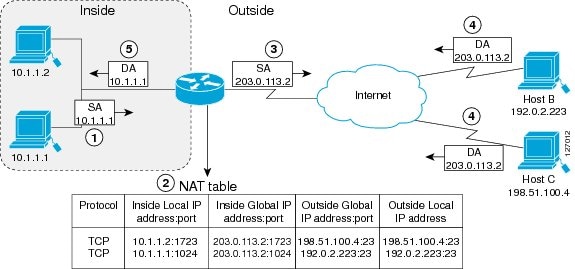
To get a more formal understanding of this process, the following reading explains how PAT leverages port numbers to make this many-to-one translation possible.
What is Port Address Translation (PAT)?
This article from NetworkAcademy.IO clearly explains the logic behind PAT.
Read the sections "What is Port Address Translation (PAT)?" and "How does PAT work?". Focus on understanding: How PAT translates the entire socket (IP:port). Why this process is transparent to the destination server. That PAT is the most widely used form of NAT, capable of supporting thousands of translations with a single public IP.
2. Configuring PAT (NAT Overload)
The configuration process for PAT is very similar to what you've seen before, but with two key differences:
- We use an Access Control List (ACL) to define which range of internal IP addresses should be translated.
- We add the
overloadkeyword to the NAT command to enable Port Address Translation.
Let's watch a concise lab demonstration that walks through the entire configuration.
FREE CCNA Lab 039: PAT (Port Address Translation)
The video "FREE CCNA Lab 039: PAT" from Jeremy's IT Lab demonstrates the full configuration process.
Watch the segment from 02:11 to 04:16. As you watch, identify the three main configuration steps: Define NAT interfaces: The familiar ip nat inside and ip nat outside commands are applied to the router's interfaces. Create an ACL: An ACL is created to permit the source IP address range of the internal network (e.g., 192.168.1.0/24). This ACL's purpose is to identify traffic for translation, not to filter it. Create the PAT rule: The core command is executed, linking the ACL to the outside interface and enabling PAT with the overload keyword.
Let's break down the main PAT configuration command you just saw:
ip nat inside source list <ACL_NUMBER_OR_NAME> interface <OUTSIDE_INTERFACE> overload
ip nat inside source: Specifies that we are translating the source address of packets coming from the inside network.list <ACL_NUMBER_OR_NAME>: Points to the access list that identifies the internal IP addresses eligible for translation.interface <OUTSIDE_INTERFACE>: Tells the router to use the IP address configured on this specific outside interface as the public IP for all translations.overload: This is the crucial keyword that enables PAT, allowing many private IPs to be mapped to the single IP of the specified interface.
Here is a complete configuration example for a router with an internal network 10.1.1.0/24 on interface GigabitEthernet0/0 and a public-facing interface GigabitEthernet0/1:
// Enter global configuration mode
R1# configure terminal

// Step 1: Define the ACL to match the internal network
R1(config)# access-list 1 permit 10.1.1.0 0.0.0.255

// Step 2: Define the inside and outside interfaces
R1(config)# interface GigabitEthernet0/0
R1(config-if)# ip nat inside
R1(config-if)# exit

R1(config)# interface GigabitEthernet0/1
R1(config-if)# ip nat outside
R1(config-if)# exit

// Step 3: Create the PAT rule
R1(config)# ip nat inside source list 1 interface GigabitEthernet0/1 overload
3. Verifying PAT Translations
Once configured, you need to verify that PAT is working correctly. The primary tool for this is the show ip nat translations command. When multiple internal devices generate traffic, you should see several entries in the translation table all sharing the same "Inside Global" address.
The following video provides an excellent real-world demonstration of testing and verification, first from multiple browser tabs on one PC, and then by adding a second device (a phone) to the network.
This is what you use at home: NAT Overload (PAT) Demonstration
In "This is what you use at home: NAT Overload (PAT) Demonstration," David Bombal shows how to interpret the translation table.
Watch these two key segments: Multiple Sessions, One Host (10:30 - 13:12): The presenter opens multiple web browsers on a single PC. Observe the show ip nat translations output. Notice how the router creates a unique translation (with a different port number) for each distinct session, even though they all originate from the same Inside Local IP. Multiple Hosts (17:50 - 20:12): A phone is added to the network. Now, pay close attention to the translation table. You will see entries for two different Inside Local IPs (the PC and the phone) both being translated to the same Inside Global IP, distinguished only by their unique port numbers. This is the essence of PAT.
Another useful command is show ip nat statistics. This gives a summary of NAT activity, including a "Hits" counter that increments for every packet successfully translated, and a "Misses" counter for packets that matched the ACL but couldn't be translated (e.g., if the router ran out of available ports, which is rare). A steadily increasing "Hits" count is a good sign that your PAT rule is working.
Conclusion
In this lesson, you've learned how to configure and verify the most common and efficient form of Network Address Translation. PAT is a cornerstone of modern networking, enabling the massive scale of the internet by conserving the limited public IPv4 address space.
Key Takeaways:
- PAT is Many-to-One: It translates multiple private IP addresses to a single public IP address by using unique port numbers to differentiate sessions.
- Configuration involves an ACL and
overload: You must create an access list to identify the internal source IPs and use theoverloadkeyword in yourip nat inside sourcecommand. - Verification focuses on the Translation Table: The
show ip nat translationscommand is your primary verification tool. For PAT, you should expect to see multiple entries with different "Inside Local" addresses mapping to the same "Inside Global" address. - The Interface Method is Common: A very common way to configure PAT is to "overload" the IP address of the router's outside-facing interface, as demonstrated in this lesson.
You are now able to configure both one-to-one (static NAT) and many-to-one (PAT) translations. But what happens when things don't work as expected? In our next lesson, we will focus on troubleshooting NAT, where you'll learn to use show and debug commands to diagnose and resolve common NAT configuration issues.