Recommended resources
The freely available resources this lesson will direct you to.
Welcome to the first lesson in our module on advanced orchestration and scaling. In the previous module, we fine-tuned the performance of a single model instance with techniques like speculative decoding. Now, we're shifting our focus up the stack to the infrastructure layer, where the goal is to run these models reliably and at scale.
Your extensive background in SRE and platform engineering for distributed systems will be a great asset here. You're already familiar with the challenges of managing specialized hardware and complex application lifecycles in Kubernetes. Today, we'll apply that experience to a new domain: GPUs.
Our learning outcome for this lesson is to configure the NVIDIA Container Toolkit and Kubernetes device plugin to expose GPUs to pods. By the end of this hour, you'll understand the essential components that make a Kubernetes cluster "GPU-aware" and how to deploy and configure them using modern, standard practices.
1. The Challenge: Making Kubernetes GPU-Aware
Out of the box, Kubernetes is designed to manage CPU and memory, but it has no intrinsic understanding of specialized hardware like GPUs. To bridge this gap, we need to introduce a few key components that work together to advertise GPU resources to the Kubernetes scheduler and make them available to containers.
Let's start with a high-level overview of the components involved in this chain, from the pod specification down to the physical hardware.
A Practical Guide to Running NVIDIA GPUs on Kubernetes - Jim Angel
This article by Jim Angel provides an excellent conceptual breakdown of how a pod gets access to a GPU.
Please read the "Overview of components" section. As you read, focus on answering these three questions, which correspond to the key layers of the stack: How does Kubernetes know which nodes have GPUs? (Hint: device plugin) How does Kubernetes know which pods need GPUs? (Hint: pod spec) How does the container runtime actually give the container access to the GPU? (Hint: runtime class and container toolkit)
To visualize this flow, let's look at two diagrams.
The first diagram illustrates the scheduling process from the perspective of the Kubernetes control plane.
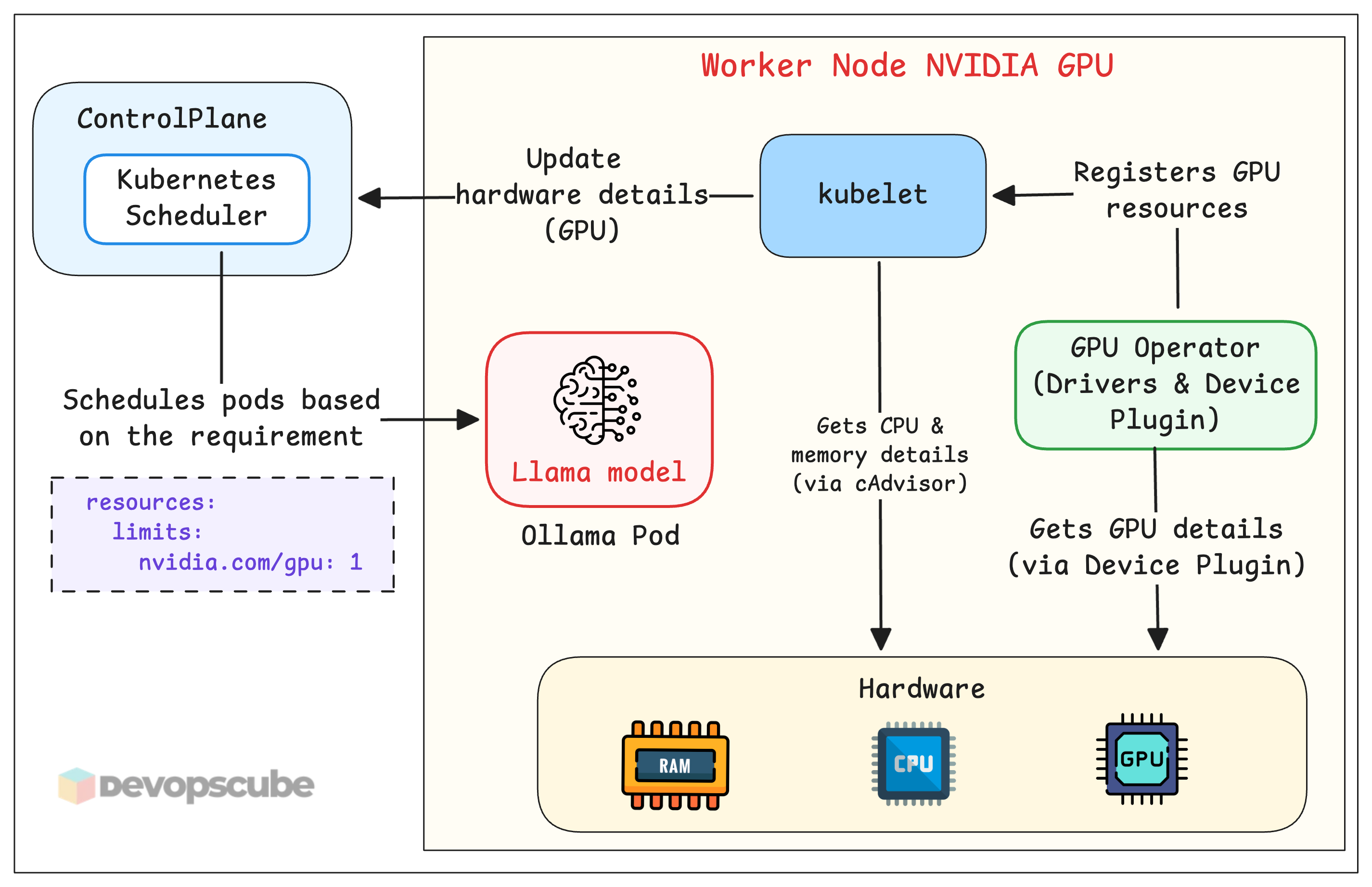
The second diagram zooms into the node level, showing what happens when containerd is asked to run a GPU-enabled container.
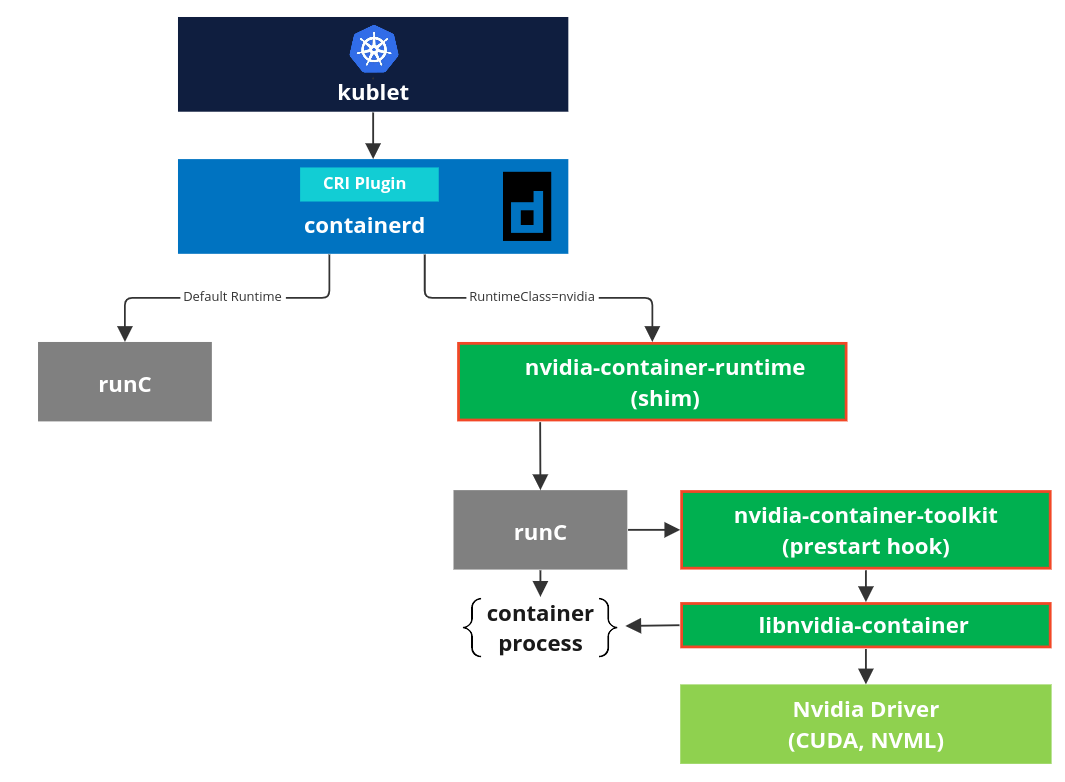
From your SRE perspective, you can see this is a classic case of extending a platform's core functionality using plugins and specialized configurations. We have two main pieces:
- The NVIDIA Device Plugin for Kubernetes: This component runs on each GPU-equipped node as a DaemonSet. Its job is to discover GPUs and report them as an "extended resource" (
nvidia.com/gpu) to the Kubelet, making them available to the Kubernetes scheduler. - The NVIDIA Container Toolkit: This package provides the low-level integration with the container runtime (like
containerd). It allows the runtime to pass through the host's GPU devices and drivers into the isolated container environment.
2. The Solution: The NVIDIA GPU Operator
Managing the device plugin, container toolkit, and NVIDIA drivers manually across a cluster would be complex and error-prone—a clear violation of the automation principles you live by. The standard, production-grade solution is to use the NVIDIA GPU Operator.
This operator automates the entire lifecycle management of the necessary NVIDIA software components. It bundles the driver, container toolkit, device plugin, and other monitoring components into a single Helm chart, deploying them with the correct configuration based on the node's environment.
How to deploy NVIDIA GPU Operator Deployment on Kubernetes
This video from Techi Nik gives a concise introduction to the role and function of the GPU Operator.
Watch the first part of the video, from the beginning to the overview. It explains how the operator automatically detects GPU nodes and installs the required components to make them ready for AI/ML workloads.
3. Configuration in Practice
While we won't be provisioning a live cluster, we will walk through the key configuration steps and commands you would use. This aligns with your goal of practical, applied learning.
Step 1: Configure the Node's Container Runtime
Before the GPU Operator is installed, it's useful to understand how the underlying container runtime is configured. The GPU Operator can automate this, but in many environments (or for debugging), you might need to do it yourself. This is done using the NVIDIA Container Toolkit.
A Practical Guide to Running NVIDIA GPUs on Kubernetes - Jim Angel
Let's return to the guide by Jim Angel to see the manual process for configuring containerd.
Read through the following two sections: Install NVIDIA Container Toolkit: This shows how to add the NVIDIA repository and install the toolkit package on the host node. Configure containerd: This demonstrates using the nvidia-ctk runtime configure command, which automatically modifies the containerd config file to add the nvidia runtime class.
The key action here is the nvidia-ctk runtime configure command. It edits /etc/containerd/config.toml to define a new runtime named nvidia that points to the nvidia-container-runtime binary. This is the crucial link that the runtimeClassName: nvidia field in a pod spec will later rely on.
Step 2: Install the NVIDIA GPU Operator via Helm
With the node-level tools understood, the next step is to deploy the GPU Operator to your Kubernetes cluster. This is typically done using Helm.
Installing the NVIDIA GPU Operator
This is the official NVIDIA documentation for installing the GPU Operator. It provides the standard procedure.
Read the "Procedure" section. It's very straightforward: you add the NVIDIA Helm repository and then use helm install to deploy the operator.
The basic Helm command is:
helm repo add nvidia https://helm.ngc.nvidia.com/nvidia
helm repo update
helm install gpu-operator nvidia/gpu-operator \
  -n gpu-operator --create-namespace
A crucial part of your work as an LLM Ops Engineer will be customizing these deployments. The GPU Operator chart has several important values you can set.
Installing the NVIDIA GPU Operator
Let's review the key customization options in the official documentation.
First, skim the table in the section "Common Chart Customization Options". Pay special attention to these parameters: driver.enabled: Set to false if you manage drivers on the host yourself. toolkit.enabled: Set to false if you've already installed and configured the NVIDIA Container Toolkit on the nodes. cdi.enabled: This is a newer, forward-looking option that uses the Container Device Interface (CDI) standard, simplifying runtime configuration. Next, read the scenario under "Pre-Installed NVIDIA GPU Drivers and NVIDIA Container Toolkit". Notice how it uses --set flags to disable the operator's management of components that are already present on the host. This is a common pattern in enterprise environments.
For example, if you had manually installed the drivers and configured the toolkit as we saw in Step 1, your Helm command would look like this:
helm install gpu-operator nvidia/gpu-operator \
  -n gpu-operator --create-namespace \
  --set driver.enabled=false \
  --set toolkit.enabled=false
This tells the operator, "The low-level node setup is done; just install the Kubernetes-specific components like the device plugin."
Step 3: Deploy a Test Pod
Once the operator is running, how do you verify that it works? You deploy a pod that requests a GPU and check if it gets one.
Here is a typical pod manifest for a simple test:
apiVersion: v1
kind: Pod
metadata:
  name: cuda-vectoradd
spec:
  restartPolicy: OnFailure
  runtimeClassName: nvidia # This tells K8s to use the NVIDIA-configured runtime
  containers:
  - name: cuda-vectoradd
    image: "nvidia/cuda:12.3.1-base-ubuntu22.04"
    command: ["/bin/sh", "-c"]
    args: ["nvidia-smi"]
    resources:
      limits:
         nvidia.com/gpu: 1 # This requests one GPU
There are two critical sections here:
runtimeClassName: nvidia: Instructs Kubernetes to use the special runtime we configured.resources.limits: { nvidia.com/gpu: 1 }: This requests one GPU from the pool of available extended resources advertised by the device plugin.
After deploying this pod with kubectl apply -f, you could verify its operation by checking the logs:
kubectl logs cuda-vectoradd
If everything is configured correctly, the output will be the familiar nvidia-smi report, confirming the container has access to the GPU. This completes the end-to-end path from Kubernetes request to hardware access.
Conclusion
In this lesson, you have learned the fundamental mechanisms for making GPUs available within a Kubernetes cluster. Your existing expertise in Kubernetes and infrastructure automation provides the perfect foundation for mastering this specialized domain.
Here are the key takeaways:
- Two-Part System: Exposing GPUs requires both a Kubernetes Device Plugin (to inform the scheduler) and an NVIDIA Container Toolkit (to enable the container runtime).
- The Operator Pattern: The NVIDIA GPU Operator is the industry standard for automating the installation and lifecycle management of all necessary NVIDIA software components in a cluster.
- Configuration is Key: The operator can be customized via Helm values (e.g.,
driver.enabled,toolkit.enabled) to adapt to different environments, such as nodes with pre-installed drivers. - Requesting GPUs: Pods request GPUs using the
nvidia.com/gpuresource limit and specify theruntimeClassName: nvidiato ensure the correct runtime is used.
You are now equipped with the foundational knowledge to provision a Kubernetes cluster for GPU-accelerated workloads. In our next lesson, we will build directly on this by exploring how to control which pods get scheduled to which GPU nodes using pod placement strategies like node affinity and taints/tolerations.