Recommended resources
The freely available resources this lesson will direct you to.
- Day-3 | Node Selector, Node Affinity, Taints and Tolerations | Kubernetes Zero to Herowww.youtube.com
- GPUs in Kubernetes for AI Workloadswww.youtube.com
- Mastering Kubernetes Scheduling: The Complete Guide to Node ...aws.plainenglish.io
- The Ultimate Guide to GPU Provisioning and Management ... - Sealossealos.io
Welcome back. In our last lesson, we configured the necessary components to make your Kubernetes cluster "GPU-aware," enabling pods to request and access GPU hardware. Now that the hardware is exposed, the next critical task for an LLM Ops engineer is to control exactly which workloads can use it. Your background in SRE has undoubtedly shown you the operational and financial risks of misallocating specialized, expensive resources.
This lesson directly addresses that challenge. We will implement a robust pod placement strategy for GPU nodes. Our goal is to ensure that only GPU-dependent workloads (like our LLM inference servers) are scheduled on expensive GPU-enabled nodes, while preventing general-purpose workloads from consuming these valuable resources. To do this, we will use standard Kubernetes scheduling features that you are likely familiar with from a general context: taints, tolerations, and node affinity.
By the end of this lesson, you will be able to implement a pod placement strategy for GPU nodes using Kubernetes node affinity and taints/tolerations.
1. The Core Problem: Guarding Your GPUs
In a multi-tenant or mixed-workload Kubernetes cluster, the scheduler's default behavior is to place pods on any node that has sufficient CPU and memory. This poses a significant problem for a platform running LLMs:
- Cost Inefficiency: A web server or a cache pod landing on a node with an NVIDIA A100 GPU is a profound waste of money.
- Resource Contention: Even if a non-GPU pod doesn't use the GPU, it still consumes CPU, memory, and network bandwidth on the node, potentially interfering with latency-sensitive inference jobs.
- Lack of Specialization: You want to reserve your GPU nodes for GPU workloads exclusively, treating them as a protected, specialized resource pool.
Our solution is to create a two-part scheduling strategy: first, we repel all pods from GPU nodes by default, and second, we grant specific access only to the pods that need it and should be there.
2. The "Push": Repelling Pods with Taints
The first step is to "taint" our GPU nodes. A taint is a property you apply to a node that repels pods. Unless a pod has a specific "toleration" for that taint, the scheduler will not place it on the tainted node. This is our "Keep Out" sign.
For GPU nodes, a common practice is to apply a taint that signifies their special purpose. For example:
# Example command to taint a node named 'node-a100-1'
kubectl taint nodes node-a100-1 nvidia.com/gpu=present:NoSchedule
This command applies a taint with:
- Key:
nvidia.com/gpu - Value:
present - Effect:
NoSchedule
The NoSchedule effect means that no new pods will be scheduled on this node unless they explicitly tolerate this taint.
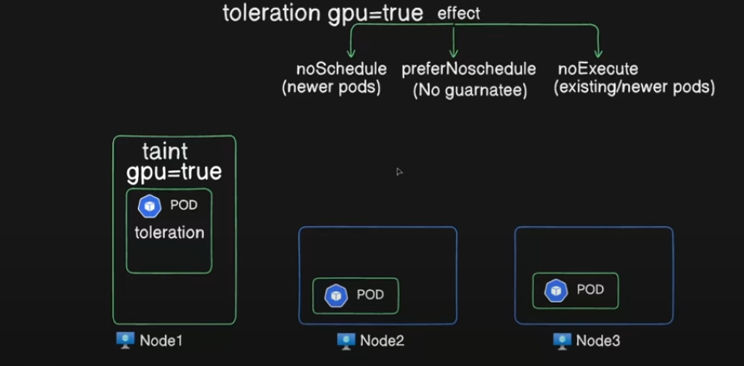
To see a practical demonstration of how taints and their corresponding tolerations work, the following video provides an excellent walkthrough.
Day-3 | Node Selector, Node Affinity, Taints and Tolerations | Kubernetes Zero to Hero
This video from Abhishek.Veeramalla's "Kubernetes Zero to Hero" series gives a clear, hands-on demonstration of applying taints and then using tolerations to bypass them.
Watch these two segments: Start with the explanation of what taints are and how to apply them. The speaker discusses the different effects (NoSchedule, NoExecute) and the common use case of making nodes unschedulable for maintenance, which is analogous to our goal of reserving GPU nodes. Then, watch the following section on tolerations, which explains how to grant pods an "exception" to be scheduled on a tainted node.
3. The "Pull": Attracting Pods with Node Affinity
A toleration gives a pod permission to be scheduled on a tainted node, but it doesn't compel it to go there. A pod that tolerates a GPU taint but doesn't actually request a GPU might still be placed on a regular node by the scheduler. We need a "pull" mechanism to ensure GPU pods are strongly encouraged or required to run on GPU nodes. This is done with node affinity.
Node affinity allows you to specify rules that attract pods to nodes with certain labels. The NVIDIA GPU Operator, which we discussed in the last lesson, is helpful here as it automatically adds detailed labels to your nodes (e.g., GPU model, memory size).
Node affinity comes in two main flavors, but for our use case, one is clearly superior.
Mastering Kubernetes Scheduling: The Complete Guide to Node ...
This article provides a concise explanation of node affinity and its two types.
Read the section "Node Affinity: The Art of Attraction", focusing on the difference between requiredDuringSchedulingIgnoredDuringExecution (hard requirement) and preferredDuringSchedulingIgnoredDuringExecution (soft preference).
For expensive LLM inference workloads, we almost always use requiredDuringSchedulingIgnoredDuringExecution. We must run on a node with a GPU; there is no alternative.
Here is an example snippet from a pod spec:
spec:
  affinity:
    nodeAffinity:
      requiredDuringSchedulingIgnoredDuringExecution:
        nodeSelectorTerms:
        - matchExpressions:
          - key: nvidia.com/gpu.product
            operator: In
            values:
            - NVIDIA-A100-SXM4-80GB
This rule tells the scheduler: "Only schedule this pod on a node that has the label nvidia.com/gpu.product with a value of NVIDIA-A100-SXM4-80GB."
4. The Complete Strategy: Combining Taints, Tolerations, and Affinity
Now, we combine these concepts into a complete, robust placement strategy. This is the standard pattern for managing specialized hardware in Kubernetes, and it's a critical skill for an LLM Ops Engineer.
- Taint GPU Nodes: Apply a
NoScheduletaint to all GPU nodes to repel general-purpose pods. - Label GPU Nodes: Ensure GPU nodes are labeled with their specific hardware capabilities (the GPU Operator often handles this automatically).
- Configure GPU Pods: In the pod manifest for your LLM, add:
- A toleration that matches the taint on the GPU nodes.
- A node affinity rule that requires the pod to be placed on a node with the correct GPU label.
- The GPU resource request (
nvidia.com/gpu: 1).
Let's look at a complete example that brings it all together.
Mastering Kubernetes Scheduling: The Complete Guide to Node ...
This article contains a perfect case study that demonstrates our exact goal.
First, carefully study the YAML manifest in the "Case Study: The Machine Learning Platform" section. Notice how it combines affinity for GPUs with tolerations for dedicated ML infrastructure. Next, read "The Scheduling Logic Flow" to see how the scheduler processes these rules in its filter and score phases. Finally, review "Mistake #1: Thinking Tolerations Create Attraction". This is a crucial point: tolerations only remove barriers; you need affinity to provide the pull.
Here's a condensed version of what your LLM inference deployment's pod template might look like, incorporating all these elements:
# In your Deployment, StatefulSet, etc. under spec.template.spec
# ...
spec:


  # 1. ADD TOLERATIONS to allow scheduling on tainted GPU nodes
  tolerations:
  - key: "nvidia.com/gpu"
    operator: "Equal"
    value: "present"
    effect: "NoSchedule"


  # 2. ADD AFFINITY to require scheduling on a specific GPU type
  affinity:
    nodeAffinity:
      requiredDuringSchedulingIgnoredDuringExecution:
        nodeSelectorTerms:
        - matchExpressions:
          - key: nvidia.com/gpu.product
            operator: In
            values:
            - NVIDIA-A100-SXM4-80GB


  # 3. DEFINE RUNTIME AND RESOURCE REQUEST (from previous lesson)
  runtimeClassName: nvidia
  containers:
  - name: llm-inference-server
    image: your-org/vllm-mistral:latest
    resources:
      limits:
         nvidia.com/gpu: 1 # This requests one GPU


# ...
With this configuration, you achieve perfect control:
- Generic pods are pushed away from GPU nodes by the taint.
- LLM pods are allowed onto GPU nodes by the toleration.
- LLM pods are pulled specifically to the correct GPU nodes by the affinity rule.
The following image provides a good mental model for comparing these different scheduling controls.

Conclusion
In this lesson, we've built upon our GPU-aware cluster by implementing a sophisticated and reliable pod placement strategy. As an LLM Ops engineer, this is a fundamental part of ensuring your platform is both cost-effective and performant. Your experience with Kubernetes scheduling primitives is directly applicable here, but now with a focus on the specific needs of managing expensive AI hardware.
Key Takeaways:
- Guard Expensive Resources: Use Kubernetes scheduling features to reserve GPU nodes exclusively for workloads that require them.
- Push with Taints: Taint GPU nodes (e.g.,
key=value:NoSchedule) to repel pods that don't have a matching toleration. - Pull with Affinity: Use
requiredDuringScheduling...node affinity to ensure GPU-dependent pods are scheduled only on nodes with the correct hardware, identified by labels. - The Combined Strategy: The robust production pattern is to use taints and tolerations for access control, and node affinity for targeted placement. A toleration grants permission, while affinity enforces the destination.
In our next lesson, we will move from placing pods to managing the work that flows to them. We will implement request queuing using a message broker like SQS, which is a key pattern for building scalable and resilient asynchronous inference services.