Recommended resources
The freely available resources this lesson will direct you to.
Hello! The previous lesson established separate debug and release builds. Now the focus moves inside the app: instead of configuring which app Gradle builds, you’ll describe what a Compose screen should display.
In about 40 minutes, you’ll model a marketplace listings screen as immutable UI state, render its loading, content, empty, and failure appearances, and see how to create an updated snapshot without changing the old one. The next lesson will decide which composable owns those snapshots and how user events reach it.
A screen is a description of its current state
Compose is declarative: you describe the UI for the state you have, rather than issuing instructions to manually add, remove, or hide views whenever data changes. A listings screen, for example, might currently be loading, showing listings, showing an empty result, or reporting a failure. UI state is the information needed to choose and render one of those appearances.
Watch these excerpts from Android Developers’ State in Jetpack Compose. The first defines state; the second shows a composable using a condition to describe what belongs on screen.
Android Developers’ “State in Jetpack Compose” provides the visual intuition for a screen driven by state.
Watch what state describes, then state-driven UI. Focus on the conditional rendering example: when the state differs, the composable describes different content. You do not need to use the Layout Inspector demonstrated later in the second excerpt.
For a larger screen, it helps to treat UI state as one snapshot, not a collection of unrelated values that might be updated at different times. The Android Developers’ UI layer guide also explains why the snapshot should be immutable: the UI can read it without becoming a competing place where app data changes.
UI layer | App architecture | Android Developers
Read the Android Developers’ “UI layer” guide for its definition of UI state, its immutability principle, and its advice about keeping related screen information together.
In “UI layer architecture,” find “Define UI state” and continue through “Immutability.” Read the state explanation, including the news-screen data class and the warning against changing its data directly in the UI. Then, under “Expose UI state” → “Additional considerations,” find “Use a single UI state object to handle states that are related to each other.” Read the related-state example. Focus on why a single snapshot can keep related values consistent; you do not need to implement the guide’s streams in this lesson.
The guide’s news example includes fields such as a list of items and whether the user is signed in. Our marketplace example is smaller, but follows the same principle: the screen receives a description of what to show, rather than reaching into a data source to figure it out while drawing.
Model the possible snapshots
Begin with the mutually exclusive screen conditions. A request cannot be both loading and successfully displaying its result in the same snapshot. A Kotlin sealed interface lets us represent those conditions as distinct types:
sealed interface ListingsUiState {
    data object Loading : ListingsUiState

    data class Content(
        val items: List<ListingCardUiState>
    ) : ListingsUiState

    data class Failure(
        val message: String
    ) : ListingsUiState
}

data class ListingCardUiState(
    val id: String,
    val title: String,
    val priceLabel: String,
    val isSaved: Boolean = false
)
Loading needs no additional information. Content carries the items to display; an empty items list describes the empty-result appearance without requiring another screen type. Failure carries a user-facing message, not a raw exception or server response.
Each item has the information this screen needs to draw a card. Its id distinguishes it from other items, while title, priceLabel, and isSaved describe what the user sees. The priceLabel is already display-ready here; converting stored prices into that label would happen before constructing this UI state.
Notice the val properties. Code consuming a ListingCardUiState cannot set isSaved to a new value in place. Nor can it assign a different items list to an existing Content object. This is the useful meaning of an immutable snapshot: once produced, that object continues to describe the same moment.
There is one important Kotlin qualification. List exposes read-only operations, but it does not guarantee that nobody retained a reference to an underlying MutableList. Avoid constructing UI state from a mutable list that other code will change behind the screen’s back. Use fresh lists such as those produced by listOf(...) or map(...), and avoid mutable objects inside them.
Render what the snapshot says
Here is a deliberately small Compose renderer. Add the declarations above and the code below to a Kotlin file in an app module already configured for Compose and Material 3. Android Studio can supply imports for Composable, Column, padding, Modifier, dp, Text, and CircularProgressIndicator.
@Composable
fun ListingsScreen(
    uiState: ListingsUiState,
    modifier: Modifier = Modifier
) {
    Column(modifier = modifier.padding(16.dp)) {
        when (uiState) {
            ListingsUiState.Loading -> {
                CircularProgressIndicator()
            }

            is ListingsUiState.Failure -> {
                Text(uiState.message)
            }

            is ListingsUiState.Content -> {
                if (uiState.items.isEmpty()) {
                    Text("No listings yet")
                } else {
                    uiState.items.forEach { item ->
                        Text(item.title)
                        Text(item.priceLabel)
                        if (item.isSaved) {
                            Text("Saved")
                        }
                    }
                }
            }
        }
    }
}
Because ListingsUiState is sealed, this when covers all three defined conditions. If you add another condition later, the compiler can point you to places that must account for it. The renderer reads the snapshot; it does not edit an item or decide how to fetch listings.
For now, the forEach keeps attention on state modeling. A real feed with many items would use a lazy list. Likewise, the hard-coded labels are enough to inspect this example; user-facing text will be moved to localized resources in a later lesson.
To inspect one appearance in Android Studio, you can add a static Compose preview:
@Preview(showBackground = true)
@Composable
private fun ListingsPreview() {
    ListingsScreen(
        uiState = ListingsUiState.Content(
            items = listOf(
                ListingCardUiState(
                    id = "listing-1",
                    title = "Desk lamp",
                    priceLabel = "25 credits",
                    isSaved = true
                )
            )
        )
    )
}
Import androidx.compose.ui.tooling.preview.Preview if preview tooling is available in your Compose project. You can inspect the other appearances by passing ListingsUiState.Loading, ListingsUiState.Content(emptyList()), or ListingsUiState.Failure("Listings are unavailable") instead. These are four different visual results from the same rendering function.
Change the snapshot, not the object
Immutability does not mean the screen can never change. It means a change is represented by a new value. Kotlin data classes provide copy() for this:
val original = ListingsUiState.Content(
    items = listOf(
        ListingCardUiState(
            id = "listing-1",
            title = "Desk lamp",
            priceLabel = "25 credits"
        )
    )
)

val updated = original.copy(
    items = original.items.map { item ->
        if (item.id == "listing-1") {
            item.copy(isSaved = true)
        } else {
            item
        }
    }
)
original still contains an unsaved lamp. updated contains a new list whose matching item is a new, saved item; unchanged items can be reused. The example shows how to produce a new snapshot, not where this update should run when someone taps a button.
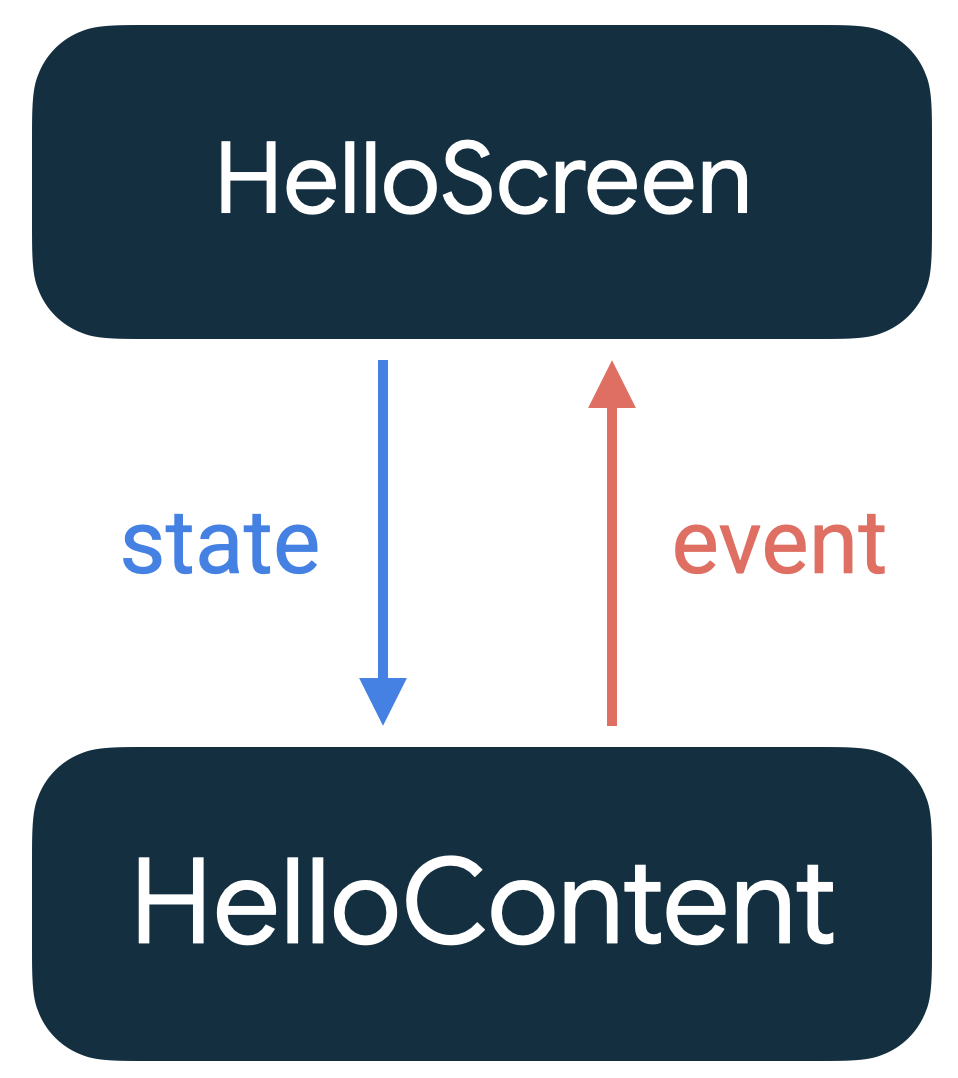
Creating updated alone will not make a running screen redraw. A state-owning caller must provide the new snapshot through an observable state mechanism so Compose can render it. That ownership and the event callback will be the subject of the next lesson. The supplied diagram gives a preview of the boundary: screen content receives state, while interactions are reported to the owner.
Takeaways
A Compose screen can be modeled as immutable snapshots of everything it needs to display. Here, a sealed type distinguishes loading, content, and failure; the content’s list also accounts for an empty result. val-based data classes and fresh lists keep each snapshot stable, while copy() helps produce a different one.
You can already render and inspect each appearance by passing a snapshot to ListingsScreen. Next, you’ll separate that screen from a state-owning route, so new snapshots and user events have a clear home.