Recommended resources
The freely available resources this lesson will direct you to.
Hello! Last time, you modeled a listings screen as immutable snapshots and wrote a composable that renders each snapshot. One question remained: when someone taps Save, who creates the next snapshot?
In this lesson, you’ll separate the screen, which displays state and reports interactions, from a route, which connects the screen to its state owner. You’ll use the same marketplace example and finish with a screen that can be previewed without creating a ViewModel. Allow about 40 minutes, including time to adapt the code in your Compose project.
Give the screen one job
A composable is stateless when it does not own the changing data it displays. Instead, its caller supplies the current value and callbacks for user actions. Android Developers’ Jetpack Compose: State demonstrates this refactoring with a text field. Watch for the two changes: the displayed value becomes a parameter, and an edit becomes a callback.
Watch “Jetpack Compose: State” from Android Developers to see state hoisting—the technique we’ll apply to the listings screen.
Watch state hoisting. Focus on what the stateless HelloContent receives and what it does not do when the name changes. Its callback reports a requested change; the caller decides how to handle it.
The same boundary works for an entire screen. In the diagram, HelloScreen is the state-owning side of the boundary, while HelloContent is the stateless display. Our corresponding functions will be ListingsRoute and ListingsScreen.
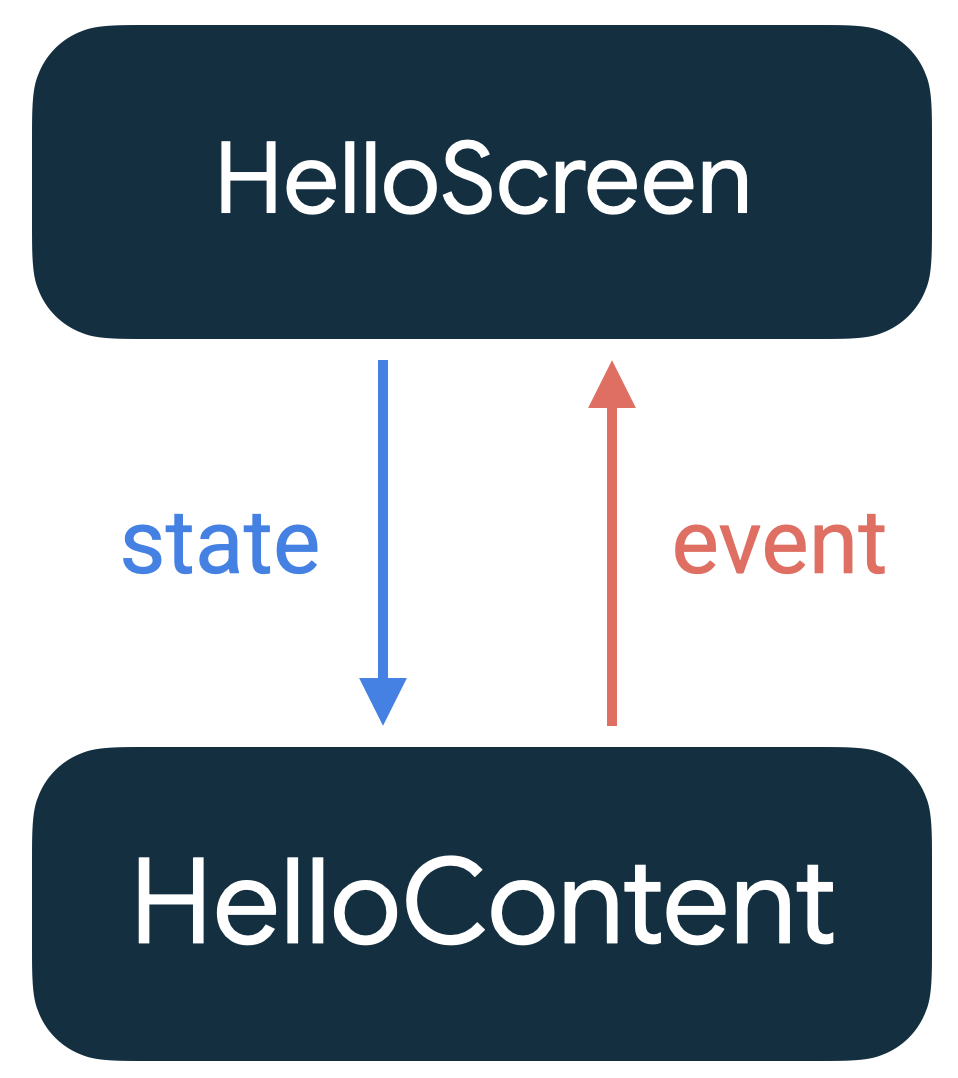
“Events flow up” does not mean that the screen edits its uiState parameter. It means that, when a button is tapped, the screen calls a function supplied by its caller. The state owner can then produce a new snapshot, which the caller passes back for display. This is unidirectional data flow.
Make ListingsScreen a renderer with callbacks
Keep the ListingsUiState and ListingCardUiState declarations from the previous lesson. Replace the earlier ListingsScreen with this version. It still handles loading, failure, empty content, and populated content; the new part is onSaveClick.
@Composable
fun ListingsScreen(
    uiState: ListingsUiState,
    onSaveClick: (String) -> Unit,
    modifier: Modifier = Modifier
) {
    Column(modifier = modifier.padding(16.dp)) {
        when (uiState) {
            ListingsUiState.Loading -> {
                CircularProgressIndicator()
            }

            is ListingsUiState.Failure -> {
                Text(uiState.message)
            }

            is ListingsUiState.Content -> {
                if (uiState.items.isEmpty()) {
                    Text("No listings yet")
                } else {
                    uiState.items.forEach { item ->
                        Text(item.title)
                        Text(item.priceLabel)

                        Button(
                            onClick = { onSaveClick(item.id) }
                        ) {
                            Text(if (item.isSaved) "Unsave" else "Save")
                        }
                    }
                }
            }
        }
    }
}
The screen knows which listing was tapped, so it sends that listing’s id. It does not know where saved listings are stored, how saving might fail, or how to update the list. Even the button label is derived from the supplied snapshot: isSaved describes what is currently displayed, not a second value maintained by the button.
The callback name is intentional. onSaveClick describes an interaction that occurred; it does not claim that saving succeeded. In this small example, the owner will immediately toggle an in-memory value. Later, the same screen could report the same interaction while the owner handles a request that takes time or fails.
A useful test of the boundary is to look at the function signature. Everything ListingsScreen needs to render and report this interaction is visible there. It has no ViewModel parameter, no call to viewModel(), and no remembered copy of isSaved.
Put ownership behind the route
For screen-level state, a ViewModel commonly acts as the state owner. The route is the composable entry point that obtains that owner, reads its current UI state, and connects its event-handling function to the stateless screen. Thus, “state-owning route” describes the route side of the UI boundary; in the example below, the ViewModel is the object that actually stores and changes the state.
Android Developers’ Where to hoist state shows this arrangement with two ConversationScreen functions: one obtains state and connects a ViewModel action, while the other accepts only values and a callback.
Where to hoist state | Jetpack Compose | Android Developers
Read the ConversationScreen example to compare its state-owning entry point with its stateless rendering function.
Find the two ConversationScreen declarations immediately before the “Property drilling” heading. Read from the first declaration, which takes a ConversationViewModel, through the second declaration’s MessagesList call; the state handoff is the central part. Notice which function mentions the ViewModel and which accepts only messages and onSendMessage. You need not learn the collectAsStateWithLifecycle() call yet; later lessons will cover collecting Flow as screen state.
Here is a small ViewModel for the listings example. It starts with sample content so you can run the screen without a database or network service. Add it alongside your existing UI-state types:
class ListingsViewModel : ViewModel() {
    var uiState by mutableStateOf<ListingsUiState>(
        ListingsUiState.Content(
            items = listOf(
                ListingCardUiState(
                    id = "listing-1",
                    title = "Desk lamp",
                    priceLabel = "25 credits"
                )
            )
        )
    )
        private set

    fun toggleSaved(id: String) {
        val content = uiState as? ListingsUiState.Content ?: return

        uiState = content.copy(
            items = content.items.map { item ->
                if (item.id == id) {
                    item.copy(isSaved = !item.isSaved)
                } else {
                    item
                }
            }
        )
    }
}
This is the immutable update from the previous lesson, now placed with the state owner. The public uiState can be read, but its setter is private: the screen cannot assign an arbitrary snapshot. mutableStateOf makes changes to the property observable to Compose. Assigning the new Content value lets a composable that reads uiState display the updated snapshot. The as? check also makes the behavior explicit: a save tap does nothing unless content is currently available.
Now connect the two sides:
@Composable
fun ListingsRoute(
    viewModel: ListingsViewModel = viewModel()
) {
    ListingsScreen(
        uiState = viewModel.uiState,
        onSaveClick = viewModel::toggleSaved
    )
}
The route has little code because its responsibility is wiring, not drawing listing cards. viewModel() obtains the screen-level state owner; the route reads its state and passes a reference to its event handler. It is the route—not ListingsScreen—that an activity or, later, a navigation destination should call.
If your project does not already provide viewModel(), add the AndroidX lifecycle-viewmodel-compose dependency using your Gradle version catalog. Android Studio can then import androidx.lifecycle.viewmodel.compose.viewModel, androidx.lifecycle.ViewModel, and androidx.compose.runtime.mutableStateOf. This example deliberately uses Compose-observable state to keep the boundary visible; a later module will replace that simple arrangement with StateFlow and lifecycle-aware collection.
The in-memory toggle is also a boundary demonstration, not persistent saving. A production save action would involve app data outside this screen; the renderer’s signature need not change to accommodate that work.
Check what the separation buys you
The stateless screen can still show any of the four appearances from the previous lesson. Its preview does not need a ViewModel or a running data source:
@Preview(showBackground = true)
@Composable
private fun ListingsScreenPreview() {
    ListingsScreen(
        uiState = ListingsUiState.Content(
            items = listOf(
                ListingCardUiState(
                    id = "listing-1",
                    title = "Desk lamp",
                    priceLabel = "25 credits",
                    isSaved = true
                )
            )
        ),
        onSaveClick = {}
    )
}
The empty callback makes the preview renderable; it does not simulate saving. You can substitute Loading, Content(emptyList()), or Failure("Listings are unavailable") to inspect those appearances without changing the route.
When you run ListingsRoute in the app instead, tapping the button invokes toggleSaved with the item ID. The ViewModel creates a new snapshot, Compose observes the changed uiState, and ListingsScreen renders the appropriate button label. At no point does the button maintain its own competing isSaved value.
Keep the distinction precise: stateless does not mean static. ListingsScreen can display changing data and respond to taps. It is stateless because the changing screen data and the decision about what a tap means live outside it. Small, purely visual UI details may sometimes be remembered locally; the marketplace listing’s saved status is not such a detail.
Takeaways
ListingsScreen now accepts an immutable ListingsUiState and an onSaveClick callback. ListingsRoute connects that screen to a ViewModel, which owns the observable snapshot and handles the event. This keeps rendering independent of state storage while giving user interactions a clear path back to the owner.
In the next lesson, you’ll connect screen entry points like ListingsRoute to type-safe Compose navigation. The route/screen boundary you established here will let navigation choose where to go without making the reusable screen responsible for the navigation framework.