Recommended resources
The freely available resources this lesson will direct you to.
Hello! Welcome to the next lesson in our MLOps and Model Deployment module.
In our last session, you successfully created a REST API with FastAPI to serve a trained machine learning model. Your API works perfectly, but it's currently running only on your local machine. This raises a critical question in software and AI engineering: how do you package this application so it runs reliably on your colleague's computer, a test server, or in the cloud without the infamous "it works on my machine" problem?
This lesson introduces the solution: containerization. We'll explore what containers are, why they are indispensable for modern ML workflows, and how to create the blueprint for one. By the end of this lesson, you will be able to explain the purpose of containerization and write a basic Dockerfile for a Python application.
The Problem: Inconsistent Environments
You've built a FastAPI application that depends on specific versions of Python, FastAPI, Scikit-learn, and other libraries listed in your requirements.txt. If you were to give your code to a colleague, they would need to:
- Install the correct version of Python.
- Create a virtual environment.
- Install the exact package versions from
requirements.txt.
Any small deviation—a different operating system, a conflicting system library, or a slightly different package version—could cause the application to fail. This makes collaboration, testing, and deployment fragile and error-prone. Containerization solves this by bundling your application with its entire environment.
What is Containerization?
Containerization is the process of packaging an application and all its dependencies, libraries, and configuration files into a single, standardized unit called a container. This container can then run on any machine with a container runtime (like Docker) installed, regardless of the underlying operating system or local configuration.
A great way to understand this is to compare containers with a more traditional virtualization technology: Virtual Machines (VMs).
Virtual Machines vs Containers
To grasp the purpose of containerization, it's helpful to see how it evolved from older technologies. This animated video, "Virtual Machines vs Containers", provides a clear explanation of the problem containers solve and their architectural advantages over VMs.
Please watch from 01:16 to 06:15. This segment covers: (01:16 - 03:23): An introduction to Virtual Machines (VMs), their architecture, and drawbacks. (03:23 - 04:56): A clear explanation of what containers are and how they package an application with its dependencies. (04:56 - 06:15): A direct comparison of the architecture, showing why containers are more lightweight and faster than VMs.
As the video explained, the key difference lies in the level of virtualization.
- Virtual Machines (VMs) virtualize the hardware, meaning each VM includes a full copy of a guest operating system. This makes them very isolated but also large, slow to start, and resource-intensive.
- Containers virtualize the operating system. They share the host system's OS kernel, packaging only the application and its specific libraries and dependencies. This makes them extremely lightweight, fast, and portable.
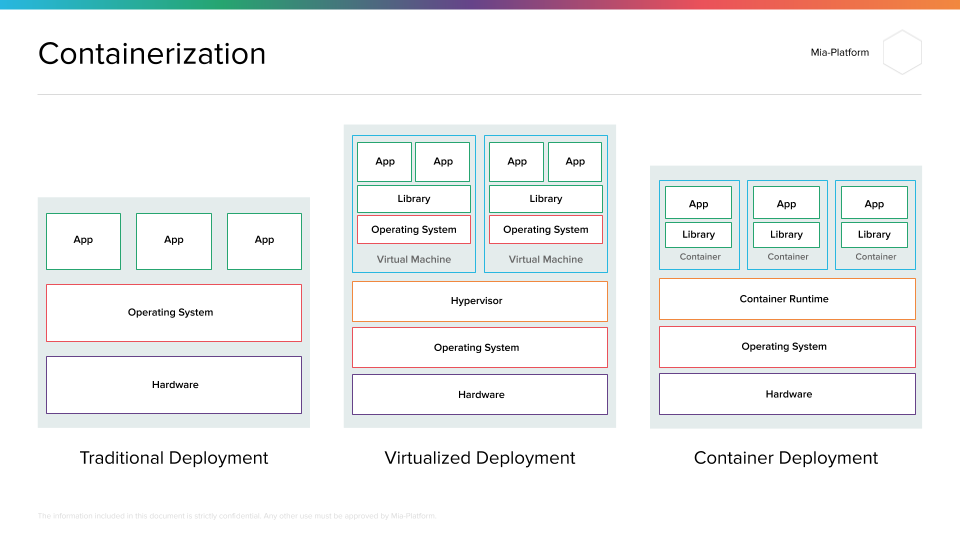
For us as AI engineers, this means we can package our FastAPI model server into a container and be confident it will run identically everywhere.
Why Data Scientists Should Care about Containers
The article "Why Data Scientists Should Care about Containers" reinforces these concepts from a data science perspective, highlighting the key benefits.
Please read the introduction and the first two sections, "Containers vs. Virtual Machines" and "Containers & Data Science". Focus on the four reasons listed for why this knowledge is essential, especially regarding model deployment and reproducibility.
Core Docker Concepts: Dockerfile, Image, and Container
The most popular containerization platform is Docker. To work with Docker, you need to understand three fundamental concepts that follow a logical progression.
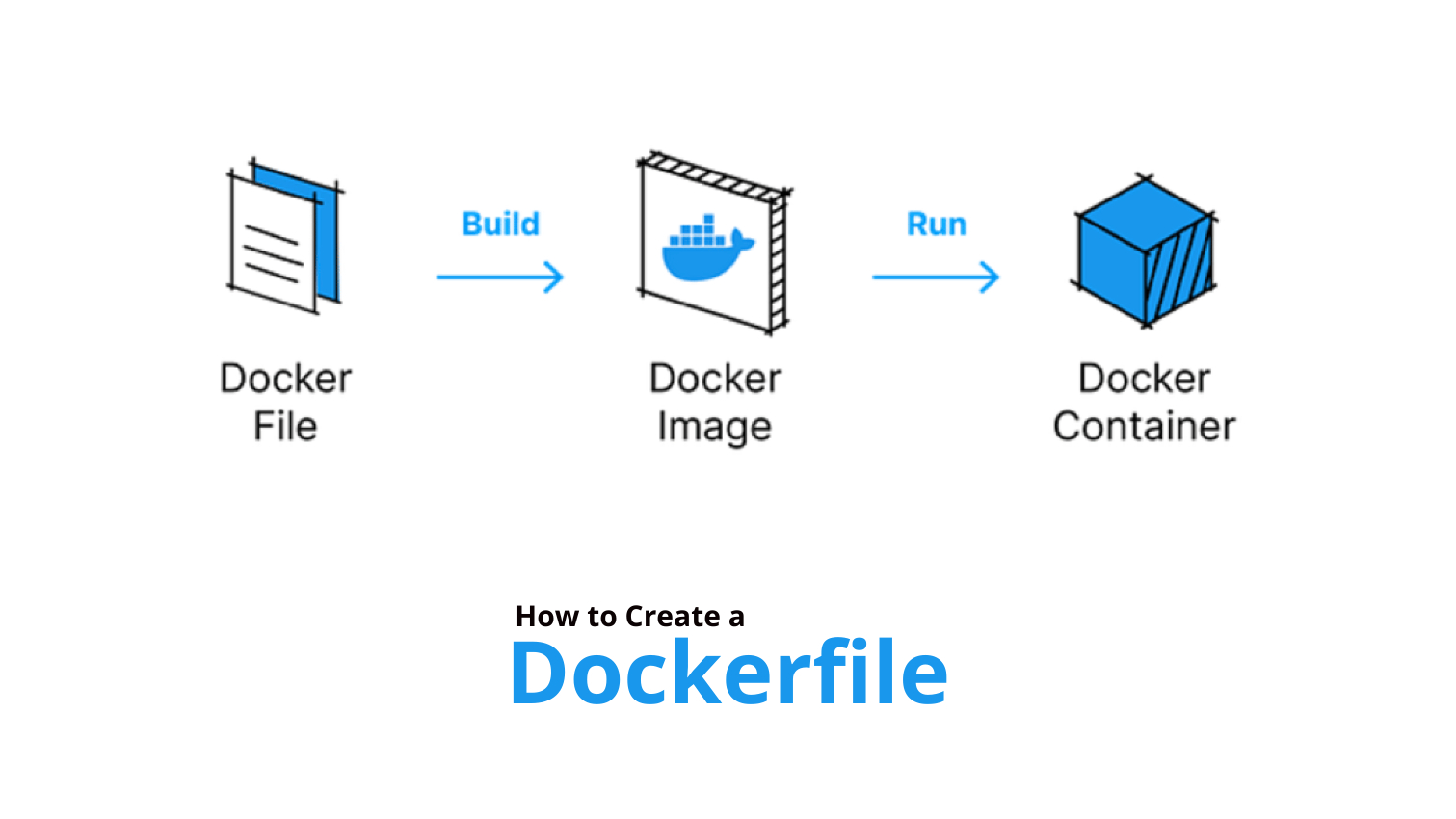
- Dockerfile: A plain text file containing a set of instructions on how to build a Docker image. It's the blueprint for your container. You define everything here: the base OS, the files to copy, the commands to run, and the application to start.
- Docker Image: A read-only template created from a Dockerfile. It contains the application and its complete environment. Think of it as a "snapshot" of your application, frozen in time. You can store images in a registry (like Docker Hub) to share them.
- Docker Container: A running instance of a Docker image. It's the live, executing environment. You can run multiple containers from the same image, each isolated from the others.
In short: you write a Dockerfile to build an Image, and then you run the Image to create a Container.
Writing a Dockerfile for our FastAPI Application
Now for the practical part. Let's write a Dockerfile for the house price prediction API we created in the last lesson. A Dockerfile has no file extension and is simply named Dockerfile.
Create this file in the same project directory as your main.py and house_price_model.joblib.
The Complete Guide to Docker for Machine Learning Engineers
Before we write our Dockerfile, let's read a clear, line-by-line explanation of one designed specifically for a machine learning app. The article "The Complete Guide to Docker for Machine Learning Engineers" provides an excellent example.
Please read the section titled "Step 5: Writing the Dockerfile". It breaks down each command in a Dockerfile for a FastAPI application, explaining the purpose of FROM, WORKDIR, COPY, RUN, EXPOSE, and CMD. This will prepare you for the Dockerfile we are about to create.
Based on that guide and the specific needs of our application, here is the Dockerfile for our project.
# Dockerfile


# 1. Start with an official Python base image.
# The 'slim' version is smaller and good for production.
FROM python:3.11-slim


# 2. Set the working directory inside the container.
# This is where our application files will live.
WORKDIR /app


# 3. Copy the requirements file first.
# This leverages Docker's layer caching. If requirements.txt doesn't change,
# Docker won't re-install dependencies on subsequent builds, making them faster.
COPY requirements.txt .


# 4. Install the Python dependencies.
# The --no-cache-dir flag keeps the image size smaller.
RUN pip install --no-cache-dir -r requirements.txt


# 5. Copy the rest of the application files into the container.
# This includes our main.py and the saved model.
COPY . .


# 6. Expose the port the app runs on.
# Our FastAPI app runs on port 8000.
EXPOSE 8000


# 7. Define the command to run the application.
# This command starts the Uvicorn server. The host '0.0.0.0' is crucial
# for making the container accessible from outside.
CMD ["uvicorn", "main:app", "--host", "0.0.0.0", "--port", "8000"]
Let's quickly review each instruction:
FROM python:3.11-slim: Every Dockerfile must start with aFROMinstruction. It specifies the base image our application will be built upon. We're using an official Python 3.11 image.WORKDIR /app: This sets the default directory for all subsequent commands. It's a good practice to create a dedicated directory for your app.COPY requirements.txt .: This copies therequirements.txtfile from your local machine into the/appdirectory inside the container.RUN pip install ...: TheRUNinstruction executes commands. Here, we install our dependencies. Because we copiedrequirements.txtin a separate step, Docker can cache this layer, saving significant time during future builds if our dependencies haven't changed.COPY . .: This copies all remaining files from the current directory on your host (represented by the first.) into the working directory (/app) inside the container (the second.).EXPOSE 8000: This serves as documentation to inform Docker that the container listens on port 8000 at runtime. It doesn't actually publish the port.CMD ["uvicorn", ...]: This specifies the default command to execute when a container is started from this image. We are starting our FastAPI server. Usinghost="0.0.0.0"is essential, as it tells Uvicorn to listen for connections on all network interfaces within the container, not just localhost.
This file is the complete blueprint for packaging our ML API.
Conclusion
In this lesson, we tackled a fundamental challenge in deploying software: environment consistency. You've learned how containerization with Docker solves this by packaging an application and all its dependencies into a single, portable unit.
Key Takeaways:
- Purpose of Containerization: To eliminate the "it works on my machine" problem by creating portable, reproducible, and isolated application environments.
- Containers vs. VMs: Containers are more lightweight and efficient because they virtualize the OS and share the host kernel, whereas VMs virtualize hardware and include a full guest OS.
- Core Docker Concepts: The workflow involves writing a
Dockerfile(the blueprint), using it tobuilda read-onlyImage(the template), and thenrunning that image to create one or moreContainers(the running instances). - Basic Dockerfile Instructions: You learned the purpose of key commands like
FROM,WORKDIR,COPY,RUN, andCMD, and how to structure them to create an efficient build process.
Preview of the Next Lesson
You have now written the blueprint for our containerized application. The next logical step is to bring it to life. In the next lesson, we will use Docker to build a Docker image from our Dockerfile and run the containerized ML application. We'll use the docker build and docker run commands and see our FastAPI application running inside a fully isolated container.