Recommended resources
The freely available resources this lesson will direct you to.
Hello! Welcome back to our module on MLOps and Deployment.
In our last lesson, you created a Dockerfile, which serves as a detailed blueprint for packaging our machine learning API. You now have the complete set of instructions for building a portable, self-contained environment for your application.
Today, we will bring that blueprint to life. This lesson is all about action: we will use the Dockerfile you wrote to build a Docker image and run the containerized ML application. You will see your FastAPI server running inside a fully isolated Docker container, accessible just like any other web service.
A Quick Recap: The Docker Workflow
As a reminder, our process follows three main steps:
- Write a
Dockerfile: The blueprint (which you've already done). - Build an
Image: A read-only template from the blueprint. - Run a
Container: A live, running instance of the image.

Before we start, make sure you have Docker Desktop installed and that it's running on your machine. You can verify this by looking for the whale icon in your system tray or menu bar.
Understanding the Docker Architecture
When you type a docker command in your terminal, you're interacting with the Docker Client. The client sends your instructions to the Docker Daemon (or Docker Engine), which is the server component that does the heavy lifting: building images, running containers, and managing them.
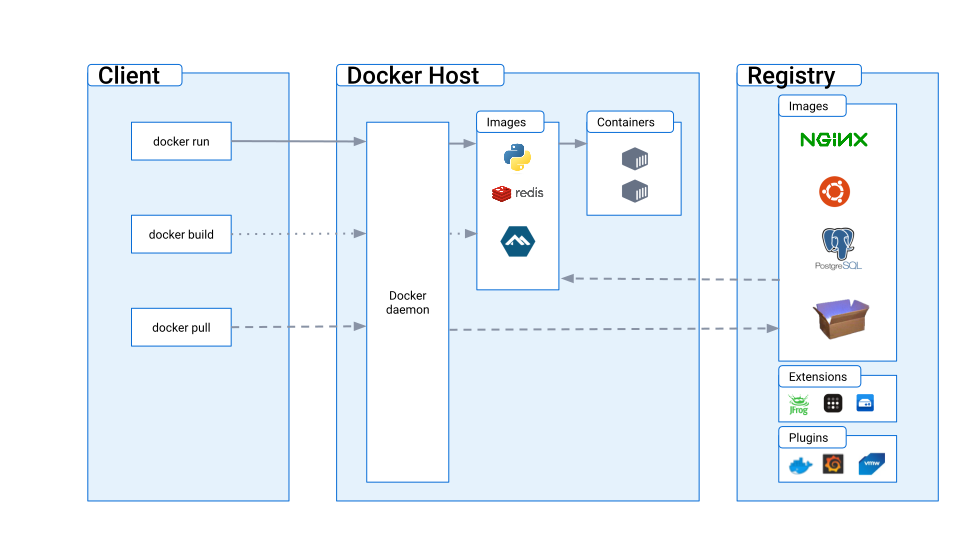
Today, your Docker Daemon will be running locally on your machine via Docker Desktop. Let's give it some work to do.
Step 1: Building the Docker Image
The first step is to use the docker build command to convert your Dockerfile into a Docker image. An image is a single file containing all the dependencies and code needed to run your application.
Navigate to your project directory in your terminal—the one containing your main.py, requirements.txt, model file, and the Dockerfile.
The command to build an image is:
docker build -t image-name:tag .
Let's break that down:
docker build: The command to start the build process.-t image-name:tag: The-tflag is for tagging. It assigns a human-readable name and a version tag (e.g.,v1,latest) to your image. This is crucial for version control. Let's useml-api:v1..: This single dot at the end is very important. It specifies the build context, telling Docker to use the files in the current directory to build the image.
The Complete Guide to Docker for Machine Learning Engineers
For a detailed walkthrough of the build process, please read the following section from the 'Complete Guide to Docker for Machine Learning Engineers'. It explains the docker build command and how to verify the image's creation.
Please read 'Step 6: Building the Docker Image'. Focus on the breakdown of the docker build command and the docker images command used for verification.
Now, let's watch a practical demonstration of this process.
Deploy ML model in 10 minutes. Explained
The following video, 'Deploy ML model in 10 minutes', shows the build process in action for a similar ML project.
Watch the segment from 06:29 to 07:22. The presenter runs the docker build command and explains the output you can expect, especially during the first build.
Your Turn: Build the Image
Now, run the following command in your terminal from your project's root directory:
docker build -t ml-api:v1 .
You will see Docker execute each instruction from your Dockerfile step by step. The first time you run this, it may take a few minutes as Docker needs to download the base Python image. Subsequent builds will be much faster thanks to layer caching.
Once the build is complete, you can verify that your image was created by running:
docker images
You should see ml-api listed as a repository with the tag v1. Congratulations, you have successfully packaged your application into a distributable image!
Step 2: Running the Docker Container
Now that we have an image, we can create and run a container from it. The command for this is docker run.
The basic structure is:docker run [OPTIONS] IMAGE
The most important option for us is port mapping. Your FastAPI application is running on port 8000 inside the container. To access it from your local machine's browser, you need to map a port on your machine (the host) to the port inside the container.
Docker Simply Explained with a Machine Learning Project for Beginners
The concept of port mapping can be tricky at first. This short clip explains it very clearly.
Watch from 06:01 to 07:13. The video explains why direct access to an isolated container fails and how the -p flag solves this by creating a connection between a port on your host machine and a port inside the container.
Your Turn: Run the Container
Let's run your container with the necessary options.
docker run -d -p 8000:8000 --name my-ml-api ml-api:v1
Let's break down these flags:
-p 8000:8000: This maps port 8000 on your host machine to port 8000 in the container. The format ishost_port:container_port.-d: This runs the container in detached mode, meaning it runs in the background and doesn't lock up your terminal.--name my-ml-api: This gives your container a convenient, human-readable name.ml-api:v1: This is the image you want to run.
The Complete Guide to Docker for Machine Learning Engineers
The 'Complete Guide' article also provides a great textual explanation of the docker run command and its flags.
Please read 'Step 7: Running Your Container'. It provides a clear breakdown of the docker run command and its flags.
After running the command, you can check that your container is running with:
docker ps
This command lists all running containers. You should see my-ml-api in the list.
Step 3: Interacting with and Debugging Your Application
Your containerized ML application is now running! Let's test it.
-
Open your browser and navigate to
http://localhost:8000/docs. You should see the familiar FastAPI interactive documentation. You can use this interface to send test requests to your model. -
Use
curlfrom your terminal for a programmatic test. If your API expects a JSON with a "features" key, the command would look something like this:curl -X POST "http://localhost:8000/predict" \ -H "Content-Type: application/json" \ -d '{"features": [1, 2, 3, 4]}'Adjust the JSON payload (
-d) to match what your specific model expects.
What if it doesn't work?
Debugging is a core part of development. The video from Daniel provides an excellent, realistic example of encountering errors and fixing them. This is a must-watch.
Deploy ML model in 10 minutes. Explained
This is one of the most useful parts of the video. It demonstrates how to diagnose and fix common errors that occur when running a container for the first time.
Please watch carefully from 07:22 to 10:28. Pay close attention to: How the error is first seen in the terminal when docker run fails. How the fix requires changing the code, rebuilding the image, and running a new container. How to check container logs with docker logs <container_name> to find the root cause of an error after the container has started. \nThis cycle of 'run -> fail -> check logs -> fix code -> rebuild -> re-run' is extremely common in practice.
If your container fails to start or an endpoint gives an error, the first thing you should do is check the logs:
docker logs my-ml-api
The logs will show you the output from the Uvicorn server inside the container, including any Python tracebacks. If you need to make a code change, remember the workflow: edit code -> rebuild image -> stop and remove old container -> run new container.
To stop your running container:docker stop my-ml-api
To remove it (so you can reuse the name):docker rm my-ml-api
Conclusion
Excellent work! You have successfully taken your ML application from a set of local files to a fully containerized service. This is a massive step towards creating robust, deployable AI systems.
Key Takeaways:
- Building an Image: The
docker build -t <name> .command compiles yourDockerfileand local files into a single, portable Docker image. - Running a Container: The
docker run -p <host>:<container>command launches a live, isolated container from your image, mapping ports so you can access it. - Verification and Debugging:
docker imageslists all local images.docker pslists all running containers.docker logs <container_name>is your primary tool for debugging issues inside a container.
- The Development Cycle: The workflow for fixing issues is to edit your code, rebuild the image, and then run a new container from the updated image.
Preview of the Next Lesson
Your model is now packaged and running in a container. But in a real-world production environment, just running the model isn't enough. How do you know if it's still performing well over time? How do you detect if its predictions are starting to drift or if the service is unhealthy? In the next lesson, we will explore the critical topic of model monitoring and the common metrics you need to track in production.