Recommended resources
The freely available resources this lesson will direct you to.
- Free CCNA | EtherChannel | Day 23 | CCNA 200-301 Complete Coursewww.youtube.com
- How to Configure EtherChannel on a REAL Cisco Switch | CCNA Basicswww.youtube.com
- Configure and verify EtherChannel (LACP) - IT Networking Skillsitnetworkingskills.wordpress.com
- Etherchannel on Cisco IOS Catalyst Switch - NetworkLessons.comnetworklessons.com

Welcome back! In our last lesson, we examined how Spanning Tree Protocol (STP) builds a loop-free topology by electing a root bridge and strategically blocking redundant ports. While essential for preventing network failures, a side effect of STP is that it disables potentially valuable links.
Today, we'll explore the solution to this: EtherChannel. This technology allows us to bundle multiple physical links into a single, logical link. This not only increases available bandwidth but also provides redundancy without having links blocked by STP. Your goal for this lesson is to learn how to configure and verify a Layer 2 EtherChannel using the industry-standard Link Aggregation Control Protocol (LACP).
1. The "Why" and "What" of EtherChannel
As a quick recap, when you connect two switches with multiple cables, STP will identify the parallel paths as a potential loop and block all but one of them to maintain a loop-free network. This means you're not getting the full bandwidth potential of your infrastructure.
EtherChannel solves this by tricking STP. It groups several physical interfaces (up to eight active ones) into a single logical interface called a Port-channel. STP then sees this bundle as just one link, so it keeps all the physical links in the bundle active and forwarding traffic.
To get a clear picture of this concept, let's start with a video from Jeremy's IT Lab.
Free CCNA | EtherChannel | Day 23 | CCNA 200-301 Complete Course
This video provides an excellent introduction to EtherChannel and the problem it solves.
Watch the first part of the video covering what EtherChannel is. Notice how it directly addresses the limitations of STP that we discussed in the previous lessons.
Beyond just increasing bandwidth, EtherChannel also performs load balancing. It's important to understand that if you bundle four 1Gbps links, you don't get a single 4Gbps pipe. Instead, the switch distributes traffic across the individual links based on "flows." A flow is a specific conversation, for example, from one PC's IP address to a server's IP address. All frames belonging to that same flow will always travel over the same physical link to prevent them from arriving out of order.
2. Negotiating an EtherChannel: PAgP, LACP, and Static
To form an EtherChannel between two switches, both sides must agree on which physical ports are part of the bundle. There are three ways to accomplish this:
- Port Aggregation Protocol (PAgP): A Cisco-proprietary protocol. It dynamically negotiates the channel.
- Link Aggregation Control Protocol (LACP): The industry standard (IEEE 802.3ad) protocol. It also dynamically negotiates the channel and is the preferred method because it supports multi-vendor environments.
- Static On: This method doesn't use a negotiation protocol. You manually force the interfaces to form a channel. This is less flexible and generally not recommended.
Since our focus is on LACP, let's look at its negotiation modes. LACP uses two modes to establish a channel:
- Active: This mode actively sends LACP packets, attempting to form a channel with a neighbor.
- Passive: This mode does not initiate LACP negotiation but will respond to LACP packets it receives from a neighbor.
For a channel to form, at least one side must be in active mode.
| Switch 1 Mode | Switch 2 Mode | Channel Formed? |
|---|---|---|
active |
active |
Yes |
active |
passive |
Yes |
passive |
passive |
No |
This diagram provides a clear visual of the LACP negotiation process.
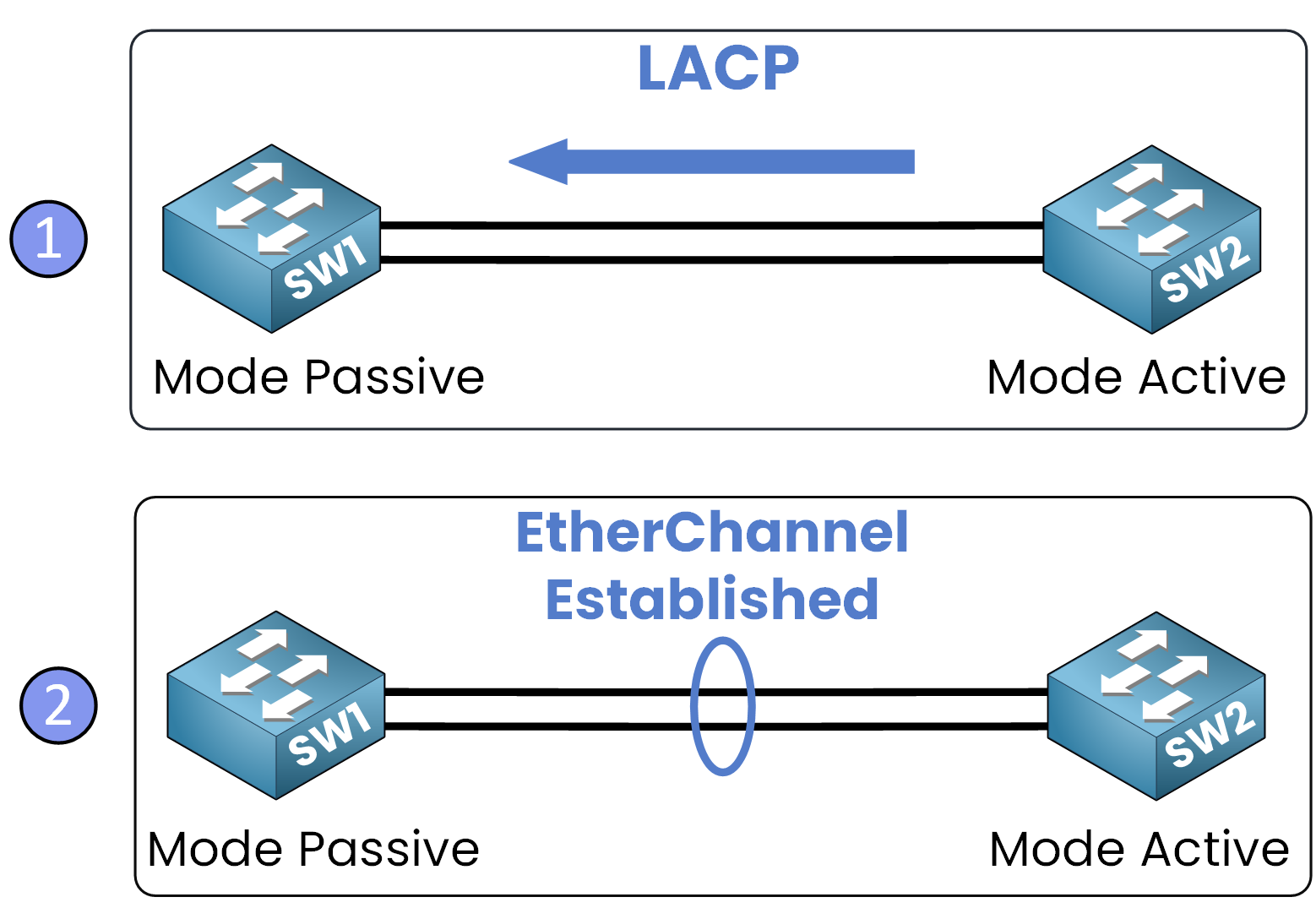
3. Configuring a Layer 2 LACP EtherChannel
Now for the practical part: configuring LACP. The process involves two main steps:
- Assigning the physical interfaces to a channel group.
- Configuring the resulting logical Port-channel interface.
Let's watch a practical demonstration of this on real Cisco switches.
How to Configure EtherChannel on a REAL Cisco Switch | CCNA Basics
This video from Paolo Reyes provides a clear, step-by-step walkthrough of configuring a LACP EtherChannel on two switches and testing connectivity.
First, watch the configuration on the first switch. Pay close attention to the use of the interface range command and the channel-group 1 mode active command. Next, watch the configuration on the second switch, where mode passive is used. This demonstrates a successful active-passive negotiation.
As you saw in the video, the key configuration commands are:
Step 1: Configure the Physical Interfaces
On both switches, you enter interface configuration mode for the physical ports you want to bundle and assign them to a group.
SW1(config)# interface range GigabitEthernet0/1 - 2
SW1(config-if-range)# channel-group 1 mode active
channel-group 1: This number identifies the EtherChannel group. It is locally significant, meaning it doesn't have to match on the neighboring switch. This command also automatically creates the logical interface:Port-channel1.mode active: This sets the LACP mode to actively try and form a channel. On the other switch, you could useactiveorpassive.
A Note on Terminology: Cisco IOS uses three different terms for the same concept, which can be confusing:
- EtherChannel: The name of the technology itself.
channel-group: The command used to assign a physical port to a bundle.Port-channel: The name of the logical interface that gets created.
Step 2: Configure the Logical Port-channel Interface
Once the Port-channel interface is created, you configure it just like you would a physical interface. For a Layer 2 EtherChannel, this typically means configuring it as a trunk.
SW1(config)# interface Port-channel1
SW1(config-if)# switchport mode trunk
SW1(config-if)# switchport trunk allowed vlan 10,20
Any configuration applied to the Port-channel interface is automatically inherited by all the member physical interfaces.
Important Rule: For interfaces to be successfully bundled in an EtherChannel, they must have matching configurations for speed, duplex, and switchport mode (access/trunk). If one interface has a mismatched setting, it will be suspended from the bundle.
4. Verifying the EtherChannel
After configuration, you must verify that the EtherChannel is up and operating correctly. The most useful command for this is show etherchannel summary.
Etherchannel on Cisco IOS Catalyst Switch
This article from NetworkLessons.com provides clear examples of LACP configuration and verification.
Read the section on "LACP". Focus on the configuration example and the output of the show etherchannel summary command that follows. Pay close attention to the explanation of the flags.
Let's break down the output of show etherchannel summary:
SW1# show etherchannel summary
Flags:  D - down        P - bundled in port-channel
        I - stand-alone s - suspended
        ...
        S - Layer2      U - in use
        ...

Group  Port-channel  Protocol    Ports
------+-------------+-----------+-----------------------------------------------
1      Po1(SU)       LACP        Gi0/1(P)    Gi0/2(P)
Here’s what to look for:
- Group: The channel-group number (1).
- Port-channel: The logical interface (
Po1). The flags(SU)next to it are critical:S: Indicates it's a Layer 2 EtherChannel.U: Indicates the channel is in use and operational.
- Protocol: Shows the negotiation protocol being used (
LACP). - Ports: Lists the member physical interfaces. The
(P)flag next to each port is what you want to see.P: Means the port is successfully bundled in the port-channel.
If you see other flags like D (down) or s (suspended), it indicates a problem with either the physical link or a configuration mismatch.
Conclusion
In this lesson, you have learned how to overcome the limitations of STP by bundling links using EtherChannel. By grouping physical interfaces into a single logical Port-channel, you can increase bandwidth, provide redundancy, and perform load balancing, all while keeping STP happy.
Key Takeaways:
- EtherChannel bundles multiple physical links into one logical link, preventing STP from blocking them.
- LACP is the industry-standard protocol for dynamically negotiating an EtherChannel. It uses
activeandpassivemodes. - Configuration is a two-step process: assign physical ports to a
channel-groupand then configure the logicalPort-channelinterface. - The
show etherchannel summarycommand is your primary tool for verification. Look for the(SU)flags on the Port-channel and the(P)flag on member ports. - All member interfaces in an EtherChannel must have matching speed, duplex, and switchport mode settings.
We have now covered the most critical advanced Layer 2 switching topics. In our next lesson, we will move up the OSI model to Layer 3 and begin exploring the fundamentals of IP routing, starting with how a router uses its routing table to make forwarding decisions.