Recommended resources
The freely available resources this lesson will direct you to.
Hello! Your project now has a Python environment and a place to record dependencies. Today you’ll write its first script. It will process a few mock research results locally, deciding which to keep, which to review, and which to skip. No API or AWS account is needed. Allow about 40 minutes, including time to run and inspect the code.
Give each piece of data a type
Imagine one research result with a title, a relevance score, and a flag saying whether it is still current. Python represents those values differently: the title is a string (str), the score is a decimal number (float), and the flag is a Boolean (bool). A count of results is a whole number (int).
title = "Official release notes"  # str
score = 0.92                    # float
active = True                  # bool
review_count = 0              # int
Here, = assigns a value to a name. Quotes make "Official release notes" text; without quotes, Python would look for a variable with that name. True and False are Boolean values and must be capitalized. A score such as 0.92 is a number you can compare with a threshold; "0.92" is text, not a numeric score.
How to Use Python: Your First Steps – Real Python
Read Real Python’s introduction to the built-in types you’ll use in the script. Focus on recognizing values and comparisons, rather than memorizing every operator.
Under “Built-in Data Types,” read the table in “Numbers,” then the numeric discussion beneath it. In “Booleans,” read from Boolean values, including the comparison examples. In “Strings,” read the opening examples and the explanation immediately after them. You can leave the other types and string techniques for later.
A comparison produces a Boolean: score >= 0.8 is True for the score above, while score == 0.8 is False. Notice the distinction: = assigns; == compares. You’ll use and when both conditions must hold—for example, a result must be current and have a high enough score.
Organize results with lists and dictionaries
A list holds items in order, inside square brackets. Its positions, called indices, start at zero: titles[0] gets the first title. len(titles) tells you how many items it contains, and .append(...) adds one at the end.
A dictionary holds named keys and their values inside curly braces. Instead of asking for “position zero,” you ask for a field by name, such as result["title"]. Keys in a dictionary must be distinct; assigning another value to an existing key replaces the old value.
Python Tutorial for Beginners 4: Lists, Tuples, and Sets
Watch the selected parts of Corey Schafer’s “Python Tutorial for Beginners 4: Lists, Tuples, and Sets” for the list operations needed here. You do not need the tuples and sets portions.
Watch list basics for square brackets, length, and zero-based indexing. Skip ahead to adding an item with .append(), then looping through items. Notice how indentation marks the code repeated for each item.
How to Use Python Dictionaries + Lists of Dicts
In John Watson Rooney’s “How to Use Python Dictionaries + Lists of Dicts,” watch how a dictionary describes one item and how a list can hold several such items.
Start with keys versus indices, then creating a dictionary and retrieving a value by key. Skip to lists of dictionaries; focus on tracing which brackets select a list item and which select a named field. You’ll encounter this shape again when working with API data.
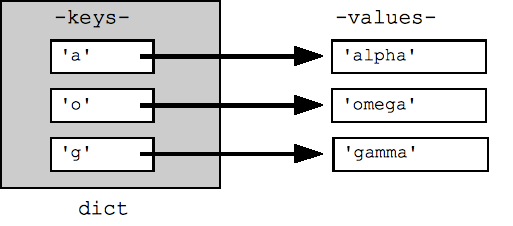
For this project, one result is a dictionary; the batch of results is a list of dictionaries:
results = [
    {"title": "Official release notes", "score": 0.92, "active": True},
    {"title": "Community overview", "score": 0.63, "active": True},
]

print(len(results))          # 2 results
print(results[0]["title"])   # Official release notes
Read results[0]["title"] in two stages. results[0] selects the first dictionary from the list. ["title"] then selects that dictionary’s title. The key must exist for this bracket lookup to work; you’ll address uncertain external data in later lessons.
Decide what to do with each result
A for loop visits every item in a list. An if statement chooses what to do with the current item. elif offers another condition if the first was false; else handles anything left over. Python uses the colon and indentation to identify the code belonging to each block.
4. More Control Flow Tools — Python 3.14.0 documentation
Use the official Python tutorial to see the structure of conditionals and loops before combining them in your script.
In Section 4.1, “if Statements,” inspect the example that branches on x, then read the branch explanation. In Section 4.2, “for Statements,” read how iteration works and inspect the short words example immediately below it. Stop before Section 4.3; you do not need range() to visit the results in this lesson.
We’ll use three outcomes:
- Accepted: current and score at least
0.8 - Review: current and score at least
0.5, but not accepted - Skipped: everything else
The order matters. A current result scoring 0.92 also meets the 0.5 threshold, but the first matching branch wins. An inactive result is skipped even if its score is high.
These scores are invented practice data, not measured probabilities or evidence that the results are trustworthy. For now, the point is to make the processing rule visible and testable.
Build and run the local script
In VS Code, open research-decision-api and create records_demo.py. Enter this complete script:
results = [
    {"title": "Official release notes", "score": 0.92, "active": True},
    {"title": "Community overview", "score": 0.63, "active": True},
    {"title": "Archived announcement", "score": 0.96, "active": False},
    {"title": "Old roundup", "score": 0.20, "active": True},
]

counts = {"accepted": 0, "review": 0, "skipped": 0}
accepted_results = []

for result in results:
    if result["active"] and result["score"] >= 0.8:
        status = "accepted"
    elif result["active"] and result["score"] >= 0.5:
        status = "review"
    else:
        status = "skipped"

    counts[status] += 1

    if status == "accepted":
        accepted_results.append(result)

    print(f'{result["title"]}: {status}')

print("Counts:", counts)
print("Accepted titles:")
for result in accepted_results:
    print(result["title"])
Save the file. In the VS Code PowerShell terminal, check that you are in the project folder and activate the environment if necessary. Then run:
python records_demo.py
If activation is blocked as described in the previous lesson, run .\.venv\Scripts\python.exe records_demo.py instead.
The output should be:
Official release notes: accepted
Community overview: review
Archived announcement: skipped
Old roundup: skipped
Counts: {'accepted': 1, 'review': 1, 'skipped': 2}
Accepted titles:
Official release notes
Trace one trip through the loop. On its first iteration, result refers to the first dictionary. Its active value is True, and 0.92 >= 0.8 is also True, so status becomes "accepted". The expression counts[status] += 1 adds one to the dictionary entry named by that status—here, counts["accepted"]. .append(result) saves the accepted dictionary in a new list. The loop then moves to the next result.
The archived announcement illustrates why two fields are checked: its 0.96 score is high, but active is False, so it reaches else. The final for loop visits only the dictionaries collected in accepted_results. The line beginning print(f'...') uses an f-string: the expressions inside braces are replaced with their values when printed.
If Python reports an IndentationError, check that lines inside each for or if are indented consistently—four spaces per level is the usual convention. If you see a SyntaxError, check the colons and matching quotes or brackets first.
Where this fits
You can now represent individual values with scalar types, group fields in a dictionary, collect records in a list, and process every record with a loop and conditional branches. The resulting accepted list and status counts are small, but they have the same basic shape as data your research-and-decision API will eventually handle.
Next, you’ll put processing logic like this into functions that accept inputs and return predictable outputs, so other parts of the project can call it without running a whole script.