Recommended resources
The freely available resources this lesson will direct you to.
Hello! In our last lesson, you built a foundational toolkit for network diagnostics by learning to use ipconfig, ping, and traceroute. We saw how these tools can be used in a sequence to confirm a problem and isolate its location.
Today, we will apply that diagnostic workflow to a catalog of the most common IP addressing errors you'll encounter. This lesson is all about pattern recognition: learning to connect the symptoms you see (like a specific ping failure) to a root cause. You will learn how to identify and resolve issues with duplicate IPs, incorrect subnet masks, and wrong default gateways, which is a crucial hands-on skill for network administration.
A Systematic Approach to IP Troubleshooting
When troubleshooting, it's helpful to have a mental checklist. When a device can't connect, you can generally follow these steps to narrow down the problem:
- Check the Host Configuration: Use
ipconfig /allon Windows orifconfigon Linux/macOS. Is there an IP address? Is it an APIPA address (starting with169.254.x.x), which indicates a DHCP problem? Are the IP address, subnet mask, and default gateway values what you expect? - Verify Local Connectivity:
pingyour default gateway. If this works, your local configuration and physical link to the first router are likely fine. If it fails, the problem is almost certainly on your local segment. - Verify Remote Connectivity:
pinga known-good remote IP address (like Google's DNS server,8.8.8.8). If this fails but the gateway ping worked, the issue lies with your default gateway or further upstream.
Let's now examine the specific errors that cause these tests to fail.
1. Incorrect Default Gateway
The default gateway is a device's exit door to all other networks. If a host has the wrong default gateway address, it can communicate perfectly with other devices on its own local subnet, but any traffic destined for a remote network is sent to the wrong "door" and gets lost.
Symptoms:
- You can
pingother hosts on your local network successfully. - You cannot
pingany IP addresses on remote networks (e.g., a web server on the internet). - A
tracertto a remote address will fail immediately, often with a "Request timed out" or "Destination host unreachable" message from your own machine or the incorrect gateway.
Let's see this in action. The following video demonstrates a methodical troubleshooting process in Packet Tracer, starting with a PC that has an incorrect default gateway.
17.7.7 Packet Tracer - Troubleshoot Connectivity Issues
This video from Tech Acad, "Troubleshoot Connectivity Issues," provides a practical demonstration of identifying and fixing a wrong default gateway.
Focus on the segment where the technician troubleshoots PC-02, from "Step 2" onwards. Pay close attention to these steps: Verification: The ipconfig command is used to check the PC's current configuration. Identification: The technician compares the output to the addressing table and spots the incorrect default gateway address. Correction: The incorrect address is fixed in the IP configuration settings. Verification: ping is used again, this time successfully, to confirm the fix.
2. Incorrect IP Address or Subnet Mask
This is a subtle but critical error. For a host to communicate with its default gateway, both devices must reside in the same IP subnet. A host uses its subnet mask to perform a calculation: is the destination IP (e.g., the gateway) on my local network or a remote one? If the host's own IP address or its subnet mask is wrong, it may incorrectly conclude that its gateway is on a different network, preventing it from sending any remote traffic.
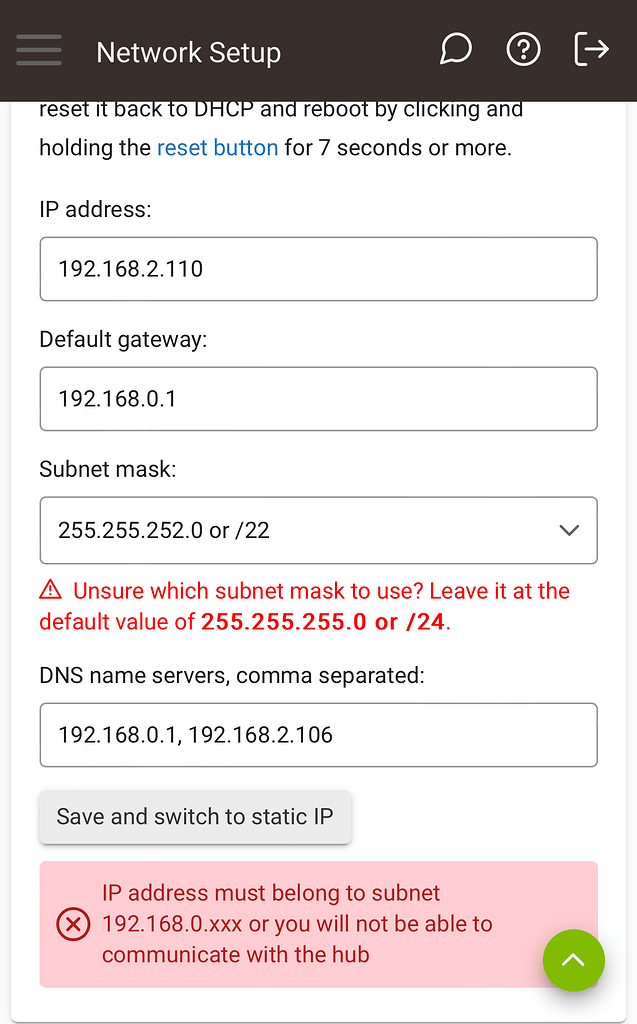
Symptoms:
- Identical to having a wrong default gateway: you can't reach any remote addresses.
- Your
ipconfigoutput might look correct at a glance, but the IP address and default gateway address are not mathematically part of the same subnet.
The following video provides an excellent walkthrough of the logic needed to diagnose this specific issue.
Solving Subnetting Questions for the Cisco CCNA - 1
Watch this segment from the video "Solving Subnetting Questions for the Cisco CCNA - 1" by danscourses to learn the analytical process.
Checking the Obvious: First, watch how the presenter verifies that the gateway address matches what's on the router. Verifying the Mask: Next, see the check to ensure the subnet mask notation is consistent (sl27 vs 224). Finding the Networks: Most importantly, watch how the presenter calculates the valid network ranges based on the subnet mask using the "magic number" method. This calculation reveals that the computer's IP (ending in .65) is in a different subnet than the router's IP (ending in .62), which is the root cause of the problem.
This analytical process is key. You must be able to look at an IP address, subnet mask, and gateway and determine if they are a valid combination.
Now let's look at another practical example. In the video below, a router itself has a misconfigured IP address on one of its interfaces. This effectively makes the gateway address incorrect for all hosts on that entire subnet.
17.7.7 Packet Tracer - Troubleshoot Connectivity Issues
Return to the Tech Acad "Troubleshoot Connectivity Issues" video for a more advanced scenario.
Watch the troubleshooting process for PC-A in Step 3. Notice that PC-A's local configuration is correct, but it still can't ping remote devices. This leads the technician to suspect the gateway router (R1). They use SSH to access the router, run show ip interface brief, find the incorrectly configured interface, and fix it. This restores connectivity for the entire subnet.
3. Duplicate IP Addresses
Every device on a network needs a unique IP address. If two devices are accidentally assigned the same IP, it leads to an "IP address conflict." This creates intermittent and unpredictable connectivity problems. When a router or switch tries to send a packet to that IP address, it can get confused about which of the two devices is the correct recipient.
Symptoms:
- A Windows PC may show a "There is an IP address conflict with another system on the network" error message.
- Connectivity for the affected devices is intermittent. Sometimes it works, sometimes it doesn't.
- Pinging the conflicted IP address from another machine may result in dropped packets or inconsistent reply times.
The key to solving this lies in using the ARP table to map the IP address to a physical MAC address.
Troubleshoot Routers and Switches
This article from howtonetwork.com details how to track down a duplicate IP.
Read the section titled "Troubleshooting Duplicate IP Addresses". Focus on the process described: How duplicate IPs cause issues with ARP requests. The use of ping followed by checking the local ARP table (arp -a) to find the MAC address of a device using the duplicate IP. Once you have the MAC address, you can use the show mac address-table command on your switch to find out which physical switch port the device is connected to, allowing you to physically locate it.
This process of mapping an IP to a MAC, and then a MAC to a switch port, is a fundamental troubleshooting technique that bridges Layer 3 (IP) and Layer 2 (MAC).

Conclusion
In this lesson, we moved from theory to practice, applying the diagnostic tools from our previous session to identify and resolve the three most common IP addressing errors. You now have a framework for methodically diagnosing connectivity issues.
Key Takeaways:
- Wrong Default Gateway: Symptoms are local pings succeed, but remote pings fail. Fix by correcting the gateway IP on the host.
- Incorrect IP/Subnet Mask: Symptoms are the same as a wrong gateway. The root cause is that the host's IP and gateway's IP are not in the same subnet. Fix by correcting the host IP or subnet mask.
- Duplicate IP Address: Symptoms include intermittent connectivity and OS error messages. Resolve by using
pingand thearptable to find the conflicting device's MAC address, then trace it through the switch's MAC address table. - Always be systematic: Start by checking the host's configuration (
ipconfig), then test local reachability (pinggateway), and finally test remote reachability (pingremote IP). This logical flow will guide you to the source of the problem quickly.
In our next module, we will dive deeper into the world of Layer 2. Our first topic will be how switches learn and use MAC addresses to forward frames, a concept you just saw applied to hunting down duplicate IPs.