Recommended resources
The freely available resources this lesson will direct you to.
Welcome to your next lesson! In our previous session, you mastered Variable Length Subnet Masking (VLSM) to design efficient IP addressing schemes. Now that you know how to plan and assign IP addresses, it's time to shift from design to diagnostics. What happens when devices you've configured can't communicate?
Today, we'll equip you with the fundamental tools for network troubleshooting. You will learn to use three essential command-line utilities: ipconfig/ifconfig, ping, and traceroute. Mastering these tools will allow you to systematically diagnose and pinpoint the source of IP connectivity issues, a critical skill for any network professional.
The Troubleshooting Methodology: A Structured Approach
When a user reports "the network is down," a network engineer doesn't start randomly changing settings. They follow a structured process. For basic IP connectivity, a logical first sequence is:
- Check your own device: Is my IP configuration correct? (
ipconfig/ifconfig) - Test basic reachability: Can I reach the destination at all? (
ping) - Trace the path: If I can't reach the destination, where along the path is the communication failing? (
traceroute/tracert)
Let's explore each of these tools in order.
1. Check Your Own Configuration: ipconfig and ifconfig
Before you can troubleshoot communication with other devices, you must first verify that your own device is configured correctly. The most critical pieces of information are your IP address, subnet mask, and default gateway.
ipconfigis the command used on Windows systems.ifconfigis the equivalent command on Linux and macOS systems.
The following video from Neso Academy provides a clear demonstration of how to use ipconfig to view your local IP settings.
Basic Networking Commands (Part 1)
Watch this segment from the video "Basic Networking Commands (Part 1)" to understand how to view your IP configuration.
First, watch the demonstration of the basic ipconfig command to see the core IPv4 address, subnet mask, and default gateway. Pay attention to the explanation of the default gateway's role. Next, observe the use of ipconfig /all to view more detailed information, including the physical (MAC) address.
As you saw, ipconfig quickly tells you if your computer has a valid IP address and if it knows how to reach other networks via its default gateway. An incorrect IP address, subnet mask, or default gateway is a very common source of connectivity problems.
2. Test Basic Reachability: ping
Once you've confirmed your own settings, the next step is to test connectivity to another device using the ping command. ping works by sending an ICMP Echo Request packet to a destination IP address. If the destination receives the packet and is able to respond, it sends back an ICMP Echo Reply.
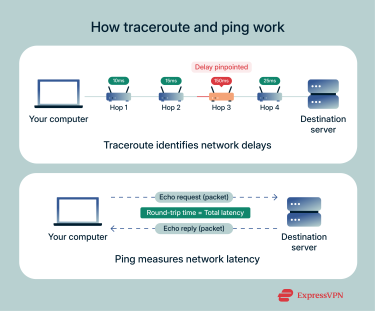
A successful ping confirms that a two-way communication path exists between your device and the destination.
Basic Networking Commands (Part 1)
Let's return to the Neso Academy video to see ping in action.
Watch the section explaining the ping command to see how it works. Notice the difference in output between a successful ping (with replies) and an unsuccessful one (with packet loss).
The output of ping provides valuable clues:
Reply from <IP address>: Success! The destination is reachable. Thetime=value indicates the round-trip latency.Request timed out: Your device sent the request but received no reply within the default time limit. This could mean the destination is down, a firewall is blocking the packets, or there's a routing issue preventing the reply from getting back to you.Destination host unreachable: This message typically comes from a router along the path. It means the router has no route in its routing table to the destination network and doesn't know where to forward your packet.
For a more detailed look at ping in a CCNA context, including its use on Cisco devices, please review the following guide.
Lab – Use Ping and Traceroute to Test Network Connectivity
This lab guide provides practical examples of using ping.
Read through "Part 2: Use Ping Command for Basic Network Testing". Focus on: Step 1: How to interpret the TTL (Time To Live) and round-trip time. Step 2: How an extended ping (ping -t) can be used to monitor connectivity, and the different error messages you might see when a connection fails. Step 3: The output of ping on a Cisco router, including the meaning of the !, U, and . symbols.
3. Trace the Path: traceroute and tracert
If a ping to a remote host fails, the next question is: where is the problem? Is it the first router, the last one, or somewhere in between? The traceroute command is designed to answer this.
tracertis the command used on Windows.tracerouteis the command used on Cisco IOS, Linux, and macOS.
traceroute works by sending out a series of packets to the destination. The first packet has a Time-To-Live (TTL) value of 1. The first router it reaches decrements the TTL to 0, discards the packet, and sends an "ICMP Time Exceeded" message back to your device. Your device records this router's IP address. It then sends a second packet with a TTL of 2, which is returned by the second router in the path. This process continues, incrementing the TTL each time, to discover every router (or "hop") along the path to the destination.
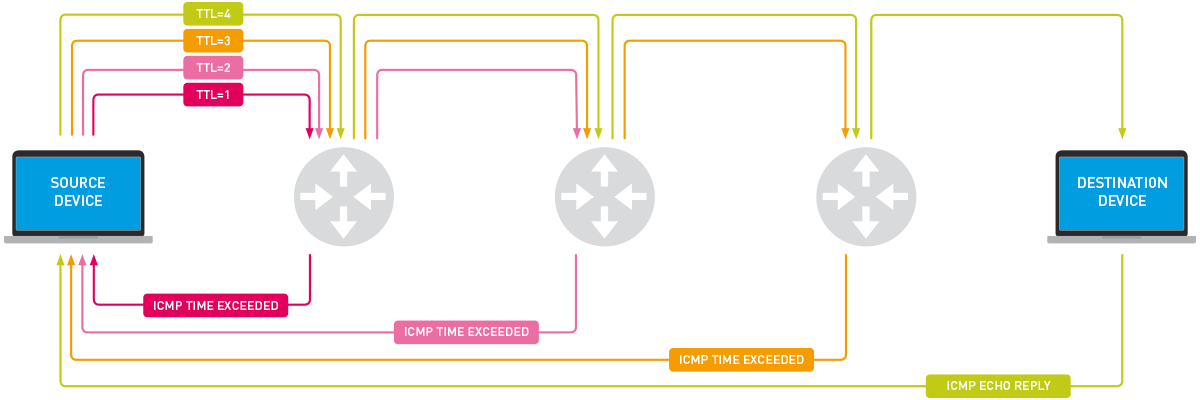
The last successful hop in a traceroute that fails to complete is often the location of the problem, or the hop just before the problem.
Basic Networking Commands (Part 1)
The Neso Academy video also provides a great introduction to tracert.
Watch the final segment on the tracert command to see how it reveals the entire path a packet takes, hop by hop, from your computer to a remote server.
A Complete Troubleshooting Workflow
Now let's put it all together. The following video demonstrates a complete troubleshooting scenario in Packet Tracer. It shows how a network administrator would use these tools in sequence to find and fix a real-world connectivity issue.
13.2.7 Packet Tracer - Use Ping and Traceroute to Test Network Connectivity
This video from Tech Acad, "Use Ping and Traceroute to Test Network Connectivity," walks through a practical troubleshooting exercise.
Follow the IPv4 troubleshooting part of the video carefully. The process shown is a model for you to follow: Gather Information: Watch how ipconfig /all is used to get the IP configuration of the PCs involved (Step 1). Test and Confirm Failure: See the ping command fail, confirming there is a problem (end of Step 1). Isolate the Problem: Observe how traceroute is used from both ends to identify the last reachable IP address, narrowing down the location of the fault (Step 2a-d). Investigate and Identify the Cause: The administrator uses the information from traceroute to log into the suspected routers and uses show commands to find the incorrect IP address (Step 2e-j). Implement the Fix and Verify: Finally, watch as the incorrect IP is corrected and ping is used again to verify that connectivity is restored (Steps 3, 4, and 5).
This methodical process—confirm local settings, test connectivity, trace the path to isolate the fault, investigate the suspected device, fix, and verify—is the core of effective network troubleshooting.
Conclusion
In this lesson, you've learned to use the three most fundamental tools for diagnosing IP connectivity issues. You now have a systematic, repeatable process for tackling network problems.
Key Takeaways:
ipconfig/ifconfig: Use this first to verify your own device's IP address, subnet mask, and default gateway.ping: Use this to test basic end-to-end reachability and measure latency. Its success or failure provides the first major clue.traceroute/tracert: Use this when a remotepingfails. It reveals the hop-by-hop path your packets take, helping you pinpoint where communication breaks down.- Troubleshooting is a process: Always start by verifying the basics and use the tools logically to narrow down the problem, rather than guessing.
In our next lesson, we will build directly on these skills. Now that you know how to use the diagnostic tools, we will explore a catalog of the most common IP addressing errors—such as duplicate IPs, incorrect subnet masks, and wrong default gateways—and learn how to recognize and resolve them.