Recommended resources
The freely available resources this lesson will direct you to.
Hello again. In the last lesson, you ran a p5.js sketch, changed its colors and canvas, and saw the crucial structure: setup() runs once, while draw() runs repeatedly. That repeating draw() function is exactly what makes a game possible—but a game also needs to remember information between frames.
In this lesson, you will use JavaScript variables to store game data such as a player’s location, speed, and score. You will then update that data with arithmetic so that something visibly changes on the canvas.
A variable is a named piece of game memory
A game needs to hold onto facts:
- Where is the player?
- How fast are they moving?
- What is the score?
- How many items are left?
A variable is a named place where JavaScript stores one of those values. For a game, it is useful to think of variables as the game’s current state: the information that describes what is happening right now.
Here is the usual pattern for creating a variable:
let playerX = 60;
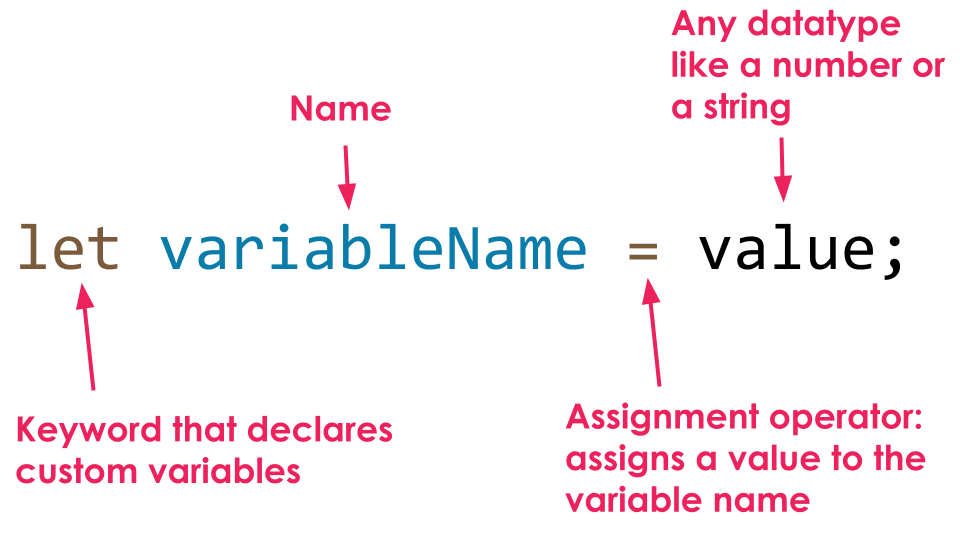
Read that line in plain English as: “Create a variable called playerX and store the number 60 in it.”
The parts have precise names:
| Code part | Meaning |
|---|---|
let |
Declares a variable: it creates a new named storage location. |
playerX |
The variable’s name. |
= |
The assignment operator: it stores the value on the right into the name on the left. |
60 |
The value currently stored. |
; |
Marks the end of the instruction. |
Creating the variable is called declaring it. Giving it its first value is called initializing it. Usually, as above, you do both on one line.
Variable names should say what their values mean. JavaScript programmers commonly use camelCase: begin with a lowercase letter, then capitalize later words.
let playerX = 60;
let playerSpeed = 2;
let travelScore = 0;
Names such as x, thing, or abc may work, but they quickly become confusing in a game with several objects.
2.2: Variables in p5.js (Define Your Own) - p5.js Tutorial
Watch 2.2: Variables in p5.js (Define Your Own) from The Coding Train. It gives a visual demonstration of declaring a custom position variable, using it in a shape, and changing it repeatedly in draw().
Watch creating variables to see declaration, initialization, meaningful naming, and replacement of a fixed shape coordinate with a variable. Then skip to scope and updates, which explains why game variables belong outside setup() and draw(), and how an update creates motion.
Put lasting game data outside draw()
Let’s make a tiny “travel game.” A circular player will glide across the screen and gain one travel point per frame.
Replace your previous sketch with this:
let playerX = 60;
let playerY = 150;
let playerSpeed = 0.8;
let travelScore = 0;

function setup() {
  createCanvas(600, 300);
  textSize(20);
}

function draw() {
  background(35, 70, 140);

  playerX = playerX + playerSpeed;
  travelScore = travelScore + 1;

  fill(255, 210, 40);
  circle(playerX, playerY, 40);

  fill(255);
  text("Travel score: " + travelScore, 20, 30);
}
Run it. The yellow player should move steadily to the right, while the travel score rises. Eventually, the player will leave the right side of the canvas. That is expected for now; keeping a player inside the canvas will come later.
The first four lines are deliberately outside both functions:
let playerX = 60;
let playerY = 150;
let playerSpeed = 0.8;
let travelScore = 0;
These variables have global scope, meaning they can be used in both setup() and draw(). More importantly, their values persist while the sketch runs.
If you instead wrote this inside draw():
function draw() {
  let travelScore = 0;
  travelScore = travelScore + 1;
}
then every new frame would create a fresh travelScore, set it to 0, increase it to 1, and discard it. The display would never get beyond 1. For game data that must persist—positions, scores, collected items—declare the variable outside draw().
Read the official p5.js tutorial Variables and Change. Its “Custom Variables” and “Variable Scope” sections reinforce the exact distinction that makes game state persist from one frame to the next.
In the “Custom Variables” section, read from the paragraph beginning the custom-variable explanation. Focus on the relationship between a variable such as cloudOneX and the numerical argument supplied to a drawing function. Then read the “Variable Scope” section. Start at local scope. Notice why a variable created inside setup() or draw() cannot be relied upon elsewhere in the program.
Updating data with arithmetic
The line below may look strange at first:
playerX = playerX + playerSpeed;
In ordinary mathematics, an equation like makes no sense. In JavaScript, though, = does not claim that both sides are equal forever. It is an instruction to assign a value.
On every run of draw(), JavaScript does this:
- Reads the current value of
playerX. - Adds the current
playerSpeed. - Stores the result back into
playerX.
Suppose the current values are:
let playerX = 60;
let playerSpeed = 0.8;
The first few updates work like this:
| Frame | Old playerX |
Expression evaluated | New playerX |
|---|---|---|---|
| Start | — | — | 60 |
| First update | 60 | 60.8 | |
| Second update | 60.8 | 61.6 | |
| Third update | 61.6 | 62.4 |
Because draw() repeats many times each second, those small changes become smooth-looking movement.
The score uses the same idea:
travelScore = travelScore + 1;
Each frame, the game reads the old score, adds one, and saves the new score. Later, a real collect-and-carry game will update a score when an item is delivered. For now, this “travel score” makes the changing data easy to see.
Arithmetic expressions in game code
The right side of an assignment can be an arithmetic expression: a calculation that produces a value.
playerX = playerX + playerSpeed;
travelScore = travelScore + 1;
JavaScript also supports the familiar arithmetic operators:
| Operator | Meaning | Game-oriented example |
|---|---|---|
+ |
Add | playerX + playerSpeed |
- |
Subtract | playerY - 5 |
* |
Multiply | playerSpeed * 2 |
/ |
Divide | playerSize / 2 |
For example, this draws a small marker 30 pixels ahead of the moving player:
circle(playerX + 30, playerY, 10);
playerX + 30 does not change playerX. It simply calculates a temporary position for this one drawing instruction. By contrast, this line does change the stored value:
playerX = playerX + 30;
That distinction is central:
- An expression such as
playerX + 30calculates a value. - An assignment such as
playerX = playerX + 30updates stored game data.
The shorter update notation
You will often see the movement line written more compactly:
playerX += playerSpeed;
This means exactly the same thing as:
playerX = playerX + playerSpeed;
Similarly:
travelScore += 1;
means:
travelScore = travelScore + 1;
For the special case of adding exactly one, JavaScript also allows:
travelScore++;
At this stage, the longer form is often easier to read because it makes the calculation explicit. Once you recognize it comfortably, use += when it makes your code cleaner.
2.3: Incrementation Operators - p5.js Tutorial
Watch 2.3: Incrementation Operators from The Coding Train for a compact explanation of the shorthand forms you will encounter in p5.js sketches.
Begin with the movement idea, which connects repeated updates to visible motion. Then watch update shorthand for the equivalence of x = x + 5, x += 5, and—when adding one—x++. The final code demonstration confirms the different forms in a running sketch.
Numbers, text, and the score display
So far, playerX, playerSpeed, and travelScore contain numbers. Numbers do not use quotation marks:
let playerSpeed = 0.8;
let travelScore = 0;
Text is called a string, and it needs quotation marks:
let playerName = "Comet";
In the sketch, this line combines a string with a number for display:
text("Travel score: " + travelScore, 20, 30);
The first part, "Travel score: ", is text. The second part, travelScore, is a number. JavaScript combines them to create display text such as:
Travel score: 128
The variable itself is still numeric, so it can continue to be updated with arithmetic. This is useful in games: calculate with numbers, then turn them into readable messages for the player.
Make the sketch your own
Spend a few minutes making controlled changes to your travel game. Change one value at a time, run the sketch, and observe the result.
- Change
playerSpeedfrom0.8to0.2, then to2. - Change the starting value of
travelScorefrom0to100. - Change
playerYto place the player higher or lower. - Add this line after the first
circle(...)to create a small glowing companion that stays 30 pixels ahead:
circle(playerX + 30, playerY, 12);
- Try changing the score update to award five points per frame:
travelScore += 5;
If the preview fails after an edit, use the process from the previous lesson: read the console, check the relevant line and the line before it, then compare spelling, capitalization, parentheses, and semicolons.
Variables give a p5.js sketch memory. Declare persistent game data outside setup() and draw(), use meaningful names such as playerX and travelScore, and update those values by assigning the result of an arithmetic expression back into the variable.
The essential pattern is:
variable = variable + change;
or, equivalently:
variable += change;
You have now made a sketch hold and update game state over time. Next, you will use comparisons and if/else statements so the program can choose between actions—for example, responding differently when a game value reaches a particular limit.