Recommended resources
The freely available resources this lesson will direct you to.
Welcome back. In the previous lesson, you arranged a finance table so that each row represented one department-month and each column held one variable. A CSV file can carry that same table into Excel—but Excel must interpret the separators and values correctly before the table is useful.
In this lesson, you’ll import a small CSV, inspect Excel’s preview, and check the loaded worksheet against the source. Allow about 35–40 minutes, including time to make and import the sample file.
What Excel has to interpret
A CSV is a plain-text file, not an Excel workbook. Each line usually represents a row, and a delimiter separates fields on that line. Excel needs to decide where the columns begin and how to interpret their contents. An incorrect choice can put a whole line in one cell, split a name across two columns, or turn an account code into a number.
Watch How to Convert CSV to Excel (Simple and Quick) by Excel Tutorials by EasyClick Academy. The most useful part is the import preview: notice how changing the delimiter changes the columns before the data is loaded.
How to Convert CSV to Excel (Simple and Quick)
Watch the short demonstration to see where Excel's From Text/CSV command is and how the preview helps you catch a separator error.
Watch select the file, then compare delimiters. Finish with preview and load. Focus on the difference between a correct five-column preview and a preview that puts each entire line into one column; the video's file-origin choice is specific to its example, not a setting to copy for every file.
A CSV can also contain a comma inside a value. Quotation marks tell the importer to treat a value such as "Sales, North" as one department name rather than two fields. That gives us two separate checks: is Excel splitting the line at the right commas, and is it keeping quoted values intact?
Import a small finance CSV
The example below uses the four department-month observations from the previous lesson. The Sales label now includes a comma, and account_code includes leading zeros—both are useful tests of an import.
If you have desktop Excel, copy the following into a plain-text editor and save it as finance_months.csv with UTF-8 encoding. Ensure the filename ends in .csv, not .csv.txt. Keep this original file unchanged so you can compare it with Excel’s result.
department,month,account_code,actual_inr,budget_inr
"Sales, North",2025-01-01,0012,110,100
"Sales, North",2025-02-01,0012,95,105
Operations,2025-01-01,0013,75,80
Operations,2025-02-01,0013,88,80
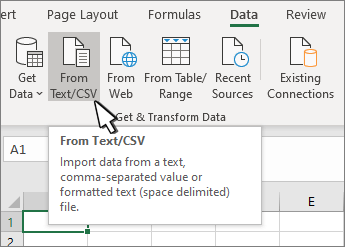
Open a blank workbook and choose Data > From Text/CSV. Browse to finance_months.csv and select Import. Depending on your Excel version, the next screen may be called a preview or an import dialog. Before choosing Load, inspect it:
- Delimiter: Select comma if Excel has not detected it. You should see five columns, headed
department,month,account_code,actual_inr, andbudget_inr. - Quoted name: Each Sales row should show
Sales, Northin one department field. - Characters: If you import another file containing accented names or a rupee symbol, check that they display correctly. For a file saved as UTF-8, select the corresponding file-origin or encoding option if Excel guesses incorrectly.
- Types and values: Look especially at
account_code. It is an identifier, not a quantity:0012must not silently become12. Check the month and amount columns too.
When the preview is correct, choose Load. Excel may place the result in a formatted table; the table styling is less important than the contents of its cells.
Microsoft Support explains why simply opening a CSV and using an import command are not always equivalent. Read the section “Import a text file by opening it in Excel”, especially its warning about automatic interpretation.
Import or export text (.txt or .csv) files - Microsoft Support
Read Microsoft's explanation of how Excel opens a CSV automatically and why that can be risky for fields such as codes with leading zeros.
In “Import a text file by opening it in Excel,” read the opening method and note. Start with the paragraph describing File > Open and finish after the example about leading zeros. Focus on what Excel decides automatically when it opens a CSV.
File > Open may be convenient for a quick look, but it gives you less opportunity to inspect interpretations before accepting them. For an analysis you plan to use, importing through the preview is a safer habit.
Verify the loaded table against the source
A plausible-looking worksheet is not enough. Compare what Excel loaded with what the CSV actually contains. For this file, the expected result is five fields and four data rows, plus one header row. Check all four observations, not just the first:
| Check | Expected result |
|---|---|
| Department | Both Sales rows read Sales, North in one cell; both Operations rows read Operations |
| Month | Two January dates and two February dates, with the intended year and day |
| Account code | Sales has 0012; Operations has 0013 |
| Amounts | Actual values are 110, 95, 75, 88; budgets are 100, 105, 80, 80 |
The actual values total 368, and the budgets total 365. Those totals help detect missing or altered amounts, but they do not prove that every amount landed on the correct row. That is why the row-by-row comparison matters.
Also distinguish appearance from the value Excel stored. A date might display in a local format different from 2025-01-01; inspect the cell and its formula bar to confirm it still means 1 January 2025. An account code displayed as 12 is more concerning: changing the cell’s display format after import does not necessarily recover a zero that was discarded during conversion.
If the preview or loaded table has a problem, return to the original CSV and correct the import, rather than guessing what the missing information was:
- A whole line appears in one column: Check that the delimiter is comma, not semicolon or tab.
Sales, Northappears in two columns: Check that the source retains the quotation marks and that the importer treats them as a text qualifier.0012appears as12: Re-import and setaccount_codeto Text before numeric conversion. If you use Transform Data to do this and see an automatic Changed Type step that already removed the zeros, remove that step and assign Text using the original source values.- Dates or characters look wrong: Check the interpreted date and the file-origin/encoding setting against the source rather than relying on how a cell looks at a glance.
You do not need to master Power Query here; it is enough to know why a field may need its type specified during import. Later lessons will cover data-quality checks and more systematic transformations.
Takeaway
Importing a CSV means more than getting text onto a worksheet. Check the delimiter and quoted fields in the preview, preserve identifiers such as 0012, and then reconcile the loaded rows and values with the original file. That gives you a trustworthy starting table for analysis.
Next, you’ll build Excel formulas using relative and absolute cell references to calculate from the data you have imported.