Recommended resources
The freely available resources this lesson will direct you to.
- How to use LogCat to capture debug logs from an Android devicewww.youtube.com
- How to run and test the Android App on a Virtual Device ?www.youtube.com
- Run apps on the Android Emulator | Android Studio | Android Developersdeveloper.android.com
- View logs with Logcat | Android Studio | Android Developersdeveloper.android.com
Hello again! Your Compose-ready project built successfully in the previous lesson. A successful build tells you the starter code compiles; it does not yet tell you what happens when the app starts on a device. Today you’ll run it on an Android emulator, then use Logcat to separate useful runtime messages from the surrounding system activity. This is the same basic workflow you’ll use later when a banking screen does not open or behaves unexpectedly.
Give the app a device to run on
An Android Virtual Device (AVD) specifies the simulated phone and Android version that the emulator will run. If Android Studio already lists a virtual phone in its target-device menu, you can use it. Otherwise, create one in Tools > Device Manager. Choose a phone, select a system image with an API level at least as high as your project’s minimum SDK, download the image if prompted, and finish the setup. The first download and launch can take a while.
This short demonstration shows the creation steps. Its Android Studio controls may look slightly different from yours, so follow the choices being made rather than matching every button’s position.
How to run and test the Android App on a Virtual Device ?
Watch “How to run and test the Android App on a Virtual Device?” by Padakoo to see a phone profile and Android system image become a virtual device.
Watch device creation: the presenter opens Device Manager, selects a phone, chooses a system image, and finishes the virtual-device setup. Pause at the image-selection step if you need to download one in your own Android Studio.
With your project open, select the virtual phone from the target-device menu near the top of Android Studio. The screenshot below shows an example menu; its device names are examples, not devices you must have.
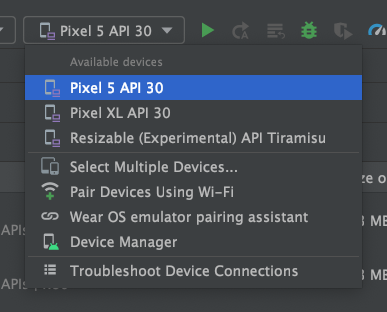
Click Run (the green triangle). Android Studio builds and installs the app, starts the emulator if necessary, and opens the app. Read the official run instructions for the distinction between selecting a device and actually deploying your app.
Run apps on the Android Emulator | Android Studio | Android Developers
Read Android Developers’ emulator guide to confirm the run workflow and what to expect on a first launch.
In “Run your app on the emulator,” begin with the run steps. Stop after the explanation that later launches may be faster. Focus on selecting the AVD in the toolbar and clicking Run; you do not need the Wear OS material that follows.
Check the result on the emulator screen: you should see the starter Compose interface from your project, not merely the Android home screen. You can click the virtual screen with your mouse. If you return to the home screen, open your installed app again; after changing app code later, click Run again to deploy the updated version.
If the device does not appear in the menu, check Device Manager to see whether its setup finished. If Run stops with a build or installation error, read the Run or Build output first. Logcat is most useful once there is a device producing runtime messages; it is not a substitute for fixing a failed build.
Read Logcat as a device conversation, not an error list
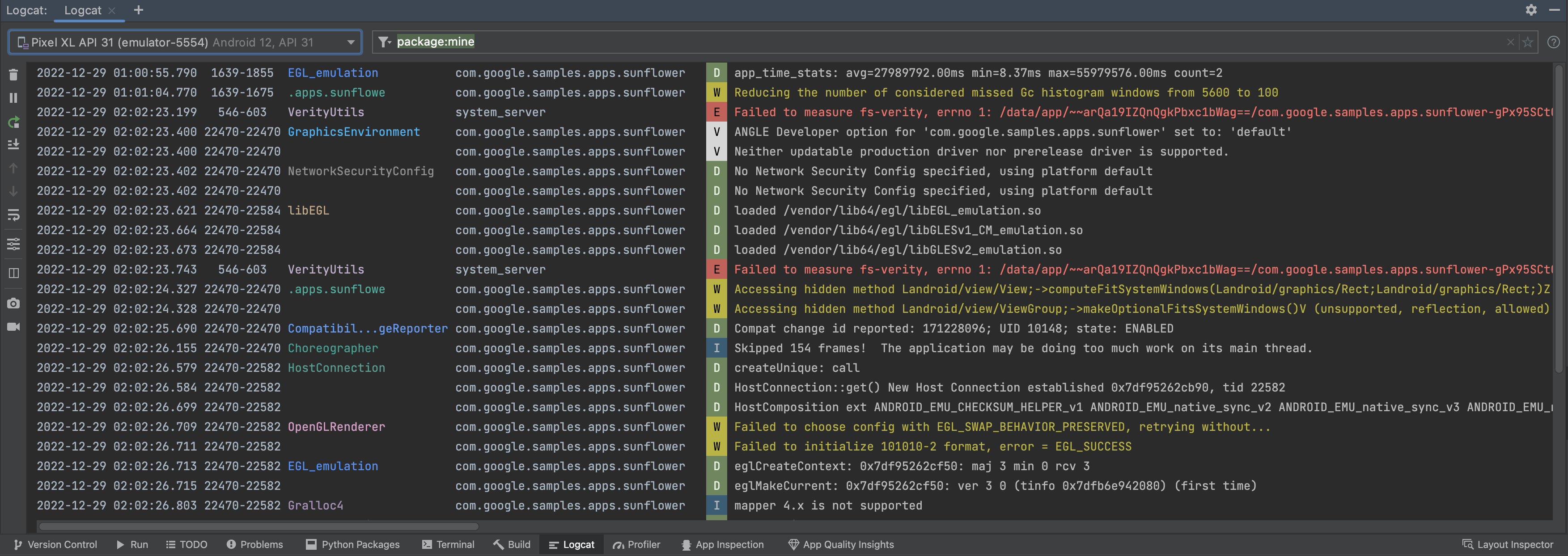
Open View > Tool Windows > Logcat in Android Studio and select the same emulator you used to run the app. Logcat displays messages from the device in real time. Many come from Android or libraries rather than from code you wrote, and an active emulator can produce messages even while you do nothing.
The screenshot shows why filtering matters: each row carries identifying information as well as a message, but the unexamined stream is dense.
View logs with Logcat | Android Studio | Android Developers
Read the opening of Android Developers’ Logcat guide to learn what the window contains and how to interpret one entry.
In the opening description, read what Logcat displays. Then, in “Get started with the Logcat window,” read from the scrolling guidance to learn why messages may appear to stop moving after you click or scroll up. Finally, in “How to read logs,” begin at the entry fields and read the priority list immediately below it. Focus on package, tag, priority, and message; you do not need to memorize every field.
A package name helps identify the app associated with an entry. A tag names the source or category of a message. The priority signals its severity: DEBUG and INFO often describe activity; WARN calls attention to a possible issue; ERROR and fatal failures deserve investigation. Priority is a clue, not a verdict. A warning from a system component does not prove your app is broken, and an app can behave incorrectly without printing an error.
To create one recognizable message of your own, add this temporary line in MainActivity.kt inside onCreate, after super.onCreate(savedInstanceState) and before setContent { ... }:
Log.d("BankingPrototype", "MainActivity opened")
Add import android.util.Log with the other imports if Android Studio does not add it for you. Then click Run again. Log.d writes a debug-priority message, BankingPrototype is its tag, and MainActivity opened is its message. This is only a launch marker: do not log passwords, tokens, balances, account details, or other private data. You can remove the line after this lesson.
Narrow the stream and diagnose what happened
In Logcat’s query field, enter package:mine. Here, mine means packages in the project currently open in Android Studio; it is not a literal package name. After rerunning the app, look for your BankingPrototype tag and its MainActivity opened message. If the view is empty, confirm that Logcat has the correct emulator selected, rerun the app, and temporarily clear the query to see whether device messages are arriving at all.
You can narrow the view further with package:mine level:WARN when investigating warnings and more severe messages. The level filter is a threshold: it includes entries at that level and above, rather than only entries of that exact priority. Return to package:mine when you want to see your debug launch marker; a warning-level filter hides debug entries.
View logs with Logcat | Android Studio | Android Developers
Continue the Android Developers Logcat guide to learn how to isolate your app’s messages and recognize a process restart.
In “Query logs using key-value search,” read the query introduction and the list of available keys beneath it. In “Special queries,” find package:mine and read what mine matches; then read the level explanation beginning at the threshold rule. Finally, in “Track logs across app crashes and restarts,” read the process markers. Skip the advanced query operators for now.
When something goes wrong, start with what you observed on the emulator and the time it happened. If the app closes unexpectedly, inspect messages near that moment. A crash may show an exception and a stack trace—a series of code locations leading to the failure. Look for the exception message and the first relevant line pointing into your app’s code. Logcat may also show PROCESS ENDED and PROCESS STARTED; those markers show that a process stopped and started, but by themselves do not explain why. Read nearby messages before concluding that you found a crash.
A practical first-pass diagnosis is:
- Confirm the symptom on the emulator. Did the app open, remain on screen, or close?
- Match the device and time in Logcat. Filter to your project and inspect messages around the event.
- Distinguish signal from noise. A system warning unrelated to the symptom is less useful than an exception referring to your app’s code.
- Check the right output. A build failure belongs in Build or Run output; an issue after the app starts belongs in runtime investigation with Logcat.
For the starter app, the expected result is modest: the interface opens, your debug marker appears after launch, and you may also see unrelated warnings. You do not need to eliminate every warning to establish that the app runs.
What you can now verify
You can choose or create a virtual Android device, deploy your Kotlin-and-Compose app with Run, and confirm its behavior on the emulator. You can also find a message in Logcat, interpret its tag and priority, filter the stream to your project, and use nearby messages—not severity alone—to investigate a runtime problem.
Next, you’ll look inside the Android project itself: where its manifest, source code, resources, and Gradle build files live.