Recommended resources
The freely available resources this lesson will direct you to.
Hello again! Last time, you ran the starter app on an emulator and used Logcat to inspect what happened at runtime. Now you’ll look behind that running screen. By the end of this lesson, you’ll be able to find the app’s manifest, its Kotlin code and resources, and the Gradle files that control its build. That map will make it much easier to know where to work when you begin building the banking interface.
Choose a view that shows the files you need
Open the Project tool window in Android Studio. Its dropdown offers different ways to display the same project. The Android view groups files for convenient app development, but it does not show the exact directory hierarchy. Select Project when you want to see where files live on disk.
Watch the view switch in Ben Kadel’s Android Project Structure. The video uses an older project template, so concentrate on the navigation rather than expecting identical filenames.
Android Project Structure by Ben Kadel shows why the Project tool window has more than one view.
Watch the view switch. Find the dropdown at the top of the Project tool window and notice how selecting Project reveals the actual folder hierarchy.
With Project selected in your own project, expand the project root and then app. The image below shows this view in a larger example project. Yours may have fewer folders; follow the nesting, not the example’s project name.
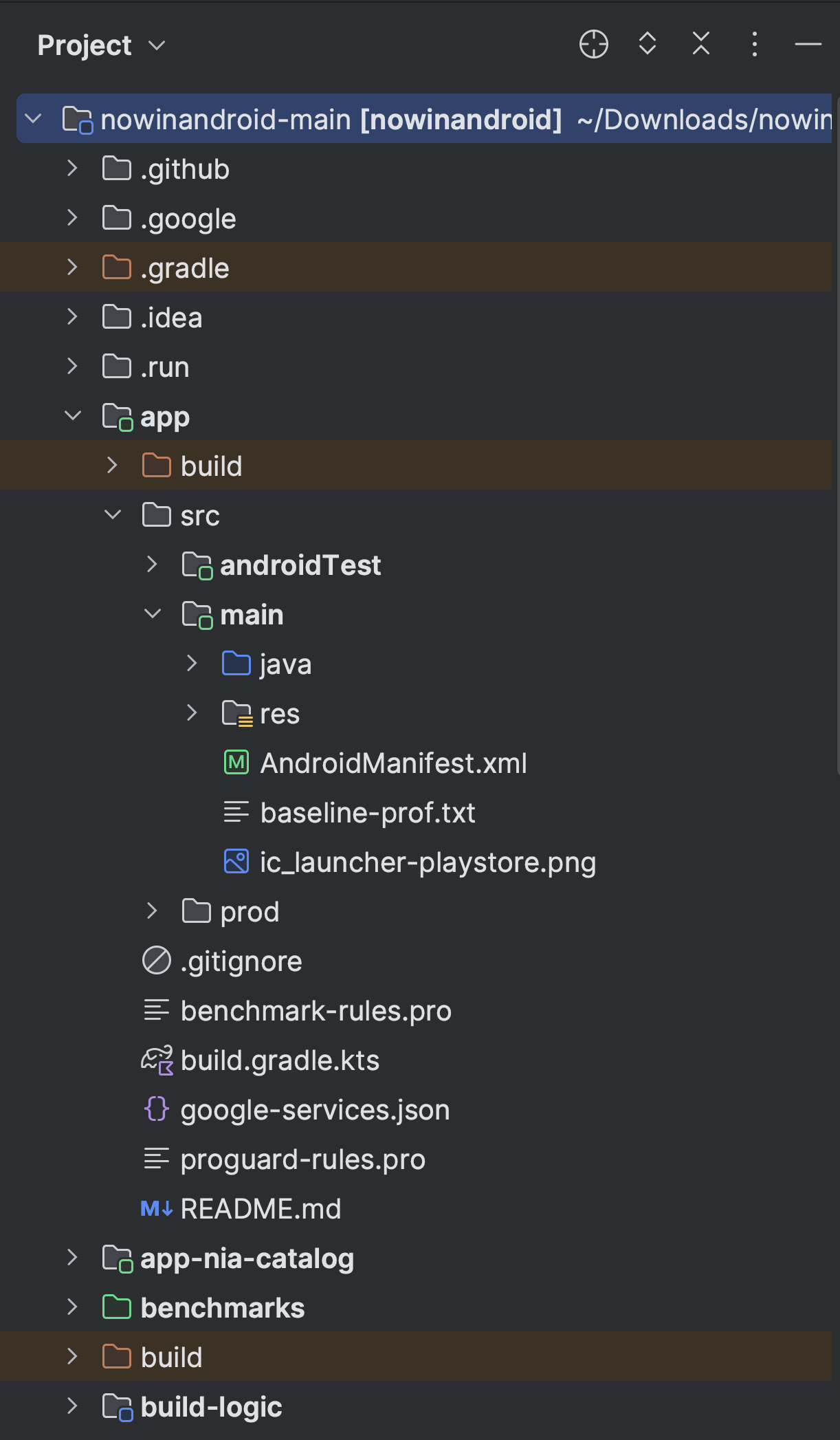
The first useful distinction is project versus module. The outer folder is your Android Studio project. Inside it, app is the application module: the part being built into your Android app. A starter project commonly has just this one module.
Follow app/src/main to the running app
Expand app, then src, then main. The directory app/src/main is the main source set: it holds code and resources shared by the app’s ordinary builds. Inside it, look for three landmarks:
AndroidManifest.xmldescribes the app to Android. In a starter project, inspect its<application>and<activity>entries; the latter commonly identifies the activity that opens when you launch the app. The manifest is also where required permissions can be declared. Your individual Compose UI functions do not each need a manifest entry.java/orkotlin/contains Kotlin or Java source code, usually under folders matching the code’s package name. A KotlinMainActivity.ktcan live underjava/; that folder name does not mean the file must be written in Java. This is where you should look for the activity and the Compose code you ran in the previous lesson.res/contains Android resources, such as launcher icons and XML files defining strings. A Compose app still uses resources, but it generally defines its screen layout in Kotlin composable functions rather than in a traditional XML layout file.
Return to Android Project Structure for a visual tour of src/main. Treat its discussion of XML layouts as an example of a view-based app, not a requirement for your Compose project.
This portion of the same video opens the src folder and identifies the main app files.
Watch the source folders to distinguish main from the separate test folders. Then watch inside main and identify code, res, and the manifest. Focus on where each lives, not on the example app’s UI implementation.
The Android Developers’ Android build structure is a useful reference for the precise roles of these folders.
Android build structure | Android Studio | Android Developers
Read the Android Developers’ description of the app module’s source files to connect what you see in Android Studio with the term source set.
In the table for the app/ subproject, start at the src/ row and continue through the AndroidManifest.xml row. Read source sets and the main set. Then check the java/ and kotlin/ row, the resources row, and the manifest row. Notice the explicit statement that Kotlin code can be kept in java/.
You may also see app/src/test or app/src/androidTest. Those are separate source sets for tests, not alternative places to put the app’s main screen. You do not need to work in them yet.
Find the files that configure the build
The Gradle files answer a different question from the source files. Kotlin code describes what your app does; Gradle build files tell the build system how to assemble it, including which plugins and libraries the app uses. The Run action you used previously depends on that build configuration.
In Project view, look for two similarly named build files:
project root/
├── build.gradle.kts
├── settings.gradle.kts
└── app/
    ├── build.gradle.kts
    └── src/
        └── main/
            ├── AndroidManifest.xml
            ├── java/ or kotlin/
            └── res/
The root build.gradle.kts is the project-level build file, typically used for shared plugin declarations. app/build.gradle.kts configures the app module itself. Open that app-level file and find its plugins, android, and dependencies blocks. The android block is where you’ll commonly see settings such as the minimum SDK; dependencies identifies libraries the module builds with. For now, locating and recognizing these blocks matters more than changing them.
Watch the app-module portion of Android Project Structure to see the distinction in an IDE. This older example uses build.gradle rather than build.gradle.kts; the files have corresponding roles but use different build-script languages.
This portion of the same video opens the app module and distinguishes its build file from the one at the project root.
Watch the app module. Pay particular attention when the module-level build file appears, and relate its location to app/build.gradle.kts in a Kotlin-script project.
At the root, settings.gradle.kts identifies modules included in the build; look for an entry including app. If your project uses .gradle instead of .gradle.kts, use those filenames—the extension tells you which build-script syntax the project uses. Android Studio may also present build files together under Gradle Scripts in its Android view; switch back to Project whenever you need to distinguish their actual locations.
The official reference separates root-level files from the app module’s build file:
Android build structure | Android Studio | Android Developers
Return to Android build structure for a compact explanation of which Gradle file belongs to the project and which belongs to the app module.
In the root project's file table, find the build.gradle(.kts) and settings.gradle(.kts) rows. Read the root file and the settings file. Then move to the app/ subproject table and read its nested build.gradle(.kts) row, from the module description through its list of plugins, configuration, and dependencies.
One naming trap is worth avoiding: a directory named build/ holds generated build output, while build.gradle.kts is a build configuration file. Likewise, .gradle/ is a Gradle-managed cache, not the build script you should edit. If you are trying to find where to add an app dependency, look in app/build.gradle.kts, not in either generated directory.
Keep the map handy
When you return to your project, you should be able to identify app/src/main/AndroidManifest.xml, find MainActivity.kt beneath app/src/main/java/ or kotlin/, open app/src/main/res/, and distinguish the root build file from app/build.gradle.kts. Exact package folders and resource files vary between templates; the roles of these locations are the important part.
You now know where Android learns about the app, where its Kotlin interface code lives, where shared resources belong, and where its build is configured. Next, you’ll work in that Kotlin source code to create reusable Compose functions for the banking interface.