Recommended resources
The freely available resources this lesson will direct you to.
Hello! In the previous lesson, you located the Kotlin source files that produce your app’s screen. Now you’ll work in those files. The aim is to turn a single piece of UI code into reusable composable functions: one definition for an account balance or transaction summary, with different data supplied each time it appears. You’ll use temporary banking data for now; connecting the interface to real data comes later.
A composable describes a piece of UI
In Jetpack Compose, you build an interface by calling Kotlin functions marked @Composable. A composable such as Text describes something to display. Your own composable can call Text and, in turn, be called by a larger composable. The activity’s setContent block is the entry point into that UI.
Watch these two short portions of Android Developers’ Less code: Composable functions – MAD Skills. Notice the distinction between defining a reusable function and calling it with values.
Less code: Composable functions - MAD Skills
Android Developers introduces composables as UI building blocks and shows how arguments let callers configure them.
Watch the building blocks for the role of @Composable, then the parameter example for how one function can produce UI from different inputs. You can stop when the video moves on from that example.
The Android Developers’ Android Compose Tutorial makes the same idea concrete with a MessageCard(name: String) function. Read Lesson 1, “Composable functions,” from its opening explanation through “Preview your function in Android Studio.” Skim the new-project instructions—you already have a project—and focus on how setContent, MessageCard, and its name argument fit together. Stop after the paragraph explaining why the preview calls MessageCard with an argument.
Android Compose Tutorial | Jetpack Compose | Android Developers
Read the Android Developers tutorial to see a small parameterized composable in context, from the activity to its UI function.
In Lesson 1, begin at the composable example. Follow the subsections “Add a text element,” “Define a composable function,” and “Preview your function in Android Studio.” Pay particular attention to where MessageCard is defined versus where it is called.
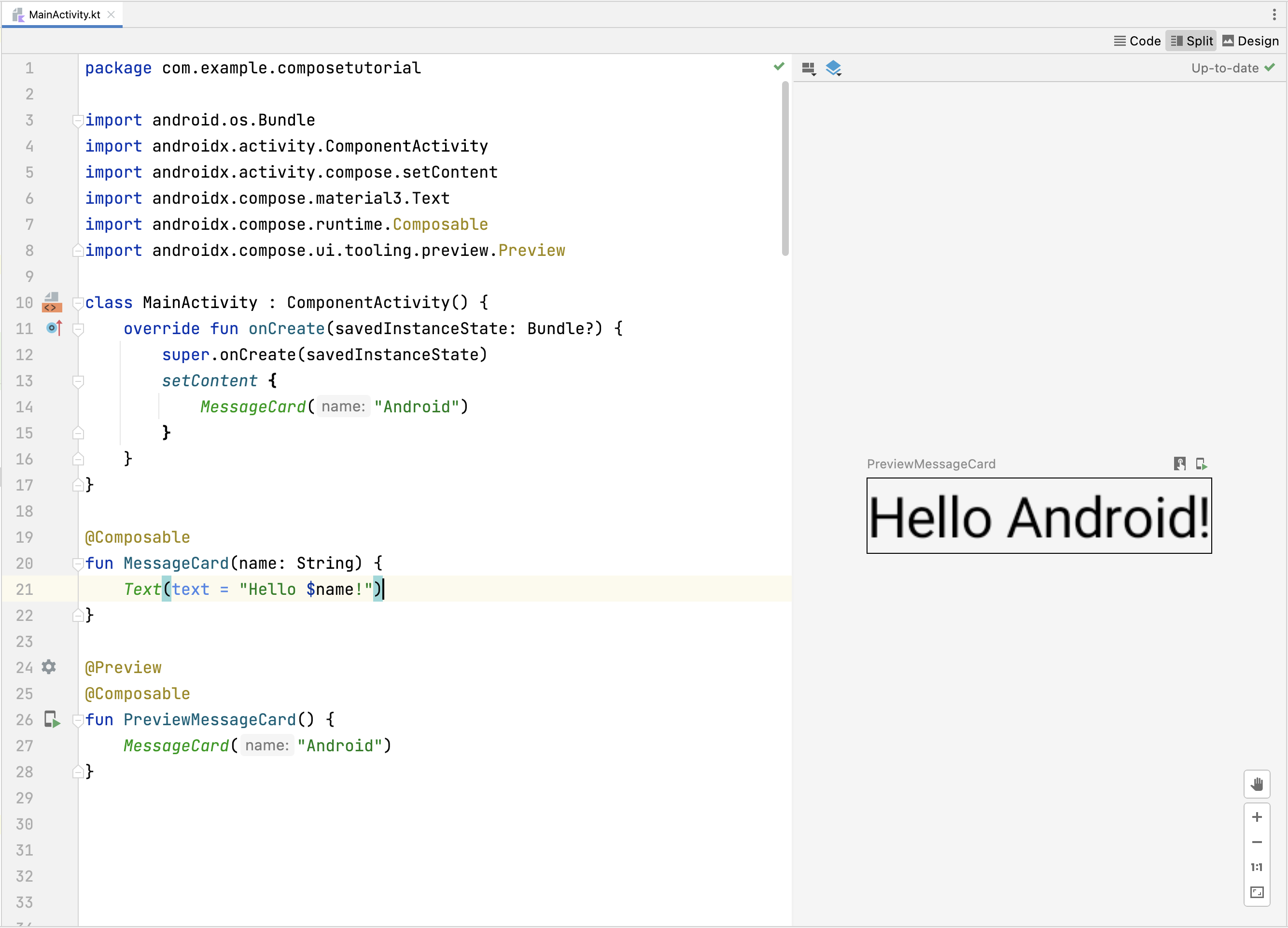
The screenshot’s preview is another caller of MessageCard; the app’s setContent block can call the same function. We’ll use the emulator to check your banking example today. A later lesson will explore previews in detail.
Choose inputs that make an element reusable
Imagine writing “Checking balance: 2,450.00 USD” directly inside a screen. It displays the right words once, but a savings balance would require another hard-coded piece of UI. Instead, define what an account balance element needs: an account name and text representing its balance. The function can then describe the display while its caller supplies the particulars.
This is a useful boundary for a composable: give it the information it displays, rather than tying it to one sample account. The Compose UI Architecture guide develops that principle in “Define composable parameters.” Read from its advice to pass only necessary information through the paragraph warning against too many separate parameters; stop before “Events in Compose.”
Compose UI Architecture | Jetpack Compose
Read Android Developers’ parameter guidance to see why a small UI element usually needs only the data it actually displays.
Under “Define composable parameters,” read parameter guidance. Compare the two Header signatures in the example. For this lesson, concentrate on choosing inputs; the discussion of events that follows belongs to later interactive screens.
For our first banking elements, two strings per function are enough. A larger application may eventually group related values into a model, but adding a model now would obscure the core idea: the function stays the same while its arguments change.
Build two banking elements
In the Kotlin package containing MainActivity.kt, create a Kotlin file named BankingElements.kt. Android Studio may add the package line automatically; keep the package name that belongs to your project. Put the following imports and functions after that line. If you prefer to use MainActivity.kt instead, add only imports you do not already have and place the functions outside the activity class.
import androidx.compose.foundation.layout.Column
import androidx.compose.material3.Text
import androidx.compose.runtime.Composable

@Composable
fun AccountBalance(accountName: String, balanceText: String) {
    Text(text = "$accountName balance: $balanceText")
}

@Composable
fun TransactionSummary(description: String, amountText: String) {
    Text(text = "$description: $amountText")
}

@Composable
fun BankingSample() {
    Column {
        AccountBalance(
            accountName = "Checking",
            balanceText = "2,450.00 USD"
        )
        AccountBalance(
            accountName = "Savings",
            balanceText = "800.00 USD"
        )
        TransactionSummary(
            description = "Groceries",
            amountText = "-18.50 USD"
        )
        TransactionSummary(
            description = "Deposit",
            amountText = "+125.00 USD"
        )
    }
}
Read this from the smallest functions outward. AccountBalance is defined once but called twice. Its parameters, accountName and balanceText, are ordinary Kotlin String values. Inside the string passed to Text, Kotlin substitutes their values for $accountName and $balanceText. TransactionSummary follows the same pattern: its description and amount change between calls, while its definition does not.
Each function has @Composable because it calls Compose UI. BankingSample is composable too: it calls your composables. The Column simply gives these four elements a vertical place to appear. Don’t worry about polishing their arrangement yet—rows, columns, boxes, and spacing are the focus of the next lesson.
To display the sample, return to MainActivity.kt. Inside its existing setContent block, keep the project’s theme wrapper if one is present and replace the template’s sample screen or greeting with a call to BankingSample(). For this temporary screen, you can replace a generated Scaffold and its contents rather than leaving an unused innerPadding parameter. Run the app on the emulator as you did earlier. You should see two account lines and two transaction lines, each populated with different arguments.
The values here are display-only examples, not calculated balances or stored transactions. Passing balanceText and amountText also keeps currency formatting out of these small UI functions; you will handle proper locale-aware formatting later in the course.
Know what to extract—and what to leave to the caller
A reusable composable is not simply “code moved into another function.” It needs a clear job. AccountBalance owns the wording of an account-balance line; its caller decides which account and which displayed balance it receives. That separation lets you use it on another screen without editing the function itself.
It also helps you spot two common mistakes:
- Hard-coding the account inside
AccountBalancewould make every call show the same account, defeating the purpose of its parameters. - Calling
AccountBalancedirectly in an ordinary activity method would put it outside a composable context. Call it insidesetContentor from another composable, asBankingSampledoes.
For now, the functions display their inputs and do not fetch data or perform actions when called. That makes their output straightforward to inspect. Later modules will supply changing data and user events; these elements can remain useful because their basic inputs are already explicit.
Where this leaves your screen
You now have two reusable banking UI functions. Each uses @Composable, accepts the values it needs, and can be called more than once with different arguments. BankingSample shows how a larger composable assembles them, while setContent places that assembly in the running app.
The screen is intentionally plain. Next, you’ll learn to arrange composables with rows, columns, boxes, and spacing modifiers so these reusable elements become a readable banking interface.