Recommended resources
The freely available resources this lesson will direct you to.
Welcome! This course begins with an Android app that will gradually become a banking-interface prototype. Before designing its first screen, you need a project that Android Studio can build and that already includes Kotlin and Jetpack Compose. In this lesson, you’ll create that project, make a few deliberate configuration choices, and verify the starter setup. Running it on an emulator comes next.
Choose a Compose-ready project
An Android Studio template creates starter files and configures libraries for a particular kind of app. For a new Compose app, choose Empty Activity under Phone and Tablet. Compose lets you describe the interface in Kotlin code; you do not need to begin with an XML layout.
Read the project-creation guidance before opening the wizard. Pay particular attention to the difference between the app’s Kotlin language setting and the build-file language setting.
Create a project | Android Studio
Read Android Developers’ “Create a project” guide to understand what the template supplies and which configuration choices matter.
In “Choose your project type,” read the template guidance, beginning with the explanation of sample code and ending after the recommendation for Compose projects. Then, in “Configure your project,” read the settings discussion, from the introduction to the configuration screen through the minimum-API trade-off. You can skip the Native C++ aside.
Template names have varied between Android Studio versions. An older wizard may say Empty Compose Activity instead. The important check is the template’s description: it should say it creates an activity with Jetpack Compose. If an “Empty Activity” option in your version describes an XML-based layout, choose the Compose-labelled option instead.
Create and configure the project
Open Android Studio and select New Project from the welcome screen, or File > New > New Project if another project is open. Under Phone and Tablet, select the Compose-ready Empty Activity template and continue to its configuration screen.
For this course, a useful set of choices is:
| Setting | Suggested choice | Why it matters |
|---|---|---|
| Name | BankingPrototype |
Gives the project a recognizable working name. |
| Package name | com.example.bankingprototype |
Identifies the app’s starter code; keep the generated value if it matches the name you chose. |
| Save location | A folder you can find again | This is where Android Studio stores the project. |
| Language, if shown | Kotlin | The app’s source code will be Kotlin. |
| Minimum SDK | API 24, if offered | A workable learning choice used in the introductory Android codelab. A lower minimum reaches more devices; a higher one may allow newer APIs. |
These are prototype settings, not requirements for a banking product. In particular, choose no name or package associated with a real financial institution.
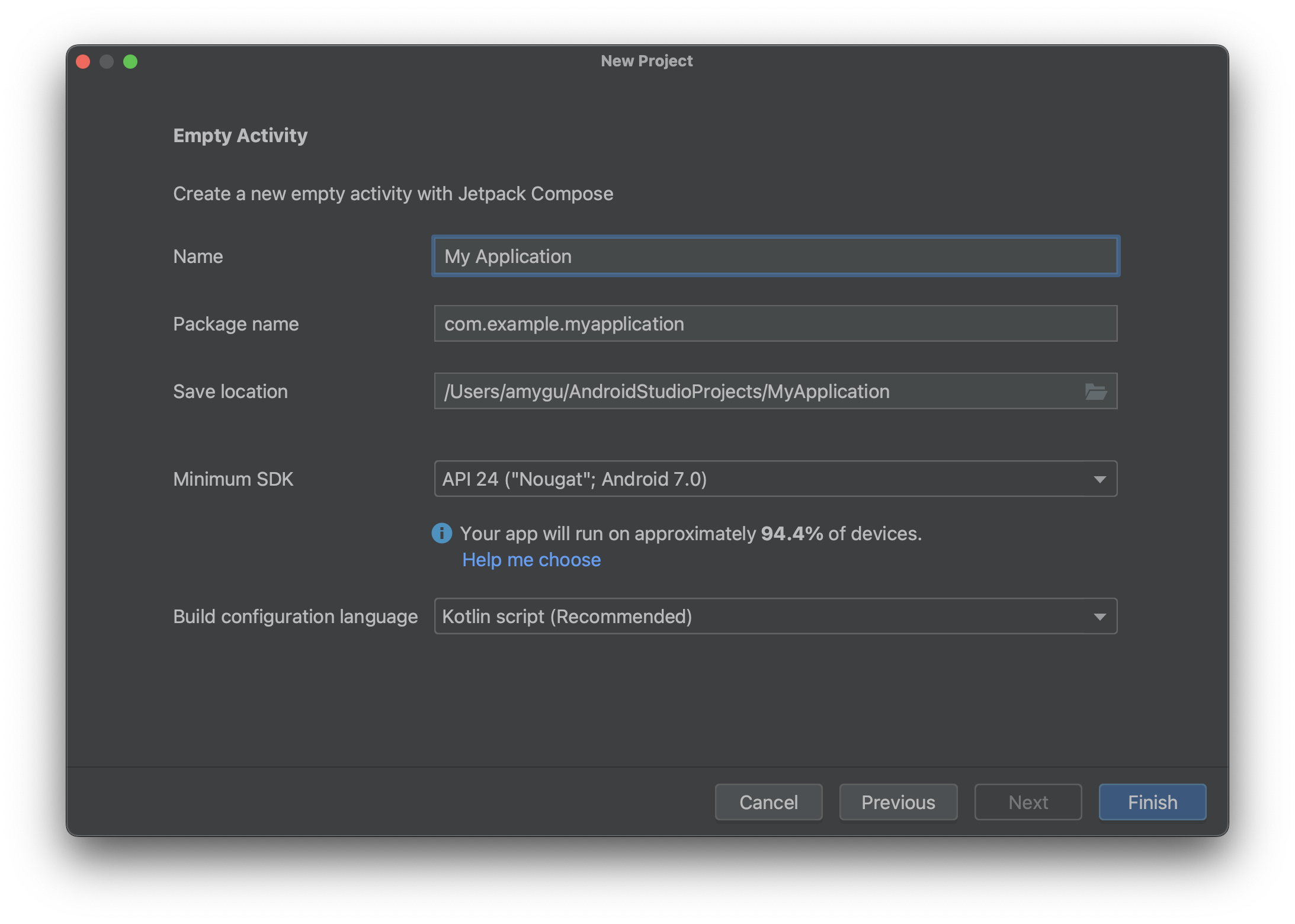
If you see Build configuration language: Kotlin script, that controls the syntax of Gradle build files, which commonly end in .gradle.kts. It is not the setting that determines whether your app code is Kotlin. Some Compose-ready templates select Kotlin for app code automatically and do not show a separate Language field.
Select Finish, then allow Android Studio to create the project and complete Gradle sync. The first sync may take longer while it downloads components. Wait for it to finish before treating warnings in the editor as project errors.
Verify what the template created
Open MainActivity.kt. You do not need to understand every generated line yet. Look for onCreate, a setContent { ... } block, and a function marked @Composable. The activity receives an Android lifecycle callback through onCreate; setContent supplies its Compose interface. A composable function describes a piece of that interface.
The introductory codelab shows these parts together. Read only its starter-code explanation for now; the later changes to greeting text, colors, and previews go beyond today’s setup.
Create your first Android app | Android Developers
Read the “Update the text” section of Android Developers’ first-app codelab to connect the generated Kotlin file with the Compose UI it displays.
In section 4, “Update the text,” start at the paragraph asking you to look at the Code view of MainActivity.kt. Read the starter-code explanation through the paragraph explaining the @Composable annotation. Focus on where setContent appears and how it calls Compose code; stop before the discussion of changing the greeting.
The exact function names and theme name in your project may differ from the codelab’s example. Verify the pattern, not a line-for-line match. You should see Kotlin source in a .kt file and Compose-related imports or calls, such as setContent and @Composable. The template also supplies Compose libraries through its build configuration; you do not need to add dependencies manually today.
Finally, use Build > Make Project if that command is available in your Android Studio version. A successful build is a stronger check than sync alone: sync prepares the project configuration, while a build checks that the starter code compiles. If a required SDK component is missing, follow Android Studio’s installation prompt and retry. If the generated project instead contains an XML screen and no Compose setContent block, starting again with the Compose-ready template is simpler than converting a new project by hand.
What you have established
You now have a named Android project with a chosen minimum SDK, Kotlin starter code, and a Compose-ready interface. You can recognize the key connection between MainActivity.kt and the UI without needing to design that UI yet. In the next lesson, you’ll launch the app on an emulator and use Logcat to distinguish useful runtime messages from noise.