Recommended resources
The freely available resources this lesson will direct you to.
Hello! Last lesson, you represented documents as dictionaries and kept them in a list. That made the records easy to search, but they disappeared when the program stopped. This lesson adds files: you’ll read and write ordinary text, then save and reload a list of document records as JSON.
Allow about 40–45 minutes to watch the selected video segments and run the examples. These are the same two kinds of data you’ll encounter later when working with source documents and API responses.
Text files: strings that outlive the program
A text file stores characters outside your running program. In Python, open() gives you a file object; its mode says what you intend to do:
| Mode | Purpose | If the file already exists |
|---|---|---|
"r" |
Read | Leaves it unchanged |
"w" |
Write | Erases its previous contents |
"a" |
Append | Adds to the end |
Use with open(...) as file: so Python closes the file when the indented block ends, including when an error interrupts the block. Corey Schafer demonstrates this pattern, then shows how reading and writing behave.
Python Tutorial: File Objects - Reading and Writing to Files
Watch Python Tutorial: File Objects - Reading and Writing to Files by Corey Schafer for the with pattern and the text-file operations used below.
Watch automatic closing, focusing on why reads and writes belong inside the with block. In the reading demonstration, watch reading text through the line-by-line loop; you can skip the later chunk-size examples. Then watch writing text, especially the warning about opening an existing file in write mode.
Run this as a Python program in your local or browser-based workspace:
with open("notes.txt", "w", encoding="utf-8") as file:
    file.write("Embeddings represent text as vectors.\n")

with open("notes.txt", "a", encoding="utf-8") as file:
    file.write("Search finds passages relevant to a question.\n")

with open("notes.txt", "r", encoding="utf-8") as file:
    note_text = file.read()

print(note_text, end="")
The first block creates notes.txt (or replaces it). The second adds a line without removing the first. The third reads the entire file into the Python string note_text. The \n in each written string is a newline; write() does not add one automatically. print(..., end="") avoids adding another newline when it displays text that already contains them.
Specifying encoding="utf-8" makes your intended text encoding explicit. Text files store bytes, while Python gives you strings when you read in text mode. UTF-8 determines how those bytes and characters correspond.
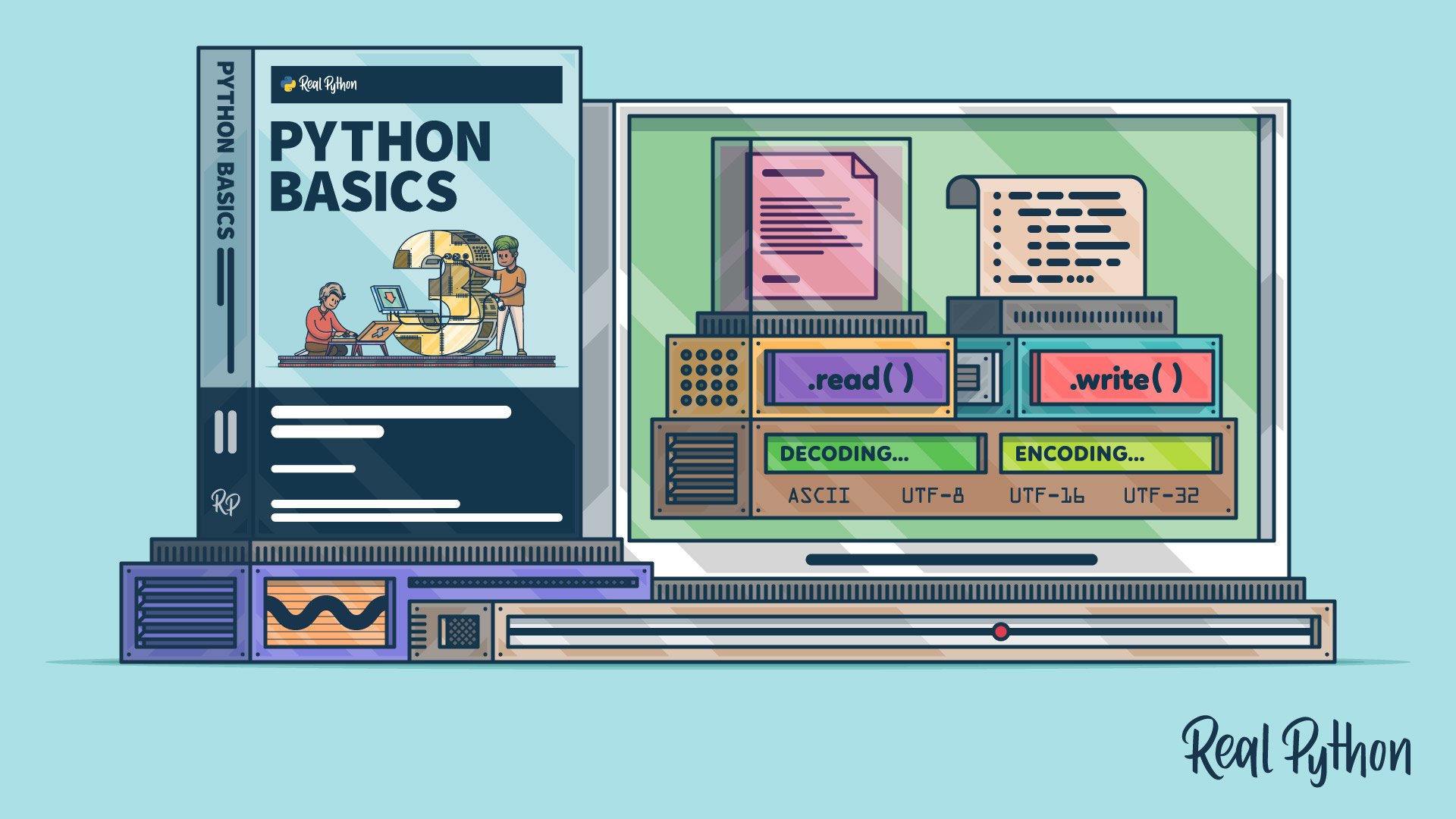
read() is convenient for a small document. If you need to process a large text file one line at a time, you can instead loop over the open file without loading all its text into one string:
with open("notes.txt", "r", encoding="utf-8") as file:
    for line in file:
        print(line, end="")
The filename "notes.txt" is resolved relative to the program’s current working directory, which is not necessarily the script’s directory. If reading raises FileNotFoundError, check where your workspace runs the program and whether the file is there. The first example creates the file before trying to read it.
JSON: preserving lists and dictionaries
Plain text is a good fit for document contents. Your collection of records needs more structure: each document has named fields, and the collection has multiple documents. JSON is a text format that preserves that list-and-dictionary shape. Python’s built-in json module converts between JSON and ordinary Python data; no package installation is needed.
Watch how JSON objects and arrays become dictionaries and lists, then concentrate on the two operations for files: json.load() and json.dump().
Python Tutorial: Working with JSON Data using the json Module
Watch Python Tutorial: Working with JSON Data using the json Module by Corey Schafer to connect last lesson’s collection of records to JSON stored in a file.
Start with JSON data types, where a JSON string is converted into Python data. Then watch loading a file and saving a file. Focus on what is passed to load() versus dump(): the first receives an open file; the second receives both Python data and an open file.
Run this program after the text-file example, in the same working directory. It reads the text you created, places it in a document record, and saves a list containing that record:
import json

with open("notes.txt", "r", encoding="utf-8") as file:
    note_text = file.read()

documents = [
    {
        "title": "Embedding and search notes",
        "source": "notes.txt",
        "text": note_text
    }
]

with open("documents.json", "w", encoding="utf-8") as file:
    json.dump(documents, file, indent=2)

with open("documents.json", "r", encoding="utf-8") as file:
    restored_documents = json.load(file)

print(restored_documents[0]["title"])
print(restored_documents[0]["text"], end="")
Open documents.json in your workspace to inspect it. You should see a JSON array containing one object. After json.load(file), restored_documents is again a Python list containing a dictionary, so the indexing you used last lesson still works. indent=2 makes the saved JSON easier to inspect; it does not change the underlying data.
The names are easy to confuse. The versions without an s work directly with open files:
| Need | Use |
|---|---|
| Read JSON from an open file | json.load(file) |
| Write Python data to an open file | json.dump(data, file) |
| Parse JSON already held in a string | json.loads(text) |
| Produce a JSON string in memory | json.dumps(data) |
JSON resembles Python syntax but is not identical to it. JSON uses double-quoted strings and writes boolean and missing values as true, false, and null; Python represents the corresponding values as True, False, and None. Let json.load() and json.dump() handle those conversions rather than trying to construct JSON with str(documents).
What changes in memory—and what changes on disk
Loading a JSON file gives you Python data that you can edit. Editing it does not automatically update the file. Continue from the JSON program above by adding another record and saving the whole collection again:
restored_documents.append({
    "title": "Model overview",
    "source": "manual entry",
    "text": "A model generates a response from its input."
})

with open("documents.json", "w", encoding="utf-8") as file:
    json.dump(restored_documents, file, indent=2)

with open("documents.json", "r", encoding="utf-8") as file:
    saved_documents = json.load(file)

print(len(saved_documents))  # 2
Writing the updated collection with "w" is deliberate: it replaces the previous JSON document with a new, valid one. Do not append a second JSON array to documents.json using "a"; two arrays placed one after the other are not one valid JSON document. Append to the Python list, then write the list as a whole.
Two failures are worth recognizing. Opening a missing file with "r" raises FileNotFoundError. Opening a file that exists but does not contain valid JSON can make json.load() raise json.JSONDecodeError. Neither means that dictionaries or lists have stopped working: the first points to a file location problem, and the second to the file’s contents.
Key takeaways
Use with open(..., encoding="utf-8") to work with text files, choosing "r", "w", or "a" according to whether you mean to read, replace, or add text. Use json.dump() to save lists and dictionaries and json.load() to restore them. A change to a loaded list remains only in memory until you write it back.
You now have a small collection of document records that survives between runs. Next, you’ll place Python code and files in an isolated project, install a package, and record the project in Git.