Recommended resources
The freely available resources this lesson will direct you to.
Hello! Last lesson, you saved document records in text and JSON files so they could survive between runs. The next step is to give that code a dependable home. In this final lesson of the Python foundations module, you’ll create a small project, install a third-party package without affecting other projects, and save the project’s code and setup instructions in a local Git repository.
Allow about 40–50 minutes, including the selected video segments and time to run the commands. You’ll need a terminal with Python, Git, and internet access for the package installation. A Windows workspace or a browser-based workspace with those tools will work; no online Git account is required.
Give the project its own Python environment
Python includes modules such as json, which you used last lesson. Other packages must be installed. If every project shares one installation of those packages, changing a version for one project can break another. A virtual environment gives this project its own place for installed packages.
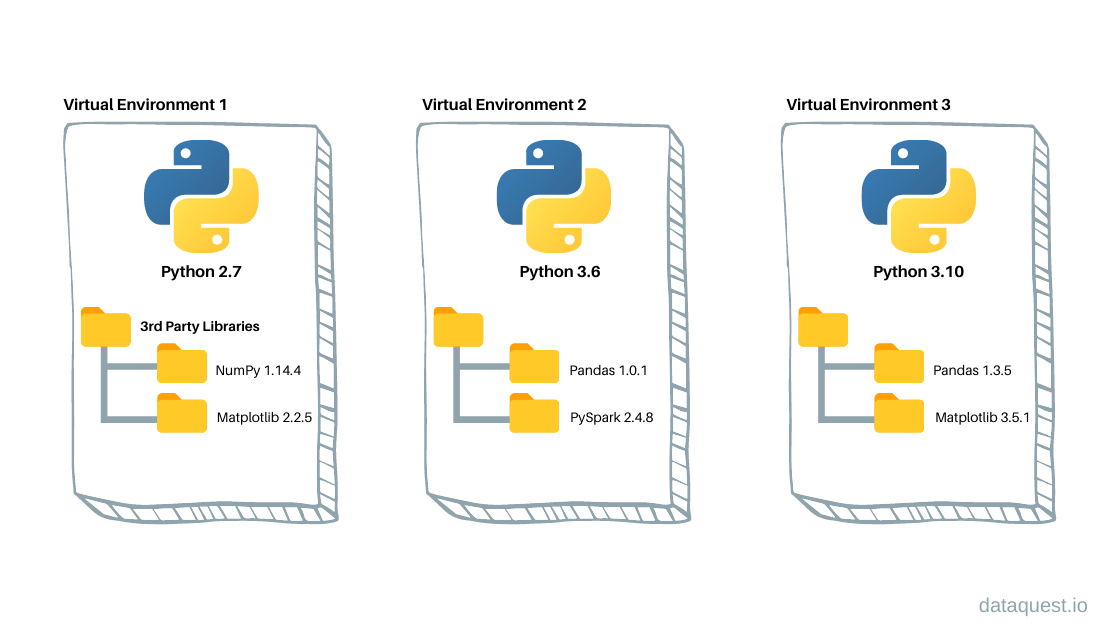
Watch Dave Gray’s Python Virtual Environment and pip for Beginners for the conflict that environments solve and the creation and activation steps. His terminal uses a particular shell, so use the commands for your shell below rather than copying every activation command literally.
Python Virtual Environment and pip for Beginners
Dave Gray shows why separate projects need separate package installations and creates a .venv directory.
Watch the motivation, then environment setup. Notice that .venv is a project-local directory and that activation changes which python the terminal finds. His source command is shell-specific.
Create a folder named document-project and open a terminal in that folder. If you have a safe sample documents.json from last lesson, you may copy it here later, but it is not needed for this lesson. Do not copy private documents or credentials into the project.
Use the commands for your workspace:
| Workspace | Create the environment | Activate it |
|---|---|---|
| Windows PowerShell | py -m venv .venv |
.\.venv\Scripts\Activate.ps1 |
| Windows Command Prompt | py -m venv .venv |
.venv\Scripts\activate.bat |
| Browser workspace with a Linux-style terminal | python3 -m venv .venv |
source .venv/bin/activate |
On Windows, if py is unavailable but python works, use python -m venv .venv instead. If PowerShell blocks its activation script, open a Command Prompt terminal in the same project folder and use the Command Prompt activation command; you do not need to weaken your system’s script policy.
Your prompt may now show (.venv). Check the interpreter rather than relying only on the prompt:
python -c "import sys; print(sys.executable)"
The printed path should include your project’s .venv directory. Run that command in the terminal, not inside a Python file. If it points elsewhere, stop and correct the activation before installing anything.
Activation applies to the current terminal session. When you reopen the workspace, activate the existing environment again; you do not need to recreate it each time. deactivate leaves it when you are done.
Install a package, then record what you installed
We’ll install requests, a package used for web requests. Today you’ll only use it to prepare a URL, without contacting a service. That provides a quick check that your project can import the package; actual API calls belong to the next module.
Continue Dave Gray’s tutorial for the contrast between packages installed globally and packages installed in the active environment. Then watch his short demonstrations of a dependency list and .gitignore. You can skip the subsequent weather-service and API-key walkthrough.
Python Virtual Environment and pip for Beginners
Continue the tutorial to see an installation inside .venv and how to keep the environment itself out of Git.
Watch isolated installs, dependency records, and the ignore file. The presenter uses a Windows launcher in some commands; here, use python -m pip after activation so pip belongs to the interpreter you just checked. Stop at the start of the weather application.
With .venv active, install and inspect the package:
python -m pip install requests
python -m pip show requests
python -m pip means “run pip using this python.” That pairing helps prevent the common mistake of installing into one interpreter and running code with another. The show output should include a version and an installation location under .venv. You may see several packages installed: requests has dependencies of its own.
Create app.py in document-project:
import requests

document = {
    "title": "Retrieval notes",
    "text": "Search finds passages relevant to a question.",
}

prepared = requests.Request(
    "GET",
    "https://example.invalid/search",
    params={"q": document["title"]},
).prepare()

print("Document:", document["title"])
print("Prepared URL:", prepared.url)
Run python app.py. You should see the title and a URL containing its search text. No request is sent: prepare() constructs the request data locally. The example address is deliberately not a live service.
Now run:
python -m pip freeze
This prints installed package names with versions. Create requirements.txt in your editor and paste that output into it, saving the file as UTF-8. Include the dependencies that pip installed, not just requests. This small file is the shareable installation recipe; .venv is the larger, machine-specific installation it describes. Package versions may differ from those shown in a video.
Later, someone working in a newly created and activated environment can restore those recorded packages with python -m pip install -r requirements.txt. The file records package versions, but a working rebuild also requires a compatible Python version and access to the packages.
Save the project, not the environment, in Git
Git keeps a history of selected project files. It is distinct from an online hosting service: you can create and commit to a Git repository entirely in this workspace. Before making a commit, decide what should belong in that history. Source code and requirements.txt do; the generated .venv directory does not.
Watch these selected parts of Git & GitHub Crash Course for Beginners from freeCodeCamp.org. The video also covers many advanced Git tasks; you only need local initialization, staging, and a first commit.
Git & GitHub Crash Course for Beginners [2026]
These segments introduce the local Git repository and demonstrate the commands needed for a first project snapshot.
Watch Git versus hosting and local snapshots. If git --version fails in your terminal, the video’s Git setup segment can help you get Git installed. Then watch repository initialization, checking status, staging changes, and making a commit. You can skip the remote-hosting demonstration between these ranges. Git can notice uncommitted changes, but a commit is what records a project snapshot in its history.
Create a file named .gitignore with this content:
.venv/
.env
__pycache__/
*.pyc
Git will leave the environment directory and generated Python cache files out of new commits. The .env entry prepares for the next module, when you’ll handle credentials; you do not need to create an .env file now. An ignore rule does not remove a file that Git already tracks, so put these rules in place before staging.
Create a short README.md that says what app.py does, how to create and activate an environment in your chosen workspace, and how to run these two commands:
python -m pip install -r requirements.txt
python app.py
The README is for a person opening the project. requirements.txt is for pip. Together they explain how to recreate the setup without copying .venv.
From the document-project folder, check Git and initialize the local repository:
git --version
git init
git status
Git may report several untracked files. Stage only the files you intend to save:
git add app.py README.md requirements.txt .gitignore
git status
git diff --cached --stat
In git status, the four named files should be staged, and .venv should not be among them. git diff --cached --stat gives a compact check of what the proposed commit contains. If other files appear, inspect them before continuing—especially any sample JSON or text files you copied in.
Make your first commit:
git commit -m "Set up isolated Python project"
git log -1 --oneline
git status
If Git asks for an author name and email before committing, follow its instructions to configure a Git author identity of your choosing, then retry. Git stores that identity in commit metadata; consider what you would want to publish before sharing the repository online. There is no need to connect this project to a remote service today.
The final git status should report a clean working tree. Your .venv still exists locally even though Git did not save it. If you modify app.py later, Git will show that change until you stage and commit another snapshot.
Key takeaways
A virtual environment isolates a project’s installed packages; checking sys.executable confirms which Python you are using. python -m pip installs into that interpreter, while requirements.txt records the package versions needed to rebuild the environment. Git records the project files you stage and commit, and .gitignore keeps generated or sensitive local files out of new commits.
You now have a runnable Python project and a local record of its starting point. Next, you’ll learn to supply API credentials through environment variables without putting those credentials in Git.