Welcome back. In our last lesson, you successfully used Metabase's visual query builder to filter and summarize data, and you saw how those clicks translated directly into a SQL query. This provided a solid foundation for understanding how business intelligence (BI) tools operate from the user's perspective.
Today, we will shift from the visual builder to the native SQL editor. This lesson is designed to leverage your background as a developer, allowing you to write queries directly to answer more nuanced business questions. We will focus on using the SQL editor to construct a query from scratch and then explore one of Metabase's most powerful features: turning a static SQL query into an interactive analytical tool using variables. This will give you a deeper appreciation for how your team can build flexible reports for stakeholders.
Unleashing the Power of the Native SQL Editor
While the visual query builder is excellent for straightforward exploration and for users less familiar with SQL, the native SQL editor offers you complete control and flexibility. As someone comfortable with code, you'll find this environment much more expressive.
First, let's get acquainted with the editor and its main features.
SQL editor | Metabase Documentation
This official Metabase documentation provides a tour of the native SQL editor. It covers how to start a query, run it, and use helpful features like the SQL formatter.
Please read the following sections: Start with the introduction on how to open the editor. Review the example under the image, from running your first query. Pay attention to the keyboard shortcuts and the ability to run selected parts of a query. Read the short section on the SQL formatter, a useful tool for maintaining readability. Finally, read the crucial section The native query editor is designed for reading data.
A key takeaway from that reading is the distinction in purpose. In application development, your SQL might involve INSERT, UPDATE, or even ALTER TABLE operations. In analytics, the SQL editor in a tool like Metabase is almost exclusively used for reading data with SELECT statements. The data warehouse or database is considered the source of truth, and the BI tool is a read-only client. This is a fundamental concept in data analysis workflows.
Answering a Business Question with SQL
Let's put the editor to use. A common request from a sales or marketing department might be: "What are our top 5 best-selling products by total revenue?"
Answering this requires a more complex query than the one we built in the last lesson. We'll need to join tables, aggregate revenue, and then sort the results.
-
Navigate to Metabase and create a new question, but this time select SQL query.
-
Make sure the Sample Database is selected.
-
In the editor, we'll build the query step-by-step. Let's start by joining the
OrdersandProductstables to link sales data with product information.SELECT p.title, o.subtotal FROM orders AS o JOIN products AS p ON o.product_id = p.id;Run this to see the raw, unaggregated data.
-
Now, let's aggregate the revenue. We need to group by the product title and sum the subtotals for each product.
SELECT p.title, SUM(o.subtotal) AS total_revenue FROM orders AS o JOIN products AS p ON o.product_id = p.id GROUP BY p.title; -
Finally, to find the "top 5," we need to order the results by our new
total_revenuecolumn in descending order and limit the output to five records.SELECT p.title, SUM(o.subtotal) AS total_revenue FROM orders AS o JOIN products AS p ON o.product_id = p.id GROUP BY p.title ORDER BY total_revenue DESC LIMIT 5;
Execute this final query. Metabase will return a table with the top five products and their total revenue. You've just used the SQL editor to directly answer a stakeholder's question.
Making Queries Interactive with Field Filters
This query is useful, but it's static. What if a manager wants to see the top 5 products for the "Gizmo" category only? Or for a specific time period? You could edit the SQL each time, but that isn't efficient or scalable, and it's impossible for non-technical users.
This is where Metabase's SQL variables, specifically Field Filters, come in. They allow you to insert dynamic filter widgets into your SQL questions.
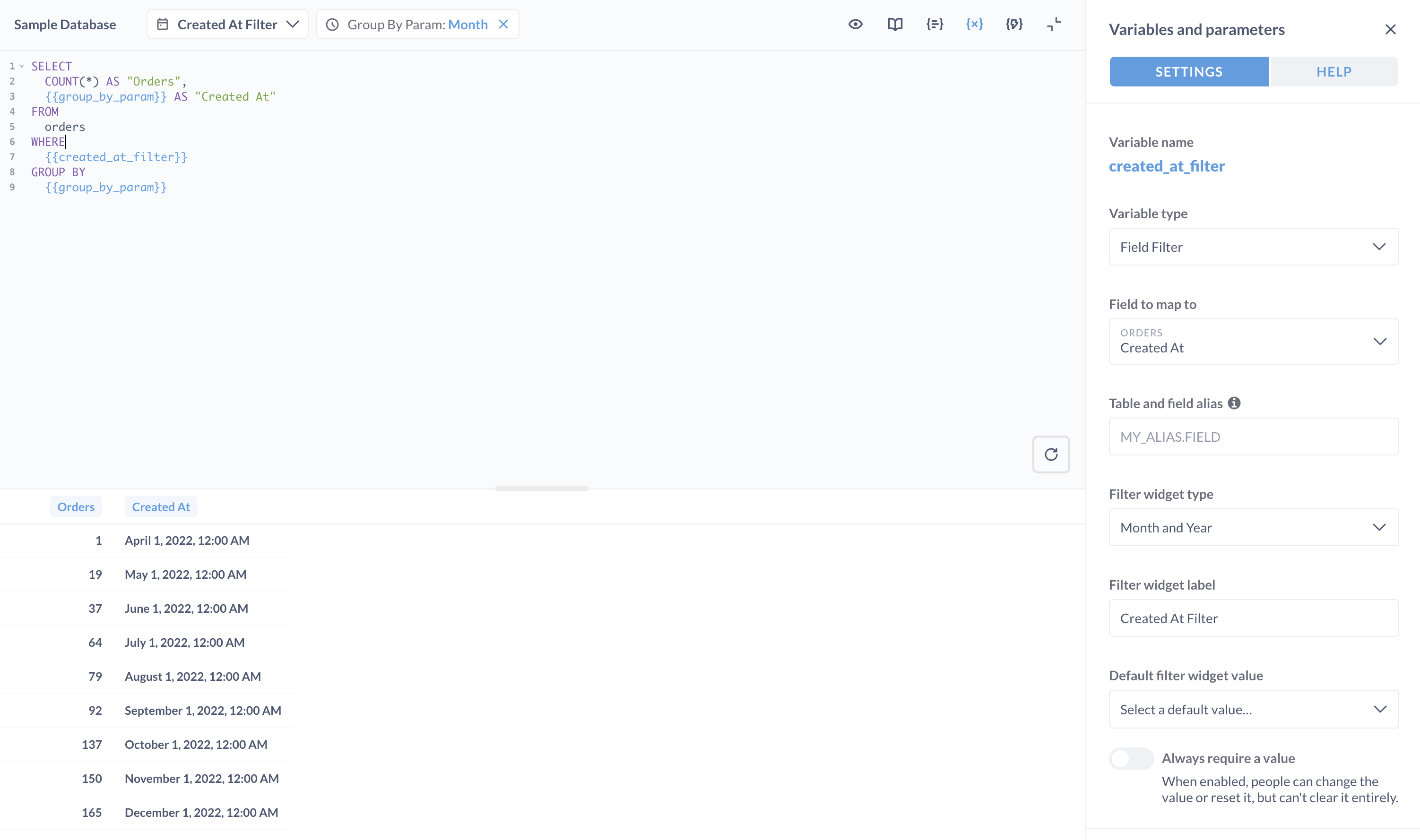
The following video provides an excellent walkthrough of how to create and configure these filters.
Field filters: smart filters for SQL questions | Metabase tutorial
This tutorial demonstrates how to use Field Filters to add smart, interactive dropdowns and date pickers to your SQL questions.
Watch the video from the beginning until the end of the demo. Pay close attention to these key points: The syntax for creating a filter ({{variable_name}}) and how you configure it as a "Field Filter" in the sidebar. The explanation of why you don't use column = {{variable}}. This is a crucial detail about how Metabase injects the filter logic. The process of adding a date filter and setting a default value.
Now, let's apply this to our "top 5 products" query. We'll add a filter that allows a user to select a product category.
Modify your query to include a WHERE clause with a Metabase variable.
SELECT
  p.title,
  SUM(o.subtotal) AS total_revenue
FROM orders AS o
JOIN products AS p ON o.product_id = p.id
WHERE {{category}}
GROUP BY p.title
ORDER BY total_revenue DESC
LIMIT 5;
When you type {{category}}, the variables panel will appear on the right. Now, configure the filter:
- Variable type: Change this from "Text" to Field Filter.
- Field to map to: This is the crucial step. You need to tell Metabase which database column this filter controls. Select
Products->Category. - Filter widget type: Leave it as
Category.
Now, a filter widget appears above your SQL editor. You can select a category like "Gadget" or "Gizmo", click "Add filter", and re-run the query. The results will now show the top 5 products within that specific category. If you leave the filter empty, it will show the top 5 products across all categories.
You have successfully transformed a static SQL script into a dynamic, reusable analytical tool—a core skill for any data analyst.
Conclusion
In this lesson, you stepped into the role of an analyst by using the native SQL editor to answer a business question. You leveraged your existing SQL skills to build a query with joins and aggregations, and then elevated it by adding an interactive filter—a feature unique to BI tools like Metabase.
Key Takeaways:
- The native SQL editor in Metabase gives you full control to write complex queries.
- Analytical SQL is primarily about reading and transforming data with
SELECTstatements to answer specific business questions. - Field Filters (
{{variable}}) are a powerful Metabase feature that makes SQL queries interactive and accessible to non-technical users. This is a fundamental technique for building dashboards and reports.
In our next lesson, we will complete the basic workflow by learning how to save the question you just built and organize it into a "collection," preparing it for sharing with your team or for inclusion in a dashboard. We will also start looking ahead to the more advanced analytical SQL functions that your team likely uses daily.