Hello! Welcome back to your course on mastering AI video creation.
In our last lesson, we created a "mental map" of the AI video production process, identifying the four key stages: Ideation & Scripting, Asset Generation, Animation & Motion, and Editing & Assembly. This map provides the structure for any video project you'll tackle.
Today, we get to the exciting part: gathering your equipment. Our goal is to survey and select free or trial-based AI tools for each stage of the production pipeline. By the end of this lesson, you'll have a curated list of powerful, no-code tools to build your personal AI video creation toolkit, perfectly suited for creating the UGC ads and animated stories you're interested in.
Two Approaches to Your AI Toolkit
As you explore the world of AI video tools, you'll notice two main philosophies:
- Modular Workflow: Picking the best specialized tool for each specific job (one for scripting, one for images, one for animation, etc.) and combining their outputs. This offers maximum flexibility and control.
- All-in-One Platforms: Using a single platform that aims to handle most, or all, of the stages in one place. This often prioritizes speed and simplicity over granular control.
We'll explore tools for both approaches, but we'll focus on building a free, modular toolkit first, as it gives you a deeper understanding of each part of the process.
Building a Free Modular Toolkit
Let's walk through the pipeline stages and identify some of the best free tools available for each one. The following video provides a great overview of a complete, free workflow that aligns perfectly with our four stages.
STOP Paying: Make LONG AI Videos (FREE & UNLIMITED)
Watch this introductory segment from the video 'STOP Paying: Make LONG AI Videos (FREE & UNLIMITED)' by Malva AI. It breaks down the workflow into script, visuals, and audio, which maps directly to our first two stages.
Watch from 00:54 to 01:08 to see how the core components are identified before diving into the tools.
Now, let's find a tool for each stage.
Stage 1: Ideation & Scripting
As we discussed, this is the brain of your video. You need a powerful Large Language Model (LLM) to help you brainstorm ideas and write scripts.
- Google Gemini: A very capable and free model that can generate detailed, structured scripts.
- ChatGPT: The well-known alternative, also excellent for brainstorming and writing.
The video below demonstrates a powerful technique for using Gemini to generate not just the script, but also instructions for the subsequent stages.
STOP Paying: Make LONG AI Videos (FREE & UNLIMITED)
This clip from the Malva AI video shows how to use Google Gemini to create a comprehensive video plan, including the script, tone of voice, and even prompts for generating images and animations.
Watch from 01:08 to 02:32. Pay close attention to how the AI is prompted to break the video into numbered clips, each with four components. This is a very efficient workflow you can adopt.
Stage 2: Asset Generation (Visuals & Audio)
With a script in hand, you need to create your raw materials.
Visuals (Images & B-Roll):
You'll use a text-to-image generator to create your scenes, characters, or background visuals.
- Meta AI: A powerful, free, and unlimited image generator integrated into platforms like Facebook and Instagram. It's excellent for creating high-quality still images.
Audio (Voiceover):
Next, you'll convert your script's dialogue into a voiceover using a text-to-speech (TTS) tool.
- openai.fm: A simple, free tool with a variety of voices and styles.
- Google Text-to-Speech: A more advanced option that allows for greater emotional expression and customization by following style instructions.
This next clip shows how to generate both visuals and audio using free tools.
STOP Paying: Make LONG AI Videos (FREE & UNLIMITED)
Continuing with the Malva AI workflow, these sections cover the generation of visuals using Meta AI and voiceovers using two different free TTS tools.
First, watch from 03:35 to 04:02, focusing on the recommendation to use Meta AI for generating still images. Then, watch from 07:15 to 09:16 to see a comparison between the simple openai.fm and the more advanced Google TTS for creating your voiceover.
Stage 3: Animation & Motion
This is where you bring your static images to life.
- Slop Club / Meta AI: These platforms can take a still image and a text prompt (e.g., "gentle zoom in") to create a short, animated video clip.
- Runway: A more advanced, industry-leading tool for image-to-video and text-to-video generation. It offers a free trial with credits.
Let's see how the still images we generated in the previous step are animated.
STOP Paying: Make LONG AI Videos (FREE & UNLIMITED)
This clip from Malva AI explains how to use an image-to-video tool called Slop Club to animate the images you previously created with Meta AI.
Watch from 02:32 to 03:44. Notice how the image prompts from Gemini are used first to create an image, and then that image is animated to create motion. This two-step process often yields better results than direct text-to-video.
Stage 4: Editing & Assembly
Finally, you'll bring all your animated clips and audio tracks into your editor. As you prefer CapCut, this is the perfect free tool for the job. It's available on both desktop and mobile.
The final part of the workflow shows how simple this can be if you've organized your assets.
STOP Paying: Make LONG AI Videos (FREE & UNLIMITED)
The last step in the Malva AI video demonstrates how to assemble all the numbered video and audio clips in CapCut to create the final video.
Watch from 09:46 to 10:34. The key takeaway here is the importance of naming your files systematically (e.g., clip_1_audio, clip_1_video) to make the editing process fast and straightforward.
Specialized & All-in-One Tools
Beyond the modular workflow, there are tools designed for very specific purposes, like creating the realistic UGC videos you're interested in. These often fall into the "all-in-one" category.
A great example is a tool that generates a full UGC-style video—complete with an AI avatar—from just a product link.
How to Become a UGC Content Creator | Step By Step (FREE COURSE) Get Paid To Make VIDEOS
In her video 'How to Become a UGC Content Creator', Baddie In Business demonstrates an all-in-one tool called 'Create UGC' that specializes in making marketing videos.
Watch from 05:46 to 08:45. Observe how the tool pulls product info from a link, generates scripts, provides avatar options, and produces a complete video. This is a great example of an 'all-in-one' platform for a specific goal.
Other specialized tools focus exclusively on creating high-quality talking avatars, which will be crucial for your projects.
- Synthesia: A leading platform for creating polished corporate and presentation videos with realistic AI avatars.
- HeyGen: Another popular choice for generating avatar videos, with features like creating custom avatars from your own photo.
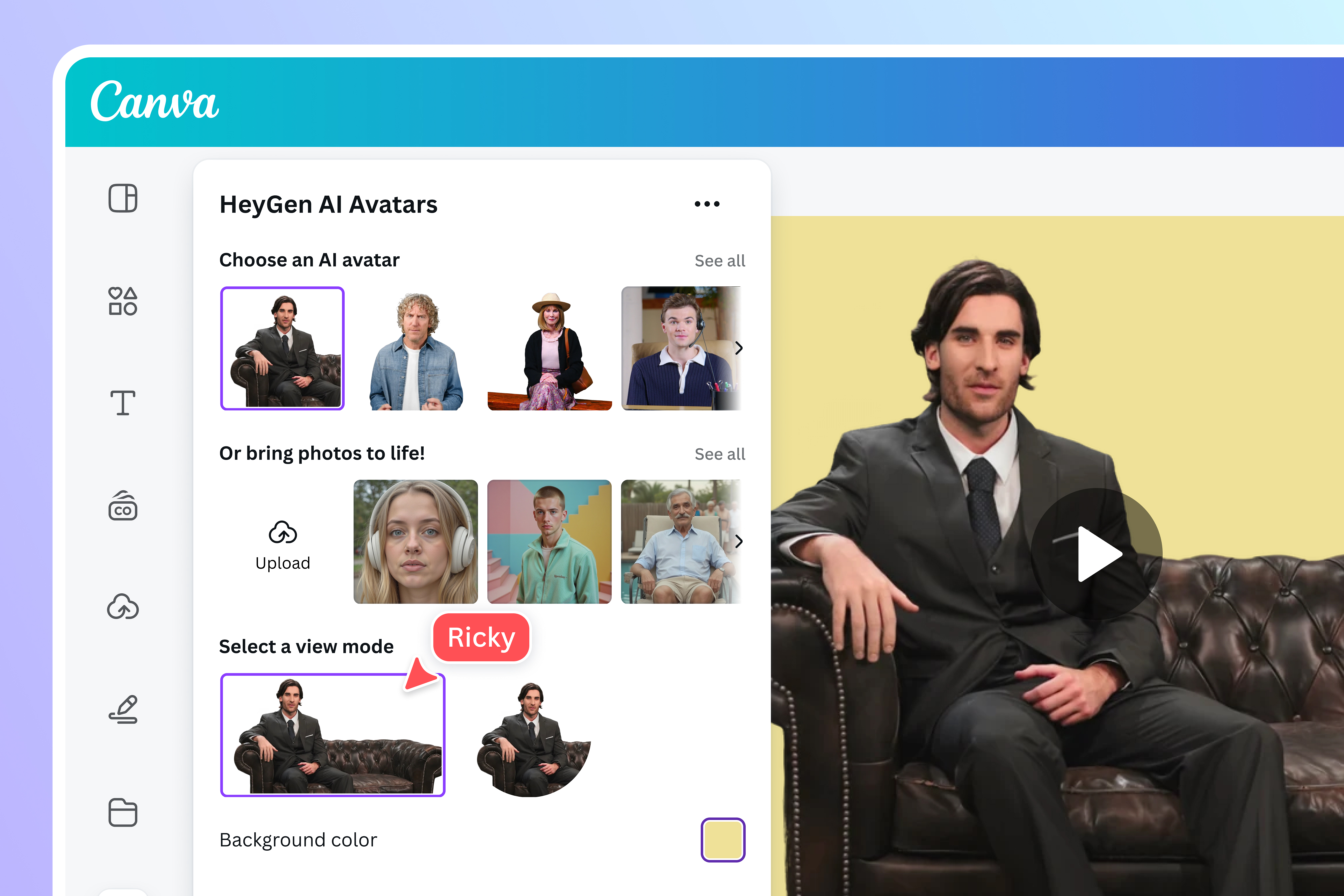
To get a broader sense of the landscape, the following article lists and describes several popular AI video makers. You don't need to visit every tool's website; the goal is just to be aware of the names and what they do.
7 Best Free AI Video Makers For Beginners
This article from CapCut, '7 Best Free AI Video Makers For Beginners', provides a quick tour of several popular platforms. It's a good way to survey the market.
Read the section 'Top 7 Free AI Video Makers for Beginners'. Briefly look at the description for each tool (CapCut, Pictory, Lumen5, InVideo, Synthesia, FlexClip, Elai.io) to understand their main function.
Your AI Video Toolkit
To bring this all together, here is a summary of the tools we've discussed, organized by the pipeline stage. This is your starting toolkit—we will add to it as we go.
| Pipeline Stage | Tool Name | Best For | Cost Model |
|---|---|---|---|
| Ideation & Scripting | Google Gemini / ChatGPT | Brainstorming, script writing, structuring video plans. | Free |
| Asset Generation (Visuals) | Meta AI | Generating high-quality, unlimited free images from text. | Free |
| Asset Generation (Audio) | openai.fm / Google TTS | Converting text to high-quality voiceovers. | Free |
| Animation (Image-to-Video) | Slop Club / Runway | Adding motion (zoom, pan) to static images. | Free with limits / Free Trial |
| Animation (Avatars) | HeyGen / Synthesia | Creating realistic talking head videos from a photo & script. | Free Trial / Free Plan |
| Editing & Assembly | CapCut | Assembling all assets, adding captions, music, and effects. | Free |
| All-in-One (UGC) | Create UGC | Quickly generating UGC-style ads from a product link. | Paid (has trial/credits) |
How to Choose the Right Tool?
When faced with a new project, ask yourself these questions to decide between a modular or all-in-one approach:
- What's my starting point? A detailed script, or just a URL?
- What's the desired style? A cinematic story, or a straightforward talking head ad?
- How much control do I need? Do I want to fine-tune every element, or do I need a video fast?
For maximum creative control (like in your animated stories), the modular workflow is best. For speed and efficiency (like cranking out multiple UGC ad variations), an all-in-one platform can be a great choice.
Conclusion
You now have a solid, practical toolkit of free and trial-based AI applications for every step of the video creation process.
Key Takeaways:
- You can build a powerful, free, and modular AI video toolkit using specialized tools for each production stage: Gemini (Scripting), Meta AI (Visuals), Google TTS (Audio), Runway/Slop Club (Animation), and CapCut (Editing).
- All-in-one platforms (like Create UGC) and specialized tools (like HeyGen/Synthesia) are excellent for specific tasks like creating avatar-based marketing videos quickly.
- The choice of tool depends on your project's needs for control, style, and speed.
Next Lesson Preview:
It's time to put these tools to work. In our next lesson, we will focus on Stage 1 of the pipeline and generate a script for a UGC-style video using an LLM, paying close attention to crafting a strong hook and a clear call-to-action.