Welcome to the third lesson in our module on structuring reusable Python code. In our first two lessons, we focused on the code inside your Python files. We started by moving functions into a dedicated module and then learned how to use the if __name__ == '__main__' guard to make that module both importable and runnable. You now have the building blocks for creating self-contained, reusable pieces of code.
Today, we're going to zoom out from the individual files and look at the bigger picture: the project directory itself. This lesson directly addresses your goal of moving from scattered scripts to "proper code" that feels like a coherent, manageable software tool. We will learn how to organize your files—source code, data, notebooks, and reports—into a standard, logical folder structure. Adopting a consistent structure is one of the most impactful steps you can take to make your automation projects scalable, maintainable, and easy to navigate.
From a Single Folder to a Structured Project
When you first start a project, it’s tempting to put everything in one folder: your Jupyter notebooks, the raw CSV files you download, the Python scripts you write, and the final Excel reports you generate. While this works for a quick, one-off task, it quickly becomes chaotic as the project grows. You end up with a confusing mix of files, making it hard to find what you need, understand the workflow, or safely make changes.
The solution is to apply a principle known as separation of concerns. This means that every type of file has its own designated place. Your raw data is kept separate from your code, your exploratory notebooks are kept separate from your final reports, and so on. This isn't just about being tidy; it creates a predictable and logical workflow. In a way, it's like building a good financial model, where you have separate, clearly labeled sheets for inputs, calculations, and summary outputs.
A Common-Sense Project Template
While there's no single "correct" way to structure a project, a community standard has emerged that works exceptionally well for data analysis and automation tasks. Before we break it down, let's watch a short video that explains the problem of inconsistent project structures and introduces a popular template that solves it.
Data Science Tutorial - Project Structure
This video from Dave Ebbelaar, "Data Science Tutorial - Project Structure," addresses the exact challenge of moving from varied, ad-hoc structures to a consistent, professional one.
First, watch the introduction where he describes the problem of project inconsistency. This likely mirrors your own experience. Then, jump to the section where he walks through the folders and files generated by the popular "Cookiecutter Data Science" template, explaining the purpose of each from the "big picture overview".
As you saw in the video, the template provides a clear, logical place for everything. Let's formalize the structure we'll be using for our projects. A typical layout looks like this:
project_root/
├── data/
│   ├── raw/          # Original, untouched data files
│   └── processed/    # Cleaned and transformed data
├── notebooks/        # Jupyter notebooks for exploration
├── reports/
│   └── figures/      # Generated charts and plots
├── src/              # All Python source code (.py files)
│   ├── __init__.py
│   └── ...
├── README.md         # Project overview and instructions
└── requirements.txt  # List of project dependencies
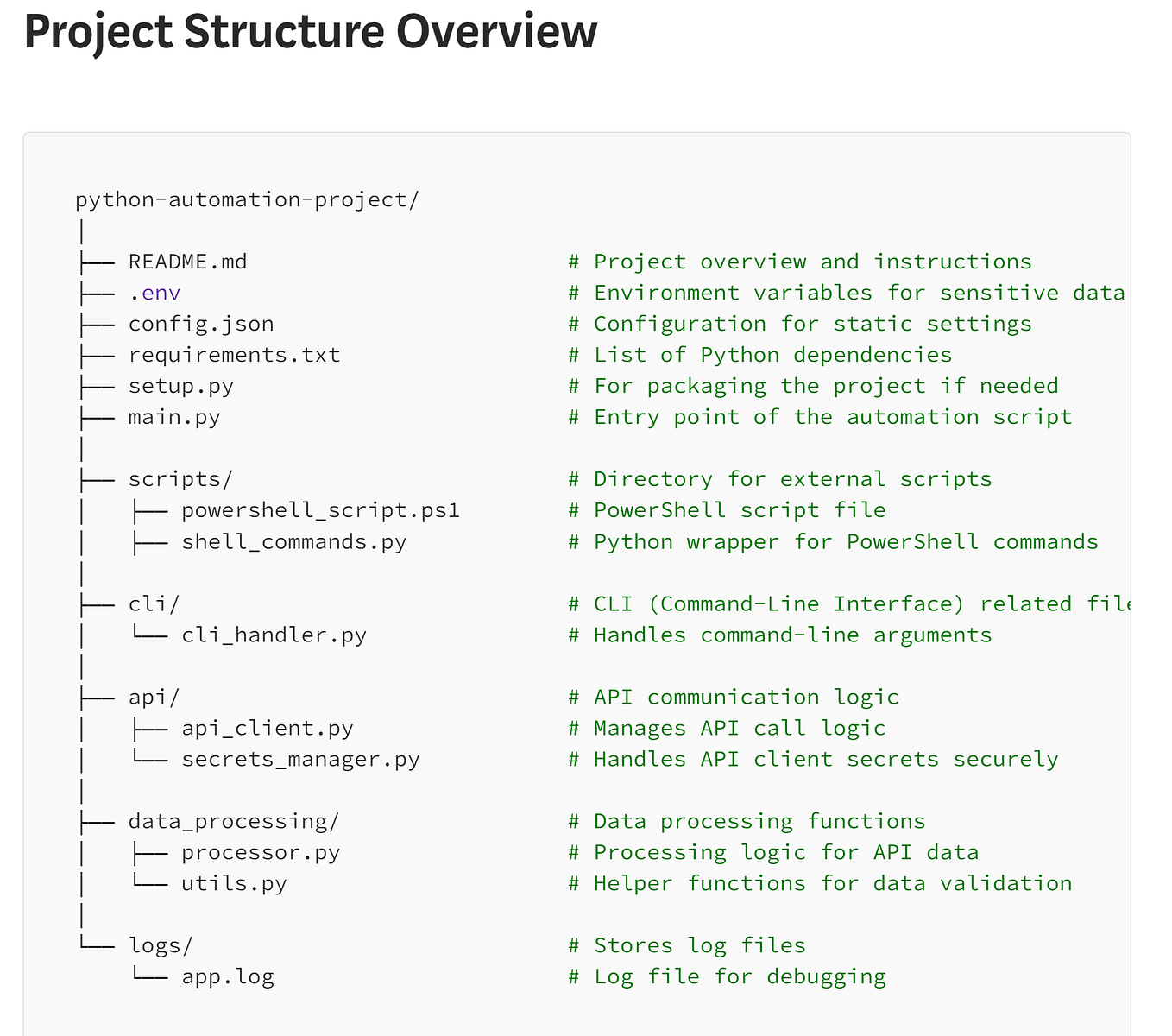
This folder structure is visually represented in the images below, showing slight variations but adhering to the same core principle of separating concerns.

Now, let's dive into the purpose of each key directory with the help of a more detailed guide.
How to organize your Python data science project
This guide by Eric J. L. provides an excellent, practical breakdown of a robust project structure. It explains not just the 'what' but also the 'why' behind each directory.
Please read the following sections to understand the core components: Start with the introduction to the directory structure. Read the section on the notebooks/ directory to understand its role in exploratory work. Next, read about the projectname/ directory. This is what we will typically call src/ (for "source"). This is the most important part, as it explains where your reusable Python modules will live. Pay special attention to the idea of moving code out of notebooks and into this directory. Finally, read the section on the data/ directory, focusing on the critical distinction between raw and processed data.
Key Directories and Your FP&A Workflow
Let's connect this abstract structure to your concrete goal of automating finance tasks.
-
data/: This is where all your data lives.data/raw/: This directory is for your source-of-truth data. Think of the monthly trial balance export from your ERP, a CSV of sales data from the data warehouse, or a budget file from another team. Rule #1: This folder is read-only. You never modify files here. This guarantees you can always reproduce your analysis from the original source.data/processed/: As your scripts run, they will clean, transform, and join the raw data. The intermediate or final datasets you create (e.g., a consolidated transactions table) should be saved here. In our later lessons, this is where we'll save our DuckDB database or Parquet files.
-
src/(Source): This is the heart of your automation tool. All your Python (.py) files go here. Thefinance_utils.pymodule we created in the last lesson belongs in this directory. The main script that orchestrates your entire workflow (e.g.,run_month_end.py) would also live here. -
notebooks/: Jupyter notebooks are fantastic for interactive exploration, prototyping a calculation, or visualizing a dataset. However, they are not ideal for reusable, production-ready automation. The best practice is to use notebooks in this folder for experimentation. Once a piece of logic is proven to work and needs to be part of your automated process, you should refactor it—that is, move it from the notebook into a function within a.pymodule in thesrc/directory.
The following video from ArjanCodes reinforces this crucial point about the relationship between notebooks and source code.
7 Tips To Structure Your Python Data Science Projects
In his video "7 Tips To Structure Your Python Data Science Projects," ArjanCodes gives excellent advice that is directly relevant to your goal of building more robust code.
Please watch the segment from Tip #5, where he explains why you should move reusable code out of notebooks and into shared packages or modules. This is the exact transition you are aiming to make.
reports/: This is the destination for your final outputs—the files you would share with stakeholders. When your script generates avariance_analysis.xlsxfile or a set ofrevenue_trend.pngcharts, they should be saved here.
A Practical Example: Monthly Variance Analysis
Imagine you're building an automation script for a monthly variance analysis. Here’s how you would organize the project:
monthly_variance_analysis/
├── data/
│   ├── raw/
│   │   ├── 2023-11_actuals.csv       # Raw export from accounting system
│   │   └── 2023-11_budget.xlsx       # Budget file from planning team
│   └── processed/
│       └── monthly_data.parquet      # Consolidated & cleaned data
├── notebooks/
│   └── preliminary_cost_analysis.ipynb # One-off exploration of cost centers
├── reports/
│   └── 2023-11_Variance_Report.xlsx  # The final Excel report
├── src/
│   ├── __init__.py                   # Makes 'src' a package
│   ├── finance_utils.py              # Our module with variance functions
│   └── create_report.py              # The main script that runs everything
├── README.md                         # "Project: Monthly Variance Analysis..."
└── requirements.txt                  # "pandas, duckdb, openpyxl..."
This structure is clean, logical, and self-documenting. A colleague (or you, in six months) could look at this and immediately understand where to find the raw data, the core logic, and the final output.
Conclusion
You've now learned how to structure an entire project, moving beyond single files to a professional and organized directory layout. This is a foundational practice that will pay massive dividends as your automation projects become more complex.
Key Takeaways:
- A standard project structure is essential for creating maintainable, scalable, and understandable code.
- The guiding principle is separation of concerns: every type of asset has its own dedicated directory.
- A common, effective structure includes
data/(split intoraw/andprocessed/),src/for Python modules,notebooks/for exploration, andreports/for final outputs. - Code developed in notebooks for exploration should be refactored into functions within the
src/directory to become part of the reusable, automated workflow.
In our next lesson, we will build upon this new structure. We will focus on the main script (like create_report.py in our example) and learn how to make it configurable from the command line using Python's argparse module, allowing you to run the same script for different months or scenarios without changing the code itself.