Hello! In our last lesson, we established a professional project structure, separating our source code, data, and reports into distinct directories. This was a crucial step toward building scalable and maintainable automation tools. You now have a blueprint for organizing your work, centered around a main script in your src/ directory.
This brings us to a new challenge: how can you run that main script for different scenarios—for example, to generate a report for November, and then another for December—without having to modify the script's code each time?
In this lesson, we will answer that question by learning how to make your Python scripts configurable from the command line using the argparse module. This capability is the hallmark of professional command-line tools and a key skill for building flexible automation. By the end of this lesson, you'll be able to create a single script that can be adapted to various tasks simply by changing the parameters you give it when you run it.
What are Command-Line Arguments?
Before diving into the code, let's clarify what we mean by "command-line arguments." When you run a Python script from your terminal, you typically type something like python my_script.py. The parts that come after the script name are the arguments. They act as inputs that control the script's behavior.
This is exactly how many professional tools you might have encountered, like git or pip, operate. For example, in pip install pandas, install is a command (an argument) and pandas is another argument specifying the package.
The image below breaks down a typical command, illustrating the different components.
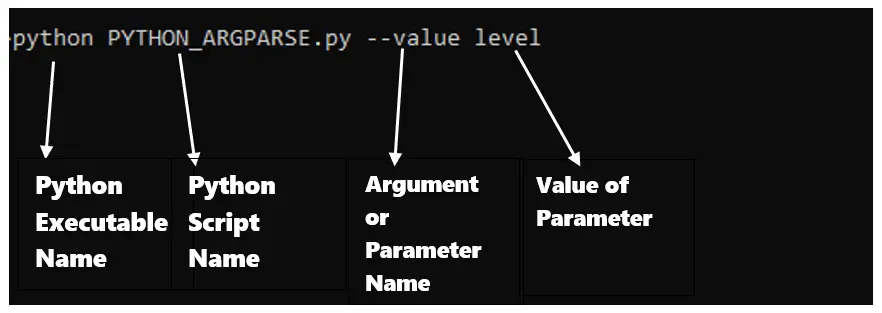
This image illustrates the anatomy of a command-line instruction, identifying the Python executable, the script name, an argument's name (--value), and the argument's value (level).
Our goal is to build scripts that can interpret these kinds of arguments to perform specific tasks, such as running a financial analysis for a given month and year.
Introducing argparse: Your CLI Co-pilot
Python's standard library includes the argparse module, a powerful and convenient tool designed specifically for this purpose. You don't need to install anything; it's ready to use. Using argparse has several key advantages:
- It parses arguments from the command line for you.
- It automatically generates user-friendly help messages (e.g., when a user runs your script with
-hor--help). - It issues clear errors if the user provides invalid arguments.
- It can convert inputs to the correct data type (e.g., from the string
'12'to the integer12).
Let's begin by watching a short video that provides a great introduction to the basics of argparse.
Argparse Tutorial - Python 2023 (Creating Your First CLI)
This video from the channel Indently provides a clear, step-by-step introduction to creating a simple command-line interface (CLI) with argparse.
Watch the first three minutes, from the beginning to the first example. This section will show you how to import argparse, create a parser, add a simple "positional" argument, and retrieve its value in your script.
As the video demonstrated, using argparse boils down to three fundamental steps:
- Import
argparseand create a parser object:parser = argparse.ArgumentParser() - Define arguments your script should accept:
parser.add_argument(...) - Parse the arguments from the command line:
args = parser.parse_args()
The args object then holds the values passed by the user, which you can access in your code using dot notation (e.g., args.my_argument).
Positional vs. Optional Arguments
argparse handles two main types of arguments:
- Positional Arguments: These are required and their meaning is determined by their position. In
python my_script.py 100 200,100and200are positional arguments. - Optional Arguments: These are identified by a name, not position, and are prefixed with
-(short version) or--(long version). They are typically not required. For example, inpython my_script.py --month 11 --year 2023,--monthand--yearare optional arguments.
For building flexible automation tools for your FP&A tasks, optional arguments are generally more useful because they are self-documenting (the name tells you what the value is for) and you can provide sensible defaults.
Let's explore how to define both types.
Master Python's argparse Module: Build Better CLIs
This DataCamp article provides an excellent written guide to the fundamentals of argparse. It clearly explains the core concepts with simple examples.
Please read the section "Setting Up argparse and Basic Usage". Pay close attention to the distinction between adding a positional argument (like num1) and an optional argument (like --verbose). Note how the parsed values are accessed via the args object.
Building a Configurable Reporting Script
Now, let's apply these concepts to a practical financial scenario. Imagine we're enhancing the main script from our last lesson, which we might call create_report.py. We want to configure it to run for a specific year and month, and also specify where to save the output report.
Here's how we could define the arguments:
import argparse
import os

def run_report(year, month, output_dir, verbose):
    """
    A placeholder function that simulates generating a report.
    """
    if verbose:
        print(f"Generating report for {month:02d}-{year}...")
        print(f"Output directory: {output_dir}")

    # --- Your report generation logic would go here ---
    # For example, using pandas to read data, DuckDB to transform it...

    # Create the output directory if it doesn't exist
    os.makedirs(output_dir, exist_ok=True)

    # Simulate saving the report
    report_filename = f"variance_report_{year}_{month:02d}.xlsx"
    report_path = os.path.join(output_dir, report_filename)

    # In a real script, you'd save a DataFrame here.
    # For now, we'll just create an empty file.
    with open(report_path, 'w') as f:
        f.write("This is your report.")

    print(f"Successfully generated report: {report_path}")

if __name__ == '__main__':
    parser = argparse.ArgumentParser(
        description="Generate a monthly financial variance report."
    )

    parser.add_argument(
        '--year',
        type=int,
        required=True,
        help="The year of the report (e.g., 2023)."
    )

    parser.add_argument(
        '--month',
        type=int,
        required=True,
        choices=range(1, 13),
        help="The month of the report (1-12)."
    )

    parser.add_argument(
        '--output-dir',
        type=str,
        default='reports',
        help="Directory to save the output report. Defaults to 'reports'."
    )

    parser.add_argument(
        '-v', '--verbose',
        action='store_true',
        help="Enable verbose output for debugging."
    )

    args = parser.parse_args()

    run_report(
        year=args.year,
        month=args.month,
        output_dir=args.output_dir,
        verbose=args.verbose
    )
Let's break down the new add_argument parameters we've used here:
type=int: This tellsargparseto convert the user's input into an integer. If they provide text,argparsewill automatically raise an error.required=True: This makes an "optional-style" argument (--year) mandatory. The script won't run unless the user provides it.choices=range(1, 13): This restricts the input for--monthto integers from 1 to 12. Another automatic validation!default='reports': If the user doesn't specify an--output-dir, it will default to the string'reports', which aligns perfectly with the project structure we created.action='store_true': This creates a boolean flag. If the user includes-vor--verbosein their command,args.verbosewill beTrue. If they don't, it will beFalse. This is perfect for turning features on or off.
Now, from your terminal, you could run this script in several ways:
# Generate a report for November 2023, with verbose output
python src/create_report.py --year 2023 --month 11 --verbose

# Generate a report for February 2024, saving it to a custom directory
python src/create_report.py --year 2024 --month 2 --output-dir "fy24_reports/q1"

# See the automatically generated help message
python src/create_report.py --help
The script is now a flexible tool, not a static piece of code.
Advanced Argument Handling
argparse offers many more features to handle complex requirements. For a deeper look at some of these powerful options, the following video is an excellent resource.
Understanding Python: Argparse CLI
This tutorial from Jake Callahan uses a great "pizza builder" example to explain more advanced argparse features in a very intuitive way.
Watch the section on optional arguments and flags. This reinforces the action='store_true' concept and introduces dest, which allows you to name the variable in the args object differently from the command-line flag. Next, watch the segment on nargs from the nargs explanation. nargs='+' allows an argument to accept one or more values, which are then collected into a list. This would be useful if, for instance, you wanted your script to accept multiple department codes: --depts FIN HR RND. Finally, see how the parsed arguments are used from printing parsed args. This part clearly shows how the command-line inputs are stored in a Namespace object and accessed as attributes.
For a comprehensive textual reference on these advanced features, the DataCamp article is again a great resource.
Master Python's argparse Module: Build Better CLIs
This section of the article covers the same advanced features in text form.
Feel free to read through the section "Advanced Argument Handling". It provides code examples for nargs, choices, action='store_true', default, and required.
Conclusion
In this lesson, you've learned how to transform a static script into a flexible, configurable command-line tool using argparse. This is a fundamental skill for automation, as it allows you to separate your core logic from the specific parameters of any single run. You can now build one script and reuse it for countless scenarios, a core principle of efficient and "proper" code.
Key Takeaways:
argparseis Python's standard library for creating command-line interfaces.- Scripts are made configurable by defining arguments that users can pass when running the script from the terminal.
- Arguments can be positional (required by position) or optional (named with
-or--). - The
add_argument()method has powerful parameters liketype,default,required,choices, andactionto validate input and control behavior. - Using
argparsemakes your scripts more robust, reusable, and user-friendly by providing automatic help messages and error handling.
In our next lesson, we'll address another aspect of configuration. While argparse is excellent for parameters that change with each run (like a date), what about settings that are fixed, or sensitive information like API keys or database credentials? Passing these on the command line isn't ideal. We will learn how to manage these by using external configuration files, further separating your code from its configuration.