Welcome back! In our last lesson, you successfully set up a Sprite2D node and gave it a texture, creating the visual foundation for your player character. Your sprite is on the screen, looking crisp and ready for action. However, it's currently static—like a photograph. To bring it to life, we need to give it instructions, and in game development, that means writing code.
This lesson marks a pivotal moment in your journey. You are about to write your very first piece of game logic. We will bridge the gap between the visual nodes in the editor and the behaviors that define a game. Specifically, we'll attach your first GDScript to the player sprite and demystify the most fundamental function you'll encounter: _ready(). This function is the "ignition switch" for your node's behavior.
What is a Script?
So far, you've been working with nodes, which are the building blocks of your game world. A Sprite2D knows how to display an image, and a Node2D knows its position, but they don't have any unique behaviors on their own. Scripts are what give them that behavior.
A script is simply a text file containing code—a set of instructions that a node will follow. Think of a node like a puppet and the script as the puppeteer's instructions that make it move, speak, or react. With a script, your Sprite2D can learn how to respond to player input, move around the screen, or collide with walls.
The Kodeco article "Godot 4: Getting Started" offers a great high-level introduction to this concept.
Godot 4: Getting Started - Kodeco
This article explains the role of scripts in a game engine.
Please read the introduction to scripting, starting from the beginning of the section. Focus on understanding that scripts are what add custom behavior to nodes.
Attaching Your First Script
Let's give your player sprite its "brain." The process involves attaching a new GDScript file directly to the node in your scene.
- Open your
player.tscnscene if it's not already open. - In the Scene dock, select your
Sprite2Dnode. - Right-click the node and choose Attach Script.
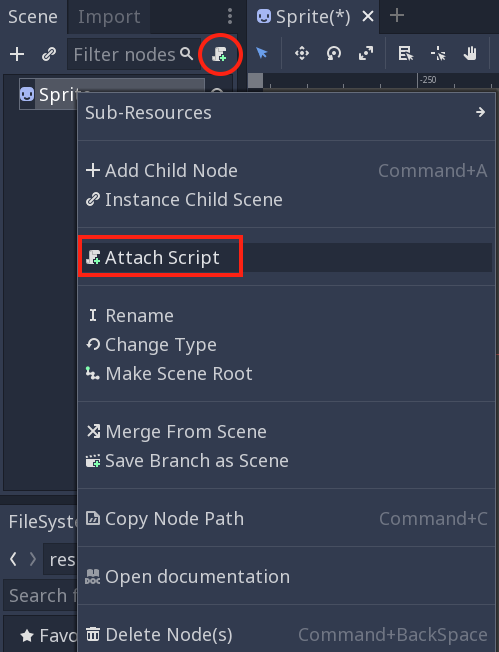
This will open the Attach Node Script dialog box. This window lets you configure your new script file.
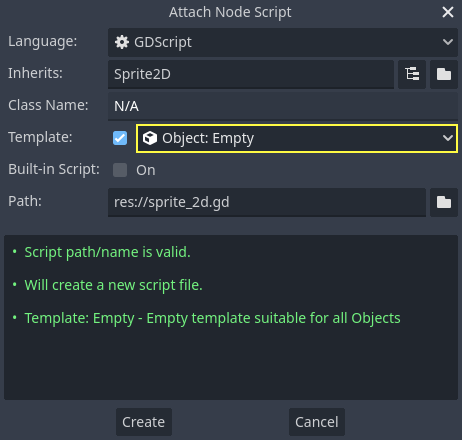
Before clicking "Create," let's establish a good habit for organizing your project. It's best to keep all your scripts in a dedicated folder.
- In the "Attach Node Script" window, click the folder icon next to the Path field.
- This opens the file browser. Create a new folder named
scripts. - Ensure the file name is
sprite_2d.gd(orplayer.gdif you renamed your node) and it's inside thescriptsfolder. - Click Create.
The Godot editor will now switch to the Script view, showing your newly created script file. For a detailed walkthrough of this process, the "Godot 4 Recipes" guide provides clear, illustrated steps.
Getting started :: Godot 4 Recipes
This guide shows the step-by-step process for attaching a script to a node.
Read the section Creating a script. Pay close attention to the images that illustrate right-clicking the node and navigating the script creation dialog.
Understanding the Default Script
When you create a script, Godot helpfully provides a default template. It might look a little cryptic at first, but each part has a specific and important meaning.
extends Sprite2D


# Called when the node enters the scene tree for the first time.
func _ready():
	pass # Replace with function body.


# Called every frame. 'delta' is the elapsed time since the previous frame.
func _process(delta):
	pass
Let's break down the most important parts for now.
extends Sprite2D
This first line is crucial. It tells Godot that your script is not just a generic script; it's a specialized version of a Sprite2D. This concept is called inheritance. By "extending" Sprite2D, your script automatically gains access to all the properties and abilities of a standard sprite—like its position, rotation, and texture. You can then add your own custom logic on top of that.
func _ready():
This is the main event for today's lesson.
funcis the GDScript keyword for creating a function—a named block of code that performs a specific task._readyis the special name of this function. The underscore_at the beginning is a Godot convention indicating that the engine will call this function automatically at a specific time.- When is it called? As the comment says,
_ready()is executed exactly once when the node has been fully initialized and has entered the scene.
Think of it as the "On Start" button. Any code you place inside the _ready function will run the moment your player character appears in the game world. This makes it the perfect place for setup logic, like setting initial health, placing the character at a starting position, or, as we'll see in the next lesson, printing a "Hello, World!" message.
The video "How to program in Godot" by Brackeys provides a wonderfully clear and concise explanation of this concept.
How to program in Godot - GDScript Tutorial
This video explains the role of the _ready() function as the starting point for your code.
Watch the section from the introduction to _ready(), where the narrator explains that this function is called when the node enters the scene for the first time.
pass
The pass keyword is simply a placeholder. An indented block of code is required after a function definition like func _ready():. If you have nothing to put there yet, pass tells GDScript "there's no code to execute here, just continue." We will replace this with our own instructions very soon.
Conclusion
In this lesson, you've taken a monumental step from being a scene architect to becoming a game programmer. You have successfully attached a script to your player sprite, giving it the potential for behavior and logic.
Here are the key takeaways:
- Scripts contain code that adds custom behavior to nodes.
- You attach a script to a node by right-clicking it and selecting "Attach Script". It is good practice to save scripts in a dedicated
scriptsfolder. extends NodeNameconnects your script to a specific node type, allowing it to access that node's properties (inheritance).- The
_ready()function is a special function that Godot runs once when a node is ready, making it ideal for setup code.
You now have a script attached to your sprite and a place to write your code (func _ready():). The stage is set. In our next lesson, we will replace the pass placeholder with your very first line of executable code: using the print() function to send a message to the debug console and confirm that your script is truly running.