Introduction
Welcome back! In our last lesson, you learned how to use arithmetic, comparison, and logical operators to perform calculations and create logical rules. We used the Print() function to see the results of these operations, like true or false, or the outcome of a calculation.
That was just a glimpse of what Print() can do. In programming, things don't always work as expected on the first try. Being able to look "under the hood" to see what your program is doing at any given moment is a critical skill. This process is called debugging.
In this lesson, you will master the Print() function as your primary debugging tool. Think of it as a stethoscope for your Expert Advisor, allowing you to listen in on its internal state. You'll learn how to use it to:
- Output the values of different variables.
- Confirm that your calculations are correct.
- Trace the flow of your program's logic.
This skill is fundamental. As we build the logic for your Heikin Ashi EA, you'll constantly use Print() to verify that each new piece of code is behaving exactly as you intend.
1. The Print() Function: Your Debugging Stethoscope
The Print() function is one of the simplest yet most powerful tools in your MQL5 toolkit. Its job is to display information in the Experts or Journal tab of the Toolbox panel in your MetaTrader 5 terminal.
The basic idea is to print the value of a variable at a specific point in your code to confirm it's what you expect. A good practice is to always include a descriptive text label so you know what value you're looking at.
You can pass multiple pieces of data to the Print() function by separating them with commas. It will automatically combine them into a single line of output.
Master MQL5 from beginner to pro (Part I): Getting started with ...
Let's start with a formal look at how the Print() function can handle multiple pieces of information, which is key to creating clear and descriptive log messages.
Read the three short paragraphs starting from 'Inside the OnStart function...'. Focus on the part that explains that Print() can be called with several arguments separated by a comma. This is the technique we will use.
This short video provides a direct demonstration of using Print() to see the value stored inside a variable.
Beginner MQL5 Trading Bot Code - Moving Average Part 1 #algotrading #stockmarket
Watch how the instructor uses Print() to check the value of the fast_handle integer variable. This is a perfect example of the debugging technique you are learning today.
Watch from 15:00 to 15:58. Notice how a descriptive string is combined with the variable name inside the Print() function to produce a clear message in the journal.
2. Hands-On Practice: Checking Your Variables
Now it's your turn to practice. We will modify your EA to declare a few variables and then use Print() to display their values.
- Open your
MyHeikinAshiEA.mq5file in MetaEditor. - Go to the
OnTick()function and replace any existing code inside it with the following snippet. Your task is to add thePrint()statements.
//+------------------------------------------------------------------+
//| Expert tick function                                             |
//+------------------------------------------------------------------+
void OnTick()
  {
//---

   // Variables for our practice
   int candleCount = 50;
   double targetPrice = 1.08500;
   string tradingSymbol = "EURUSD";
   bool isTradingEnabled = true;

   // --- YOUR TASK: Add Print() statements below ---

   // 1. Print the value of candleCount with the label "Number of candles to check:"
   Print("Number of candles to check: ", candleCount);

   // 2. Print the value of targetPrice with the label "Profit target price:"
   Print("Profit target price: ", targetPrice);

   // 3. Print the value of tradingSymbol with the label "Current symbol is:"
   Print("Current symbol is: ", tradingSymbol);

   // 4. Print the value of isTradingEnabled with the label "Is trading enabled?"
   Print("Is trading enabled? ", isTradingEnabled);

//---
  }
//+------------------------------------------------------------------+
After adding your Print() statements, compile the code by pressing F7 or clicking the "Compile" button. Make sure you have "0 errors" at the bottom of the editor.
3. Finding the Output: From Code to Log
Now that you've written and compiled the code, where do you see the messages? You'll find them in your MT5 terminal.
The image below shows an example of Print() statements in the MetaEditor.

When you run this code (by attaching your EA to a chart), these messages appear in the Experts tab of the Toolbox window in MT5, as shown below.
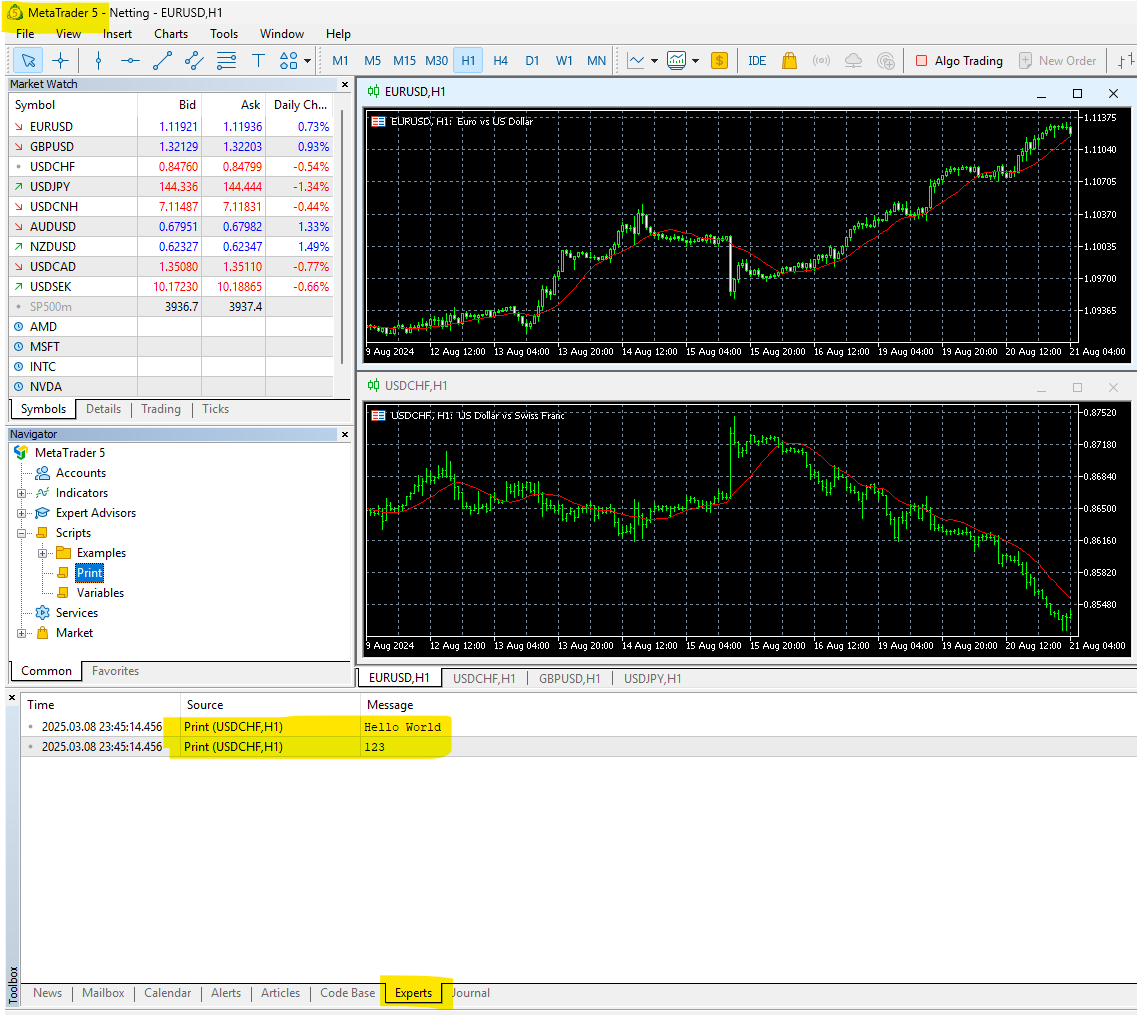
To see your own output:
- Go to your MT5 terminal.
- Make sure the Toolbox window is open (if not, go to
View -> Toolboxor pressCtrl+T). - Drag your
MyHeikinAshiEAfrom the Navigator onto a chart. - Click the Experts tab in the Toolbox. You should see your printed messages appear with every new price tick.
If you want to test code that runs in OnInit() (which only runs once when the EA starts), the Strategy Tester is a great tool. This video shows how to run an EA in the tester and find the Print() output.
Complete Beginners Guide: Start Creating Your Own Trading Robot Expert Advisor (MetaTrader 5)
This clip shows how to use the Strategy Tester to run an EA and where to find the log output. The tab might be named 'Journal' or 'Experts' depending on your MT5 version and context.
Watch from 11:37 to 12:36. The key takeaway is seeing the printed message appear in the log after the test starts, confirming the code ran successfully.
Conclusion
Excellent work! You have now learned the most fundamental method for debugging your code. By strategically placing Print() statements, you can create a trail of breadcrumbs to follow your EA's logic, check variable values, and ensure everything works as planned.
Key Takeaways:
- Debugging is the process of finding and fixing errors in your code.
- The
Print()function is your primary tool for simple debugging in MQL5. Print()outputs messages to the Experts or Journal tab in the MT5 terminal.- Always use descriptive text labels with your
Print()statements (e.g.,Print("Current Price: ", price);) to make your logs easy to read.
Preview of the Next Lesson:
So far, we've dealt with logic errors that you find by observing the EA's behavior. But what happens when you make a typo, like forgetting a semicolon or a parenthesis? In that case, your code won't even compile. In the next lesson, we will cover how to identify and fix basic compilation errors in MetaEditor, another essential skill for every programmer.