Hello! Welcome to your second lesson.
In our last session, we built a "map" of how networks work using the five-layer TCP/IP model. We saw that the Internet layer (Layer 3) is responsible for routing data across networks using IP addresses, and the Local Network layer (Layer 2) handles delivery on the local network using MAC addresses. But what exactly are these addresses, and how do they work together?
Today's lesson answers that question. Our learning outcome is to explain the roles of IP addresses, MAC addresses, and DNS in network communication. We'll break down what each component does, how they differ, and how they collaborate to get data from your computer to a server across the globe—like finding a specific person in a specific apartment in a city you've never been to.
Understanding this addressing system is fundamental. When we get to later modules on network scanning and tracking attackers, you'll see that it all comes down to manipulating and analyzing these core components.
1. The Two Addresses: "Where" vs. "Who"
Every device on a network needs two primary addresses to communicate, and they serve very different purposes. A great way to think about them is:
- An IP address is like a mailing address. It tells the network where to deliver the data. It's logical and can change if the device moves to a new network.
- A MAC address is like a person's legal name. It identifies who the device is. It's a permanent, physical identifier burned into the hardware that doesn't change.
To get a quick overview of these concepts using some simple analogies, please read the first few sections of the following article.
Basic Networking Fundamentals: A Simple Guide for Beginners
This guide from Thomas-Labs uses simple, effective analogies to introduce the core concepts of today's lesson.
Please read the sections '1. IP Addresses and MAC Addresses' and '3. DHCP and DNS'. This will introduce the key terms with easy-to-remember comparisons.
Now that you have the basic idea, let's explore each address type in more detail.
The IP Address: Your Location on the Network
As you read, the IP (Internet Protocol) address is a logical address that your device uses to identify itself on a network. Your router assigns this address to your device when you connect (usually automatically via a process called DHCP, which we'll touch on later). When you visit a website, your device's IP address is used as the "return address" so the server knows where to send the information back to.
For a slightly more detailed explanation of IP addresses, including the different types, let's turn to another resource.
IP & MAC Addresses Explained: How Devices Talk Behind ...
This article from Stordis provides a clear breakdown of the structure and types of IP addresses.
Read the sections 'What Is an IP Address?', 'How Is an IP Address Built?', and 'IP Address Types'. Don't worry about memorizing the binary conversions; focus on understanding that an IP address identifies both the network and the specific device (host) on that network.
The MAC Address: The Device's Unique Fingerprint
The MAC (Media Access Control) address is different. It's a globally unique serial number assigned to the network interface card (NIC) of your device by the manufacturer. It's used for communication between devices on the same local network.
The following video gives an excellent, animated explanation of what a MAC address is and, crucially, how it works together with an IP address.
This PowerCert Animated Video clearly defines the MAC address and uses a great analogy to explain its relationship with the IP address.
Please watch from the beginning until 03:32. The video will cover what a MAC address is, how it's structured, and how its purpose differs from an IP address using the house vs. person analogy.
2. How They Work Together: A Journey Across Networks
So, if devices on the internet use IP addresses (Layer 3) to find each other, but devices on a local network use MAC addresses (Layer 2) to talk to each other, how does it all connect?
This is where the magic happens.
- On the same local network: Your computer uses a process called Address Resolution Protocol (ARP) to shout out, "Hey, who has this IP address?" The device with that IP replies with its MAC address. Now they can talk directly.
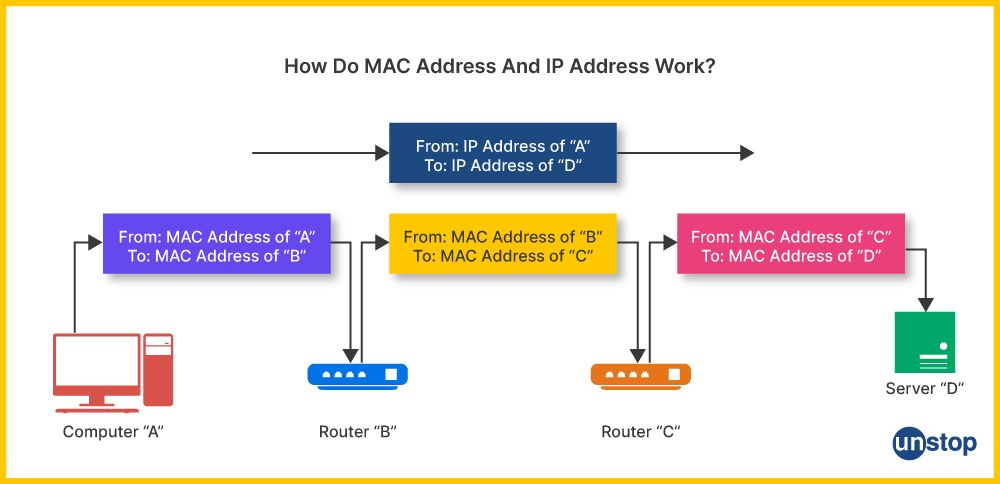
- On different networks (the internet): Your computer sends the data to the local network's gateway (your router), addressed to the final IP destination. The router then forwards it to the next router in the path. At every single hop between routers, the MAC address changes, but the final destination IP address stays the same.
This is the most important concept of the lesson. The following video segment and diagram illustrate it perfectly.
Continuing with the same video, let's see how ARP and routers use MAC addresses to get data to its final destination, whether it's local or across the internet.
Please watch from 03:32 to 06:57. This part demonstrates communication on a local network using ARP and then shows how MAC addresses are used hop-by-hop when you access a website like Google.
This diagram visualizes the process you just watched. Notice how the Destination IP remains constant, but the MAC address is updated at each hop.
3. DNS: The Internet's Phone Book
There's one final piece to our puzzle. We've established that computers need IP addresses to communicate. But you don't type 142.250.190.78 into your browser; you type google.com.
The Domain Name System (DNS) is the service that translates human-readable domain names into machine-readable IP addresses. It functions as a massive, distributed phone book for the internet. When you type a website name, your computer first queries a DNS server to get the corresponding IP address. Only then can it begin the communication process we just described.
This video provides a great analogy to explain the role of DNS.
Networking For Beginners (2026)- IP Mac Subnet Switch Router DHCP DNS Gateway Firewall NAT DMZ
This video from IT k Funde uses a simple school analogy to explain the role of DNS.
Watch from 12:04 to 13:34. Focus on how the 'registrar office' (DNS) helps find a person's 'role number' (IP address) when you only know their name.
DNS is a critical service. Without it, we'd have to memorize the IP address for every server we wanted to connect to, making the internet practically unusable for humans. From a cybersecurity perspective, DNS is also a common target for attacks that aim to redirect users to malicious websites.
4. Try It Yourself
Since you prefer a hands-on approach, let's put these concepts into practice with your own computer's command line.
1. Find Your Addresses
You can easily find the IP and MAC addresses for your own computer.
- On Windows, open Command Prompt and type
ipconfig /all. - On macOS or Linux, open the Terminal and type
ifconfigorip a.
Look through the output for your main network connection (it might be called "Ethernet adapter" or "Wi-Fi"). You will see:
- IPv4 Address: This is your computer's private IP address on your local network.
- Physical Address: This is your MAC address.
2. Use DNS with nslookup
The nslookup (name server lookup) command lets you query a DNS server directly.
- Open your Command Prompt or Terminal.
- Type
nslookup google.comand press Enter.
You'll see a response that shows the IP address(es) associated with google.com. You've just manually performed the first step your browser does automatically thousands of times a day! Feel free to try it with other domains you know, like steampowered.com or discord.com.
Key Takeaways
You've successfully decoded the internet's addressing system. Let's summarize the key roles:
- IP Address (Layer 3): A logical, changeable address that identifies a device's location on a network. It's used for routing data across the internet to the correct destination network.
- MAC Address (Layer 2): A physical, permanent address that identifies a specific network hardware device (who it is). It's used for delivering data to the correct device on a local network.
- DNS (Application Layer service): A system that acts as the internet's phone book, translating human-friendly domain names into computer-friendly IP addresses.
These three components, along with helper protocols like ARP and DHCP, work together seamlessly to make network communication possible.

Next Steps
Great work! You now understand how devices are addressed and located. In the next lesson, we'll build on this by looking at how data is actually sent between those addresses. We'll explore the difference between TCP and UDP, two transport protocols that offer a trade-off between reliability and speed. This is especially relevant to your interest in gaming, where the choice between these protocols has a major impact on performance.