Hello! Welcome to your next lesson in the "Performance Tuning and Optimization" module.
In our last session, you learned how to act as a detective, using tools like docker stats and a full Prometheus/Grafana stack to identify which containers were causing resource contention. Today, we shift from diagnosis to resolution. Knowing a container is a "noisy neighbor" is the first step; now you'll learn how to set the rules to make sure it behaves.
This lesson directly addresses the learning outcome: Resolve resource contention by applying and tuning container resource limits. We'll cover how to constrain the CPU and memory available to a container, a fundamental skill for ensuring stability and predictable performance in any containerized environment. We will explore how to apply these limits both imperatively with docker run and declaratively with Docker Compose.
Part 1: The 'Why' of Resource Limits
Before we jump into the commands, it's crucial to understand why setting limits is not just a good practice, but a necessity for stable systems.
When you run a container without limits, it can use as much CPU and memory as the host's kernel scheduler allows. If a single container has a memory leak or a CPU-intensive bug, it can consume all available resources, starving other containers and even critical host processes.
On Linux, this can trigger the Out of Memory (OOM) Killer, a kernel process that starts terminating processes—including, potentially, your Docker daemon or other essential services—to free up memory and save the system. As a DevOps engineer, preventing this scenario is a top priority.
By setting resource limits, you are essentially creating a sandbox for your container, guaranteeing that it cannot destabilize the entire host.
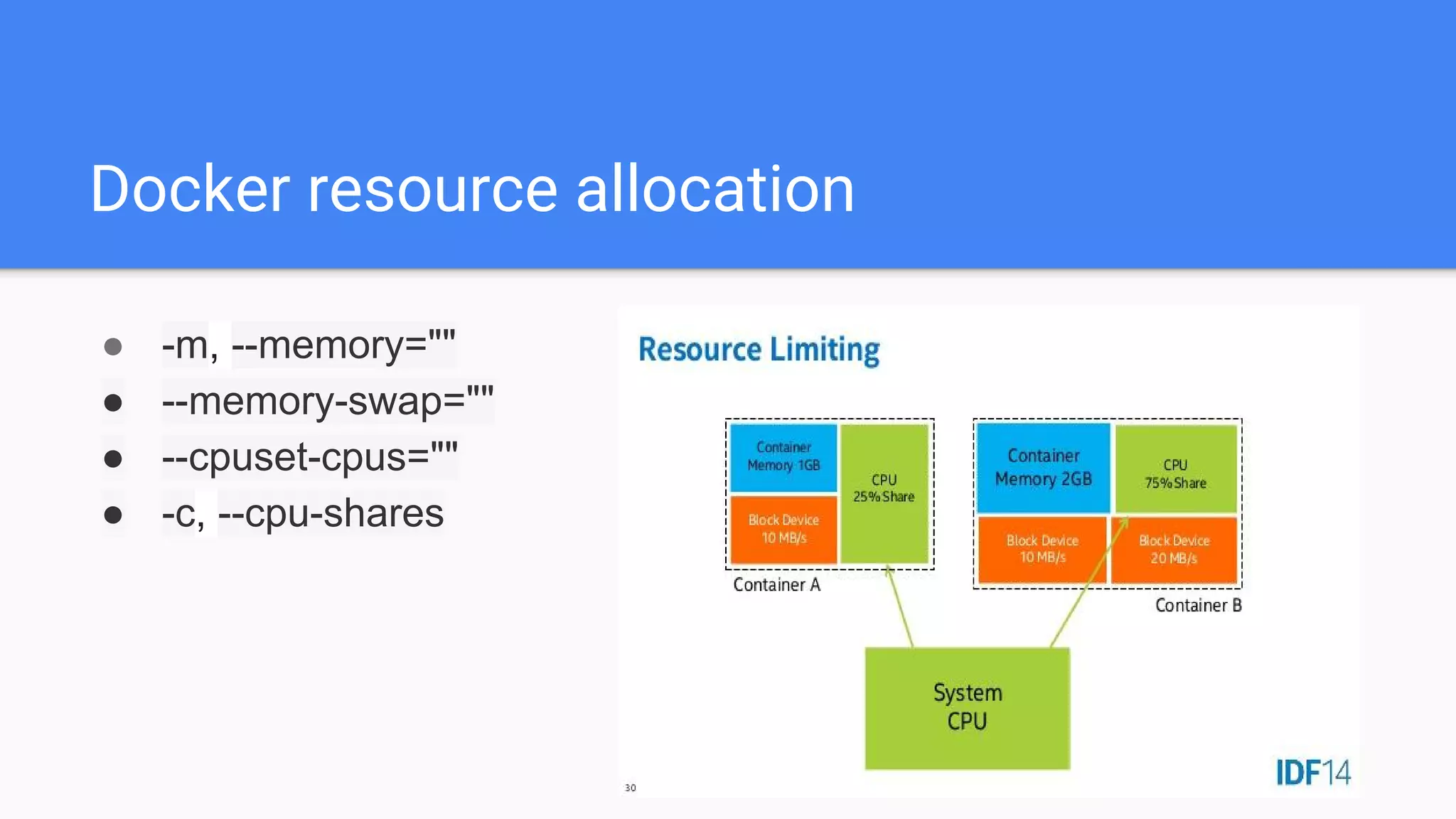
To get a formal understanding of the risks and the types of memory limits you can apply, please read the following section from the official Docker documentation.
This section of the Docker documentation, titled 'Resource constraints', explains the danger of out-of-memory events and introduces the concepts of hard and soft memory limits.
Please read from the beginning of the 'Memory' section up to, but not including, the '--memory-swap details' subsection. Focus on understanding the OOM risk and the difference between a hard limit (-m or --memory) and a soft limit (--memory-reservation).
Key Resource Constraints
As you've just read, Docker gives you granular control over two primary resources: Memory and CPU.
Memory Limits:
- Hard Limit (
-mor--memory): This is the absolute maximum amount of memory the container can use. If it tries to exceed this, it may be terminated (OOM-killed). Example:-m 512m. - Soft Limit (
--memory-reservation): This is a reservation that is only enforced when the host is low on memory. It guarantees the container at least this much memory but allows it to use more if available. This is useful for preventing a container from taking memory from others during times of contention. It must be lower than the hard limit. Example:--memory-reservation 256m.
CPU Limits:
There are two main ways to constrain CPU usage:
- CPU Shares (Relative Weight) (
--cpu-shares): This is a soft limit that defines a container's priority for CPU time relative to other containers. The default value is 1024. A container with--cpu-shares=2048will receive twice the CPU time as a container with the default setting, but only when CPU resources are constrained. If the host CPU is idle, all containers can use as much as they need. - CPU Quota (Hard Limit) (
--cpus): This is the modern and simplest way to set a hard limit. It specifies how many CPU cores a container can use. You can use fractions. For example,--cpus="1.5"limits the container to the equivalent of one and a half CPU cores.
Part 2: Applying Limits with docker run
Let's put this theory into practice. Imagine the api-service from our previous lesson's quiz was consuming too much CPU. We can launch it with specific constraints.
To learn about the specific flags for docker run, the following article provides a concise overview.
Setting Memory And CPU Limits In Docker
The article 'Setting Memory And CPU Limits In Docker' by Baeldung provides practical examples of the command-line flags used to set resource limits.
Please read the section '2. Setting Resources Limit With docker run'. This covers both memory and CPU flags with clear examples.
So, to launch our hypothetical api-service, limiting it to a maximum of 1 CPU core and 1GB of RAM, we would run:
docker run --name api-service --cpus="1.0" -m="1g" your-api-image:latest
If we wanted to add a soft memory limit of 750MB and give it a lower CPU priority, we could do:
docker run --name api-service --cpus="1.0" -m="1g" --memory-reservation="750m" --cpu-shares=512 your-api-image:latest
After launching the container, how do we verify the limits are applied? We use the tool from our last lesson: docker stats. The MEM USAGE / LIMIT column will now show the hard limit you've set.
$ docker stats api-service

CONTAINER ID   NAME          CPU %     MEM USAGE / LIMIT     MEM %
a1b2c3d4e5f6   api-service   50.12%    450.5MiB / 1GiB       44.00%
Test your understanding!
You are deploying a non-critical batch processing container. It should be strictly limited to 50% of one CPU core and a maximum of 2GB of RAM to ensure it doesn't impact your main applications. During periods of high CPU load on the host, this container should be given lower priority than others.
Write the docker run command to launch an image named batch-processor:v1.2 with these constraints.
Show answer
docker run --cpus="0.5" -m="2g" --cpu-shares=512 batch-processor:v1.2
--cpus="0.5"sets a hard limit of 50% of one CPU core.-m="2g"sets a hard memory limit of 2 gigabytes.--cpu-shares=512gives it a lower priority (half the default of 1024) for CPU time during periods of contention.
Part 3: Declarative Limits with Docker Compose
As a DevOps professional, you'll often define your applications declaratively using Docker Compose. This is where you codify resource limits to ensure your application stack behaves consistently across different environments.
There are two syntaxes for defining resource limits in a Compose file, depending on the file version and how you use it.
Setting Memory And CPU Limits In Docker
This section of the Baeldung article explains how to set limits within a docker-compose.yml file, covering both the modern and legacy syntax.
Please read the section '3. Setting Limits With the docker-compose File'. Pay close attention to the two different YAML structures: one using the deploy key and one with top-level keys like mem_limit.
Let's clarify the two syntaxes you just read about:
1. The Modern deploy.resources Syntax (Compose V3+)
This is the recommended approach for modern Docker. Although the deploy key was originally intended for Docker Swarm (docker stack deploy), the standard docker compose up command now also supports the resources subsection for setting limits on a single host.
This structure is cleaner and aligns with how resources are defined in orchestrators like Kubernetes.
version: '3.8'

services:
  api:
    image: my-api-image:latest
    ports:
      - "8080:80"
    deploy:
      resources:
        limits:
          cpus: '0.75'
          memory: 512M
        reservations:
          cpus: '0.25'
          memory: 256M

  database:
    image: postgres:14
    environment:
      - POSTGRES_PASSWORD=mysecretpassword
    deploy:
      resources:
        limits:
          cpus: '1.0'
          memory: 2G
        reservations:
          memory: 1G
2. The Legacy Syntax (Compose V2 format)
This older syntax places resource limits at the top level of a service definition. While still supported by docker compose for backward compatibility, it's less common in new projects. You will, however, encounter it in existing codebases.
version: '2.4' # Note the version

services:
  api:
    image: my-api-image:latest
    ports:
      - "8080:80"
    # Legacy syntax
    cpus: 0.75
    mem_limit: 512m
    mem_reservation: 256m
For new projects, you should prefer the deploy.resources syntax. It's the forward-looking standard.
Conclusion
You have now moved from being an observer of performance problems to an active enforcer of system stability. By mastering resource limits, you can ensure that your containerized applications coexist peacefully and predictably on a shared host.
Key Takeaways:
- Setting resource limits is essential to prevent "noisy neighbor" containers from destabilizing the host, primarily by avoiding OOM (Out of Memory) Killer events.
- You can set both hard limits (a ceiling the container cannot exceed) and soft limits or reservations (a guaranteed amount during contention).
- Memory is controlled with
-m(hard) and--memory-reservation(soft). - CPU is controlled with
--cpusfor a hard limit on cores and--cpu-sharesfor relative priority during contention. - These limits can be applied directly with
docker runfor quick tasks or, more robustly, declared within adocker-compose.ymlfile using thedeploy.resourceskey.
In our next lesson, we'll dive even deeper. Sometimes, simply limiting a container isn't enough; you need to understand why it's consuming so many resources in the first place. You will learn how to profile CPU and memory usage of a containerized application using standard Linux tools, giving you the insight needed to work with developers on optimizing the application code itself.